

What is New Lists?
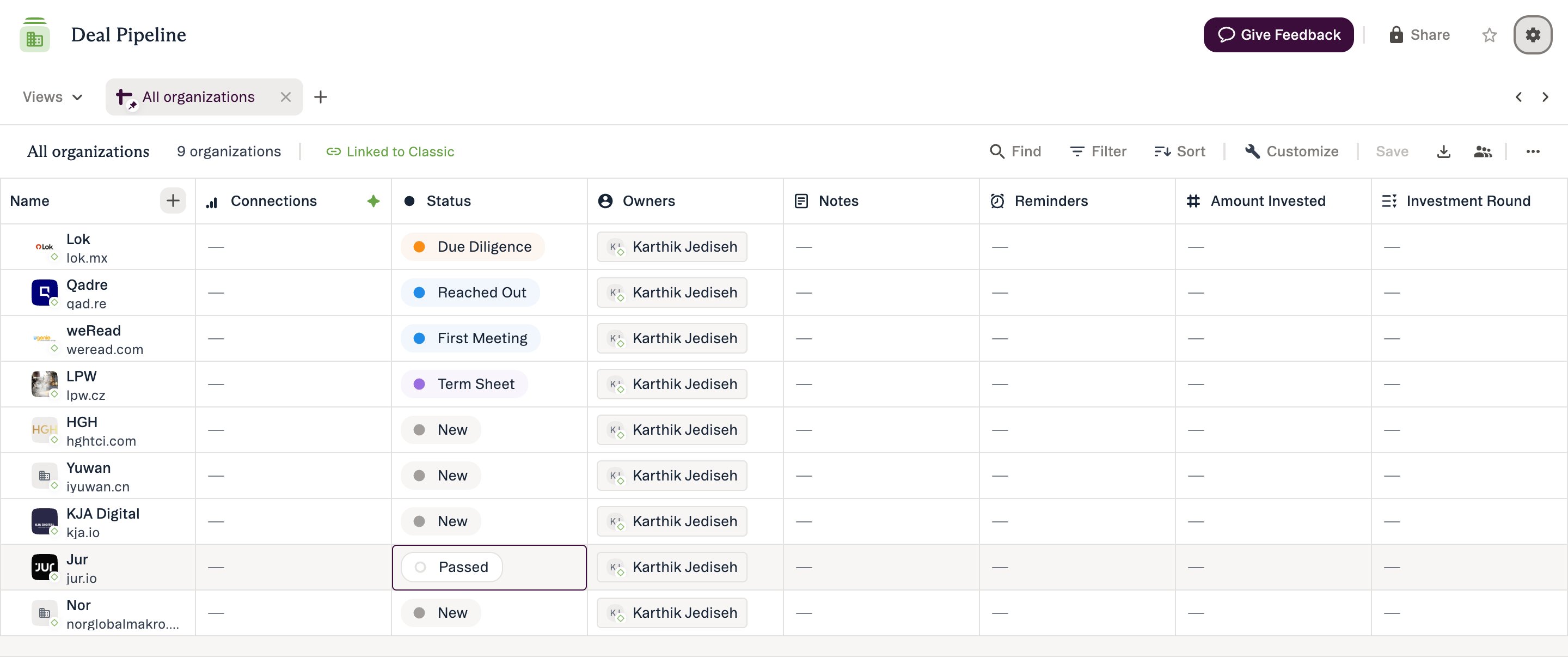
- More powerful filtering — combine conditions with AND/OR logic, use advanced operators, and build sophisticated queries
- Better performance — faster loading, smoother scrolling, and more responsive interactions
- Modern workflows — intuitive editing, improved search, and streamlined data management
- Foundation for the future — enables AI features, automation, and capabilities not possible in Classic Lists
What you can do in New Lists
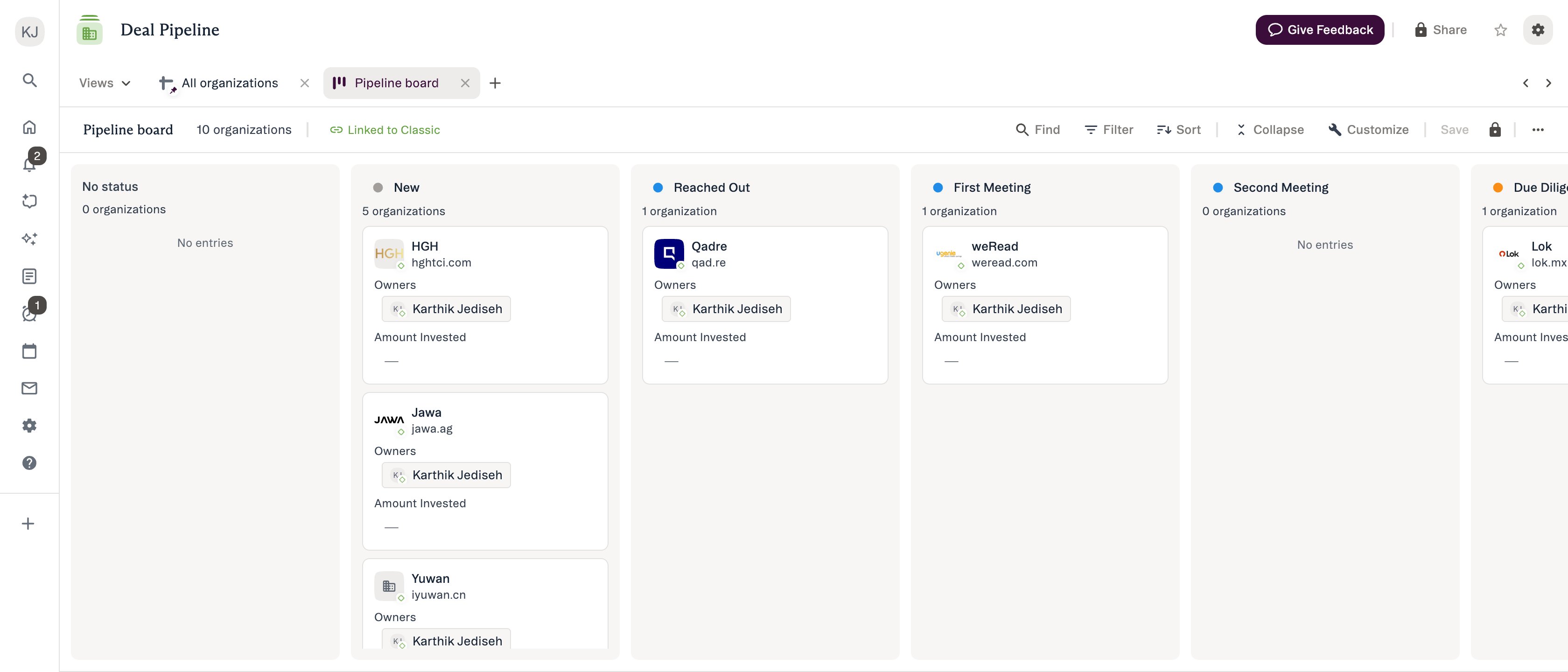
- Filtering — every field filterable, AND/OR boolean logic, advanced operators, and filter grouping. You can filter directly from a column header, including Status fields
- Sorting — up to 5 sort levels across more sortable fields
- Search — Find in View
- Editing — one-click cell editing, keyboard navigation, number/date shortcuts, and copy/paste
- Fields — create and edit fields, including dropdown, ranked dropdown, and status fields, with option management (add, rename, reorder, delete options from the column header) — and you can add a new option straight from a cell. You can also give a field a description (up to 255 characters) that teammates see when they hover over the column header and the Data Update agent reads when it suggests values — see Give Ascend agents your firm’s context.
- List management — rename, delete, duplicate, and favorite lists
- Saved views — save, duplicate, and manage views
- Records — add with enhanced search, duplicate detection, required fields, and trigger support; create a new company, person, or opportunity directly from a cell or board card; remove records from a list; select multiple rows to copy to another list or remove from the list in one step (bulk actions)
- Triggers — create, edit and remove Require Fields, Create Opportunity and Create Reminder triggers from List Options → List triggers on any list with a status field (since 22 September 2026). Existing triggers keep running, and both experiences share the same triggers, so nothing needs migrating. See the Add to list and triggers reference
- Comments — comment on a row from the list itself, and read your unread comments
- Export to CSV
- Board (Kanban) view — drag cards between columns, reorder card fields, and group by status or other dropdown fields
- Platform — Affinity Analytics and Directories support, enhanced field display, and enrichment display styles
The features in motion
Each clip is a real recording against a live list.Filtering from a column header
Clicking a column header opens its menu, and the filter item drops you straight into a rule for that field. The AND/OR toggle sits above the rules.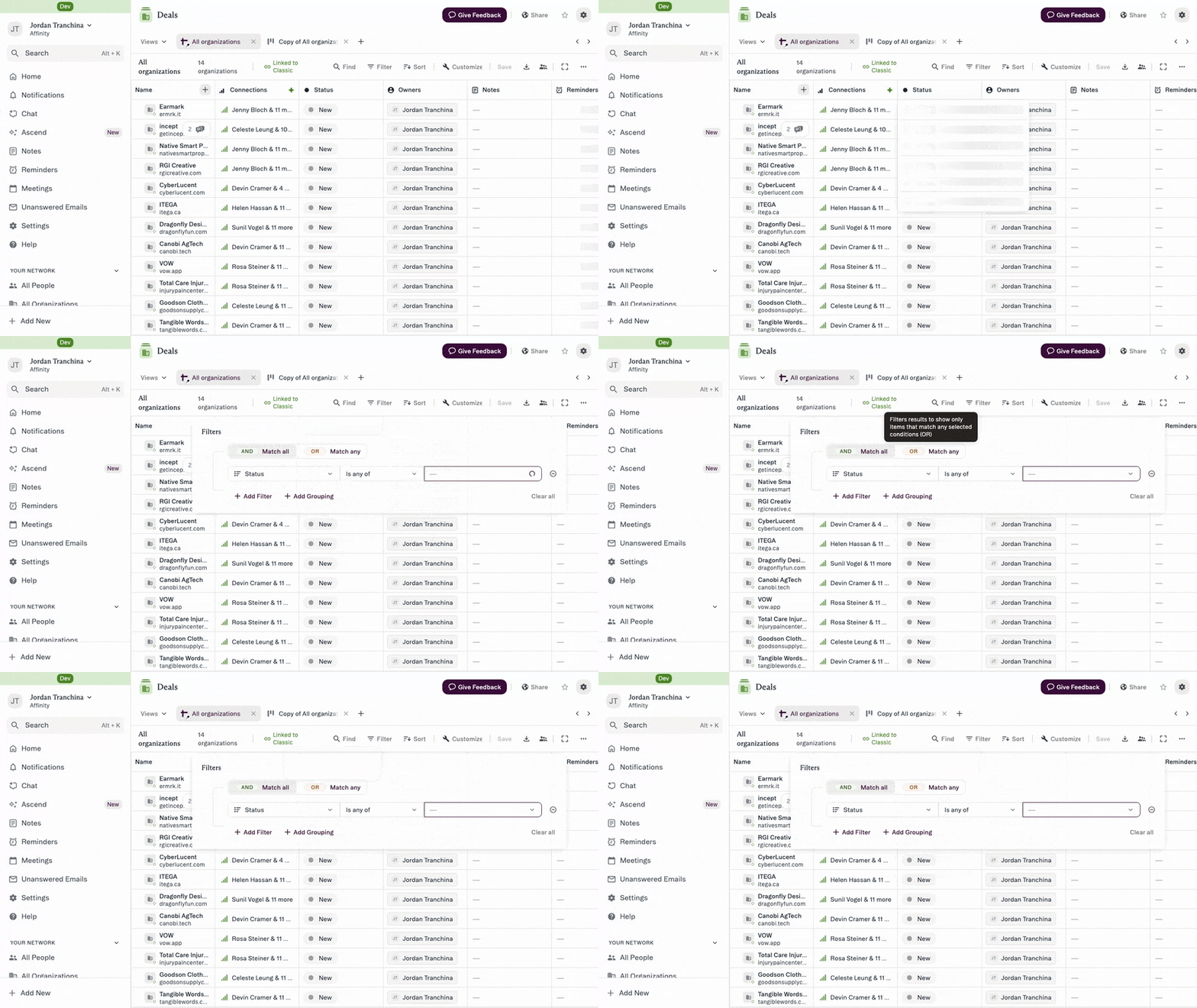
Creating a dropdown option from the cell
Type a value that doesn’t exist yet and create the option from the same box, without opening field settings.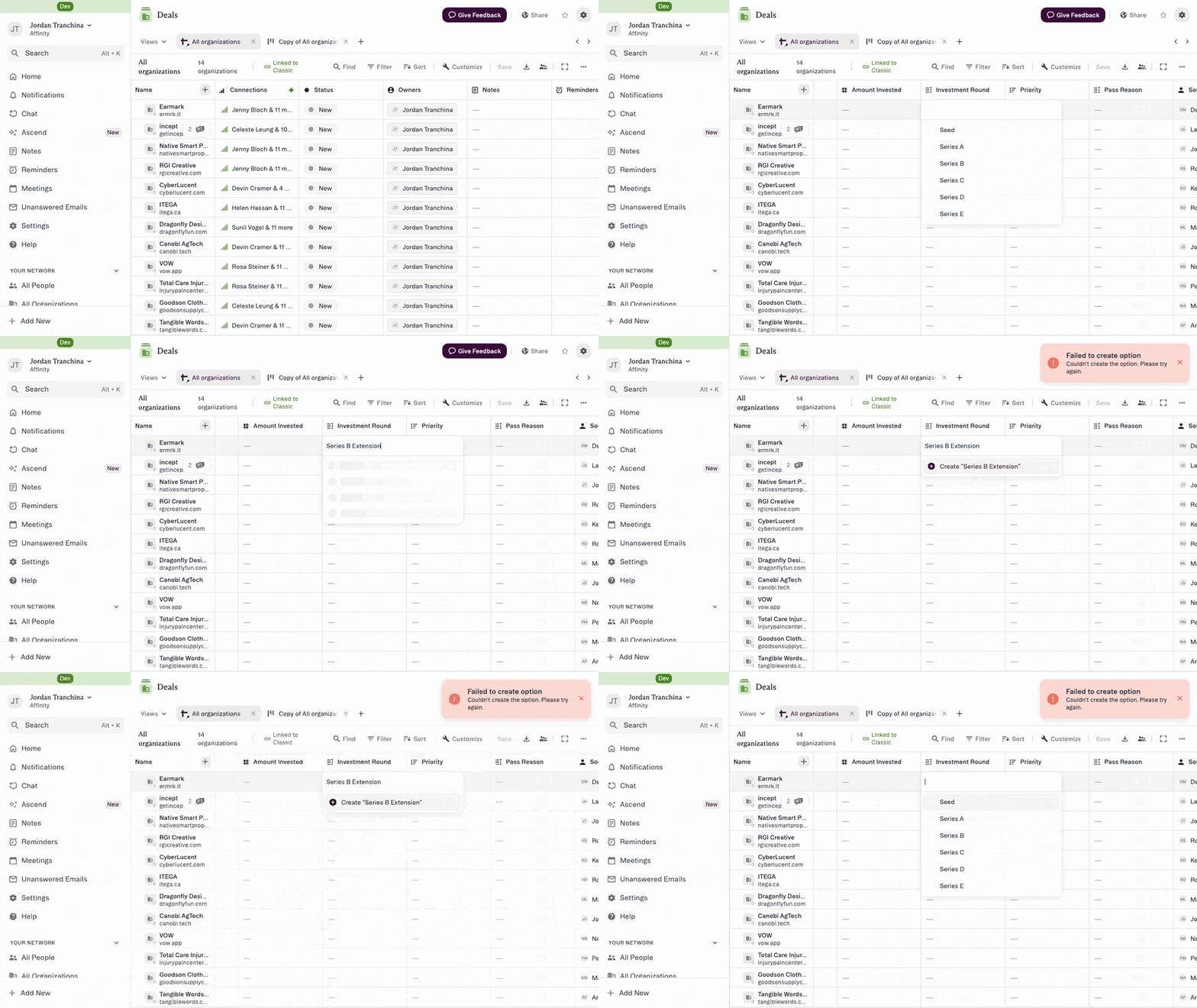
Commenting on a row
Comment from the list itself, without opening the record.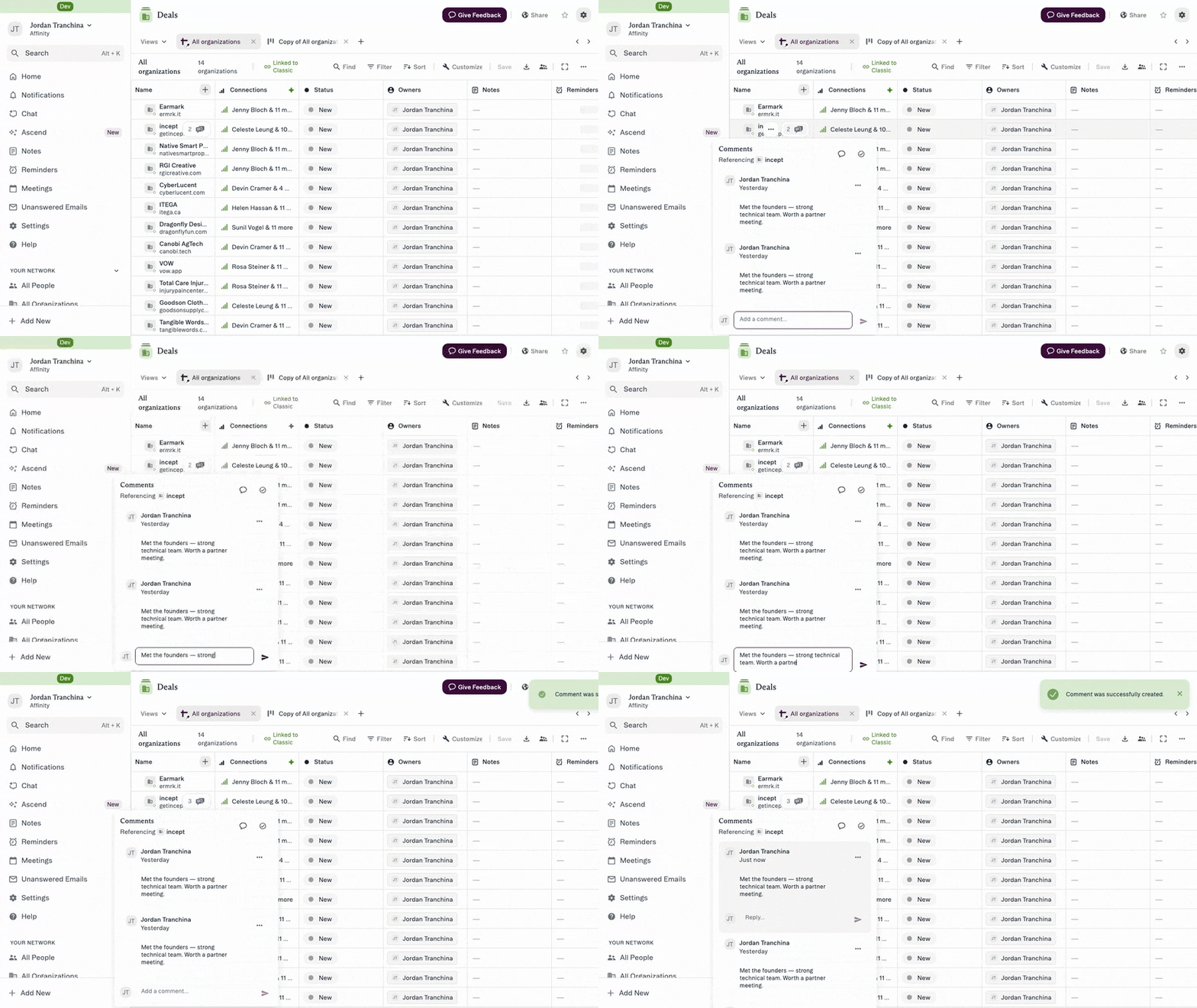
Editing a cell in one click
One click opens the editor. No double click, no side panel.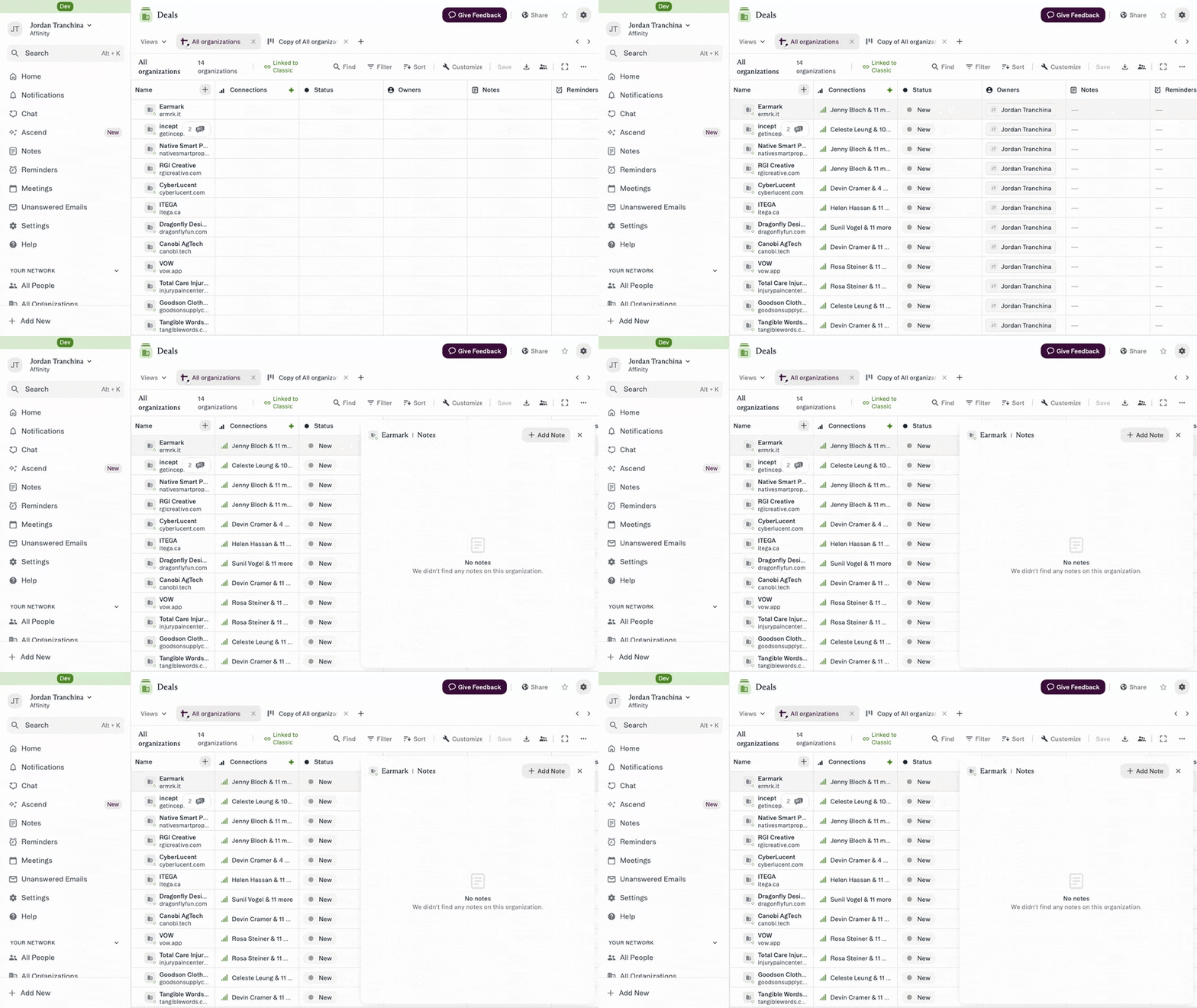
Creating a company from a cell
Add a row, type a name, and create the company from the same control.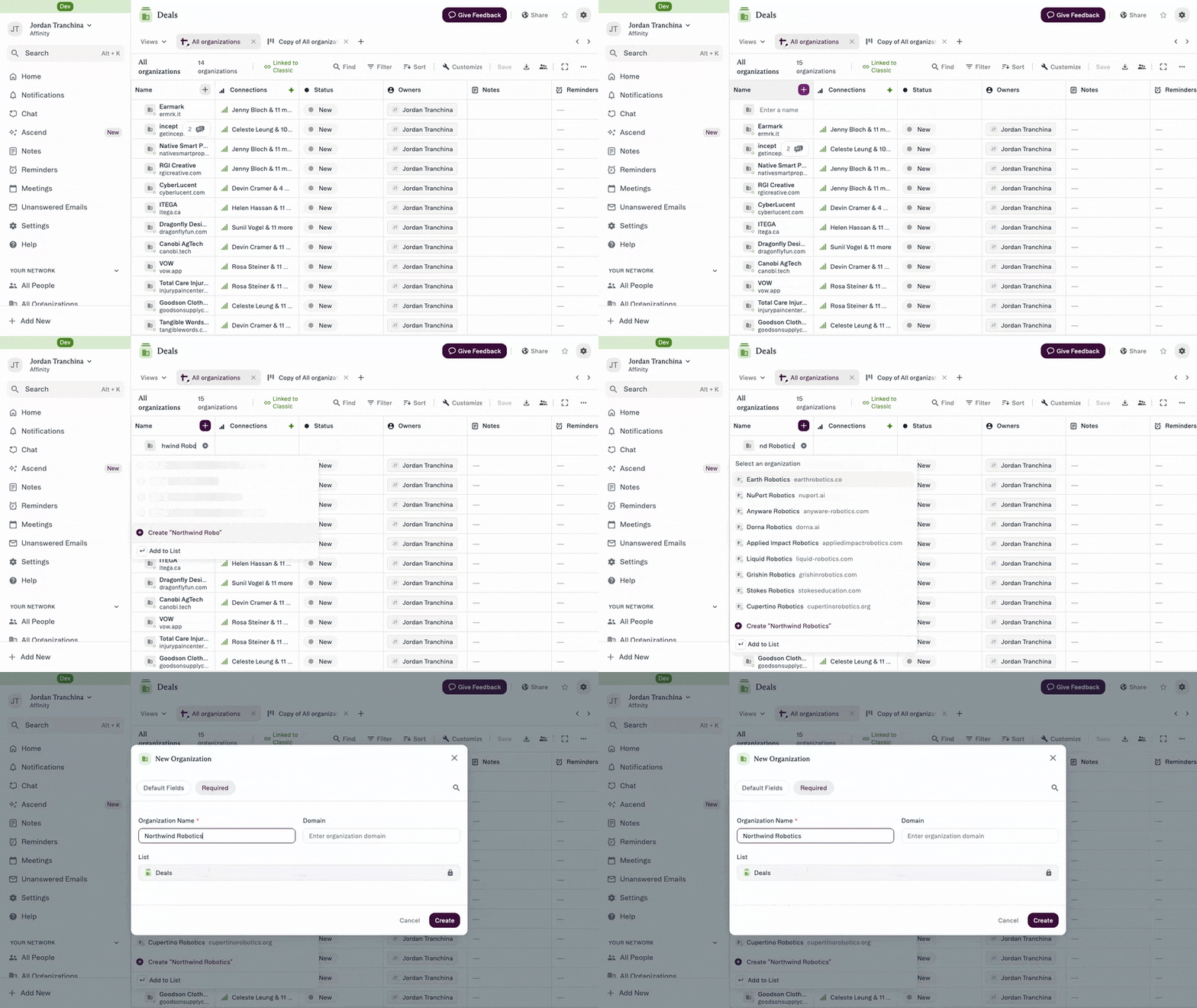
Stacking sorts
A second sort adds to the first rather than replacing it, up to five levels.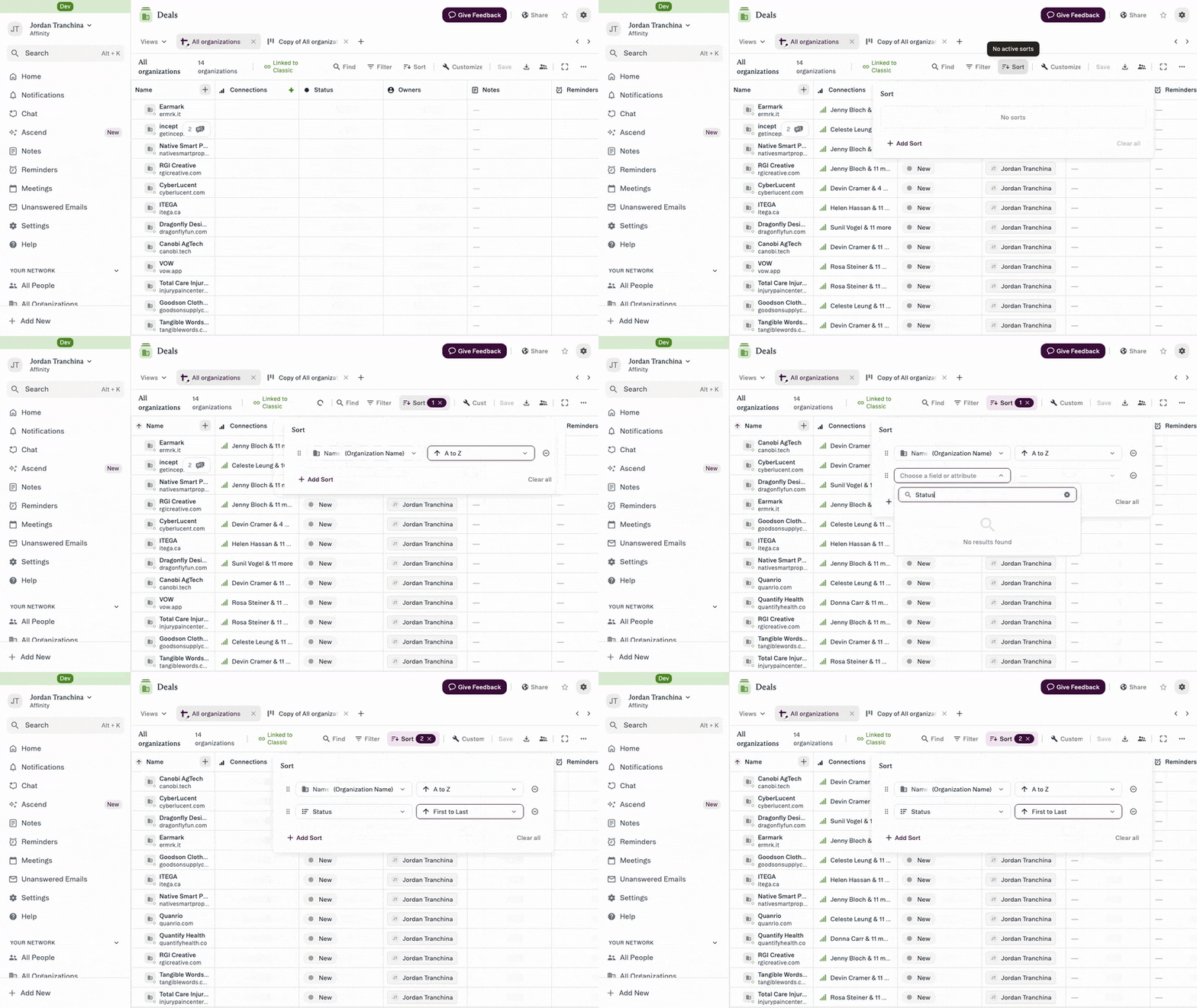
Exporting as CSV
Export the current view, filters and sorts included.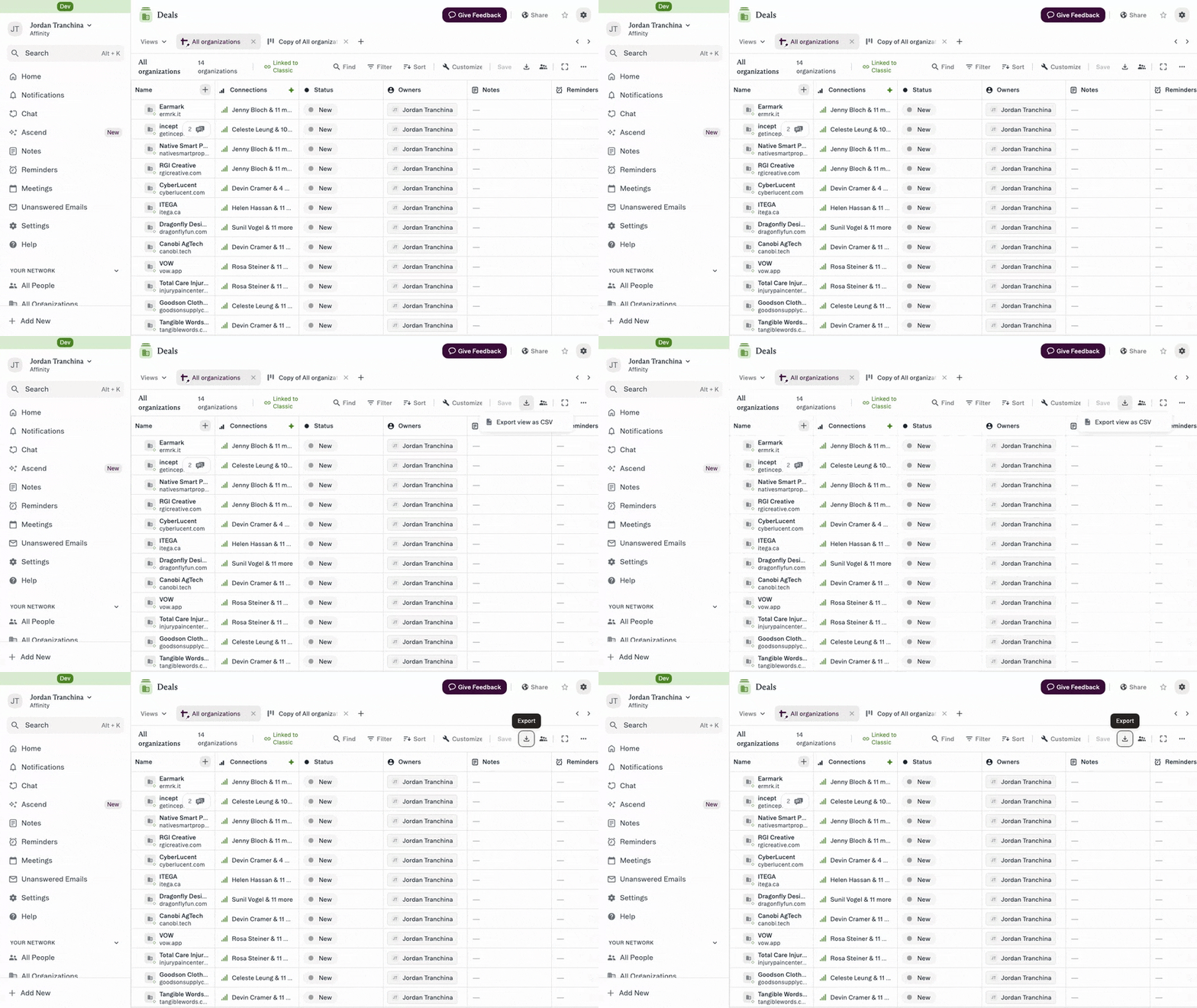
What’s not yet in New Lists — and what to do instead
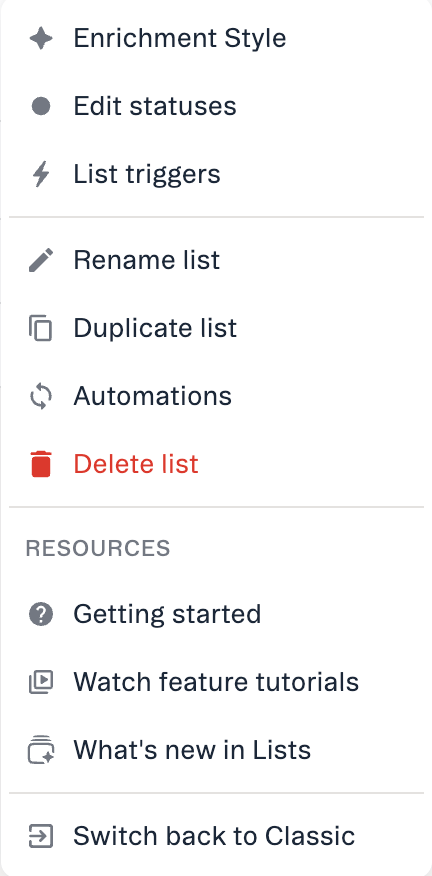
A limited set of lower-usage Classic features aren’t in New Lists yet. Each has a workaround, and we’re evaluating them for New Lists through 2026 based on your feedback.List options in New Lists
Feature tutorials
Modern look
Getting things done fast
More powerful filtering
Get started with New Lists
New to Lists in Affinity?
Start here:- Read: Saved Views in New Lists Reference — understand how to organize and save your data views.
- Read: How to filter and sort in New Lists — learn to find exactly what you need.
- Try: open your first list and create a saved view for your weekly pipeline review.
- How to add entries to New Lists — build your pipeline
- How to create and delete fields in New Lists — manage the fields available
- How to edit fields in New Lists — keep data current
Migrating from Classic Lists?
Start here:- Read: Saved Views in New Lists Reference — understand view variants (Linked/Unlinked from Classic).
- Try: open your existing saved views in New Lists — they’ll work automatically.
- Explore: How to filter and sort in New Lists — try Boolean logic and advanced operators.
- Reference: Filter / Sort / Operators Reference — see all the operators available.
Setting up for your team?
Start here:- Read: Add to List and Triggers Reference — understand automation capabilities and where to configure triggers.
- Configure: set up Required Fields for your process, and set up your triggers from List Options → List triggers.
- How to set up Status Triggers — require fields on status changes
- How to set up Opportunity Triggers — auto-create opportunities
Workflows with Lists in Affinity
The Foundations
The Foundations
- Saved Views in New Lists Reference — understand view variants and how New Lists works
- How to filter and sort in New Lists — complete guide to filtering and sorting
- Filter / Sort / Operators Reference
- How to edit fields in New Lists — update data with one-click editing
- How to create and delete fields in New Lists — manage available fields
- How to create and use saved views in New Lists — save your configurations
Pipeline Management & Deal Tracking
Pipeline Management & Deal Tracking
- How to filter and sort in New Lists — advanced filtering and multi-level sorting
- How to create and use saved views in New Lists — build views for every pipeline need
- How to edit fields in New Lists — keyboard-driven updates after meetings
Team Collaboration & Standardization
Team Collaboration & Standardization
- Add to List and Triggers Reference — complete automation documentation
- How to set up Status Triggers — require fields on status changes
- How to set up Opportunity Triggers — auto-create opportunities
- How to create and use saved views in New Lists — sharing and permissions
Data Quality & CRM Hygiene
Data Quality & CRM Hygiene
- How to filter by empty cells — find missing data
- How to edit fields in New Lists — fill gaps efficiently
- Saved Views in New Lists Reference — create audit views
Deal Processing & Automation
Deal Processing & Automation
- How to add entries to New Lists — adding with Required Fields
- Add to List and Triggers Reference — complete triggers documentation
- How to set up Opportunity Triggers — automation setup
- How to edit fields in New Lists — quick data updates
Sourcing & Targeting
Sourcing & Targeting
- How to filter and sort in New Lists — Boolean logic mastery
- How to create and use saved views in New Lists — save your targeting criteria
Complete feature reference library
References (comprehensive documentation):- Saved Views in New Lists Reference — view variants, permissions, use cases
- Add to List and Triggers Reference — automation, Required Fields, triggers
- Copy / Paste in New Lists Reference — spreadsheet functionality in lists
- Field Creation and Deletion in New Lists Reference
- Filter / Sort / Operators Reference
- Enrichment display styles in New Lists Reference
- How to add entries to New Lists
- How to edit fields in New Lists
- How to create and use saved views in New Lists
- How to create and delete fields in New Lists
- How to filter and sort in New Lists
- How to set up Status Triggers
- How to set up Opportunity Triggers
- How to filter by empty cells
Frequently asked questions
Can I use both New Lists and Classic Lists?
Can I use both New Lists and Classic Lists?
How do I switch back to Classic Lists if I need to?
How do I switch back to Classic Lists if I need to?
Will my existing saved views work in New Lists?
Will my existing saved views work in New Lists?
Can I create or edit triggers in New Lists?
Can I create or edit triggers in New Lists?
Where did Quick Status field filtering go?
Where did Quick Status field filtering go?
Can I create a new company, person, or opportunity without leaving the list?
Can I create a new company, person, or opportunity without leaving the list?
Is the board (Kanban) view available in New Lists?
Is the board (Kanban) view available in New Lists?
How do I export my list data?
How do I export my list data?
How do I send bulk emails in New Lists?
How do I send bulk emails in New Lists?
Can I bulk copy or remove records in New Lists?
Can I bulk copy or remove records in New Lists?
Can I sum all values in a column in New Lists?
Can I sum all values in a column in New Lists?
Are Opportunities lists available in New Lists?
Are Opportunities lists available in New Lists?
Will data edits made in New Lists appear in Classic, and vice versa?
Will data edits made in New Lists appear in Classic, and vice versa?
How do I rename a list?
How do I rename a list?
How do I delete a list?
How do I delete a list?
How do I duplicate a list?
How do I duplicate a list?
How do I favorite or unfavorite a list?
How do I favorite or unfavorite a list?
How do I manage dropdown or status options after creating a field?
How do I manage dropdown or status options after creating a field?
How do I remove a record from a list?
How do I remove a record from a list?
When will Classic Lists be retired?
When will Classic Lists be retired?
What should I do if I run into a problem?
What should I do if I run into a problem?