

Reference — lookup information.
Overview
Copy and paste in New Lists provides a spreadsheet-like experience for efficiently replicating and moving data across cells, rows, and lists. Use keyboard shortcuts to copy values and paste them into compatible fields without manual re-entry. What it does: Enables fast data replication, bulk updates, and cross-list data transfer using familiar Cmd+C/Cmd+V (Mac) or Ctrl+C/Ctrl+V (Windows) shortcuts. Who it’s for: All New Lists users, especially valuable for data entry, pipeline management, and bulk updates. Where to use: Any editable field in New Lists (sheet view)How Copy and Paste Works
Basic Copy and Paste
Keyboard shortcuts:- Cmd+C (Mac) / Ctrl+C (Windows) — Copy
- Cmd+V (Mac) / Ctrl+V (Windows) — Paste
- Backspace or Delete — Clear focused cell
Steps
- Focus on a cell (click it or navigate with keyboard)
- Copy: Press Cmd+C or Ctrl+C
- Dotted outline appears around copied cell(s)
- Navigate to target (click or use Tab/Enter/Arrow keys)
- Paste: Press Cmd+V or Ctrl+V
- Value appears immediately Important: Copy from the focused cell, NOT from within the cell editor. Click the cell to focus it, then copy.
Bulk Copy and Paste (Up to 100 Cells)
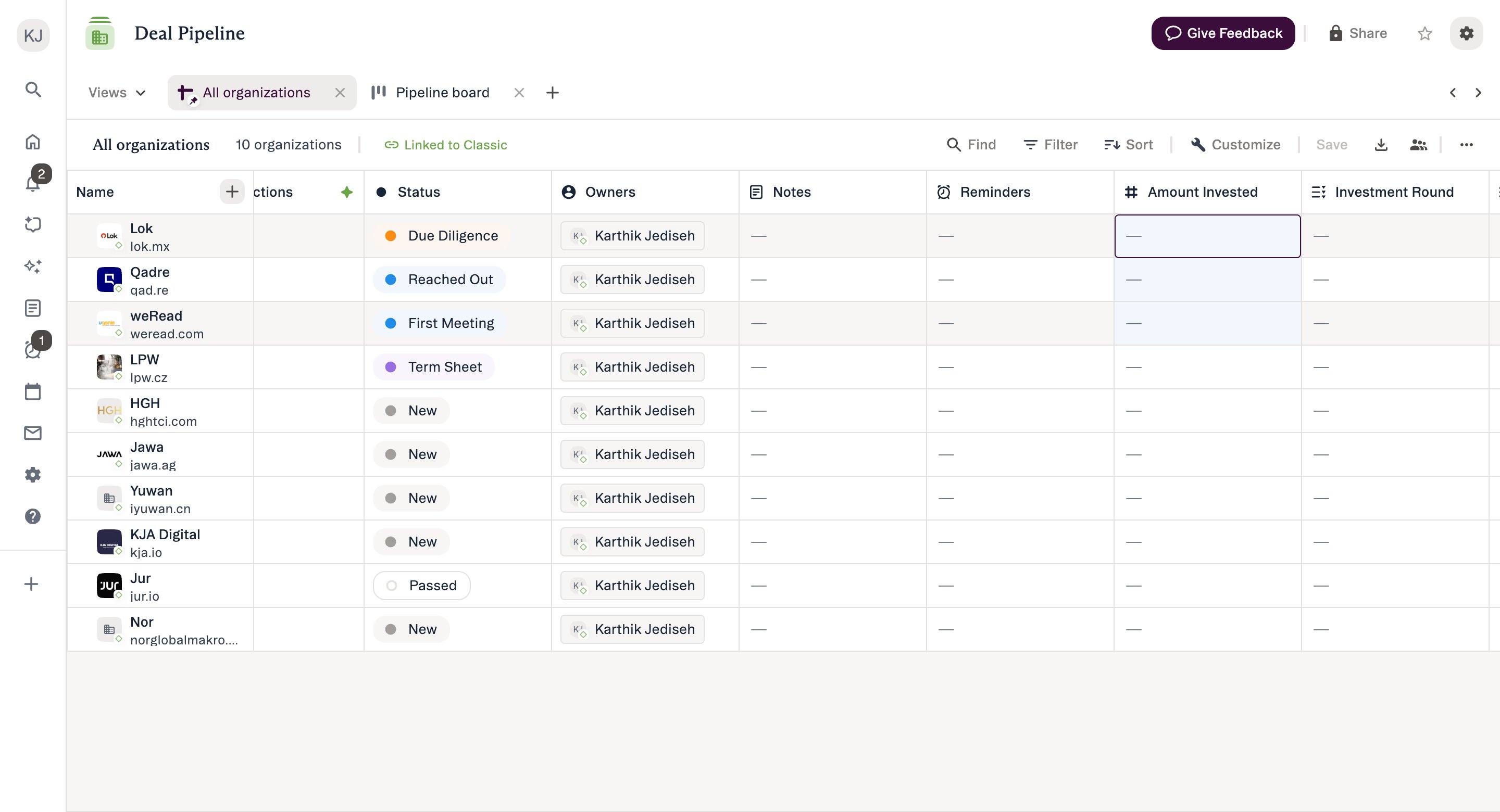
- Shift+Click: Click first cell, hold Shift, click last cell
- Click+Drag: Click and drag across cells
- Blue background on selected cells
- Focus remains on first cell
- Dotted outline appears after copying
- Copy 3 cells → Paste into 3 cells = (A, B, C)
- Copy 2 cells → Paste into 6 cells = (A, B, A, B, A, B) — pattern repeats
- Copy 2 cells → Paste into 4 cells = (A, B, A, B) — fills available cells Limit: 100 cells maximum
Visual Indicators
Dotted outline (shows what’s copied):- Appears immediately after Cmd+C or Ctrl+C
- Persists until you paste, cell data changes, columns reorder, or filters/sorts applied
- Use to verify what’s in your clipboard
- Appears during Shift+Click or Click+Drag
- Shows selected range for bulk operations
- Focus stays on first cell
- Yellow highlight (Minimal style) or black text (Classic style)
- Indicates you’ve overridden enriched data via paste
What You Can Copy and Paste
Single Cell Operations
Works for all these:- Copy/paste within same list
- Copy/paste across different lists
- Copy/paste across browser tabs
- Copy from enriched fields (paste creates override in target)
- Copy from empty cells (paste clears target)
- Copy/paste long text (1000+ characters)
- Preserves text formatting and special characters
Bulk Operations (Up to 100 Cells)
Works for:- Select up to 100 contiguous cells in same column
- Copy and paste entire range
- Paste creates repeating pattern if target larger than source
- Shift+Click or Click+Drag selection
- Cannot select 101+ cells (blocked)
- Horizontal selection not supported (same column only)
- Non-contiguous selection not supported (must be continuous)
Multi-Value Fields
Works for:- People fields, Company fields, Multi-select dropdowns
- Up to 100 values per field
- All values preserved in order
- Fields with 100+ values cannot be copied (error appears)
Cell Clearing
Works for:- Press Backspace or Delete on focused cell
- Cells with ≤10 values: Clear immediately
- Cells with 10+ values: Confirmation modal appears first
Supported Field Types
- Text: Single-line text, Multi-line text, URLs, Email addresses, Phone numbers
- Selection: Single-select dropdowns, Multi-select dropdowns (up to 100), Ranked dropdowns, Status fields
- Relational: People fields (up to 100), Company/Organization fields (up to 100)
- Numbers & Dates: Date fields, Number fields, Currency fields
- Other: Checkbox fields, Location fields
Unsupported Field Types
Cannot copy/paste:- Activity fields (Last Contact, First Email, etc.)
- Connection fields
- Formula fields (calculated values)
- Read-only Affinity Data Growth fields
- LinkedIn Profile fields
- Cannot copy from within cell editor (only from focused cell)
- Cannot paste into Profiles or Notes
- Cannot copy/paste between different dropdown fields
- Cannot copy from external apps (Excel, Google Sheets, etc.)
Important Behaviors
Triggers and Automations
Single cell paste:- All triggers fire: Status Triggers, Opportunity Triggers, Reminder Triggers
- All field automations run
- Close date automation fires (Opportunities)
- Real-time updates work
- Field automations fire per cell
- Reminder Triggers fire per cell
- Status Triggers do NOT fire
- Opportunity Triggers do NOT fire
Paste Validation
When paste fails (target cell unchanged): Incompatible field types:- Pasting text into number, multi-select into single-select, etc.
- Error toast appears Read-only fields:
- Cannot paste into locked fields (lock icon) or formula fields
- Error message appears Required fields:
- Pasting empty value → Required Field modal appears (same as manual edit)
- Bulk paste of empty values into required fields → Not supported
- Pasting into or clearing cells with 10+ values → Confirmation modal appears
- Prevents accidental data loss
Enriched Field Behavior
Copying from enriched:- Works normally
- Source stays enriched, continues auto-updating
- Source unaffected by paste operation Pasting into enriched:
- Pasted value becomes override
- Target shows override styling (yellow or black depending on style setting)
- Target stops auto-updating from enrichment
- To restore: Clear the cell, wait 24 hours for re-enrichment
Best Practices
Planning Your Workflow
Before copying:- Verify field types match (text to text, number to number)
- Decide: single paste (triggers fire) or bulk paste (faster)
- Shift+Click: Best for 20+ cells
- Click+Drag: Best for 3-10 cells
- Work column-by-column (no horizontal selection)
- Scan for expected values
- Check for error toasts (failed pastes)
- Verify triggers fired if expected
- Look for override indicators if pasted into enriched fields
Keyboard Navigation Tips
Stay in keyboard mode:- Copy (Cmd+C) → Tab → Paste (Cmd+V) → Tab → Repeat
- Copy (Cmd+C) → Enter (down) → Paste (Cmd+V) → Enter → Repeat
- Tab = right, Shift+Tab = left, Enter = down, Shift+Enter = up
Common mistake
- Clicking INTO cell to edit → Cmd+C copies text cursor
- Click cell to FOCUS it → Cmd+C copies cell value
Single vs Bulk Paste Decision
Use single cell paste when:- Need Status/Opportunity Triggers to fire
- Want Required Fields modal validation
- Pasting into <10 cells (bulk not worth it)
- Pasting into 10+ cells
- Speed matters more than triggers
- Filling standard fields (Owner, Source, Stage)
Common Use Cases
Use Case 1: Standardize Values Across New Entries
Scenario: Added 10 new companies, all from same conference source. Workflow:- Fill Lead Source for first company: “Conference - TechCrunch Disrupt”
- Focus cell, copy (Cmd+C)
- Select 9 other rows (Shift+Click on last)
- Paste (Cmd+V)
- All 10 now have same Lead Source Time saved: 30 seconds vs typing 9 times
Use Case 2: Bulk Owner Assignment
Scenario: 25 new inbound leads to distribute across team. Workflow:- Assign first lead to Sarah
- Copy Sarah’s owner cell
- Select next 4 cells (Shift+Click)
- Paste - fills 5 cells
- Repeat for each team member
- Done in <2 minutes Time saved: 5 minutes vs 25 dropdown selections
Use Case 3: Cross-List Data Transfer
Scenario: Moving closed deal amounts from pipeline to portfolio tracking. Workflow:- In Pipeline list, copy Investment Amount
- Navigate to Portfolio list (Cmd+K, search)
- Find same company, paste into Investment Size field
- Use Tab to move to next field
- Repeat for other financial fields Time saved: 2-3 minutes per deal vs manual re-entry
Use Case 4: Status Updates With or Without Triggers
Scenario: 8 deals advanced to “Partner Approved” after meeting. Option A - Single paste (triggers fire):- Update first deal to “Partner Approved”
- Copy Status cell
- Paste into each of 7 remaining deals individually
- Status Trigger fires for each (Required Fields modal if configured)
- Update first deal
- Copy Status cell
- Select all 7 remaining cells
- Paste once - all update instantly
- No Status Trigger (faster if you don’t need validation) Choose based on: Whether you need triggers to fire