

How-to — task-oriented recipe.
Overview
Edit record data directly within New Lists using fast, one-click cell editing. This spreadsheet-like experience lets you maintain accurate CRM data without navigating away from your list view, making pipeline updates, data enrichment, and quick corrections seamless and efficient.Prerequisites
Permissions Required:- All users except Collaborators can edit fields
- List-specific fields are only editable by users with access to that specific list
- No changes to editing permissions from Classic Lists
What you are unable to edit
- Formula fields (edit the formula itself or source fields instead)
- Communication fields (Last Contact, Last Email, etc.)
- System fields (Date Added, Time in Status, Connections)
- Notes and Reminders (use dedicated panels)
- Lists field (not editable inline yet)
Steps
Step 1: Navigate to the Cell You Want to Edit
Option A: Using Mouse- Click once directly on the cell you want to edit
- The cell transforms into an editor appropriate for the field type
- Use arrow keys to navigate to the desired cell (a dark outline indicates focus)
- Press Enter to open the editor
- OR simply start typing to begin editing immediately
Step 2: Make Your Changes
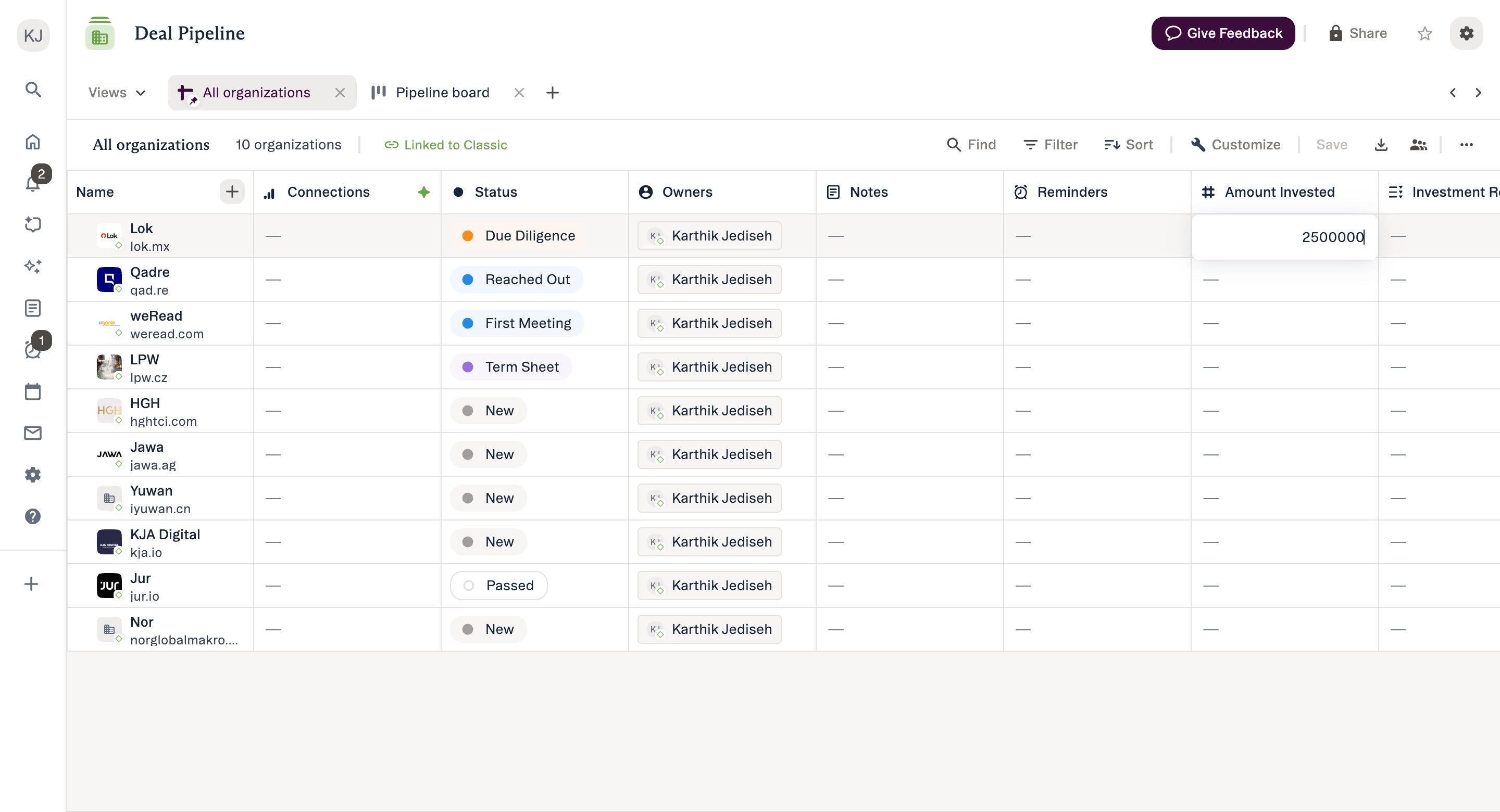
- Type or paste your text
- Press Tab to move to the next cell
- Enter numbers using these shortcuts:
- k = thousands (e.g., “500k” = 500,000)
- m = millions (e.g., “2.5m” = 2,500,000)
- b = billions (e.g., “1b” = 1,000,000,000)
- Scientific notation (e) accepted
- US locale formatting only (comma not accepted as decimal)
- Type dates in US format: MM/DD/YYYY
- Also accepted: YYYY/MM/DD, Month Day Year, Month Year, or Year only
- Shortcuts: “Today”, “Yesterday”, “Tomorrow”
- Days of the week: Interpreted as the next occurrence of that day
- Important: If you type “Wednesday” and today is Wednesday, it will default to the following Wednesday
- Delimiters: forward slashes, dashes, periods, or spaces (must be consistent)
- Leading zeroes optional
- Abbreviated years only accepted with month and day (e.g., “4/1/23”)
- Date defaults:
- Month only or Month+Year → defaults to 1st day of month
- Year only → defaults to January 1st of that year
- Click to open dropdown menu
- Select one or multiple values (depending on field configuration)
- Type to search within dropdown options
- Type to search using Google Maps API
- Search by city, region, or country
- Select from suggested results
- Type to search within Affinity database
- Select from results (search currently uses legacy ranking)
- Can select multiple if field allows multi-values
Step 3: Save or Cancel Your Changes
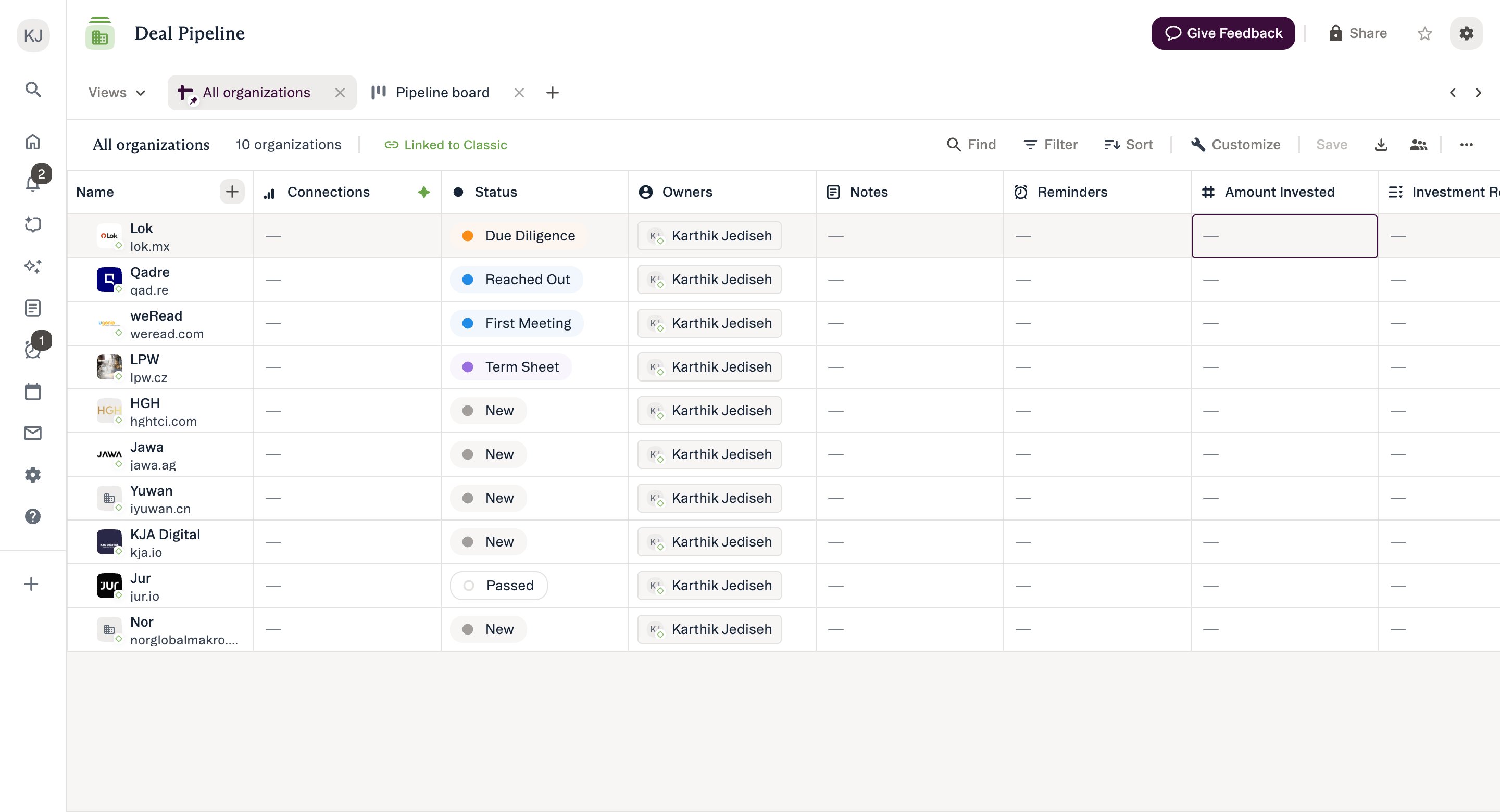
- Click outside the cell
- Press Tab to save and move right
- Press Enter to save and close editor To Cancel:
- Press ESC to discard changes and revert to previous value
Step 4: Navigate to Next Edit (Optional)
Keyboard Shortcuts for Efficiency:- When cell is in focus but editor closed: Type any character to immediately start editing
- Arrow keys: Move between cells (up, down, left, right)
- Tab: Move right to next cell
- **Tab + Shift: **Move left to the next cell
- Enter: Open editor; or close editor and move down to the next cell
- **Enter + Shift: **Move up to the next cell
- ESC: Cancel edit and return to previous value
- CMD/CTRL + ; adds
{today’s date}in date fields
Tips & Best Practices
Editing Efficiency:- Tab through cells to update multiple entries quickly without clicking
- Start typing when cell is focused (no need to click first)
- Use keyboard shortcuts for number fields (k, m, b) to save time
- Press Enter to move down after editing for pipeline updates
- Use dropdowns over free text when possible for consistency
- Validate before saving - there’s no undo functionality
- Fill required fields promptly when Status Triggers activate
- Check enriched field indicators to avoid overwriting automated data
- Bulk editing not yet available in New Lists
- Lists field editing not yet available in New Lists
- Numbers: Only US locale format; alphabet characters not recognized (except k,m,b,t,e)
- Dates: Only US locale format (MM/DD/YYYY primary)
- Leading zeroes optional for dates
- Cell updates immediately upon saving
- Changes sync across all views of the same list
- If editing a Status field, any configured Status Triggers may activate
- Updated data reflects in related charts, dashboards, and reports
- No page refresh or navigation required
When to Use This
Field editing is most valuable for maintaining accurate, up-to-date CRM data efficiently. Below are the most common use cases. Quick Data Updates Make fast corrections or updates to record data without leaving the list view. Examples:- “I just got off a call and need to update the deal size from 150K.”
- → Click the Amount cell and edit inline
- “The company just moved headquarters - I need to update their location.”
- → Click the Location cell and select new location
- “I need to change the status of a particular deal to ‘Meeting Scheduled’.”
- → Click the Status cell and update Pipeline Management Keep deal pipeline current by updating stages, owners, and key fields.
- “This deal just progressed to ‘Proposal Sent’ stage.”
- → Update Status field (may trigger required fields)
- “I’m taking over this deal from Jane - need to change the owner.”
- → Update Owners field
- “Close date moved from Q1 to Q2.”
- → Update Close Date field Data Enrichment Add missing information to records as you discover it.
- “I just learned who the key stakeholders are, and 2 of them are consultants.”
- → Add contacts via Person field editor
- “I have a more precise description of what this company does after hearing the founders present.”
- → Update Description field