Advanced — power-user technique.
- Example: Many investment firms form Alliance Groups with their portfolio founders and executives so that they can all gain shared access to one another’s networks.
How do I create an Alliance Group?
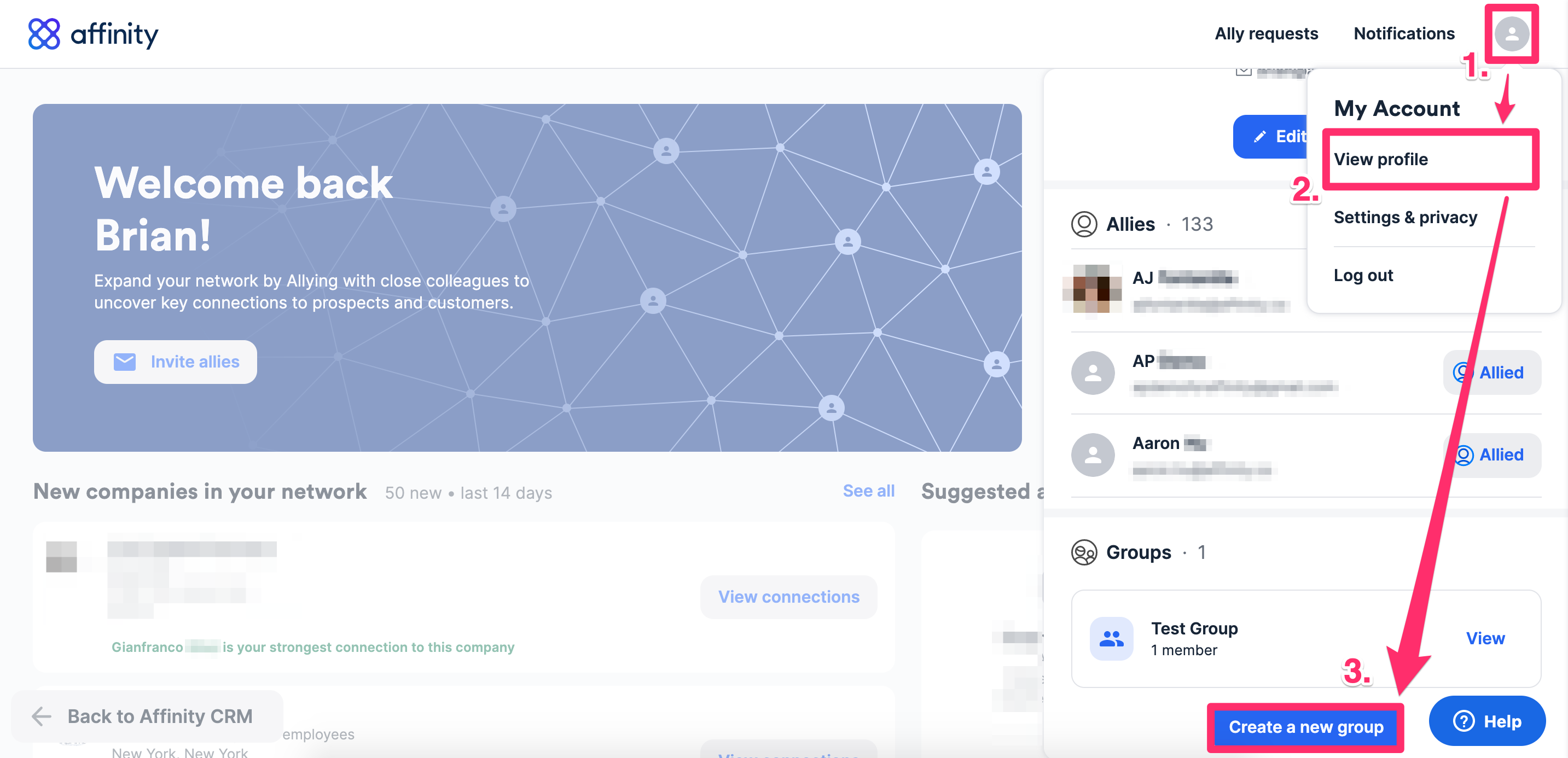
- Click your Profile icon on the top-right corner.
- Click View profile.
- Scroll down, then click Create a new group.
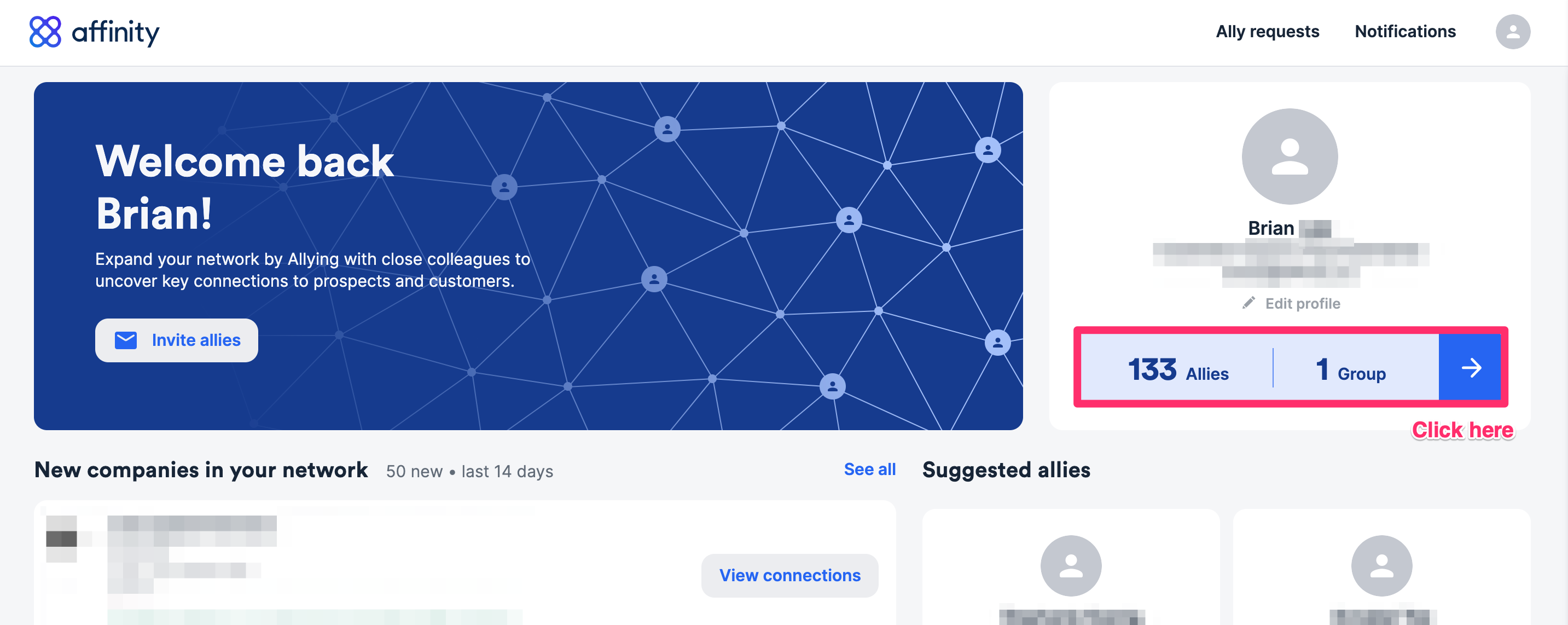
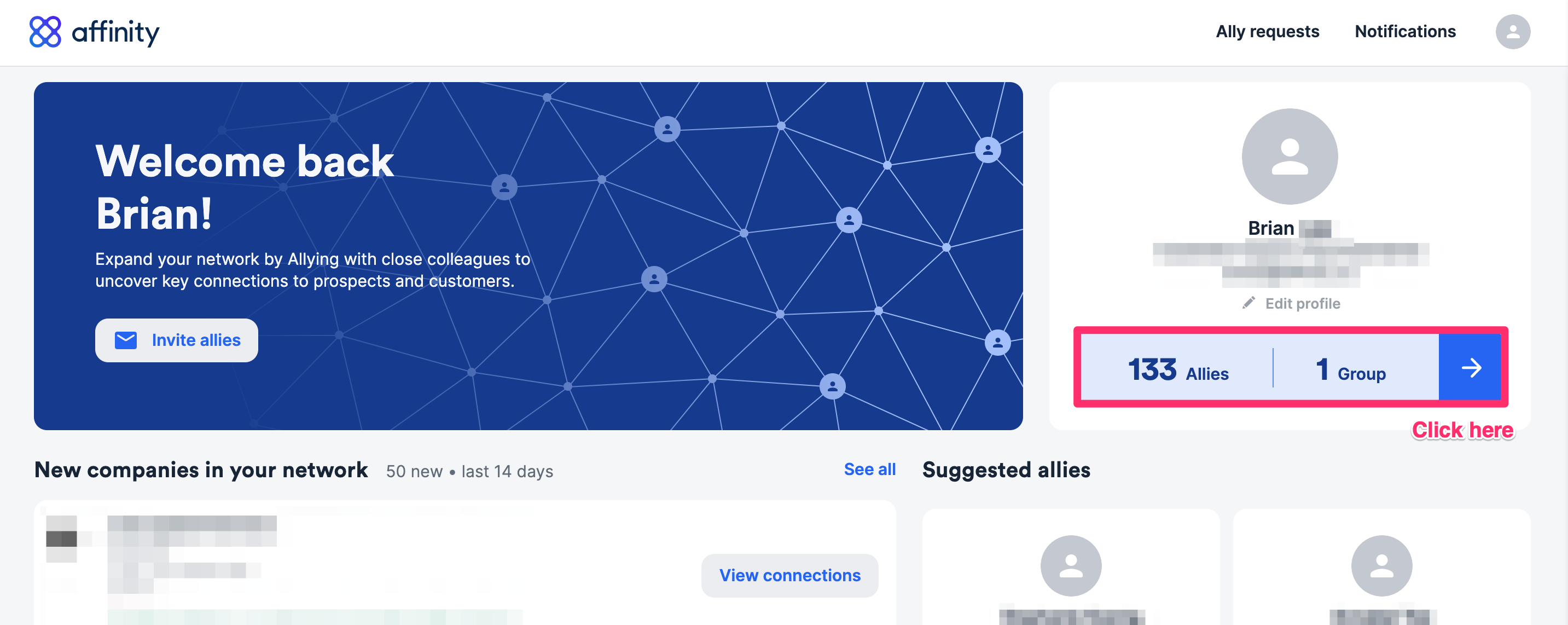
- Click the blue arrow.
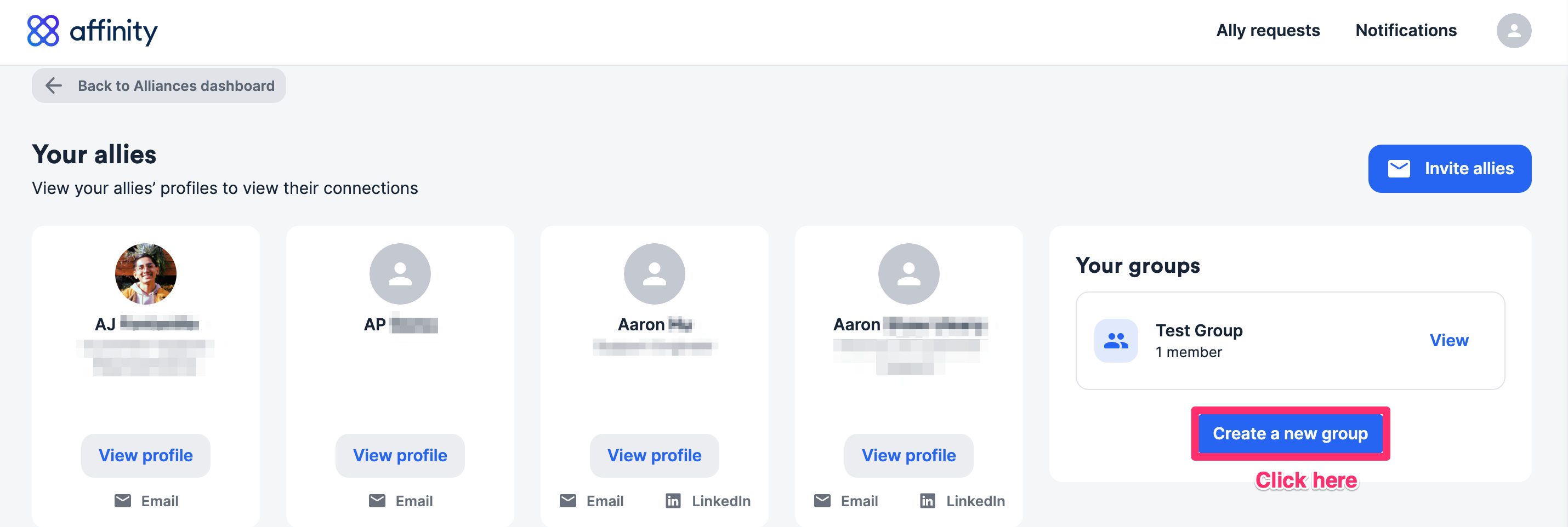
- Then, click Create a new group.
How can I invite members to an Alliance Group?
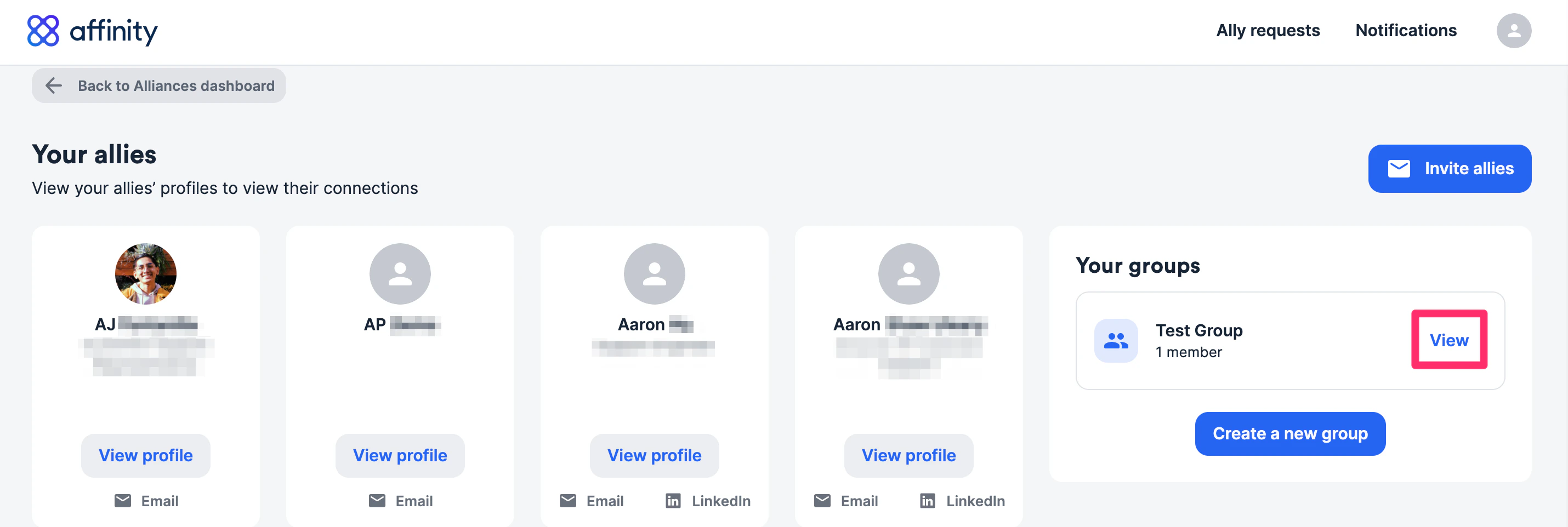
Anyone already within the group can invite people into the group, but only the admin of the group can ultimately approve of who gets added. To send invites, please follow the steps below:- Click the blue arrow.
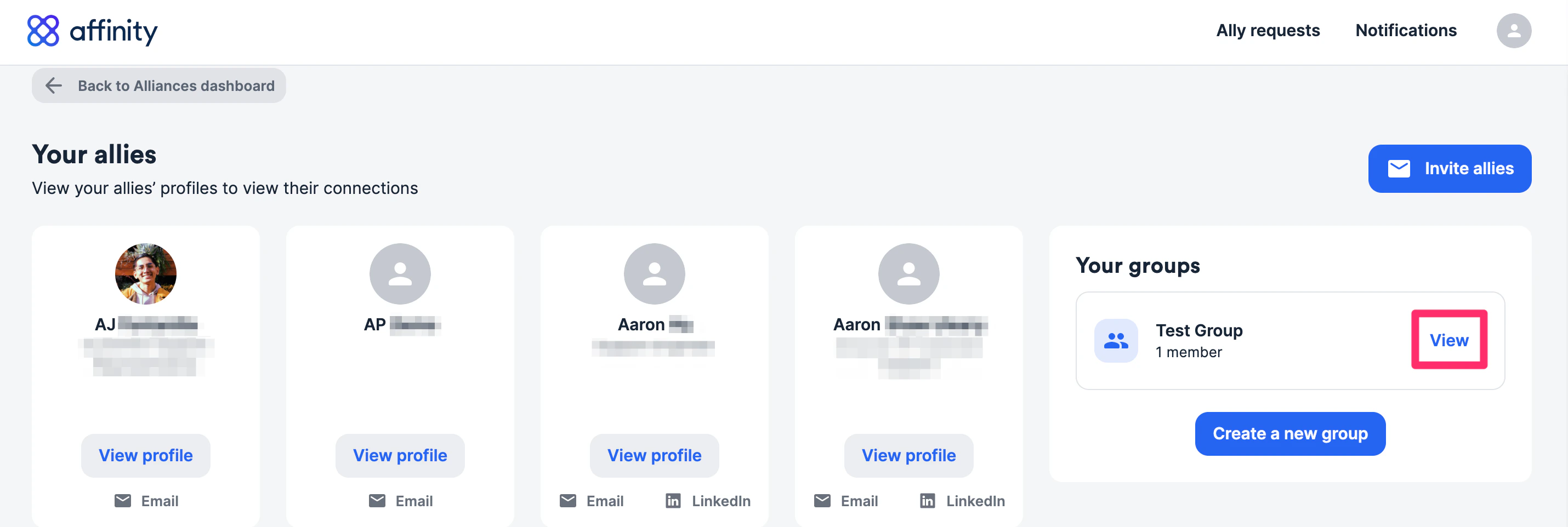
- Click the View button within the Alliance Group.
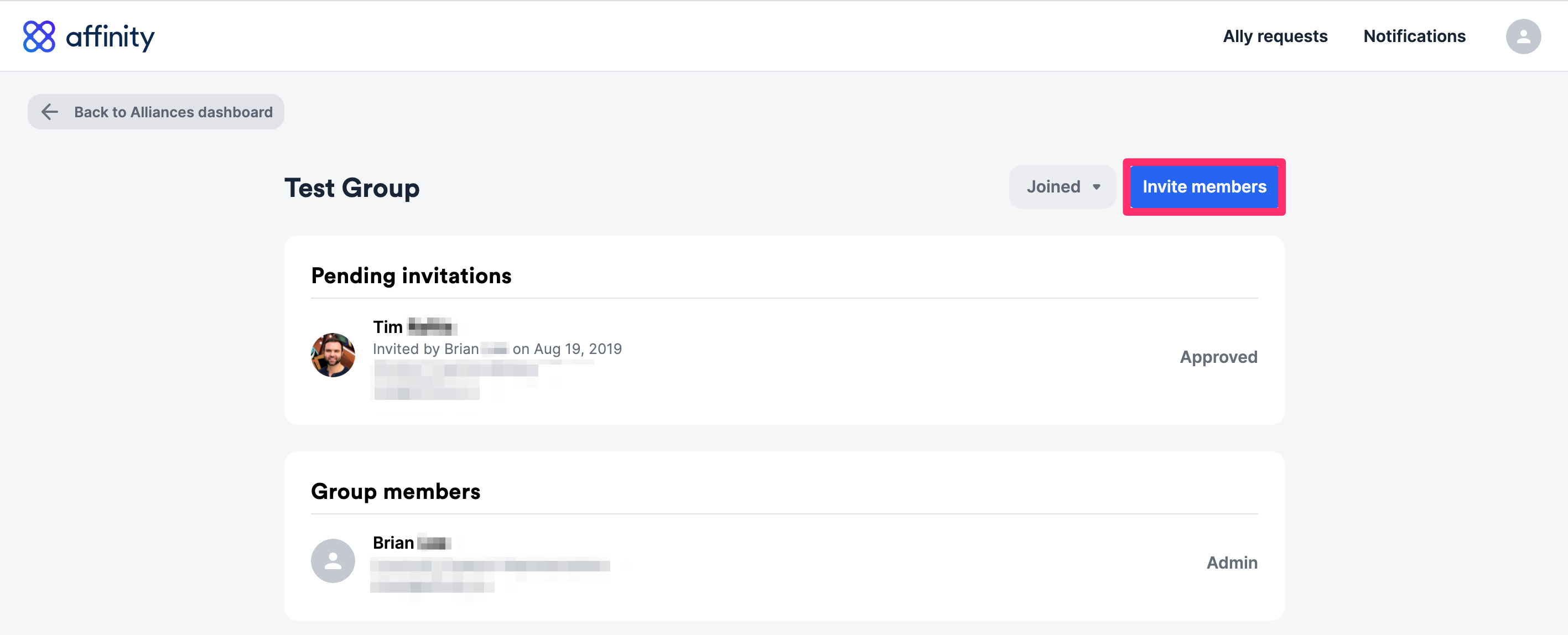
- Click Invite members. You can invite anyone with a valid Gmail or Microsoft email account.
How many degrees of connections are made with Alliances?
With Affinity Alliances and Alliance Groups, you can see up to the following degrees of connections:- 1st degree connections - People or Allies whom you have directly communicated with.
- 2nd degree connections - People whom your 1st degree connections have directly communicated with (but you have not). We currently do not support 3rd degree connections - people whom your 2nd degree connections have directly communicated with (but you have not).
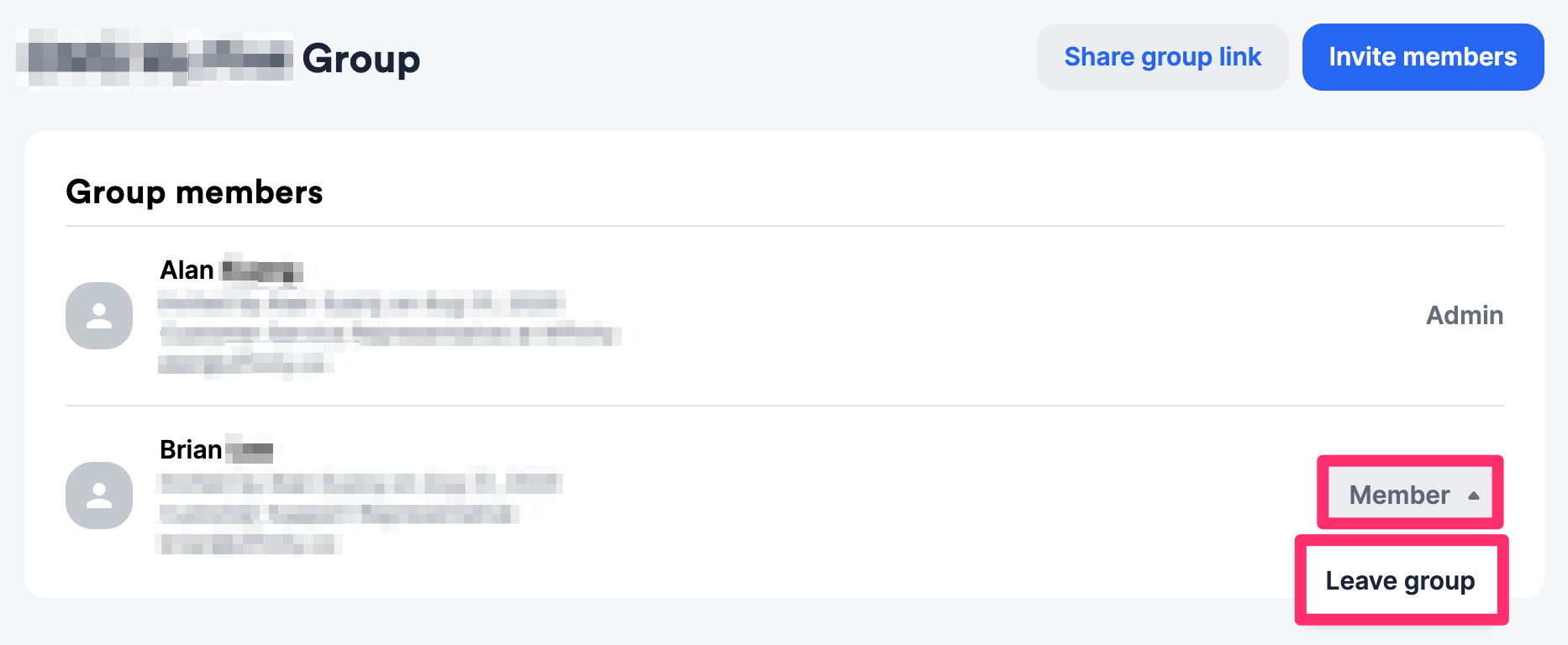
How do I leave an Alliance Group?
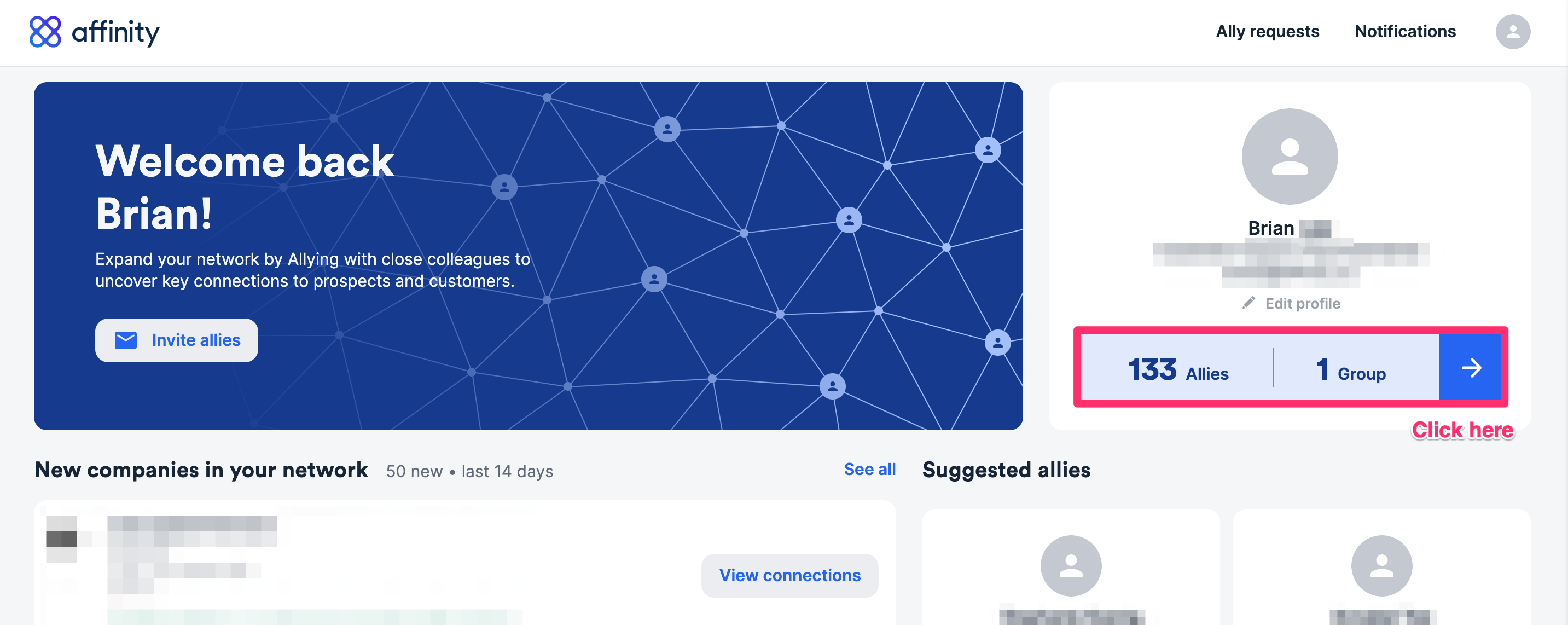
- Click the blue arrow.
- Click the View button within the Alliance Group.
- Click Member next to your name, then click Leave group.