

How-to — task-oriented recipe.
Overview
Quickly add existing people or companies from Affinity’s database to your lists using enhanced search and duplicate detection. The Add to List experience ensures you capture required information upfront while avoiding duplicate entries.Prerequisites
- Access to a list in New Lists
- Editor permissions (not Collaborator role)
Steps
Step 1: Open Add to List
- Navigate to the list where you want to add an entry
- Click the ”+” button in the Name column header on the leftmost side of the Sheet
- A new line appears with the ability to start searching for an entity to add
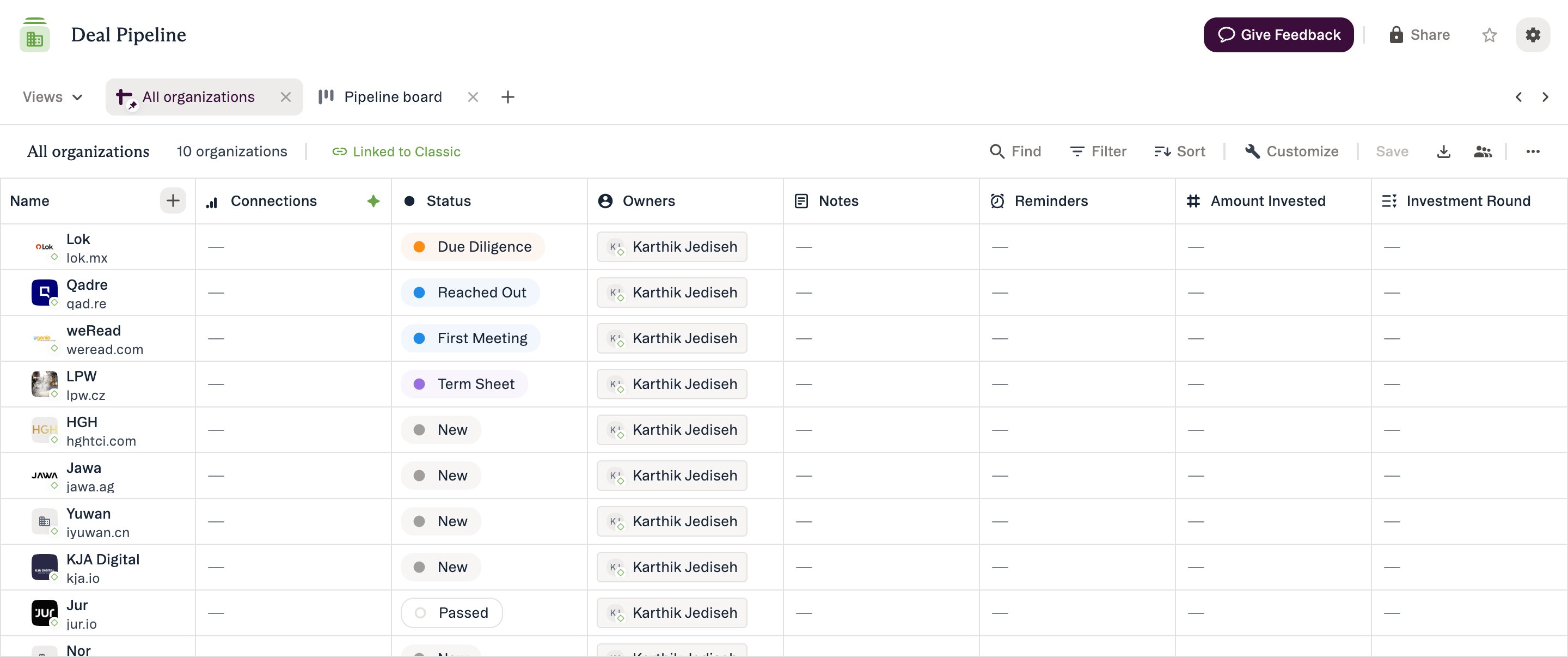
The entry count above the list increases as soon as the new row opens, before you have chosen an entity. It settles once you select or create one.
Step 2: Search for the Entity
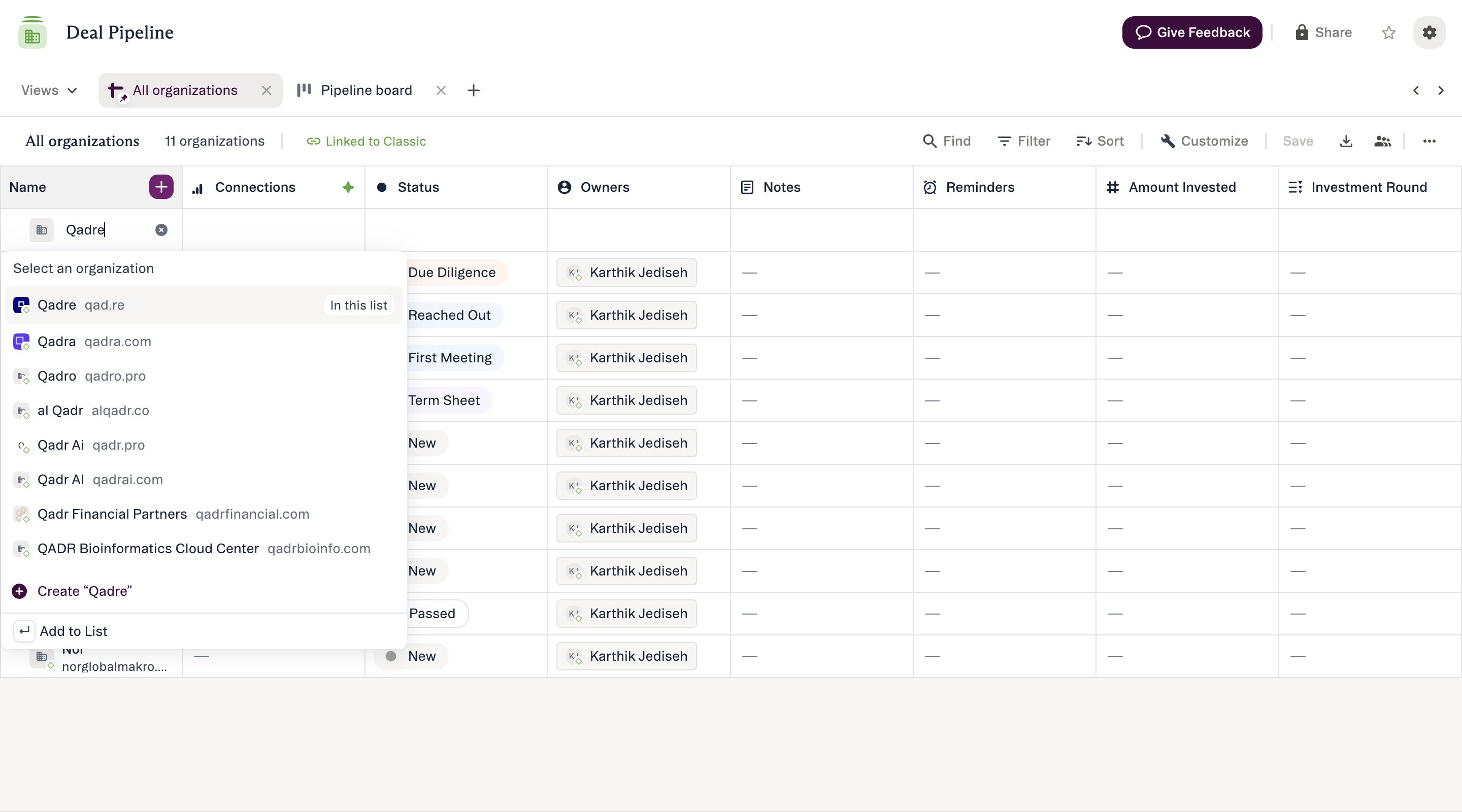
- Type the entity name, email, or domain in the search bar
- Search uses the same ranking as Global Search, prioritizing:
- Name match relevance
- Recent activity with your team
- Connection strength
- List membership history
- Results appear with relevant context
- Search by: First name, last name, full name, or email address
- Results show: name, email
- Search by: Company name or domain/URL
- Results show: name, url
Step 3: Check for Duplicates
Look for duplicate indicators:- “In this list” tag: Entity is already in this list
- Duplicate warning: Appears if you try to add an existing entry
- If duplicate and unintended → Cancel and find existing entry instead
- If duplicate and intentional → Proceed (some workflows require tracking same entity multiple times)
Step 4: Select the Entity
- Click on the entity you want to add from search results
- Entity is selected for addition
Step 5: Complete Required Fields (If Applicable)
If Required Fields are configured:- Modal appears showing all required fields
- Required fields marked with asterisk (*)
- Fill in all required fields
- Click Add or Save
- Additional trigger modals may appear in sequence
- Complete all triggered workflows before entry is added
- Entry is added immediately to list
Step 6: Verify Entry Added
- New entry appears at the top of your sheet
- Entry is added to list regardless of current filters
- If entry doesn’t match your filters, it will disappear after refresh
Expected Outcome
- Entity successfully added to your list
- All Required Fields populated
- Any triggered workflows (Status Triggers, Opportunity Triggers) completed
- Entry appears in sheet view and syncs across all views of the list
- Entry can be filtered, sorted, and edited like any other entry
Tips & Best Practices
Search Efficiency:- Use specific terms for faster results (company domain often works best)
- If searching by person, use email for exact matches
- Try different search terms if entity doesn’t appear initially
- Always check for “In this List” tag before adding
- Use Find in View to search if unsure whether entity already exists in list
- Intentional duplicates are okay for some workflows (multiple funding rounds, different time periods)
- Keep reference materials handy if you frequently add entries
- Have common information ready to paste (lead sources, standard categories)
- Use consistent terminology for dropdown fields
- If field doesn’t make sense, provide feedback to admin
- Entry is added to list regardless of current filters
- May not appear in your view if doesn’t match active filters
- Clear filters temporarily to verify addition
- Add entries when you have context fresh (right after meeting/email)
- Coordinate with team on Required Field expectations