

How-to — task-oriented recipe.
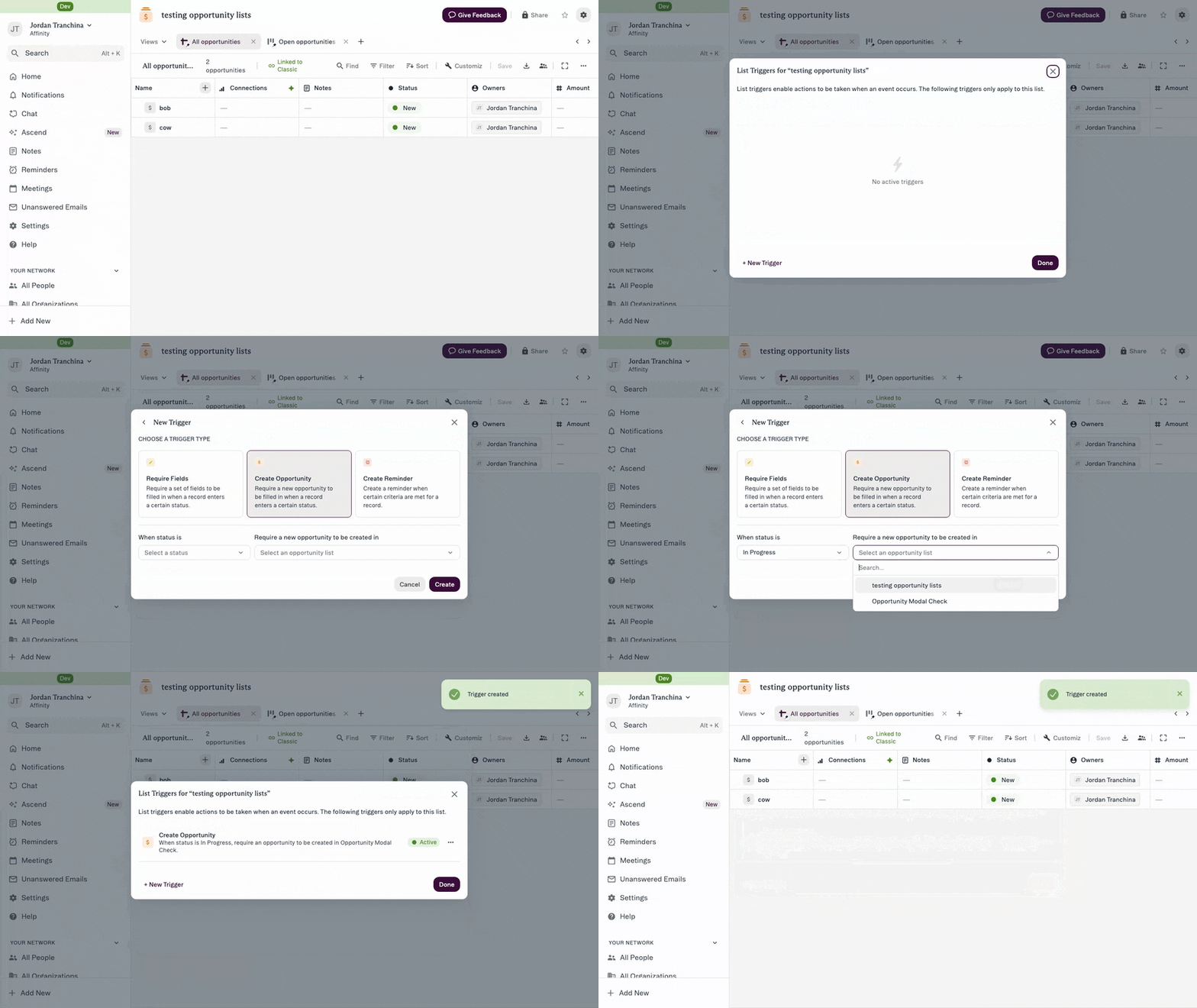
You can now set these up in New Lists. Open List Options — the gear icon in the top right — and choose List triggers, then New Trigger → Create Opportunity. In New Lists this trigger type is called Create Opportunity. Creating, editing and removing these requires list admin. Both experiences read the same triggers, so anything you built in Classic is already there and nothing needs migrating.
Overview
Opportunity Triggers automatically create an Opportunity record when a deal progresses to a specific stage. This ensures every qualified deal has corresponding tracking for forecasting and eliminates manual opportunity creation, while pre-filling key information from the source entry.Prerequisites
Permissions Required:- You must be a List Owner or List Admin to configure Opportunity Triggers
- To become a List Admin, ask the List Owner to grant you admin access
- Source list with a Status field (where trigger will activate)
- Target Opportunity list (where opportunities will be created)
- Target list must be type “Opportunity”
- Target list must be shared with users who will create opportunities
- Understanding of which status values indicate deal qualification
Steps
Step 1: Navigate to Triggers Settings
- Open the source list where you want qualified deals to trigger opportunity creation
- Click List Options in the top-right corner
- Click Triggers
- The Triggers configuration panel opens
Step 2: Create a New Opportunity Trigger
- Click the Opportunity Triggers tab
- Click Create New Trigger (or select existing status to configure)
- The trigger configuration form appears
Step 3: Select the Status Value
- In the Status dropdown, select which status value will trigger opportunity creation
- Common examples: “Qualified”, “Term Sheet Sent”, “Follow-on Interest”
- When users change an entry to this status, the opportunity creation modal will appear Important: Each status value can only trigger to ONE opportunity list (but different statuses can trigger to different lists)
Step 4: Choose Target Opportunity List
- In the Target List dropdown, select which opportunity list will receive new opportunities
- Verify the target list:
- Is type “Opportunity”
- Is shared with your team members
- Is not the same as your source list
- Different status values can trigger to different opportunity lists
- Example: “Follow-on” → “Follow-on Deals” list
- Example: “Qualified” → “Active Pipeline” list
Step 5: Save the Trigger
- Review your configuration
- Click Save
- The trigger is now active
Step 6: Test the Trigger (Optional but Recommended)
- Navigate to a test entry in your source list
- Change status to your configured trigger value
- Opportunity creation modal should appear
- Verify pre-filled fields are correct:
- Name (from source entity)
- Owners (from source entry)
- Link to source entity
- Amount (if available)
- Complete any additional required fields
- Click Create Opportunity
- Verify opportunity appears in target list with proper linking
Expected Outcome
- When user changes status to trigger value, opportunity modal appears
- Modal pre-fills with: Name, Owners, Source link, Amount (if available)
- User completes additional required fields (if configured on target list)
- New opportunity is created in target list
- Opportunity automatically links back to source entity
- Source entry updates to show linked opportunity
- In New Lists: If Status Trigger also exists, both appear in consolidated modal (Status Trigger first, then Opportunity Trigger)
What Gets Pre-Filled Automatically
When Opportunity Trigger fires, these fields populate automatically: Always pre-filled:- Name: Derived from source entity name
- Link to source entity: Automatic bidirectional linking
- Owners: Copied from source entry’s Owners field Sometimes pre-filled:
- Amount: If source entry has Amount field populated
- Custom fields specific to opportunity tracking
- Additional context or deal-specific information
Where Opportunity Triggers Fire
Surfaces where triggers work:- New Lists (Sheets view)
- Kanban/Board view
- Entity Profiles
- Pathfinder
- Data imports
- API calls
- Mobile App
Tips & Best Practices
Configuration Strategy:- Choose qualification moments carefully - Trigger at the stage where opportunity tracking becomes valuable
- One opportunity list per status - Each status can only trigger to one list, so plan your list architecture accordingly
- Consider multiple triggers - Different stages can create opportunities in different lists (e.g., “New Deal” list vs “Follow-on” list)
- Test with target list owners - Ensure target list’s Required Fields make sense for triggered entries
- Ensure target list exists and is type “Opportunity”
- Share target list with all users who will create opportunities
- Configure Required Fields on target list (will combine with trigger modal)
- Verify target list won’t create permission issues
- If both Status Trigger AND Opportunity Trigger exist on same status:
- Status Trigger fires first (required fields for status change)
- Then Opportunity Trigger fires (opportunity creation)
- Both appear in consolidated modal in New Lists
- Plan your triggers to avoid overwhelming users with too many fields at once
- Opportunity Triggers work well with pipeline stages like: “Qualified”, “Term Sheet”, “Committed”
- Consider when financial tracking becomes necessary
- Align trigger timing with when ownership/amount information is known
Common Mistakes
- Don’t trigger too early (before qualification info is known)
- Don’t forget to share target list with team
- Don’t set up trigger if target list might be deleted/archived
- Don’t assume pre-filled fields are sufficient (usually need additional Required Fields)
- If target list is deleted, trigger becomes inactive (users see error)
- Reconfigure trigger to point to new target list if needed
- Review trigger effectiveness quarterly
Common Use Cases
Sourcing to Pipeline Conversion: “Companies in our ‘Sourcing’ list move to ‘Qualified’ status and should automatically create opportunities in our ‘Active Pipeline’ list.” → Configure Opportunity Trigger on “Qualified” status pointing to “Active Pipeline” list. Term Sheet Tracking: “When we send a term sheet, I want to create an opportunity to track deal value and ownership.” → Configure trigger on “Term Sheet Sent” status, target = “Active Deals” list. Follow-on Investment Tracking: “Portfolio companies raising follow-on rounds should trigger opportunities in our separate ‘Follow-on Pipeline’ list.” → Configure trigger on “Follow-on Interest” status pointing to “Follow-on Pipeline” list.Troubleshooting
Problem: “The trigger isn’t firing when I change status” Check:- Are you on a surface where triggers are supported? (See “Where Opportunity Triggers Fire” above)
- Are you changing status via import, API, or Lists column? (Not supported)
- Is target list deleted or inaccessible? (Trigger becomes inactive)
- List may have been deleted - check with list owner
- You may have lost access to target list - request access
- Verify source entry has correct Owners, Name, Amount
- Pre-fill pulls from source entry at time of trigger - update source first if needed
- You can edit pre-filled fields in the modal before creating opportunity