

Reference — how Restricted Opportunities work. Restricted Opportunities is available on the Enterprise plan and is enabled per organization by an Enterprise Admin.
What is Restricted Opportunities?
Restricted Opportunities lets your firm designate specific deals as restricted, so sensitive opportunities — like public-to-private (P2P) transactions — are visible only to the people who need to know. It’s built for private equity and other investment firms managing compliance requirements around information sharing, such as MNPI rules in the US or “need to know” regulations in Europe. When a deal is marked restricted, everyone with access to the list still sees that the row exists — so your pipeline counts and reporting stay accurate — but the opportunity name and all field values are masked for anyone not explicitly given access. No more choosing between a single source of truth for your pipeline and keeping sensitive deals contained to the right people.Turning it on
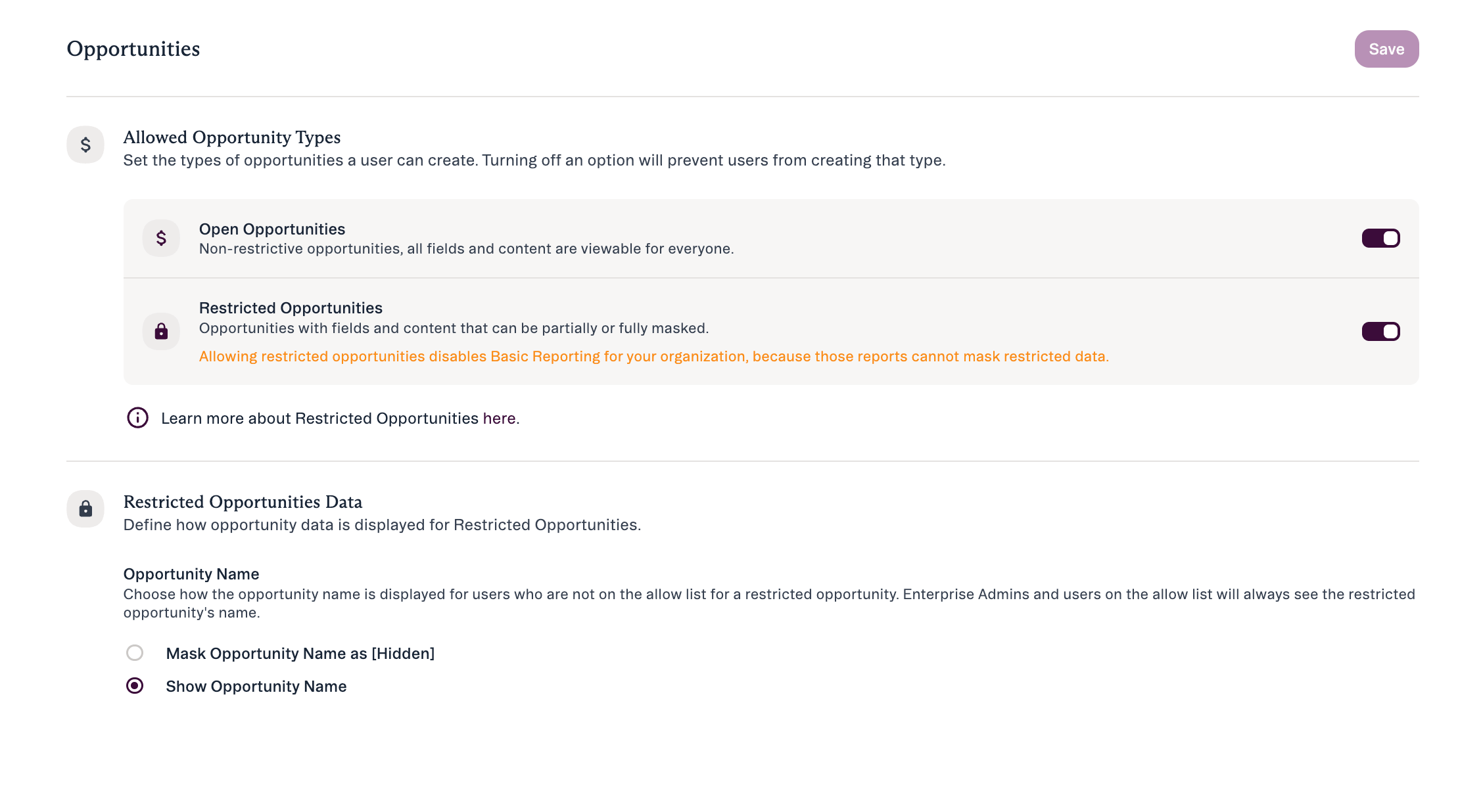
Enterprise Admins enable Restricted Opportunities in Settings → Opportunities → Allowed Opportunity Types:- Toggle Restricted Opportunities on to allow their creation alongside open opportunities.
- Toggle Open Opportunities off if every opportunity created in your instance should be restricted by default.
Opportunity name visibility
By default, anyone who isn’t on a restricted opportunity’s allow list sees its name masked as [Hidden]. Enterprise Admins can change that in Settings → Opportunities → Restricted Opportunities Data, under Opportunity Name:- Mask Opportunity Name as [Hidden] — the default. Non-allow-list users see [Hidden] in place of the name.
- Show Opportunity Name — non-allow-list users see the real name. Every other field value stays masked.
How access works
Enterprise Admins (with the right permission)
Admins with the “Manage and view any Restricted Opportunity” permission see every restricted opportunity in your org, regardless of any deal’s allow list — a consistent safety net for your compliance or operations lead. It lives under Settings → Users and Permissions → Data Access and isn’t assignable to other roles.
Allow-list members
People or teams explicitly added to a specific restricted opportunity see full field values and can work with it normally — as long as they also have standard access to the Opportunity list it lives on. Both are required: allow-list membership alone isn’t enough.
Everyone else
Anyone else with list access sees that the row exists (to keep headcount and pipeline reporting accurate), but every field value is masked and the opportunity can’t be edited or interacted with. The name is masked as [Hidden] by default — an Enterprise Admin can choose to show names instead, see Opportunity name visibility.
Working with a restricted opportunity
If you’re an allow-list member or an Enterprise Admin, you can:- Mark an existing opportunity as restricted from an Opportunity List (New Lists — action menu or hover menu). Note that restricting an existing opportunity does not add you to its allow list automatically — add yourself if you need continued access
- Create a new restricted opportunity, where you’re added to the allow list automatically as its creator
- Create a new restricted opportunity from an Opportunity List, global navigation, or an org/person profile
- Create a new restricted opportunity from the Outlook add-in or Chrome extension, then set its allowed members in a follow-up step without leaving the extension
- Change who has access from the Outlook add-in or Chrome extension with the Manage access action
- Create restricted opportunities automatically with opportunity triggers, or in bulk with the Data Importer in New Lists. See Creating restricted opportunities with triggers and import
- Manage the allow list — add or remove individual users or teams, per opportunity
- View and edit all field values; add notes, files, and reminders; and work with the opportunity normally across list views, Kanban, profiles, Notes Center, and Affinity Analytics
- Find restricted opportunities via global search
- Export opportunity lists with full restricted-opportunity data visible
- See restricted-opportunity rows in lists, Kanban, and Affinity Analytics — but every field value is masked (the name shows as [Hidden] unless your Enterprise Admin has turned on Show Opportunity Name)
- Be able to open the opportunity’s profile, but the content is obfuscated. From a New Lists sheet or board, its row or card doesn’t open the profile slide-out
- Not be able to edit or interact with it
- Not be able to find it via global search, association pickers, or a person/org profile’s opportunity list
- See a row in exports, but every field value is blank
- Be able to hide the restricted opportunities you can’t access. See Filtering out restricted opportunities
Filtering out restricted opportunities
If masked rows clutter your view, filter them out. In an Opportunity List in New Lists, add a filter on Opportunity Record (Hidden) and set it to Is equal to → No. Only opportunities you have access to stay in the view. Save it as a view if you want to keep it.Controlling the allow list from a field
Instead of managing access opportunity by opportunity, Enterprise Admins can nominate a person or owners field to control the allow list for an entire opportunity list. Turn it on in Settings → Opportunities → Control Allowed Members from Field. You choose the controlling field separately for each opportunity list, and Owners, single-value and multi-value person fields all work. Access then follows the field. Add or remove someone in the controlling field and their allow-list access updates automatically. The first time you set a controlling field — or change it — Affinity backfills access for the opportunities already on that list to match. Manage Access behaves differently on a controlled list. It no longer opens the manual allow-list dialog. Instead it takes you to the controlling field, and offers to add that column to your view if it’s hidden. The controlling field is protected from deletion. You’ll see a Controls Access badge on the column header, and a marker on each cell showing which field is controlling access. To delete the field, first remove it as the controlling field in Settings → Opportunities → Control Allowed Members from Field.Only internal people in the controlling field are granted access. If someone external is added to the field, they won’t be added to the allow list.
Creating restricted opportunities with triggers and import
Opportunity triggers
When a status change triggers a new opportunity, that opportunity can be created as restricted. This works in the web app, the Chrome extension and the Outlook add-in.- The Add Allowed Members step is skipped for the opportunity the trigger creates.
- If the list has a controlling field (see Controlling the allow list from a field), that field controls access as usual.
- Otherwise the opportunity gets the default allowed members: its creator plus Enterprise Admins.
- To change access afterwards, use Manage access or the controlling field.
Import with the Data Importer (New Lists)
You can bulk-create restricted opportunities with the Data Importer in New Lists.- At the Map Identity step, pick the opportunity type and one allow list that applies to the whole import. There’s no per-row column for allowed members.
- The person running the import is always added to the allow list. Enterprise Admins have access through their role, so they aren’t listed.
- If the list has a controlling field set in Control Allowed Members from Field, it’s respected.
- You need the Restricted Opportunities feature, the Data Importer, permission to upload files, and access to the list.
Import only creates new restricted opportunities. It can’t convert existing open opportunities: if a row matches an existing opportunity, that row fails with an error and the existing opportunity is unchanged. To restrict existing opportunities in bulk, contact Affinity Support.
Where restriction applies
Restriction is enforced consistently everywhere deal data can be accessed:Sharing options are unchanged — but visibility is capped. On a note, file, or reminder linked to one or more restricted opportunities you still choose Everyone, Teams and users, or Private. Whichever you pick, the content is only visible to people who have access to all of the restricted opportunities it’s associated with. Affinity says so at the top of the Share with… dialog: “Sharing will always be limited to members who have access to all associated restricted opportunities.”
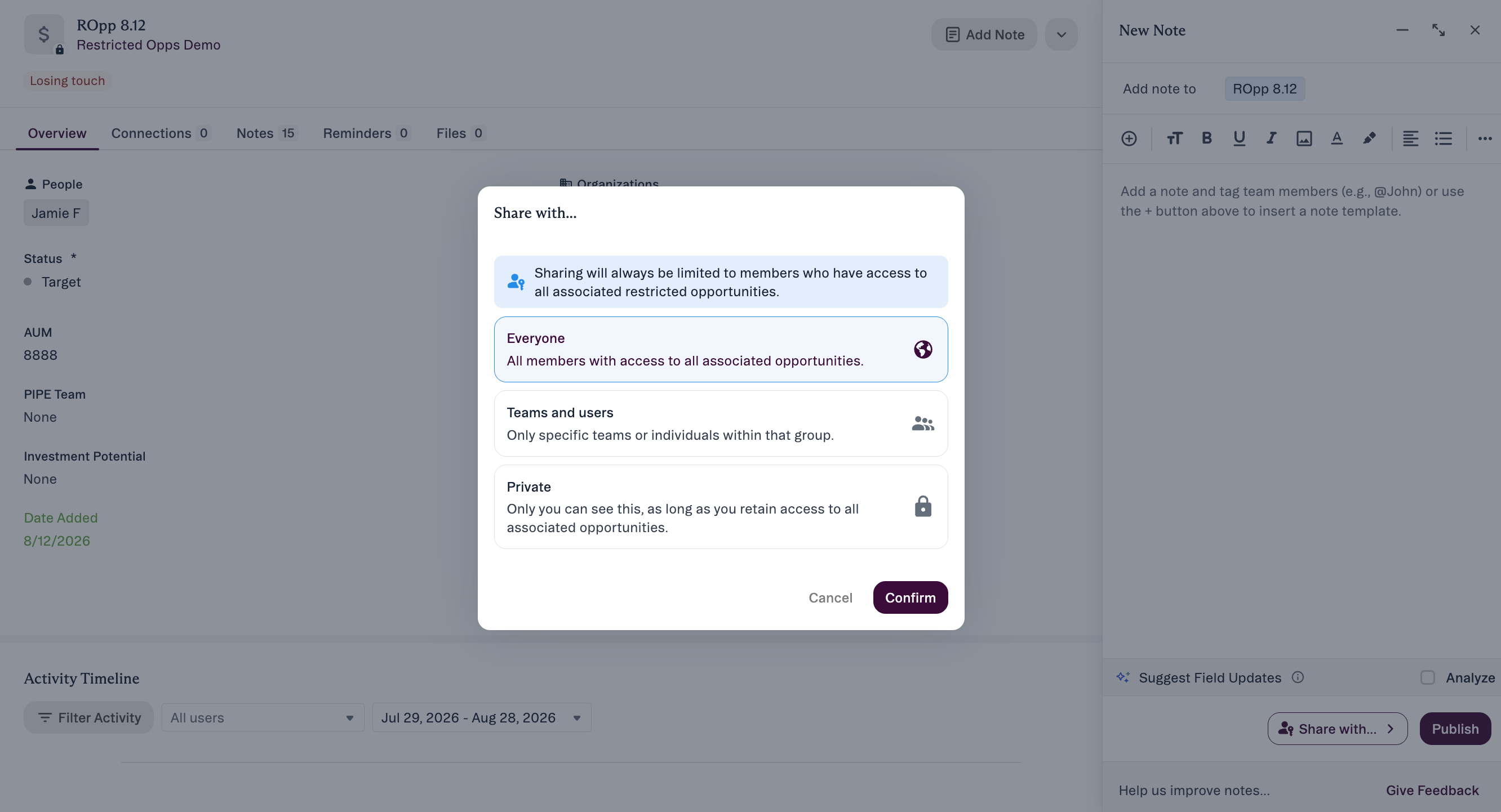
Choose an option and click Confirm.
Affinity Analytics follows the same allow list as the rest of the product — there’s no way to show a restricted opportunity in a dashboard while keeping it masked elsewhere, or vice versa.
Good to know
- Basic (Legacy) Reporting must be disabled if you’re using Restricted Opportunities — restriction isn’t enforced there.
- Database Share (Snowflake, Databricks) doesn’t enforce restriction. It includes all of your org’s Affinity data and doesn’t apply in-app permissions — grant access only to people who should see everything, and use your database’s own access controls to limit it further.
- Introduction-related analytics counts on restricted-opportunity lists only include opportunities the viewer has access to. This is intentional: an accurate total would expose who’s connected to whom on a deal the viewer isn’t allowed to see. Other counts (list-entry counts, funnel-stage counts) reflect the full list.
- A field can’t be deleted while it’s controlling an allow list. Remove it as the controlling field for the list first, in Settings → Opportunities → Control Allowed Members from Field, then delete it.
- Only internal people in a controlling field are given access. Adding an external person to the field won’t add them to the allow list — if someone reports that they’ve been added but still can’t see the deal, check whether they’re marked internal.
Current limitations
- Once an opportunity is marked restricted, it can’t currently be un-restricted.
- Restricting an existing opportunity is only supported from Opportunity Lists (New Lists), not from its profile page.
- Import creates new restricted opportunities only. Rows that match an existing opportunity fail. To restrict existing opportunities in bulk, contact Affinity Support.
- Not supported: creating restricted opportunities from Classic Lists or via Email Bot; and restricting individual fields rather than the whole opportunity.
Troubleshooting
Why can't I see the Restricted Opportunities setting?
Why can't I see the Restricted Opportunities setting?
It’s available on the Enterprise plan only. If you’re on Enterprise and still don’t see it, confirm with your admin that the feature has been turned on for your org.
Why can a user on the allow list still not see the opportunity?
Why can a user on the allow list still not see the opportunity?
Allow-list membership alone isn’t enough — they also need standard access to the Opportunity list itself.
Why does a restricted opportunity still show up in the list for people without access?
Why does a restricted opportunity still show up in the list for people without access?
This is by design. Rows are masked, not hidden, so your pipeline counts stay accurate. People without access see a row with blank values and a lock/eye indicator.
Why can't an allow-list member find a restricted opportunity in search?
Why can't an allow-list member find a restricted opportunity in search?
They should be able to. Confirm they have both allow-list access and standard access to the list. If both are in place and search still isn’t working, contact Affinity Support.
Why doesn't Manage Access let me edit the allow list any more?
Why doesn't Manage Access let me edit the allow list any more?
That opportunity list has a controlling field set, in Settings → Opportunities → Control Allowed Members from Field. Add or remove people in that field instead — allow-list access updates automatically.
I added someone to the controlling field, but they still can't see the opportunity.
I added someone to the controlling field, but they still can't see the opportunity.
Two things to check. First, the sync only grants access to internal people — if the person is marked external, they won’t be added to the allow list. Second, if the person is internal and access still hasn’t updated, contact Affinity Support to confirm your org is set up for the sync to run.