

Reference — lookup information.
Overview
New Lists offers two ways to visually display enriched data and your manual overrides. Choose the style that works best for your workflow in Settings. What this article covers: How to choose and switch between Minimal and Classic enrichment display styles For comprehensive enrichment documentation, see:- Enriched, Global, and List-specific Fields - Complete enrichment explainer
- Affinity Data - Affinity Data fields and sources
The Two Display Styles
Minimal Style (Default)
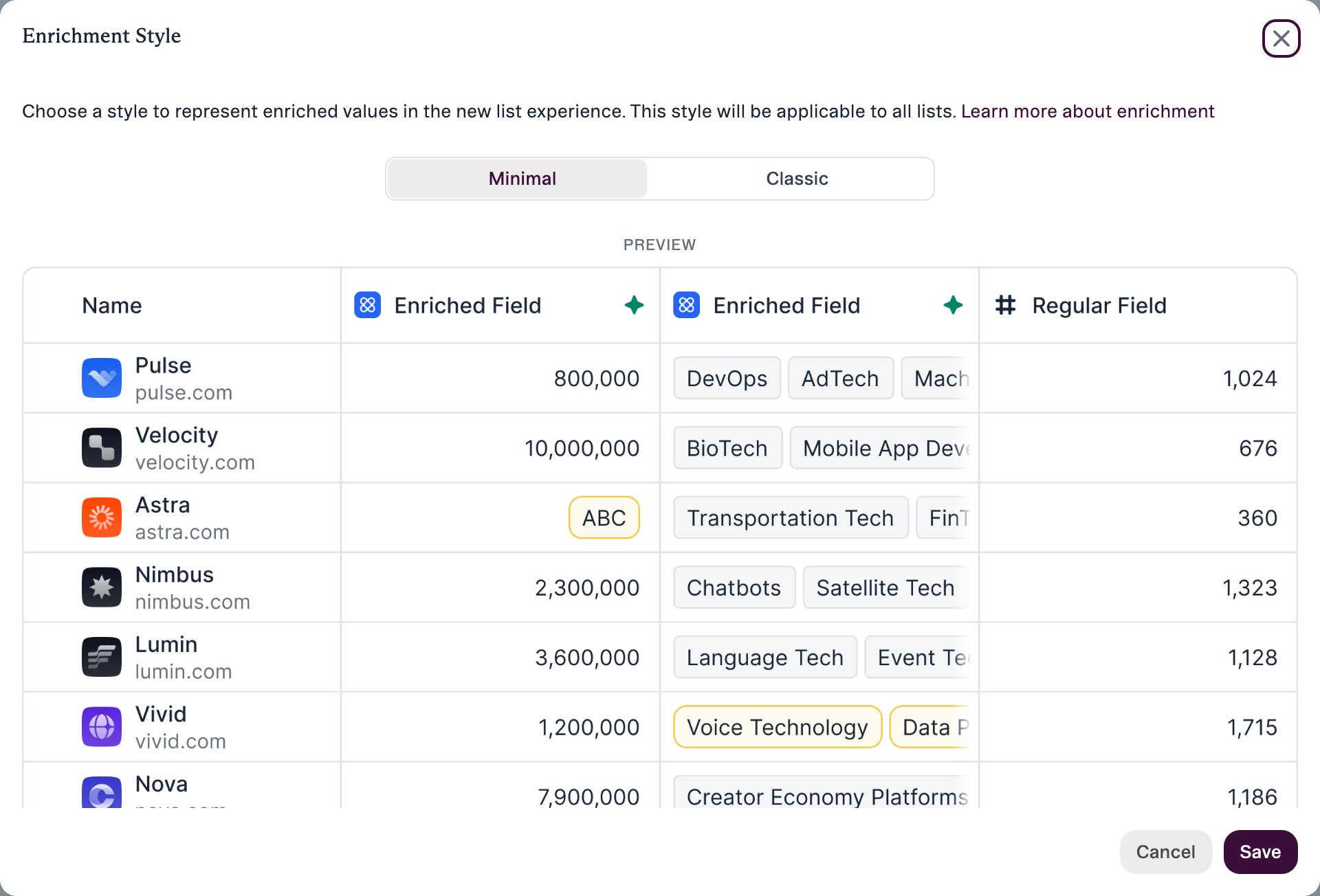
What you see:- Enriched values: Standard black text (no special indicator)
- Overridden values: Yellow background highlight Best for:
- Clean, modern interface with less visual noise
- Focusing on what YOU’VE validated (your overrides stand out)
- Color-blind accessible workflows
- Users new to Affinity Visual example:
- Industry: “Healthcare” (black text, no highlight) = enriched
- Current Job Title: “CTO” (black text, yellow highlight) = manually overridden
Classic Style
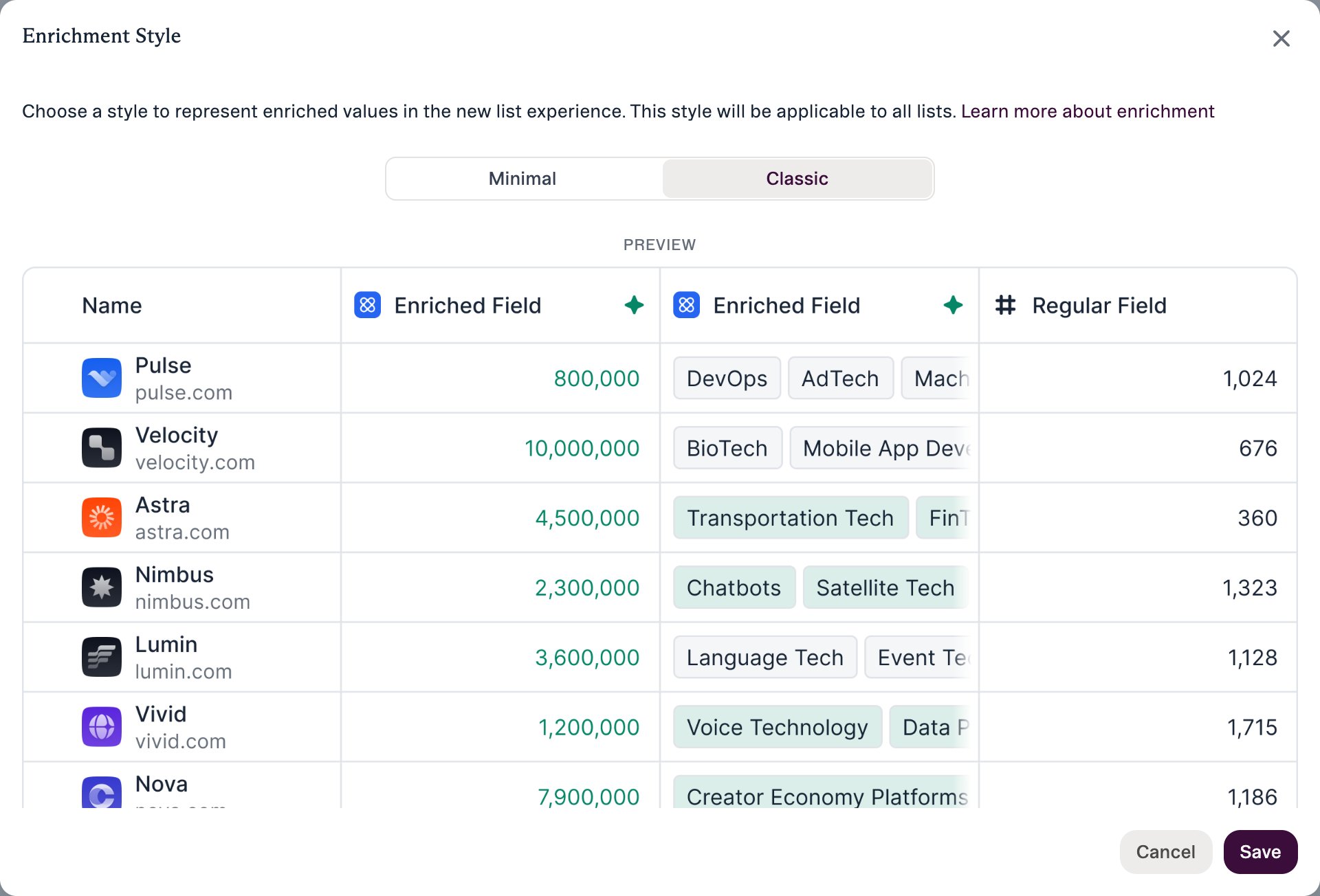
What you see:- Enriched values: Green text
- Overridden values: Standard black text Best for:
- Long-time Affinity users familiar with Classic Lists (Sheets 2) colors
- Teams with established “green = auto-populated” workflows
- Quick visual scanning of enrichment status Visual example:
- Industry: “Healthcare” (green text) = enriched
- Current Job Title: “CTO” (black text) = manually overridden
How to Switch Styles
- Open any List in New Lists
- Click the gear icon in the top right to open List Options (the icon has no tooltip)
- Select Enrichment Style — a dialog opens with a live preview
- Choose:
- Minimal - Yellow highlights for overrides
- Classic - Green text for enriched data
- Click Save. Choosing a style updates the preview only; Cancel discards the change
- Applies to all Lists in New Lists Note: This is a personal setting - your choice doesn’t affect what teammates see. Each user can choose their own preferred style.
When to Override Enriched Data
Good Reasons to Override
You have verified information:- Direct confirmation from the contact (“The founder told me their current title is CTO”)
- Recent update not yet in external sources (“They just changed roles last week”)
- More accurate details than auto-populated data
- Enrichment says “VP Engineering” but they prefer “Chief Technology Officer”
- Location shows headquarters but person works remotely
- Industry is too broad, you want specific sub-sector
When NOT to Override
Enrichment is “good enough”:- Data is accurate even if not perfectly detailed
- You don’t have better information from direct sources
- The field updates frequently (job titles, company headcounts, funding)
- When you override, automatic enrichment stops for that field
- If the person changes jobs next month, enrichment won’t update your override
- You’ll need to manually update overridden fields going forward
- If you’re not confident your data is more accurate, leave it enriched
- You can always override later if you get better information
- Enriched data continues to auto-update as external sources change
Important Reminders
Once you override a field:- That specific field stops auto-updating from enrichment sources
- Your manual entry persists until you change it again or clear it
- Other fields on the same entity continue to auto-enrich normally To restore auto-enrichment:
- Click into the overridden field
- Delete your manual entry (clear the field completely)
- Leave it blank
- The field will re-enrich within 24 hours Trade-off to consider:
- Override = More accurate NOW, but requires manual updates LATER
- Stay enriched = May be less detailed NOW, but automatic updates FOREVER
Additional Details in Field Editors
When you click into any field: Enriched fields show:- Enrichment indicator icon
- Data source (Affinity Data, Crunchbase, PitchBook, or Dealroom)
- Indicates the field auto-updates
- Override indicator icon
- Tooltip explaining you’ve manually edited this value
- Indicates automatic updates are paused for this field
- Lock icon
- Indicates field cannot be edited
- Usually system-calculated or protected fields
Frequently Asked Questions
Why do some teammates see green/black while I see yellow? Enrichment display style is a personal preference. Each user chooses their own style in Settings. The underlying data, enrichment, and overrides are identical regardless of which style you choose. Does my style choice affect my team? No. Your style preference only affects what YOU see. Teammates can choose their own styles independently. Can I switch styles for specific Lists only? No. Your style preference applies to all Lists in New Lists. It’s a global personal setting, not per-List. How do I know if I’ve overridden a field?- Minimal style: Look for yellow background highlight
- Classic style: Look for black text (vs green for enriched)
- Click into any field to see enrichment details and override indicator Can I undo an override and restore auto-enrichment? Yes. Click into the field, delete your manual entry completely, and leave it blank. The field will return to enriched status and auto-update within 24 hours.