

Reference — lookup information.
Overview
Field creation and deletion in New Lists allows you to manage your CRM data structure directly from the sheet view. Create custom fields to track new data points and delete outdated fields to keep your Lists organized—all without leaving New Lists or toggling back to Classic. What it does: Create new columns (fields) to capture custom data and remove fields you no longer need, with changes propagating immediately across Affinity. Who can use: Field creation available to Standard users and above. Global field creation requires Manage Global Fields permission. Deletion permissions vary by user role and field type. Where to access: Column headers in any List view, or Customize panelCreating Fields
How to Create a Field
Three entry points:Method 1: the + button in the column header row
- Click the + button immediately to the right of the last column header
- The field creation form opens with the search box focused
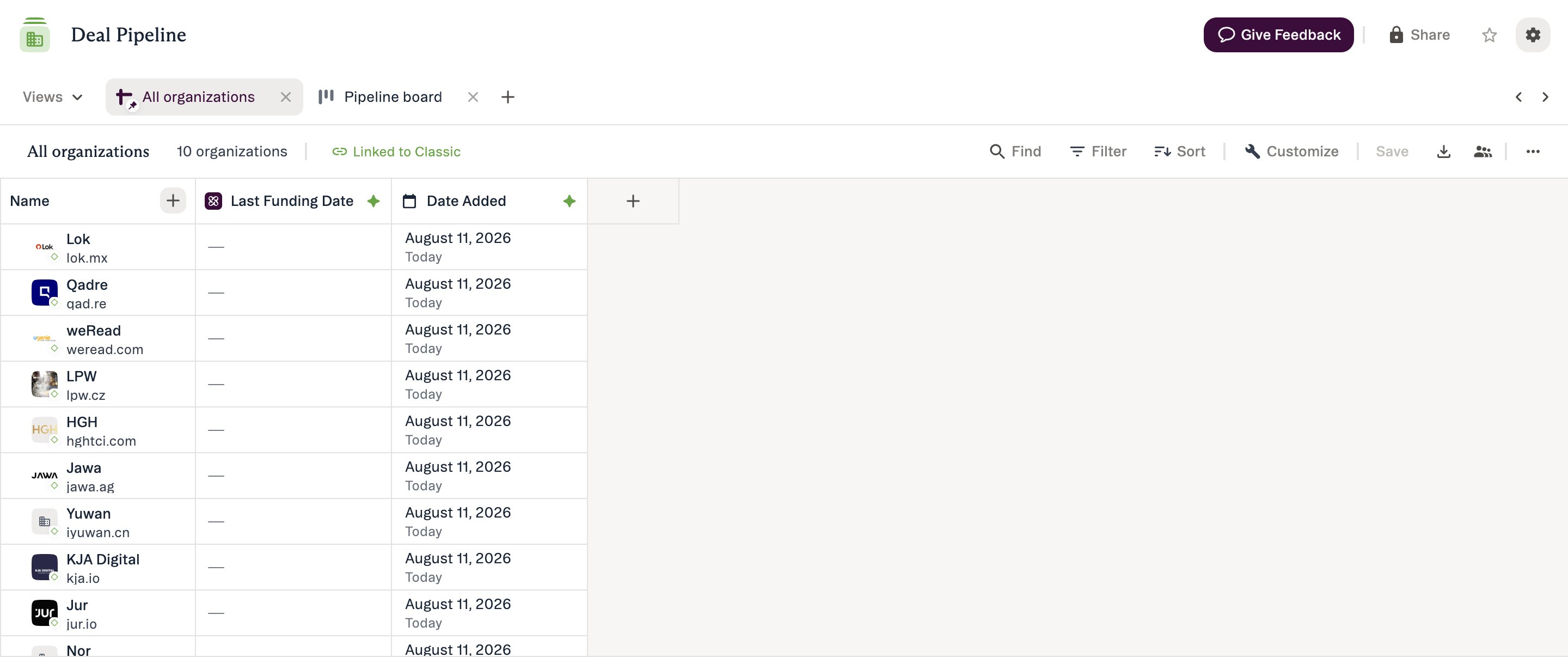
Method 2: Customize panel
- Open Customize view panel (gear icon)
- Click + New Field
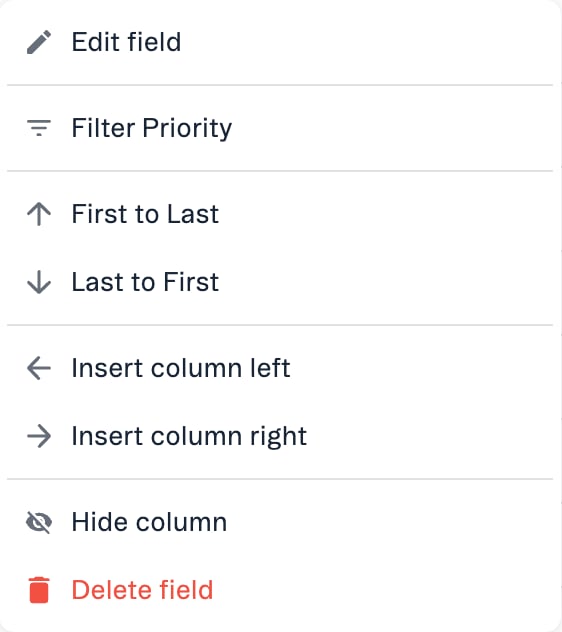
Method 3: Column header menu
- Click any column header to open its menu
- Select Insert column right or Insert column left
- The field creation form opens
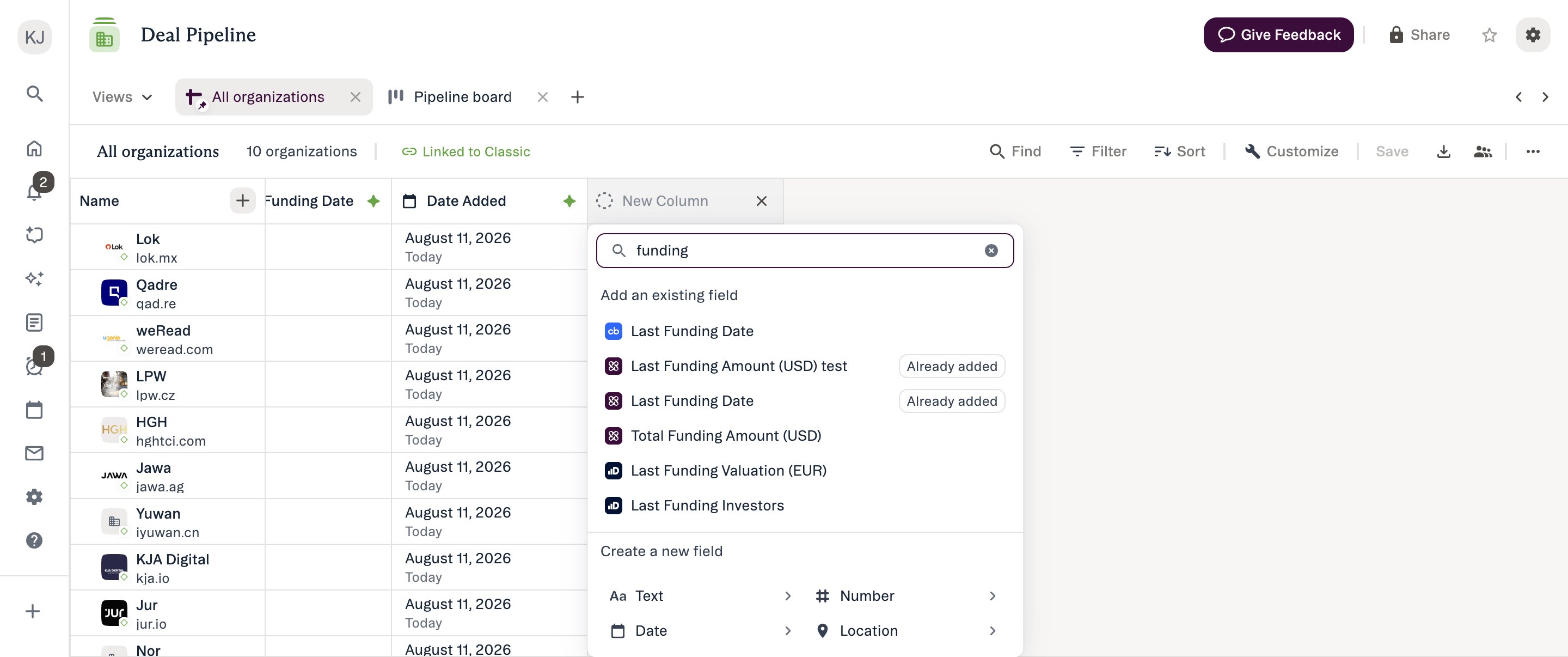
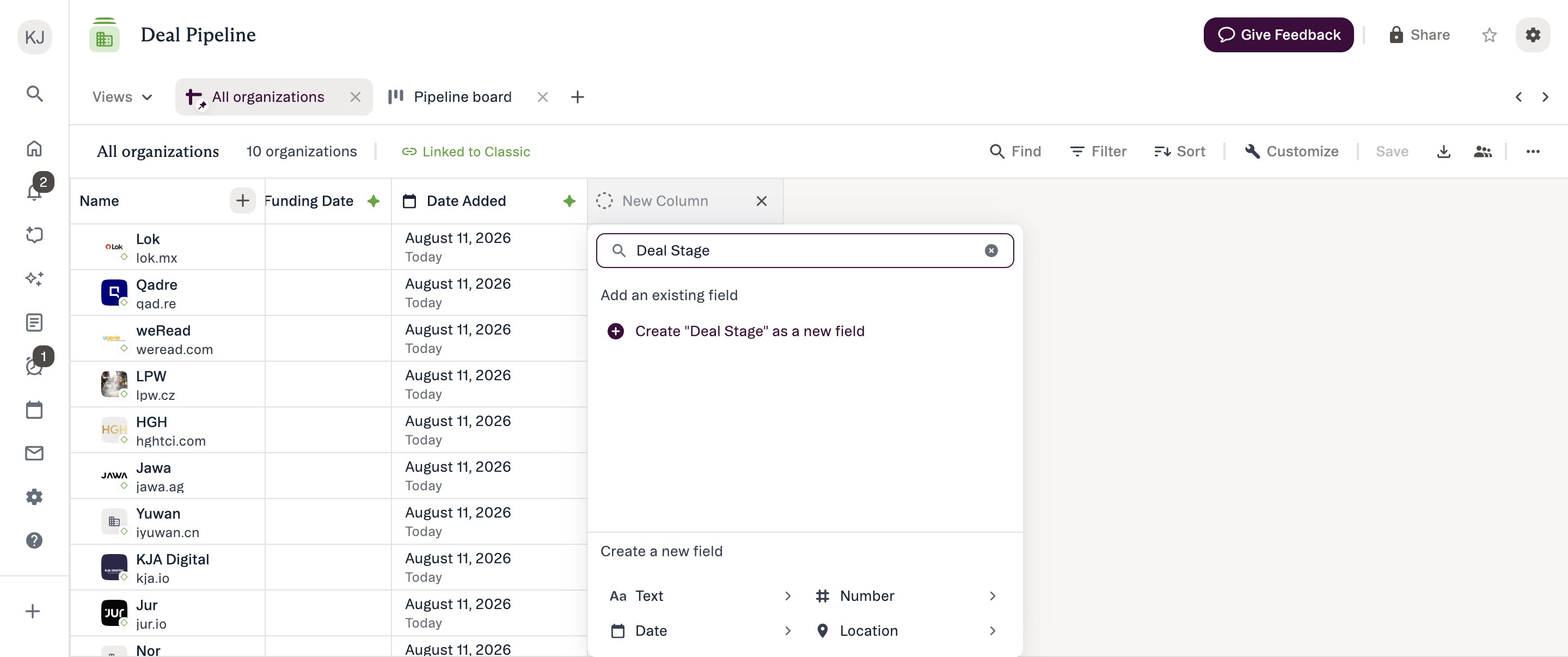
- Form opens with search bar focused
- Search existing fields (to reuse) or create new
- Select field type from available options
- Enter field name (required, must be unique)
- Choose scope: List-specific or Global
- Choose value type: Single or Multi (if applicable)
- Click Save
- New column appears immediately in sheet
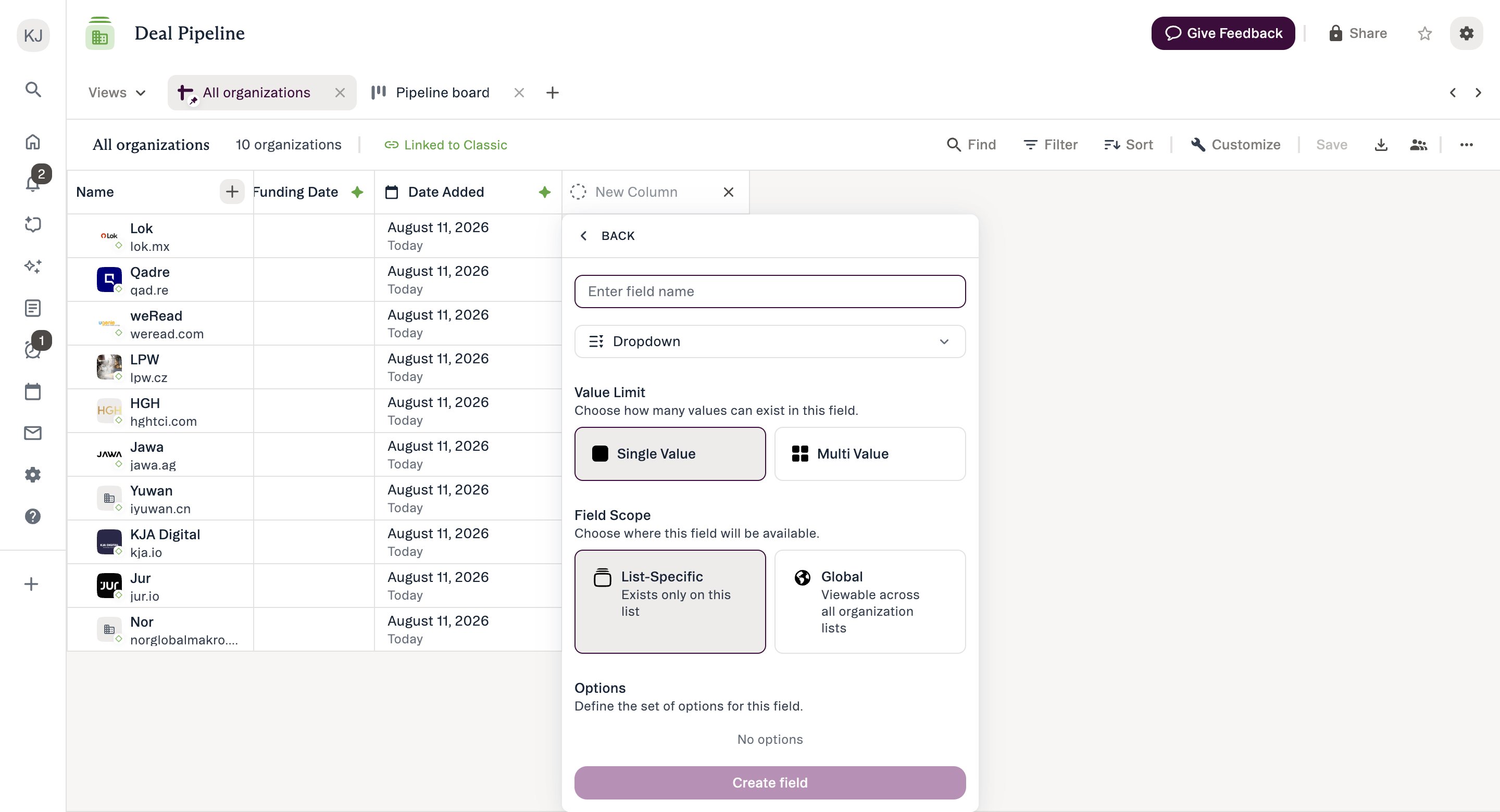
Steps 4 to 6 are a single form — the name, scope and value type are all set together before you
click Save.
Supported Field Types
Text- Single-value only
- For free-form text entry
- Examples: Notes, Comments, Investment Thesis
- Single-value only
- For numeric data (can be used in formulas)
- Examples: Deal Size, Valuation, Score
- Single-value only
- For deadline, milestone, or time-based tracking
- Examples: Target Close Date, Next Review Date
- Single or Multi-value
- For geographic data
- Examples: Office Locations, Markets Operating In
- Single or Multi-value
- Links to company entities in Affinity
- Examples: Parent Company, Strategic Partners, Portfolio Companies
- Single or Multi-value
- Links to person entities in Affinity
- Examples: Secondary Contact, Board Members, Advisors
- Calculates a value from up to 16 single-value number fields, using one function: Sum, Subtract, Multiply, Divide, or Average
- Can be list-specific or global, and formatted as a number, currency, or percent
- Values are calculated, so they can’t be edited directly
- Examples: Weighted Pipeline Value, Average Rating
- See How to create list calculations using the formula field
Dropdown & Ranked Dropdown Fields
Dropdown (Single and Multi-value)- For predefined option lists
- Examples: Deal Stage, Industry, Region
- For ordered option lists (like Status)
- Examples: Priority, Risk Level
Field Scope: List-Specific vs Global
List-Specific (default):- Field only appears on the List where it was created
- Only visible to users with access to that List
- Use when: Data is unique to this List’s purpose
- Examples: “Pipeline Stage” on Deal Pipeline list, “Investment Committee Date” on Active Investments list
- Field appears across all Lists of the same entity type (all People lists, all Org lists)
- Visible to all users with access to those Lists
- Requires “Manage Global Fields” permission to create
- Use when: Data should be consistent across your firm
- Examples: “Investment Thesis” on all Org lists, “Board Member Status” on all Org lists
- Global scope option is grayed out for users without permission
- Choose scope carefully—cannot be changed after creation
Field Naming Requirements
Rules:- Field names must be unique (case-insensitive)
- Cannot create field with same name as existing field
- No character limit specified
- Required—cannot save without name
Best practices
- Use clear, descriptive names (“Deal Source” not “Source”)
- Consider how name appears across all Lists if global
- Use consistent naming convention across team
- Avoid abbreviations unless universally understood
Single vs Multi-Value Fields
Single-value:- Stores one value per cell
- Examples: Primary Contact, Investment Amount, Close Date
- Stores multiple values per cell
- Available for: Location, Company, Person
- Examples: Board Members (multiple people), Office Locations (multiple cities) Choosing:
- Use single when: Only one value makes sense (“CEO”, “Valuation”)
- Use multi when: Multiple values expected (“Advisors”, “Markets”)
Deleting Fields
How to Delete a Field
Access deletion:- Click the column header to open its menu
- Select Delete field
- A confirmation dialog appears
- Review what will be deleted
- Click Delete to proceed
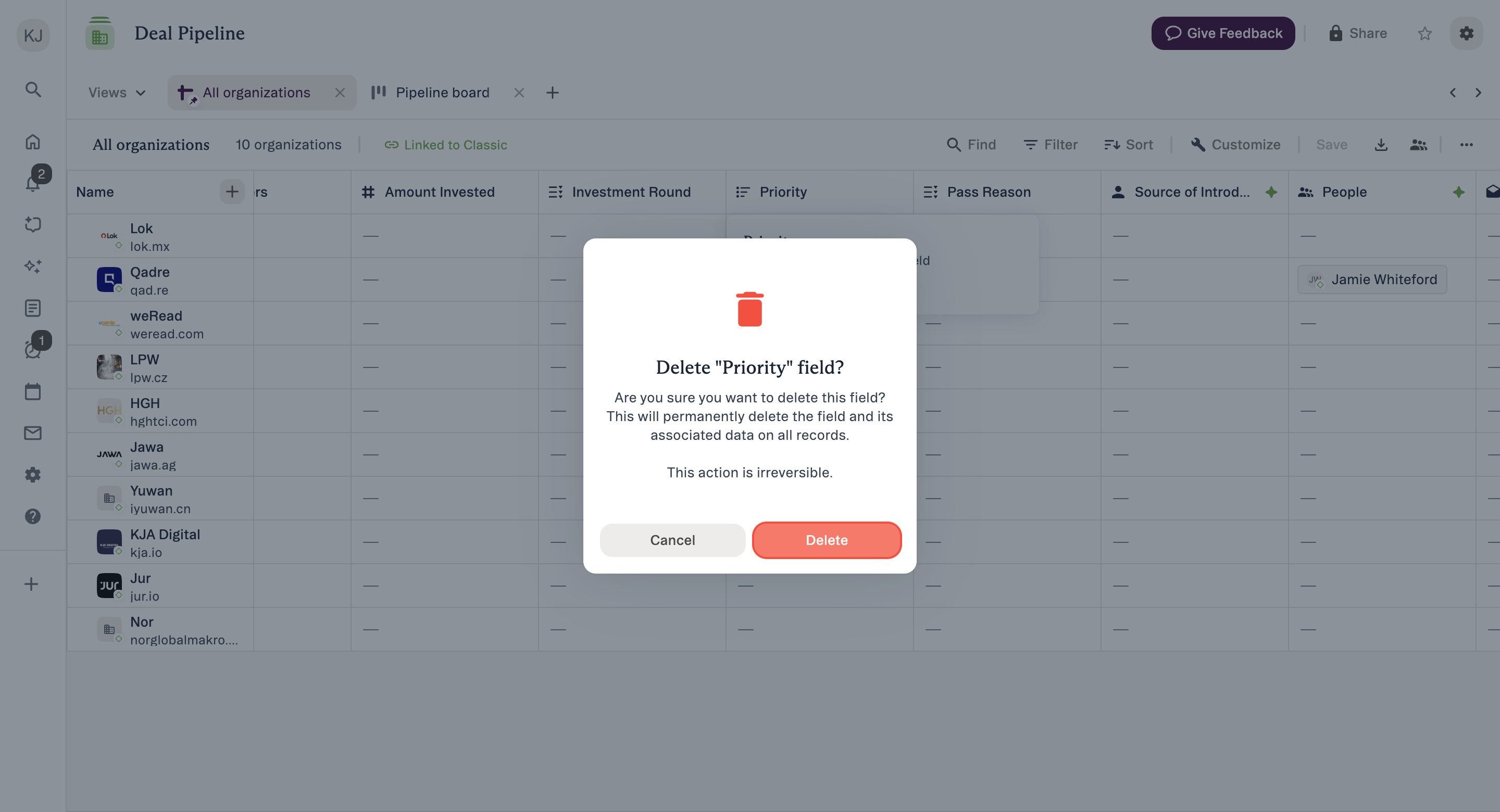
- Open Customize panel
- Find field in list
- Click ••• menu > Delete Field
- Column removed from sheet instantly
- All field values across all records deleted
- Change propagates across all Affinity surfaces
- No undo available
What Gets Deleted
When you delete a field: All data lost:- Every cell value in that field is permanently deleted
- Data cannot be recovered
- Applies to all records in the List (or all Lists if global)
Non-Deletable Fields
These fields CANNOT be deleted: Affinity-unique Fields- Date Added
- Connections
- First Email, Last Email
- First Meeting, Last Meeting, Next Meeting
- Last Contact
- Time in Current Status
- Notes
- Reminders
- Status (on Opportunity lists)
- Owners (on Opportunity lists)
- Amount (on Opportunity lists)
- Close Date (on Opportunity lists)
- Delete Field option does NOT appear in column header menu
- These fields are permanent and protected
- Can hover over the column header and see the tag “Unique”
Permissions
Who Can Create Fields
List-specific fields:- Standard users
- List Owners
- List Admins
- Account Admins
- Basic users (cannot create) Global fields:
- Users with “Manage Global Fields” permission only (if on Enterprise tier)
- Global scope option grayed out for users without permission
- Typically limited to Account Admins (on all other tiers)
Who Can Delete Fields
List-specific fields: Basic users:- Cannot delete fields Standard users:
- Can delete ONLY if field is completely empty (no values across entire List)
- Cannot delete if any cell has a value
- Can delete any list-specific field (even if populated)
- Delete Field option always available Global fields:
- Users with “Manage Global Fields” permission
- Deletes field from ALL Lists of that type
- No one can delete (no Delete Field option)
Cross-Surface Propagation
Changes are immediate and automatic: When you create or delete a field in New Lists, the change propagates instantly to: All List views:- Sheet view (current List)
- Other Lists (if global field)
- Saved views
- Classic Lists (backward compatible)
- Person profiles
- Company profiles
- Opportunity profiles
- Kanban boards (field available to add)
- Customize panel
- Filter builder
- Sort builder
- Column search
- Data Importer (field mapping)
- Formula field inputs (Number fields)
- Automation Builder (input/output)
- Status trigger configuration
- Mobile apps
- Extensions
- API No refresh required - changes appear immediately for all users
Important Behaviors
Field Name Uniqueness
Rules:- Field names are case-insensitive
- Cannot create “Deal Stage” if “deal stage” already exists
- Uniqueness applies to: All fields on the List (list-specific) OR all fields of that entity type (global)
- System prevents saving duplicate names
- Error appears
- Must choose different name or reuse existing field
Deletion Permanence
Critical reminders:- Deletion is permanent
- All field values are immediately and irreversibly deleted
- No undo, no recovery
- Confirmation dialog always appears before deletion
- Field is not used in automations
- Field is not used in formula calculations
- Field is not required by Status Triggers
- Field is not used in saved view filters
- Team no longer needs this data
Search Returns Existing Fields
When creating a field:- Search bar shows existing fields matching your query
- Reuse existing fields when possible (avoids duplicates)
- Create new only if existing field doesn’t fit
- Maintains consistency across Lists
- Leverages existing data
- Reduces field proliferation
Best Practices
Creating Fields
Plan before creating:- Identify exactly what data you need to track
- Check if similar field already exists (search first)
- Determine if data should be list-specific or global
- Choose appropriate field type (structured over free text when possible)
- Use descriptive names that make sense to all users
- “Lead Source” not “Source”
- “Investment Committee Date” not “IC Date”
- Consider how name appears in filters, sorts, exports
- List-specific when: Data is unique to this List’s workflow
- Global when: Data should be consistent across your firm and all Lists
- Remember: Reach out to Support to change scope after creation
- Wait for Dropdown fields (coming Q2) over Text fields for bounded values (or create in classic Lists till then)
- Use Number over Text for numeric data (enables formulas, sorting)
- Use Date over Text for deadlines (enables date-based filtering)
- Create single-value fields initially
- Can recreate as multi-value if requirements change
- Easier to manage single-value fields initially
Deleting Fields
Before deleting, check dependencies: Verify field is not used in:- Formulas (other fields may reference it in calculations)
- Status Triggers (required field configurations)
- Saved view filters (team’s saved filters may break)
- Reports or exports (recurring reports may fail)
- Ask teammates if they’re using the field
- Check with List Owners before deleting from shared Lists
- Announce deletions in team channels
- Verify global field deletion with Account Admin
- Hide column instead (keeps data, removes from view)
- Rename field to indicate deprecation (“OLD - Deal Stage”)
- Export data before deleting (backup in case needed later)
- Note what data was in the field
- Export List if field had valuable historical data
- Create transition plan if migrating to different field
Managing Fields Over Time
Regular field audits:- Quarterly review of all List fields
- Identify unused or redundant fields
- Delete or hide fields cluttering views
- Standardize field names across Lists
- Establish naming conventions
- Define when to use global vs list-specific
- Require approval for global field creation
- Document field purposes and intended usage
Frequently Asked Questions
Can I undo field deletion? No. Field deletion is permanent and irreversible. All data in the field is immediately deleted across all records. There is no undo or recovery option. Always confirm you want to delete before proceeding. What happens to field values when I delete a field? All values stored in that field are permanently removed from every record. For global fields, this affects all Lists of that entity type. The data cannot be recovered. Export your List before deleting if you want a backup. Which field types can I create in New Lists? Text, Number, Date, Location, Company, Person, Dropdown, Ranked Dropdown, and Formula. For dropdown, ranked dropdown, and status fields, you can also add, rename, reorder, and delete options directly from the column header. How do I know if a field is global vs list-specific? Global fields appear across all Lists of the same entity type (all People lists, all Org lists). List-specific fields only appear on the List where they were created. Check the field’s scope in the Customize panel or note whether it appears on other Lists. Can I change a field’s scope after creation? You can reach out to Support to change this or you can delete the field and recreate it with the desired scope. Why is the Global scope option grayed out? You don’t have the “Manage Global Fields” permission. Only users with this permission (typically Account Admins) can create global fields. Contact your Account Admin if you need to create a global field. Can I create multiple fields at once? No. Fields must be created one at a time. The field creation form creates one field per submission. To add multiple fields, repeat the creation process for each field. What happens to fields when I switch between New Lists and Classic? Fields created in New Lists are immediately available in Classic Lists (backward compatible). Fields created in Classic also appear in New Lists. The field management system works across both experiences. Can I rename a field after creation? Yes. Click the column header and choose Edit field to rename. The rename propagates across all surfaces immediately. Can I add a description to a field? Yes, in New Lists. Click the column header, choose Edit field, and write up to 255 characters in the description box under the name. Teammates see it when they hover over the column header, and the Data Update agent reads it. See Give Ascend agents your firm’s context. Why can’t I delete a field even though I created it? Check:- Are you a Standard user and the field has values? (Standard users can only delete empty fields)
- Removes from current view only
- Data preserved
- Field still exists
- Can unhide anytime
- Other users still see it
- Removes from ALL views and surfaces
- All data permanently deleted
- Field completely removed
- Cannot undo
- Affects all users Use hiding for temporary decluttering. Use deletion for permanently removing fields.