

How-to — task-oriented recipe.
- Click into the list you wish to wish to create a copy of.
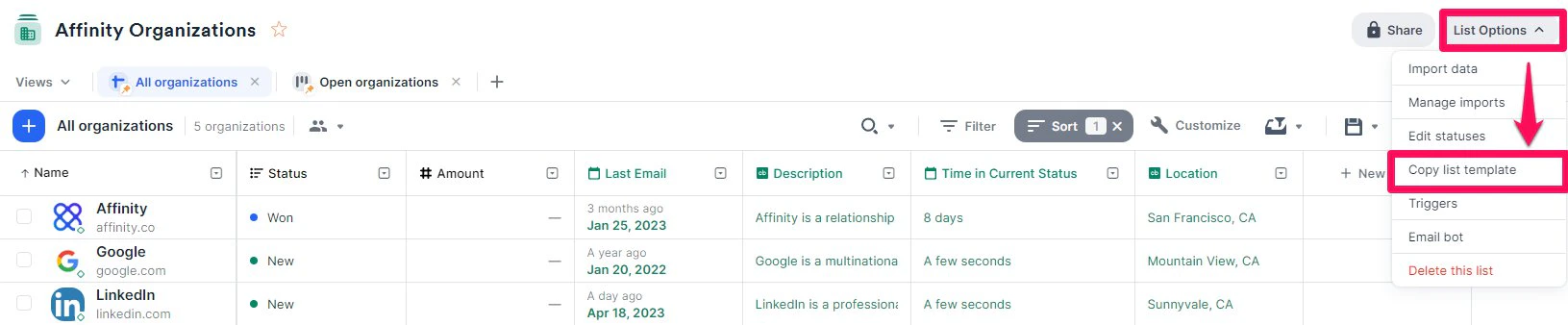
- Click List Options, then click Copy list template from the dropdown.
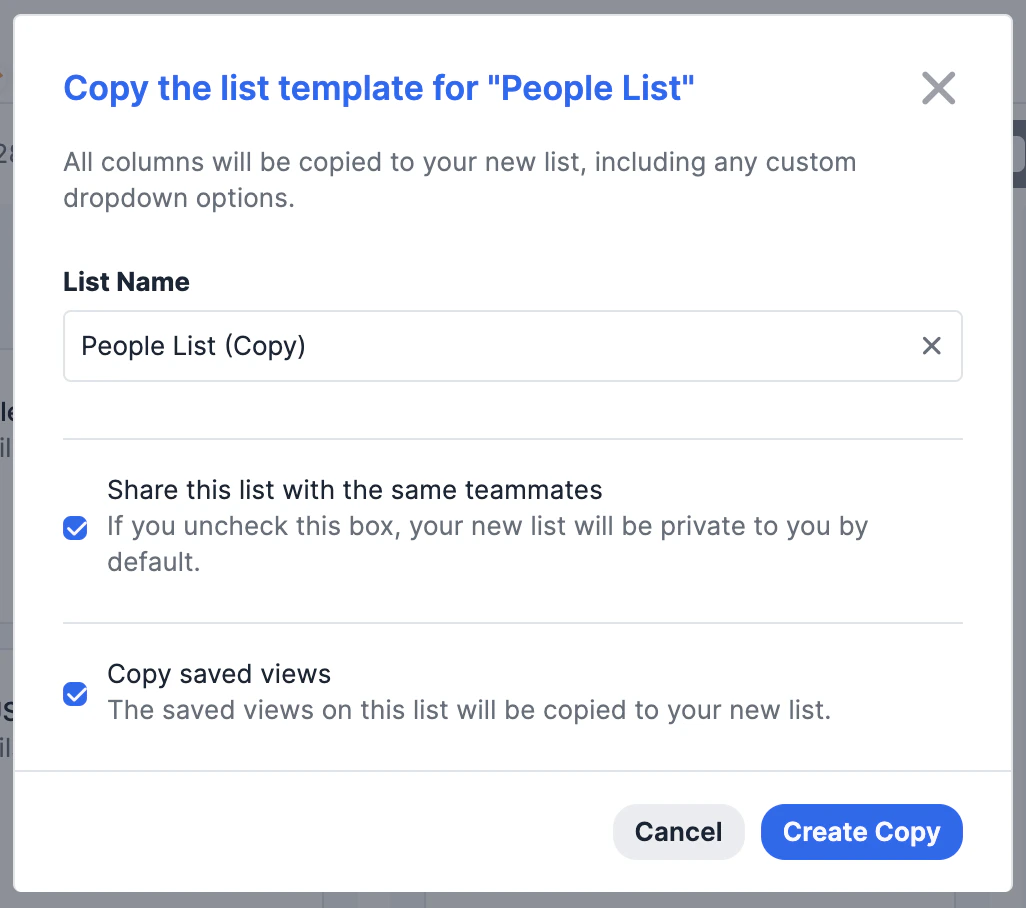
- Type out a name for the new list, determine whether you want to share it with the same teammates, and choose whether you’d like to copy the saved views from the current list. Note: Only sheet views and board views will be copied over to the new list, Dashboard views will not get copied over at the moment.
- Click Create Copy and the new list will be created.
- Any reminder triggers and status triggers from the original list will also carry over to the new list.
- Any list-specific fields from the original list will be copied over as well (but not connected to the original list - they are completely separate).
- While the list-specific field values will not be copied over, you can still copy over the list entries by using this keyboard shortcut:
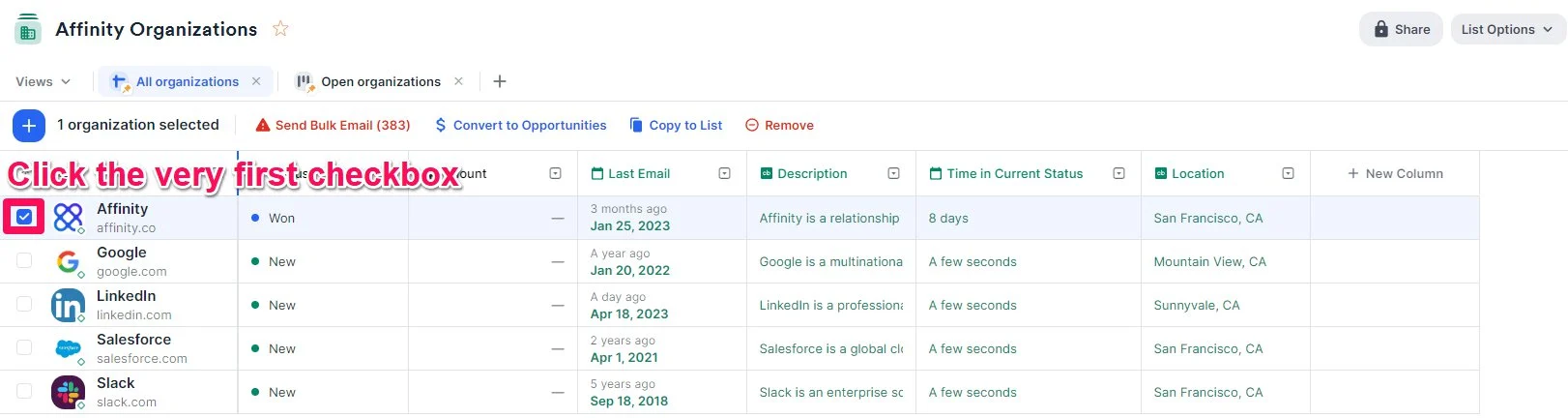
- First, click the checkbox for the very first list entry. First, click the checkbox for the very first list entry.
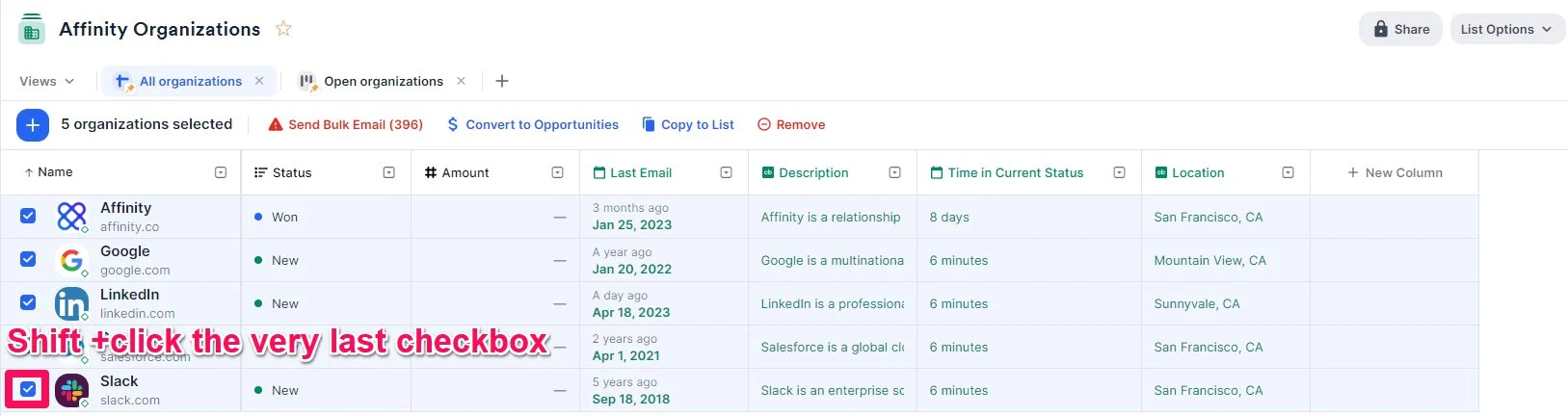
- Then, scroll all the way down and press Shift + click the checkbox for the very last list entry - this will bulk-select all list entries in between. Then, scroll all the way down and press Shift + click the checkbox for the very last list entry - this will bulk-select all list entries in between.
- Now, click Copy to another list.
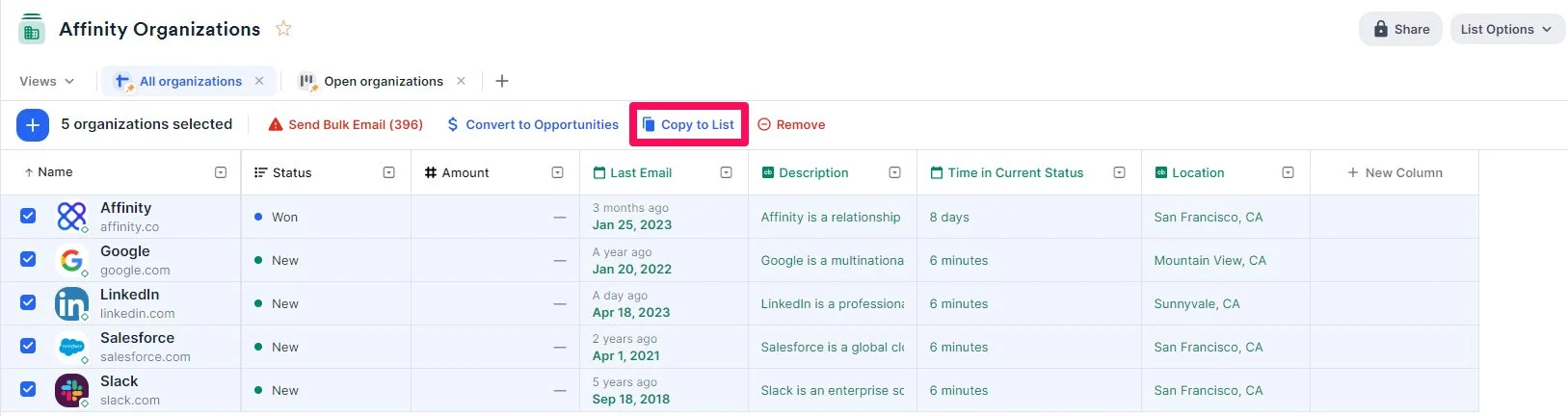
- Finally, select the new list that you just created, then click Add.
- Given that you have taken the action of creating this new list, you will be the new owner of this list.
- First, click the checkbox for the very first list entry. First, click the checkbox for the very first list entry.