

Reference — lookup information.
Overview
New Lists introduces a richer, faster, and more flexible filtering and sorting system so teams can query CRM data precisely and keep pipelines clean. Compared to Classic Lists, you can now combine conditions with Boolean logic (AND/OR), filter across many more field types (Text, Notes, Reminders, Connections, enriched People data, etc.), and use new operators (e.g., is empty, is not empty) to improve data hygiene and record management.Prerequisites
- Access to Sheets 3 (new Lists experience).
- Edit permission on the list/view you are filtering or sorting.
Where to find filters and sorts
Both live in the list toolbar: Filter and Sort. Each opens a panel where you add conditions; a count badge on the button shows how many are active, and Clear all removes them.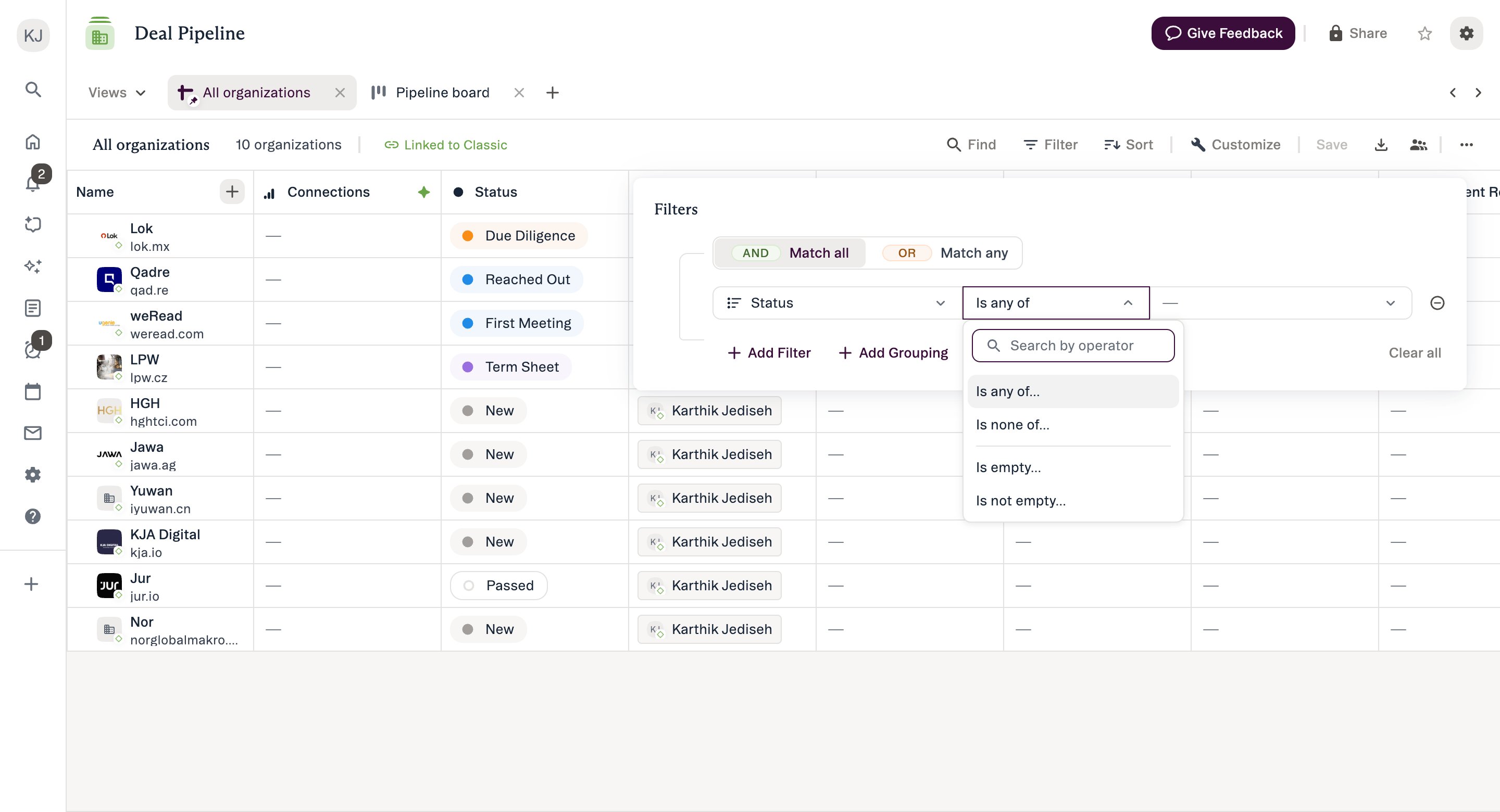
Boolean Filtering (AND / OR)
Definition: Combine multiple filter conditions in a single query.- AND → records must satisfy all conditions.
- Example: Industry = “FinTech” AND HQ Location = “San Francisco.”
- OR → records that satisfy at least one condition.
- Example: HQ Location = “San Francisco” OR HQ Location = “New York.”
- Nested groupings (mix AND + OR):
- Example: (HQ = SF OR NY) AND (Stage = Series B).
Field Coverage (All Fields Available)
Filtering supports all data types currently in Lists.**All Custom Fields**
**All Custom Fields**
- Text
- Dates
- Dropdown
- Ranked Dropdown (and Status)
- People and Owners
- Organizations
- Numbers and Amount
- Location
- Formula fields
**All Communications Fields**
**All Communications Fields**
- Last Contact
- Last Email
- First Email
- First Meeting
- Last Meeting
- Next Meeting
- Connections
**All Unique Fields**
**All Unique Fields**
- Notes
- Reminders
- Lists
- Opportunities
- Time in Current Status
- Source of Introduction
- Close Date
- Date Added
- People
- Organizations
**All Enriched Fields**
**All Enriched Fields**
- Enriched People/Organization attributes supported where applicable.
✨ New Fields Enabled (Detailed Behaviors)
Notes
Content:- Filter on text written in Notes fields.
- Replies are excluded.
- Partial matches at the word level; intra-word matching uses “Starts with”.
- Example: “Healthcare” or “Health” returns; “care” does not.
- Filters by the note creation date (not modification date).
- Replies are excluded.
- Results return entities that have any notes meeting the rule—even if you see another note first in the record’s detail.
- Example: “Notes created before 1/1/25” → if Figma has notes on 9/15/24, 1/2/25, 9/14/25, the company may surface, and you might first see the 9/14/25 note even though it’s outside the filter; the entity qualified because one note (9/15/24) matched. Reminders
- Filter entities with reminders within a period.
- Results return entities that have any reminders matching—even if the first visible reminder is outside the filtered range.
- Example: “Reminders due after 12/30/25” → if reminders are 9/15/25, 11/20/25, 1/9/26, the company surfaces due to 1/9/26, though you may first see 9/15/25. Connections
- Describe interactions between Affinity users and external contacts.
- Filter by internal colleagues’ names to see relationship owners.
- Includes all entities where that colleague is a connection (not only the strongest).
- Relationship score based on frequency, recency, quality.
- 100 = strongest; 1 = weakest.
- Example: Score > 70 for strong relationships.
- Connections Score filtering on people works by taking the highest score between anyone at your firm and that individual.
- Eg: If Maria at Apple Ventures has a 50 relationship score with Tom at your firm and 70 with Rachel, then Rachel’s score with Maria is used for the filter query.
- Connections Score filtering on companies works by taking the highest score between anyone at your firm and anyone at the company in question.
- Eg: If Maria at Apple Ventures has a 50 relationship score with Tom at your firm and 70 with Rachel, and Franco has a score of 20 with Rachel and 80 with Tom, then Tom’s score with Franco is used in the filter query. People (Default Relational Field)
- Filter on Affinity’s unique People data column (from email/calendar sync).
- Behaves like other person fields (multi-value rules apply). Opportunities
- Filter directly on Opportunities to find entities tied to specific opportunities.
- Behaves like a multi-value dropdown.
Operators by New Field
Operator Definitions (Unified Operator Architecture)
Text Operators- contains (case-insensitive), does not contain, is empty, is not empty Used on: free-text fields, notes, enriched text fields.
- is any of, is none of, is empty, is not empty Used on: single-value dropdown, ranked dropdown, status, single-value location/person/organization, source of introduction.
- has any of, has none of, has all of, is empty, is not empty Used on: multi-value dropdowns, multi-text (enriched), lists, opportunities, multi-value location/person/organization, connections → internals.
- is equal to, is not equal to, is greater than, is less than, is greater than or equal to, is less than or equal to, is between, is empty, is not empty Used on: numbers, amount, formulas, connections → score.
- is on, is not on, is between, is before, is after, is within the last, is not within the last, is within the next, is not within the next, is empty, is not empty Used on: dates, last/first contact, last/next meeting, last/first email, close date, reminder due date, note created date, date added.
- **A note on relative date filters (e.g. “is within the last…”): **
- Classic lists relative date filters are measured from the current timestamp while relative date filters in new Lists ones are measured from midnight UTC on the current date. Duration Operators (Time-based filters; days/weeks/months/years; single values or ranges)
- is exactly, is not exactly, is between, is more than, is less than, is more than or equal to, is less than or equal to, is empty, is not empty Used on: Time in Current Status.
Sorting (What’s New and How It Works)
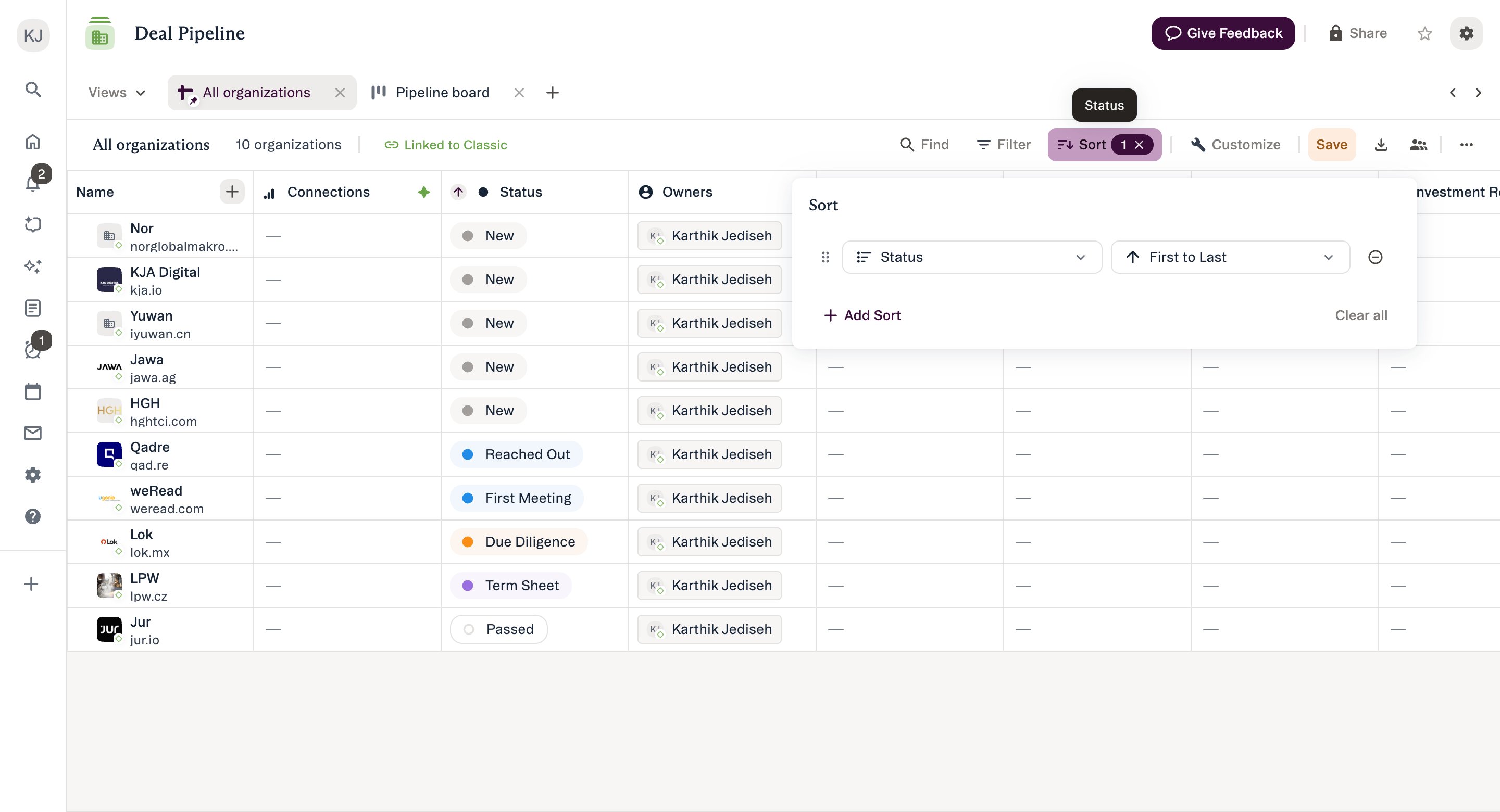
- Up to 5 sorts can be applied at once if filtering from the sorting popover in the toolboar
- Example: Stage (asc) → Score (desc) → Created Date (newest) → Location (asc) → Industry (desc).
- **Note: **if sorting from the field header, you can only have 1 sort. Additional sorts will need to be added from the toolbar popover.
- If you have an existing sort, and click to sort from the header, the existing sort will be replaced.
- New fields enabled for sorting
- Text: Alphabetical (A–Z / Z–A) by the beginning word.
- Location: Alphabetical A–Z by the cell’s content.
- Notes → Created Date: Sort by the most recent note’s creation date (newest/oldest) Sort Rule Definitions
- Alphabetical: A–Z or Z–A (empty cells always last). Used on: Text, Notes, Dropdowns, People, Organizations, Location.
- Numerical: High→Low or Low→High (empty last). Used on: Numbers, Connections, Time in Current Status.
- Ordinal: First→Last or Last→First (empty last). Used on: Status, Ranked Dropdown.
- Chronological: Newest→Oldest or Oldest→Newest (empty last). Used on: Dates, Reminders → Created Date, Notes → Created Date, Last/First Meeting, Next Meeting, Last/First Email, Last Contact, Close Date, Date Added.
Filtering and Sorting on Fields Not in View
You can filter/sort on columns that are not currently visible.- Logic still runs across the dataset.
- Example: Apply “Connections Score > 70” without adding the Connections Score column to the view—keeps the UI uncluttered.