

How-to — task-oriented recipe.
Overview
Create custom fields to track new data points and delete fields you no longer need—all directly from New Lists without toggling to Classic. Fields you create appear immediately across Affinity and can be scoped to a single List or shared globally across your firm.How to Create a Field
Step 1: Access Field Creation
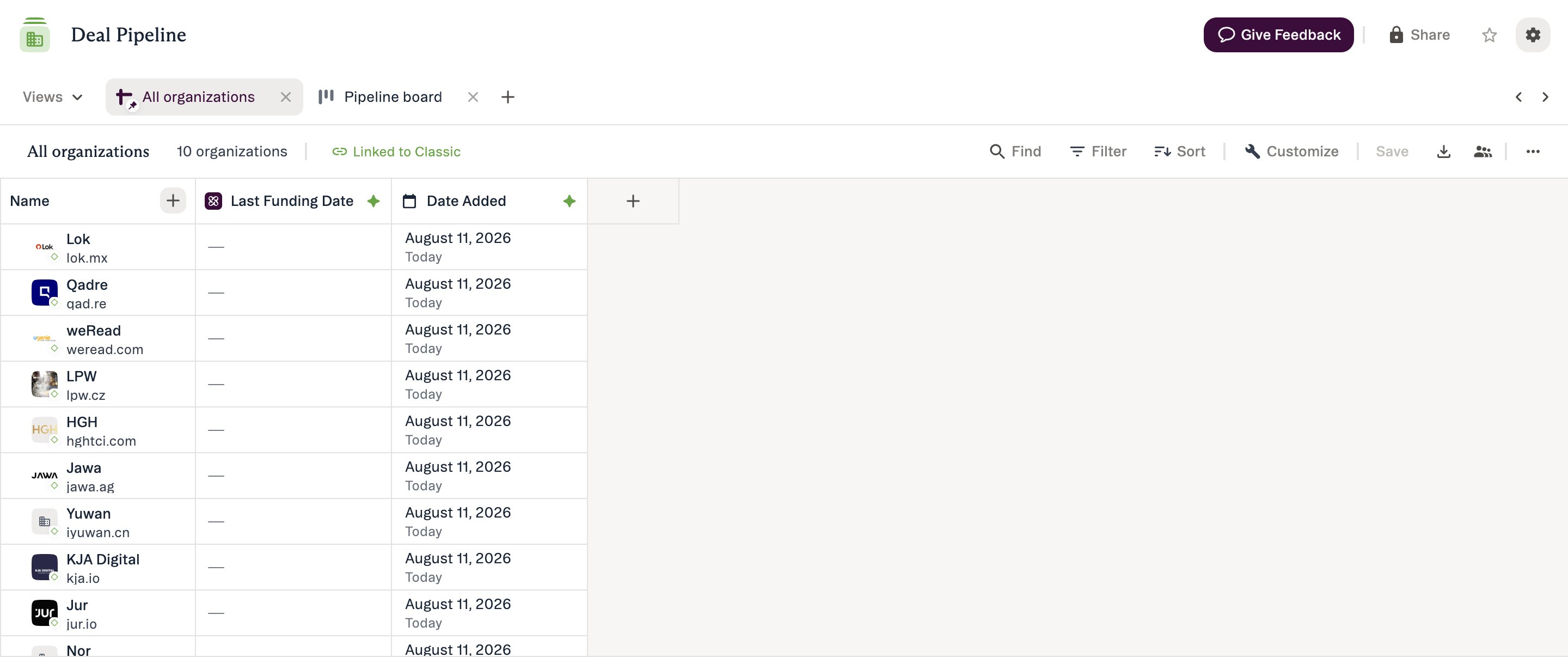
Choose one of three methods:Method 1: + New Field button (recommended)
- Scroll to the right edge of your column headers
- Click the + button
- Field creation form opens
Method 2: Customize panel
- Click Customize (gear icon in toolbar)
- Click + New Field button
- Field creation form opens
Method 3: Column header menu
- Click any existing column header
- Select Insert column right or Insert column left
- Field creation form opens
Step 2: Search or Create
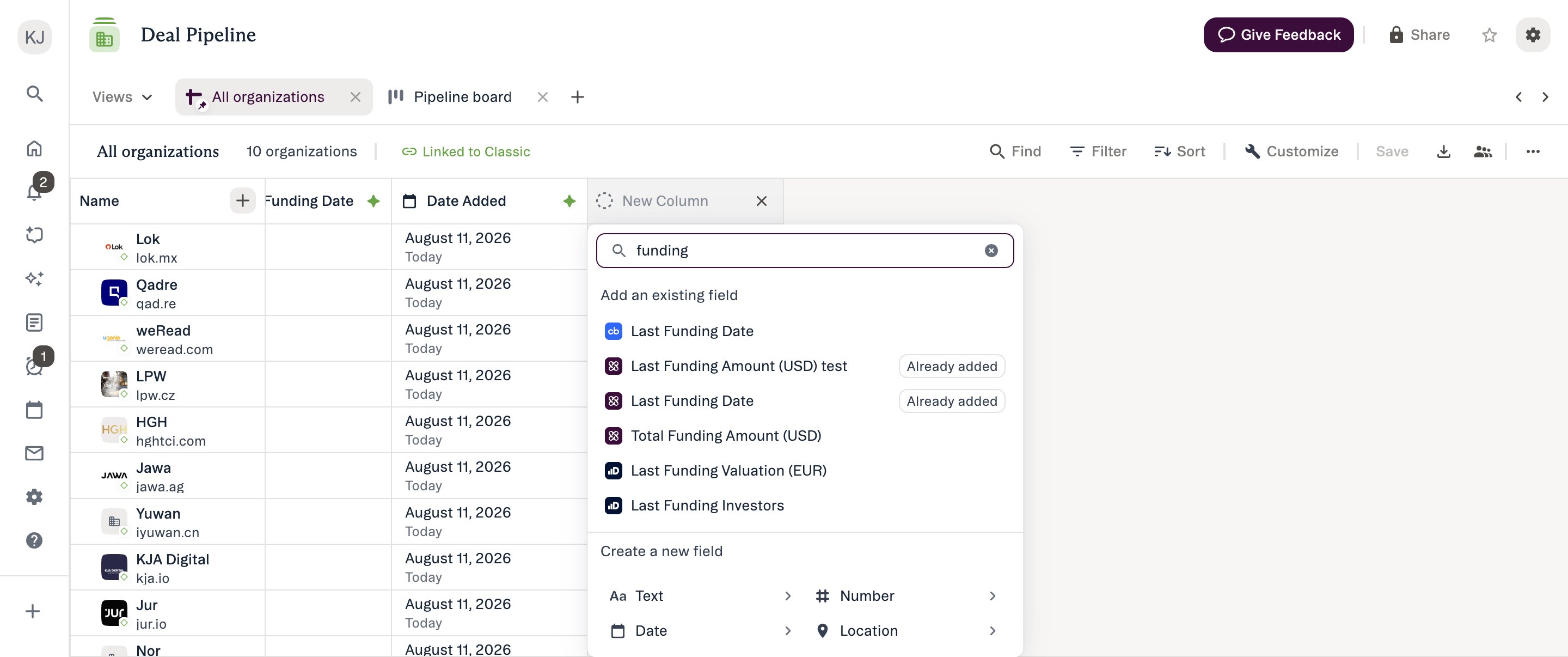
- Type the field name in search bar
- Matching fields appear in dropdown
- Select the field to add it to your List
- Field appears immediately (no need to create new)
- If search shows no matches, create new
- Proceed to field type selection Why search first: Reusing existing fields maintains consistency across Lists and avoids duplicate field names.
Step 3: Choose Field Type
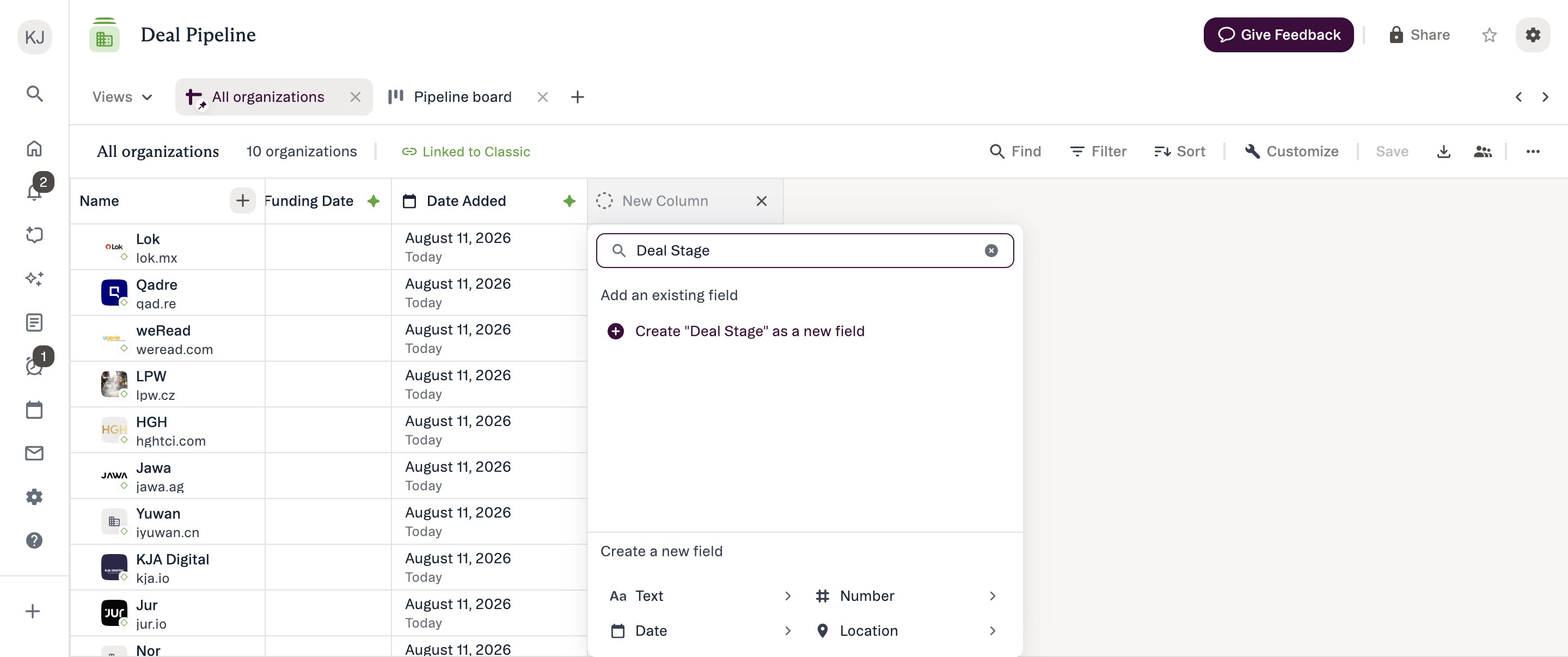
- Text - Free-form text entry (single-value only)
- Number - Numeric data, can be used in formulas (single-value only)
- Date - Deadlines, milestones, time tracking (single-value only)
- Location - Geographic data (single or multi-value)
- Company - Links to company entities (single or multi-value)
- Person - Links to person entities (single or multi-value)
- Dropdown / Ranked Dropdown - Predefined option lists (create the field, then manage its options from the column header)
- Formula - Calculates a value from number fields using one function: Sum, Subtract, Multiply, Divide, or Average (see How to create list calculations using the formula field)
Step 4: Choose Single or Multi-Value
Steps 4 to 6 all appear on the same form. Once you pick a field type, Value Limit, Field Scope and Options are shown together, not as separate screens.
- Stores one value per cell
- Example: “Primary Contact” (one person) Multi-value:
- Stores multiple values per cell
- Example: “Board Members” (multiple people)
- Automatically single-value only
Step 5: Name the Field
Enter a clear, descriptive name: Requirements:- Must be unique (cannot duplicate existing field names)
- Case-insensitive (“Deal Stage” conflicts with “deal stage”)
- Required (cannot save without name)
Step 6: Set Field Scope
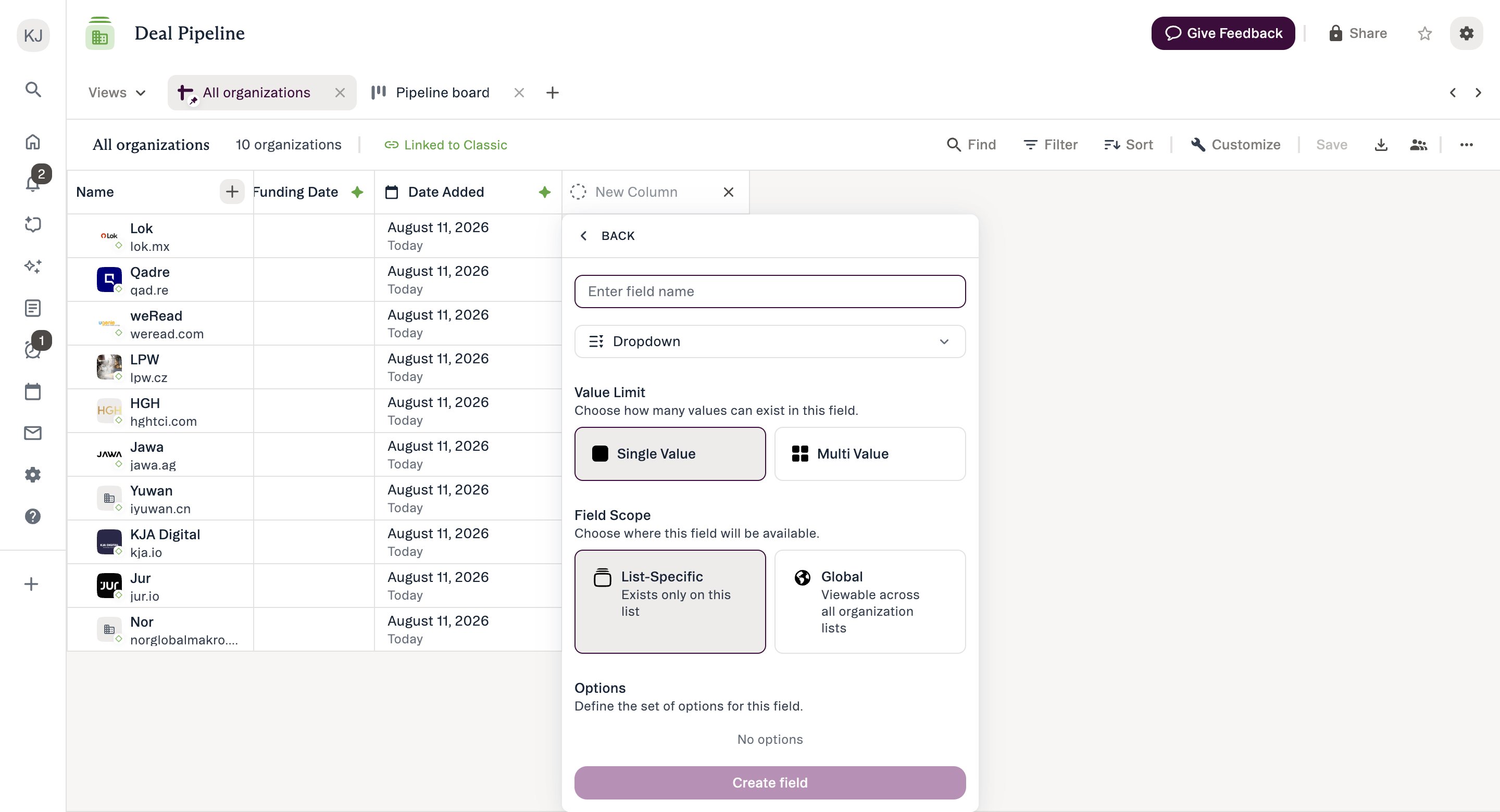
- Field only appears on THIS List
- Only visible to users with access to this List
- Use when: Data is unique to this List’s purpose
- Field appears on ALL Lists of same entity type
- Visible to all users across applicable Lists
- Requires “Manage Global Fields” permission
- Use when: Data should be consistent across your firm
- Tracking pipeline stages for ONE deal list? → List-specific
- Tracking investment thesis across ALL org lists? → Global
- Recording meeting notes for ONE opportunity list? → List-specific
- Recording board member status across ALL org lists? → Global Note: Scope cannot be changed after creation. Choose carefully.
Step 7: Save and Use
- Click Save (or Create Field)
- Field creation form closes
- New column appears immediately in your sheet
- Column is ready to use—start entering data
- Field propagates instantly across all Affinity surfaces
- Column appears at insertion point (right or left of current column, or far right if using + button)
- Field available in Customize panel
- Field available in filter/sort builders
- Field appears on profiles
- Other users see new field immediately (if they have access)
How to Delete a Field
Step 1: Open Column Header Menu
- Click the header of the column you want to delete
- Column header action bar appears
- Scroll through menu options
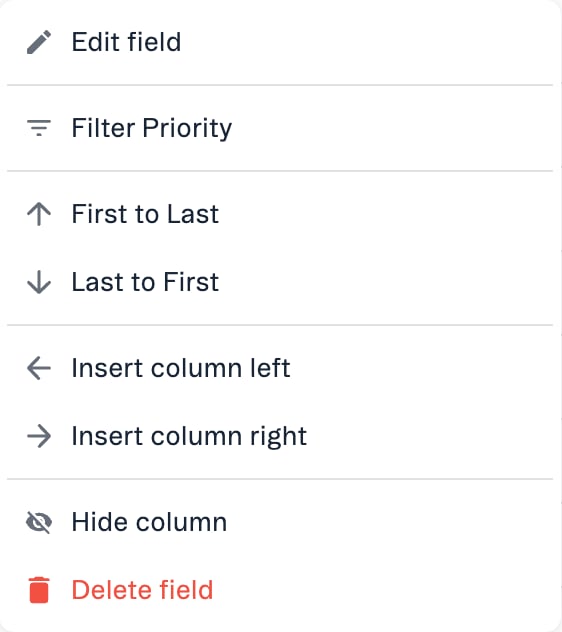
Step 2: Select Delete Field
- Find Delete Field option (styled in red)
- Click Delete Field
- Confirmation dialog appears
- You may not have permission (Standard users can only delete empty fields)
- Field may be a system field (cannot be deleted)
- Field may be a default field (Notes, Reminders, Status, etc.)
Step 3: Review Confirmation Dialog
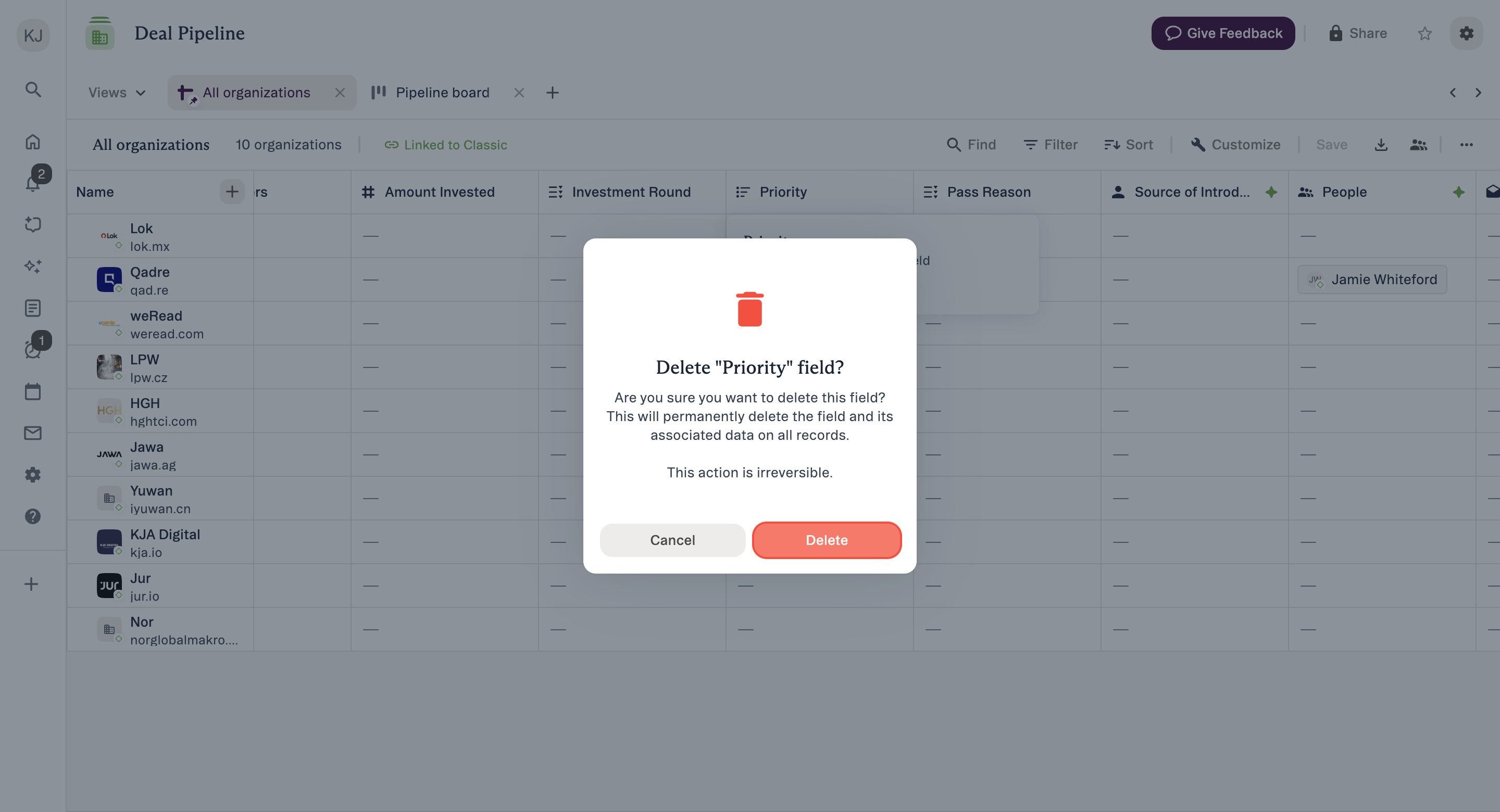
- Field name being deleted
- Warning that deletion is permanent
- Warning that all values will be lost
- Do you have permission to delete?
- Is anyone else using this field?
- Are there automations or formulas depending on it?
- Do you want to export data first as backup?
Step 4: Confirm Deletion
To proceed:- Click the Delete button
- Field and all its data are immediately deleted
- Column disappears from sheet
- Change propagates across all Affinity surfaces
- Click Cancel
- Field remains unchanged
- Dialog closes, no changes made
Common Use Cases
Use Case 1: Setting Up Custom Deal Tracking
Scenario: Your team wants to track “Next Steps” for all opportunities to maintain clear action items per deal. Workflow:- Open your Opportunities List in New Lists
- Click + at right edge of column headers
- Search for “Next Steps” (check if exists)
- If not found, choose a field type — e.g. Dropdown for predefined stages, or Text
- Name: “Next Steps”
- Scope: List-specific (unique to this deal pipeline)
- Click Save
- New “Next Steps” column appears
- Start filling in: “Schedule follow-up call”, “Send term sheet”, “Wait for diligence response”, “Prepare IC memo”, etc.
Use Case 2: Creating Firm-Wide Investment Thesis Field
Scenario: Your firm wants consistent investment thesis tracking across all portfolio company Lists. Workflow:- Open any Organization List in New Lists
- Click + button
- Select Text field type
- Name: “Investment Thesis”
- Scope: Global (appears on all Org lists)
- Click Save
- Field appears on current List AND all other Org lists
- All team members can now document thesis consistently
Use Case 3: Tracking Multiple Board Members
Scenario: Portfolio companies have multiple board members you want to track. Workflow:- Open Portfolio Company List
- Click + button
- Select Person field type
- Choose Multi-value (allows multiple people per cell)
- Name: “Board Members”
- Scope: List-specific or Global (based on need)
- Click Save
- Add multiple board members to each company
Use Case 4: Removing Deprecated Tracking Field
Scenario: Your team stopped using “Old Pipeline Stage” field six months ago. It’s cluttering views. Workflow:- Verify with team: “Is anyone still using Old Pipeline Stage?”
- Check: Any automations or filters using this field?
- Export List as backup (in case data needed later)
- Click “Old Pipeline Stage” column header
- Select Delete Field (red option)
- Review confirmation: “This will delete all values permanently”
- Click Confirm
- Column and all data removed instantly
Tips & Limitations
Tips
Field creation:- Search existing fields first (reuse when possible)
- Name fields clearly from the start (renaming later causes confusion)
- Start with list-specific, expand to global only if truly needed
- Document each field’s purpose and format in its field description
- Export data before deleting (backup for historical records)
- Coordinate with team before deleting shared fields
- Check automations and formulas first (avoid breaking dependencies)
- Consider hiding instead of deleting if unsure Permissions:
- Request “Manage Global Fields” permission if you frequently create firm-wide fields
- List Owners/Admins can delete populated fields (Standard users cannot)
- Test field creation in personal List first before creating on shared Lists