

Reference — lookup information.
Unique fields in people lists
- Amount
- This field is used to show total amounts for each status option from the Status field in board views.
- Owners
- This field is used for creating status triggers and reminder triggers.
- This field can only be filled with internal users (team members) on your Affinity account. External contacts cannot be added to this field.
- Status
- This field is used for creating status triggers, opportunity triggers, and reminder triggers.
- This field also affects the enriched field: Time in Current Status*
- You can also click on a cell under the Status field to see how long a list entry has been in that current status.
- You can also use Time in Current Status* for Affinity Analytics — Funnel Analysis Reports.
- Notes
- All the notes associated with a person will carry over to the organizations and opportunities they’re also associated with.
- Reminders
- All the reminders associated with a person will carry over to the organizations and opportunities they’re also associated with.
- Organizations*
- This field is enriched and auto-updated as Affinity auto-creates contacts over time, but can be manually edited as well.
- All the notes and reminders associated with a person will carry over to the organizations they’re also associated with.
- All the email/calendar activities between you/your team and the people associated with a given organization will appear on the organization’s Activity Timeline.
- Opportunities
- This field displays all Opportunities that a person is directly associated with via the People field of an Opportunity.
- You can click on the cell within the Opportunities field to navigate directly to the Opportunity’s profile.
- This field is read-only and is automatically updated as new associations are created.
- Source of Introduction*
- This field is enriched and auto-updated, but can be manually edited as well.
- Click on the cell for one of the list entries to see the specific interaction that Affinity has determined to be the earliest point of communication between you/your team and that person.
Unique fields in organization lists
- Amount
- This field is used to show total amounts for each status option from the Status field in board views.
- Owners
- This field is used for creating status triggers and reminder triggers.
- This field can only be filled with internal users (team members) on your Affinity account. External contacts cannot be added to this field.
- Status
- This field is used for creating status triggers, opportunity triggers, and reminder triggers.
- This field also affects the enriched field: Time in Current Status*
- You can also click on a cell under the Status field to see how long a list entry has been in that current status.
- You can also use Time in Current Status* for Affinity Analytics — Funnel Analysis Reports.
- Notes
- All the notes associated with a person will carry over to the organizations they’re also associated with.
- You can still add notes directly to organizations themselves.
- Reminders
- All the reminders associated with a person will carry over to the organizations they’re also associated with.
- You can still set reminders directly for organizations themselves.
- People*
- All the notes and reminders associated with a person will carry over to the organizations and opportunities they’re also associated with.
- All the email/calendar activities between you/your team and the people associated with a given organization will appear on the organization’s Activity Timeline and affect enriched fields like First Email*, First Meeting*, Last Email*, Last Meeting*, Last Contact*, and Next Meeting*.
- Opportunities
- This field displays all Opportunities that an organization is directly associated with via the Organization field of an Opportunity.
- You can click on the cell within the Opportunities field to navigate directly to the Opportunity’s profile.
- This field is read-only and is automatically updated as new associations are created.
- Source of Introduction*
- This field is enriched and auto-updated, but can be manually edited as well.
- Click on the cell for one of the list entries to see the specific interaction that Affinity has determined to be the earliest point of communication between you/your team and that organization.
Unique fields in opportunity lists
- AUM
- This field is used to show total amounts for each status option from the Status field in board views.
- Close Date
- This field will be auto-updated when an opportunity gets updated to any status option within the “Won” category of the Status field.
- This field can be used for Affinity Analytics — Funnel Analysis Reports.
- Owners
- This field is used for creating status triggers and reminder triggers.
- This field can only be filled with internal users (team members) on your Affinity account. External contacts cannot be added to this field.
- Status
- Only for opportunity lists: You can assign win probabilities (%) to each status option within the Status field, which can then be used to track weighted averages with Affinity Analytics (learn more).
- This field is used for creating status triggers, opportunity triggers, and reminder triggers.
- This field also affects the enriched field: Time in Current Status*
- You can also click on a cell under the Status field to see how long a list entry has been in that current status.
- You can also use Time in Current Status* for Affinity Analytics — Funnel Analysis Reports.
- People
- All the notes and reminders associated with a person will carry over to the opportunities they’re also associated with.
- All the email/calendar activities between you/your team and the people associated with a given opportunity will appear on the opportunity’s Activity Timeline and affect enriched fields like First Email*, First Meeting*, Last Email*, Last Meeting*, Last Contact*, and Next Meeting*.
- Organizations
- If there is exactly one organization associated with a given opportunity, Affinity will surface all the enriched data for that organization (if available) for that opportunity in the opportunity list.
- If there are zero, two, or more organizations associated with a given opportunity, Affinity will not surface any enriched data from any organization for that opportunity in the opportunity list.
- Notes
- All the notes associated with a person will carry over to the opportunities they’re also associated with.
- You can still add notes directly to opportunities themselves.
- Reminders
- All the reminders associated with a person will carry over to the opportunities they’re also associated with.
- You can still set reminders directly for opportunities themselves.
Reasons why you may not see some of these unique fields
-
Another team member on your account may have renamed one of these unique fields.
- Example: Renaming the Status field by clicking the dropdown, then clicking Edit Status.
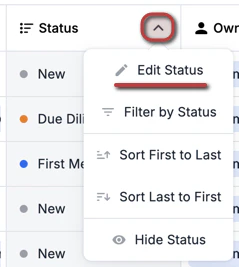
- Example: Renaming the Status field by clicking the dropdown, then clicking Edit Status.
-
The unique field may simply be hidden from the saved view you’re currently viewing.
- Example: Don’t see the Status field? Click on Customize View to see whether or not the Status field is checkmarked.
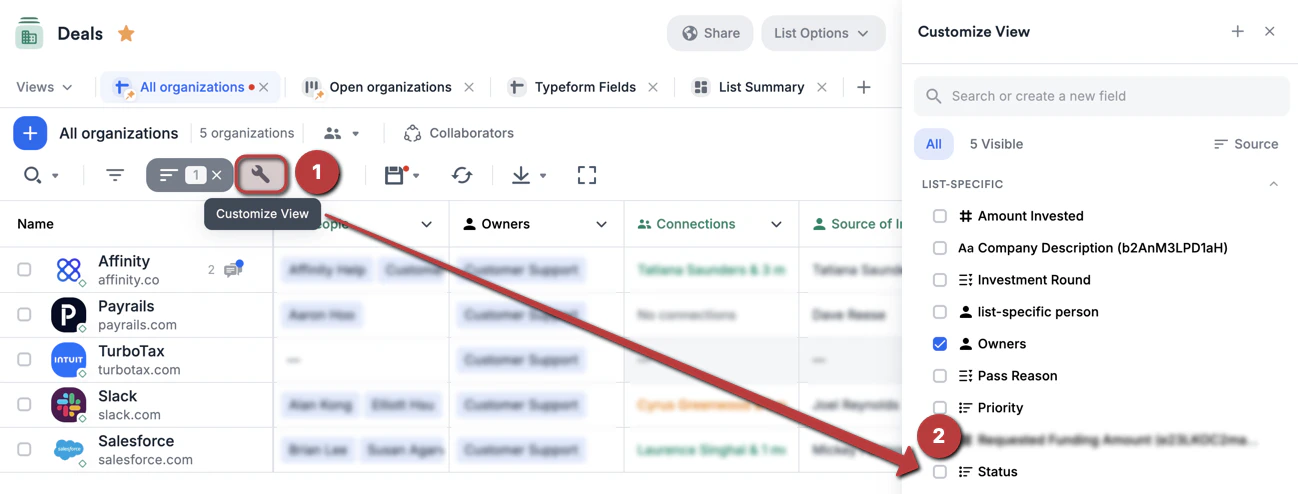
- Example: Don’t see the Status field? Click on Customize View to see whether or not the Status field is checkmarked.