

How-to — task-oriented recipe.
Overview
Create columns/fields to categorize, sort, and filter your data. Field color indicates scope/source:- Green = enriched (auto-populated by Affinity; cannot be created/deleted)
- Blue = global (manually created; available across all lists of the same type)
- Black = list-specific (manually created; available only in this list)
You can create global (blue) and list-specific (black) fields. Enriched (green) fields are system-provided.
Step 1 — Where to create a new column
In New Lists: click the + button immediately to the right of the last column header, or open Customize and click New Field. The + button is icon-only and has no tooltip.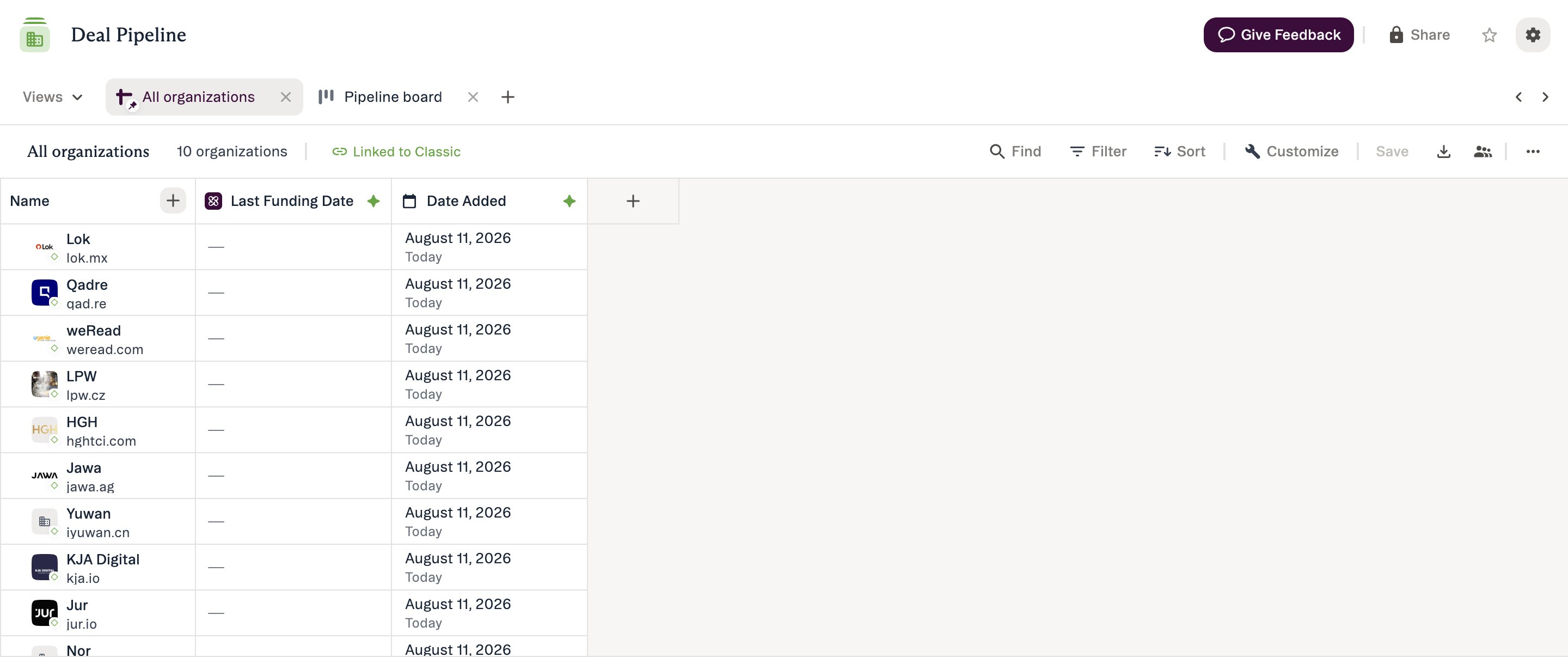
Step 2 — Choose a Field Type
After naming your column, choose one of the following types: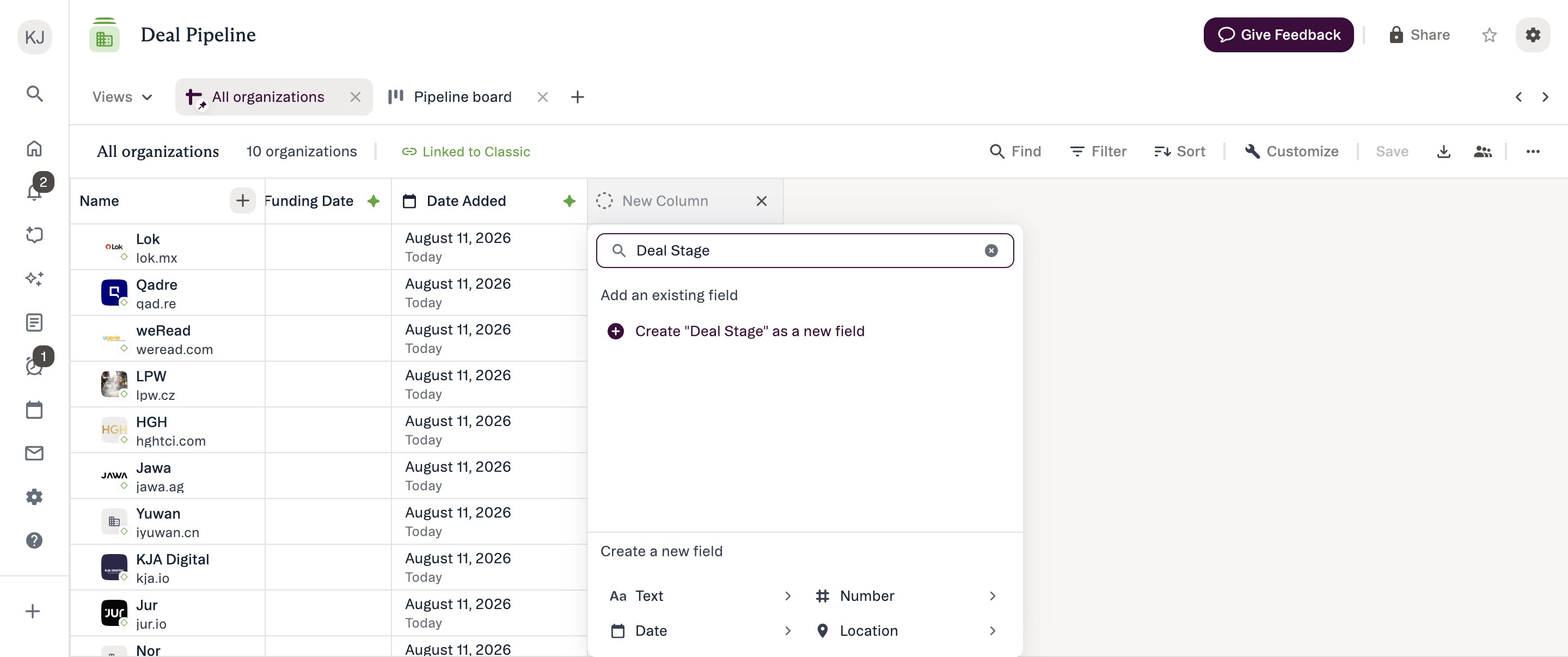
- Text – free-text (e.g., descriptions, short notes). Sheets 3 supports filtering on Text (word-level, case-insensitive; intra-word limits).
- Number – numeric values (e.g., Deal Amount, Revenue). Phone numbers should use Text.
- Date – specific dates (e.g., Closing Date).
- Location – addresses/places (Google Maps API).
- Dropdown – selectable values (supports multiple values).
- Ranked Dropdown – single value with a defined order (e.g., Status, Priority). Sortable by ordinal (First→Last).
- Formula – calculated values from numeric fields (e.g., Total Investment). Formula editing isn’t available in New Lists yet — switch that list to Classic to edit a formula.
- Person – link to people.
- Organization – link to organizations.
Step 3 — Determine Field Settings
- Single value vs. Multiple values
- Some types support both.
- You can switch from single → multiple later, but cannot revert from multiple → single.
- Single-value → is any of / is none of
- Multi-value → has any of / has none of / has all of
- List-specific vs. Global
- List-specific = field exists only in this list.
- Global = field exists across all lists of the same entity type (recommended for shared taxonomy and consistent filtering/sorting across teams).