Overview of the global navigation bar and homepage in Affinity
Help center reference
Reference — lookup information.
Now that you’ve signed in and started syncing your email/calendar data, we’ll guide you through the main Affinity product areas that you may find most helpful.
We’re excited to introduce a more streamlined navigation experience so you can access what you need more quickly.
Personal Avatar: Access Alliances, Tracked Emails, Affinity Support, Keyboard Shortcuts, Dark Mode, and Settings from here.Alliances: Make allies and share networks to find warm leads and introductions (see Getting started with Affinity Alliances).Tracked Emails: Track click, open, and response rates for emails sent through Affinity (see How to track emails sent through Affinity).Affinity Support: Quickly access the Getting Started section of our Help Center. You can also send an email or live chat with Affinity Support.Keyboard Shortcuts: Learn how to take actions in Affinity more quickly with keyboard shortcuts (see Keyboard Shortcuts).Change theme: Turn on Dark Mode for Affinity (see How to turn on Dark Mode in Affinity).Settings: Customize your email signature, date/time zone preferences, personal privacy settings, and more (see Navigating your settings in Affinity).Collapse / Expand: When viewing product areas like lists and profiles, you can collapse the sidebar for more horizontal screen space.Search: Search for people, organizations, opportunities, and lists (see Conducting searches in Affinity).Home: Access your All Organizations and All People directories, favorite lists, and all other lists (see section titled “Navigating Affinity’s Home Page” just below).Notifications: View all notifications related to reminders, unanswered emails, @ mentions in notes, and more.Chat (in Beta): Use Affinity AI to help with common use cases such as meeting prep and company queries.Notes: Notes Center is your one-stop destination for all your notes transcribed by Affinity Notetaker, imported from other sources (such as Granola) as well as the ones you created in Affinity.Reminders: Create and view all reminders to keep track of upcoming tasks (see How to set reminders in Affinity).Meetings: View all your synced calendar meetings, quickly access relevant profile pages, and join virtual meetings (see How to access your meetings directly within Affinity).Unanswered Emails: See the emails you’ve sent/received that require a follow-up (Overview of Unanswered Emails).Reports: Use Basic Reporting to generate reports based on the various lists you have created (see Getting started with Basic Reporting).
Note: Basic Reporting is only available for our legacy customers. For those on the Scale, Advanced, and Enterprise tiers, we highly suggest leveraging Affinity Analytics’ advanced reporting features instead.
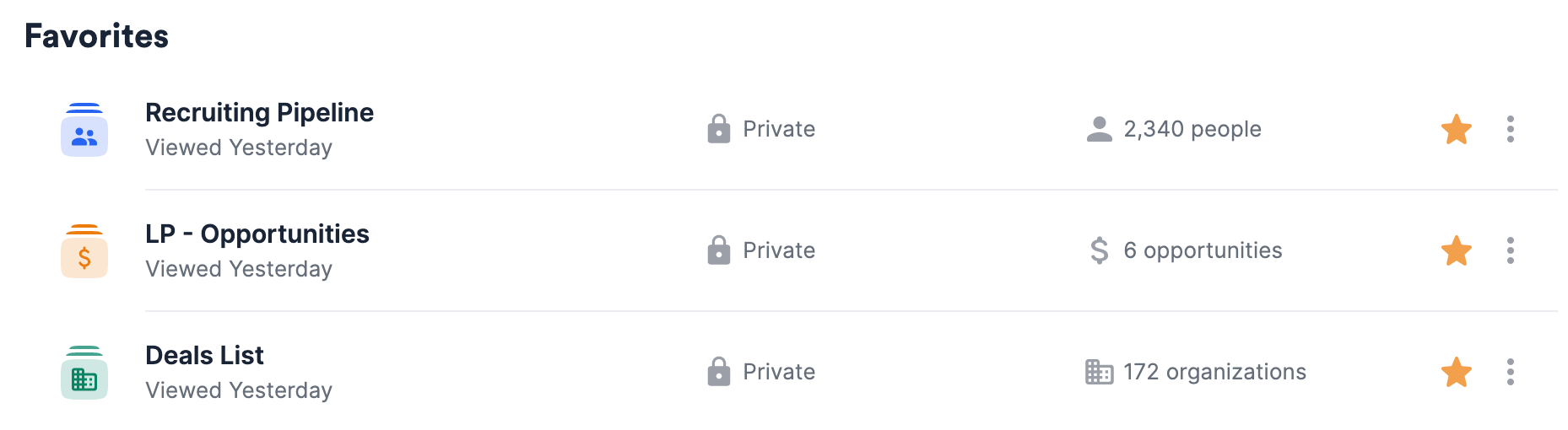
Your Network: Access your All People and All Organizations directories, which consist of your/your team members’ collective networks.Recent Views: Access your most recently visited saved views.Favorites: Determine your favorite lists for immediate access on the global navigation bar.
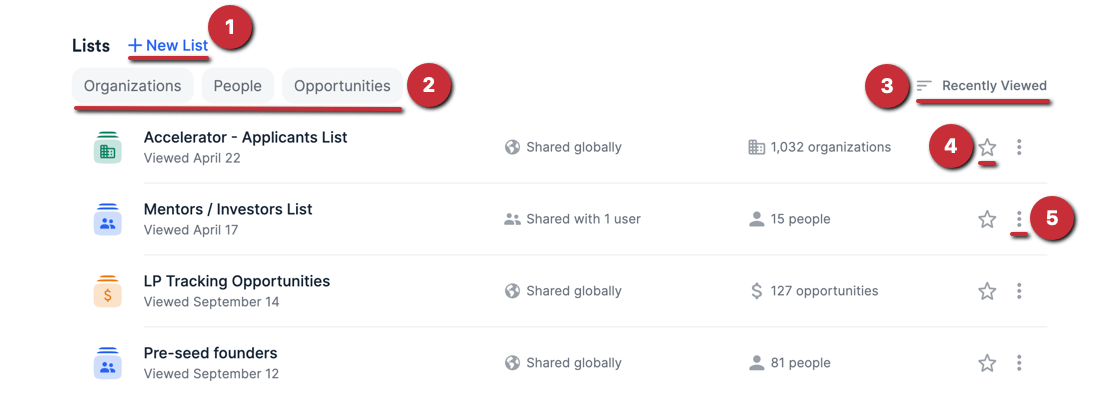
Click on the Organizations, People, or Opportunities filters to quickly filter by list-type.
Click on the sort button to the right to sort the lists by the following options:
Recently Viewed
Name A to Z / Name Z to A
Created (Newest) / Created (Oldest)
Click the star icon to favorite a list.
Click the ellipsis (3-dotted icon) to move it to My Hidden Lists.
My Hidden Lists: All of your hidden lists will be at the very bottom of the home page to minimize unnecessary scrolling. From here, we’ll dive deeper into directories - your/your team’s shared network of contacts: All People and All Organizations directories.
Was this page helpful?
Assistant
Responses are generated using AI and may contain mistakes.