

How-to — task-oriented recipe.
- These interactions enrich the context of your/your team’s communication history with people, organizations, and opportunities.
- These interactions improve the relationship strengths you have with your connections.
How to log interactions into Affinity
- You can log an interaction by clicking + Add New on the bottom-left corner of the global navigation sidebar.
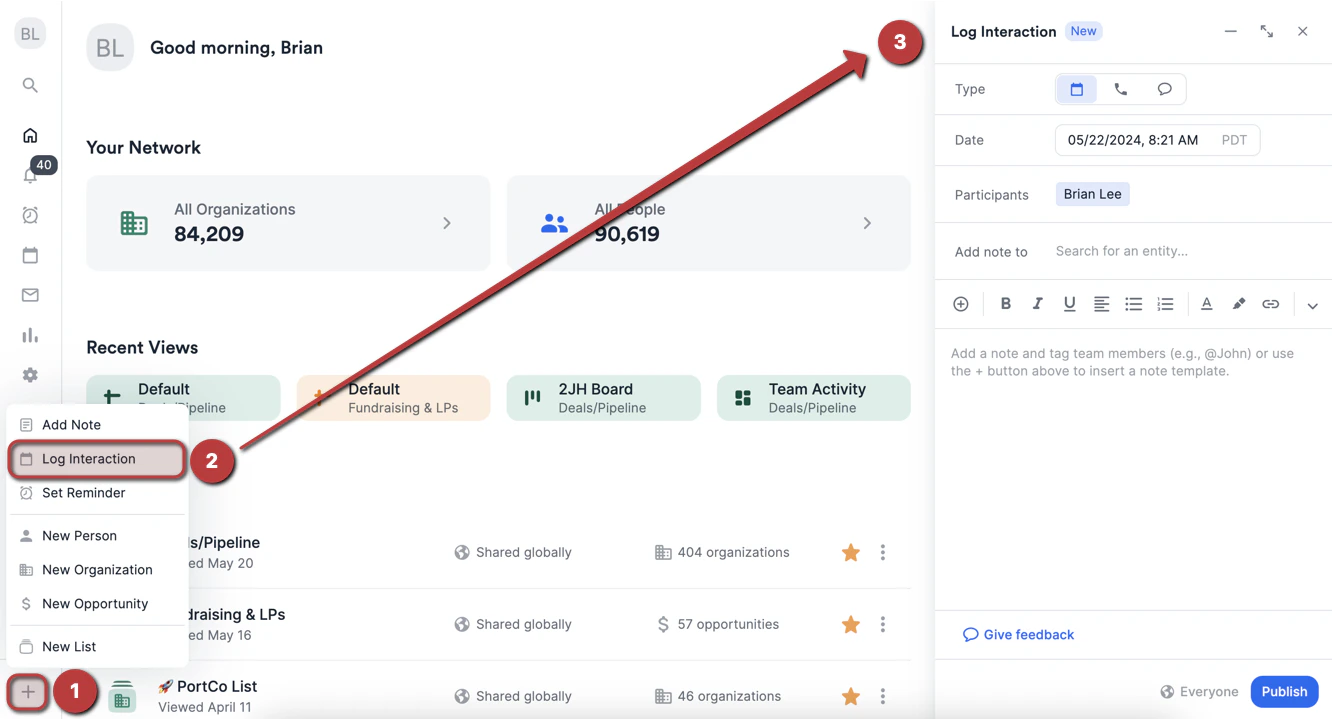
- You can also log an interaction on a contact’s profile page by clicking the dropdown arrow, then clicking Log Interaction.
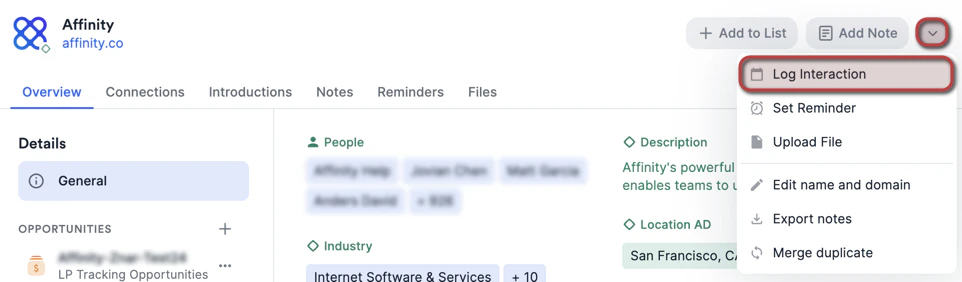
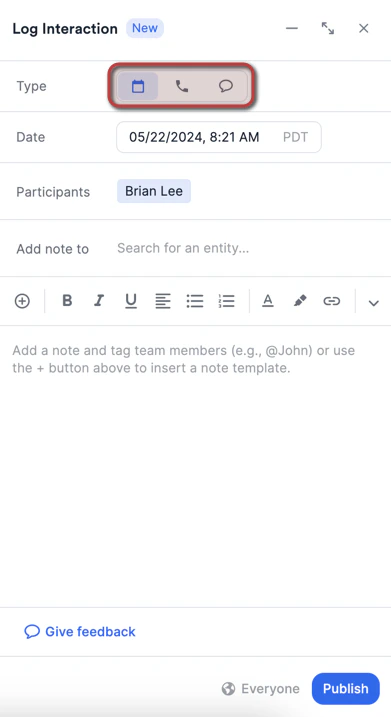
- Once you click Log Interaction, you can choose one of three interaction types: Meeting, Call, or Message.
- Choosing Meeting or Call will enrich the Last Meeting and Last Contact columns.
- Choosing Message will only enrich the Last Contact column.
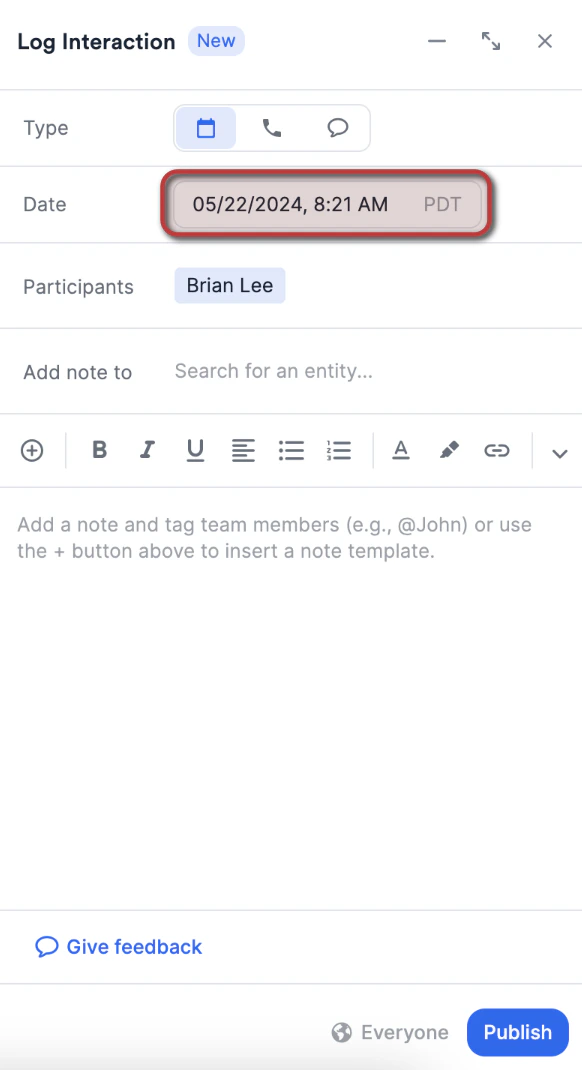
- Then, specify the date and time in which the interaction took place.
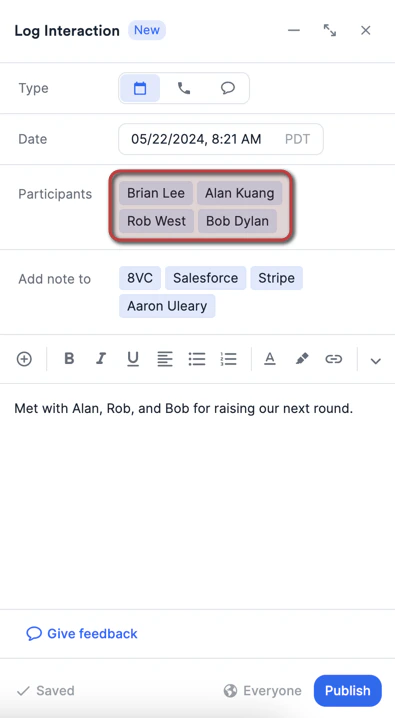
- Then, add the relevant people you have interacted with in the “Participants” field. If someone isn’t in Affinity yet, type their name and choose the Add action that appears — you can create the person right there and they’re added as a participant, without leaving the form. This will not notify the participants in any way, they are simply being tagged as part of the interaction. Note: For the participants in this field, this interaction will get treated as a meeting when clicking into any of their profile pages and viewing the Activity Timeline.
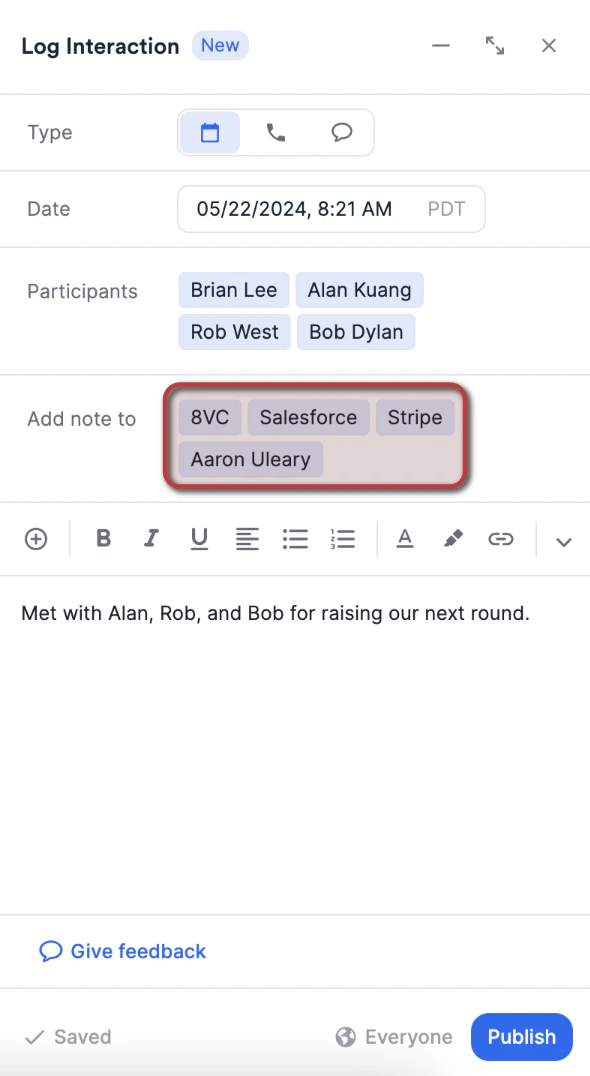
- Then, add any other people, organizations, and opportunities you have spoken about in the “Add note to” field just below. If one of them doesn’t exist yet, the picker offers Create person, Create organization and Create opportunity above the search results, so you can add it without abandoning the form. Anything you create this way is kept even if you later discard the interaction, and a restricted opportunity keeps its restricted flag and sharing limits. This will not notify the entities in any way, they are simply being tagged as part of the interaction. Note: For the entities in this field, this interaction will get treated as a regular note when clicking into any of their profile pages.
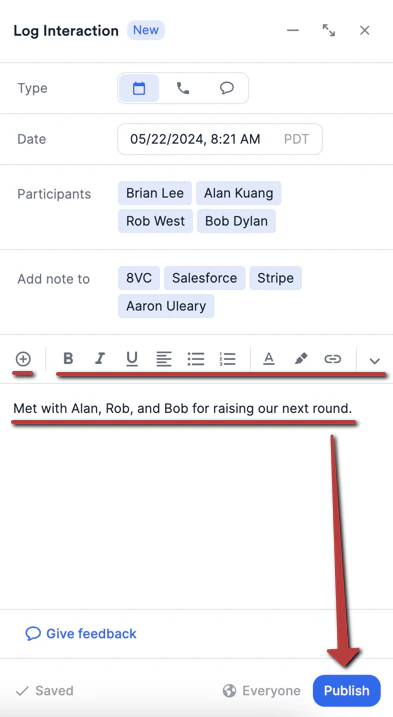
- Last but not least, write out your note with rich text formatting and/or note templates, then click Publish.
What happens to the notes attached to logged interactions if the logged interactions get deleted?
- Logged interactions can be deleted, but if there is a note attached, it will be detached and converted to a regular note (see How to create/view notes in Affinity).
- Any meeting participants previously associated with the logged interaction will remain associated as it gets converted to a regular note.
- Any people, organizations, or opportunities previously associated with the logged interaction will remain associated as it gets converted to a regular note.
- If you’re on the Enterprise tier, then the sharing permission that was previously set for the note attached to the logged interaction will default to what is currently set in the Fallback Behavior (check out the section titled “What content types can the Enterprise Admin adjust sharing options for?” within this article: Enterprise Permissions (Enterprise only).
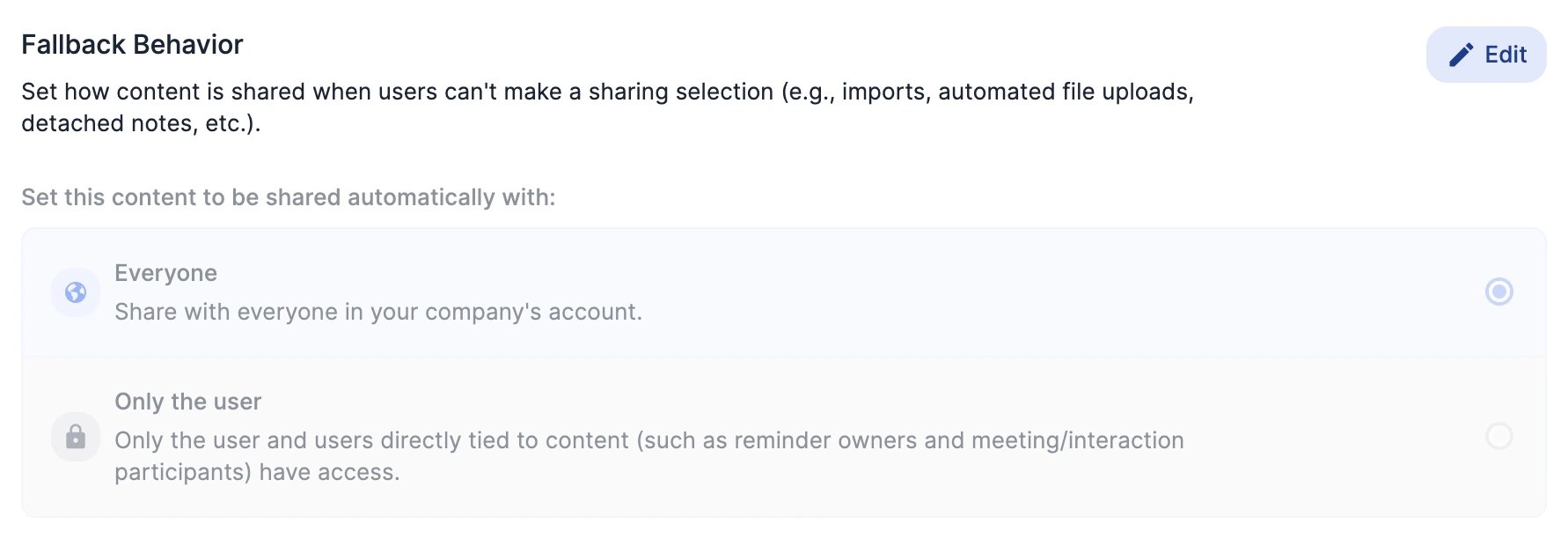
- If the Fallback Behavior is set to Only the user, then only the user who added the note will be able to view the note. So if the user gets deactivated/removed from their Affinity account, then the note will not be accessible to any other user on the account. To change the sharing permission, please reach out to support@affinity.co with the following:
- The Name of the deactivated/removed user you’d like to change sharing permissions for.
- Which content type(s) you’d like to change sharing permissions for: Notes, Reminders, Files, Logged Interactions, Meeting Notes
- The sharing permission you’d like to change to: Everyone, Only Teams/Users, Only the user
Important Callouts
- You must add at least one external contact (someone outside of your team) to log the interaction. Affinity does not surface interactions that take place only amongst internal contacts (team members).
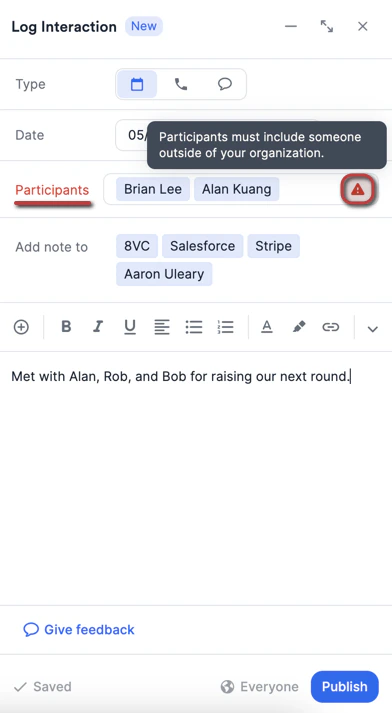
- Users can only have 1 draft at a time for logged interactions created from the global navigation sidebar.
- The draft persists until a user deletes it or clears their local storage:
- This means that users can close their session and return to the minimized draft, or open a new tab and see the same draft.
- If users clear their local storage, Affinity will not be able to recover the draft.