
Documentation Index

Fetch the complete documentation index at: https://support.affinity.co/llms.txt

Use this file to discover all available pages before exploring further.

How-to — task-oriented recipe.
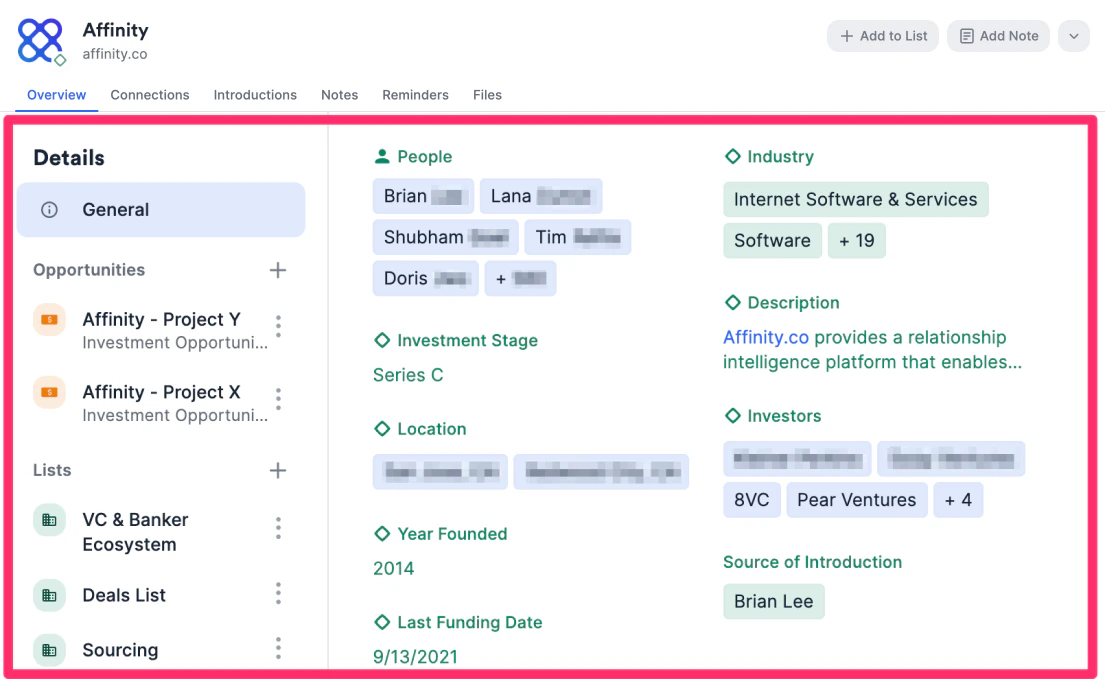
Choose which fields you’d like to hide, show, and reposition on profile pages for people, organizations, and opportunities.

How to customize profile fields

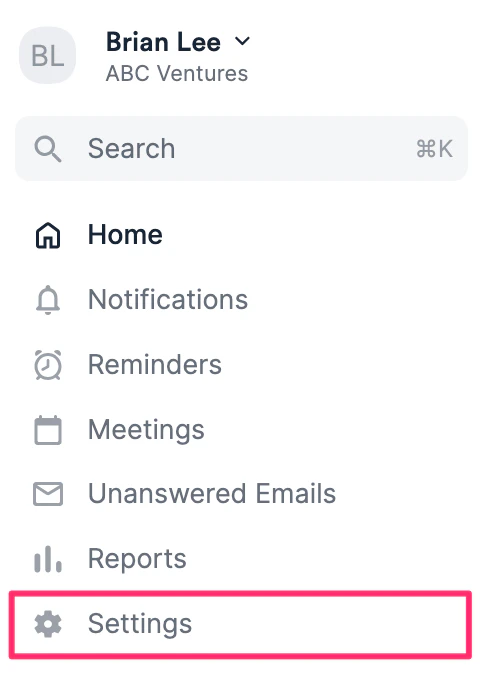
  1. Click on Settings on the left-side of your screen.
  2. Click Profile Field Customization, then click the Menu icon to choose from the 4 different sections below:
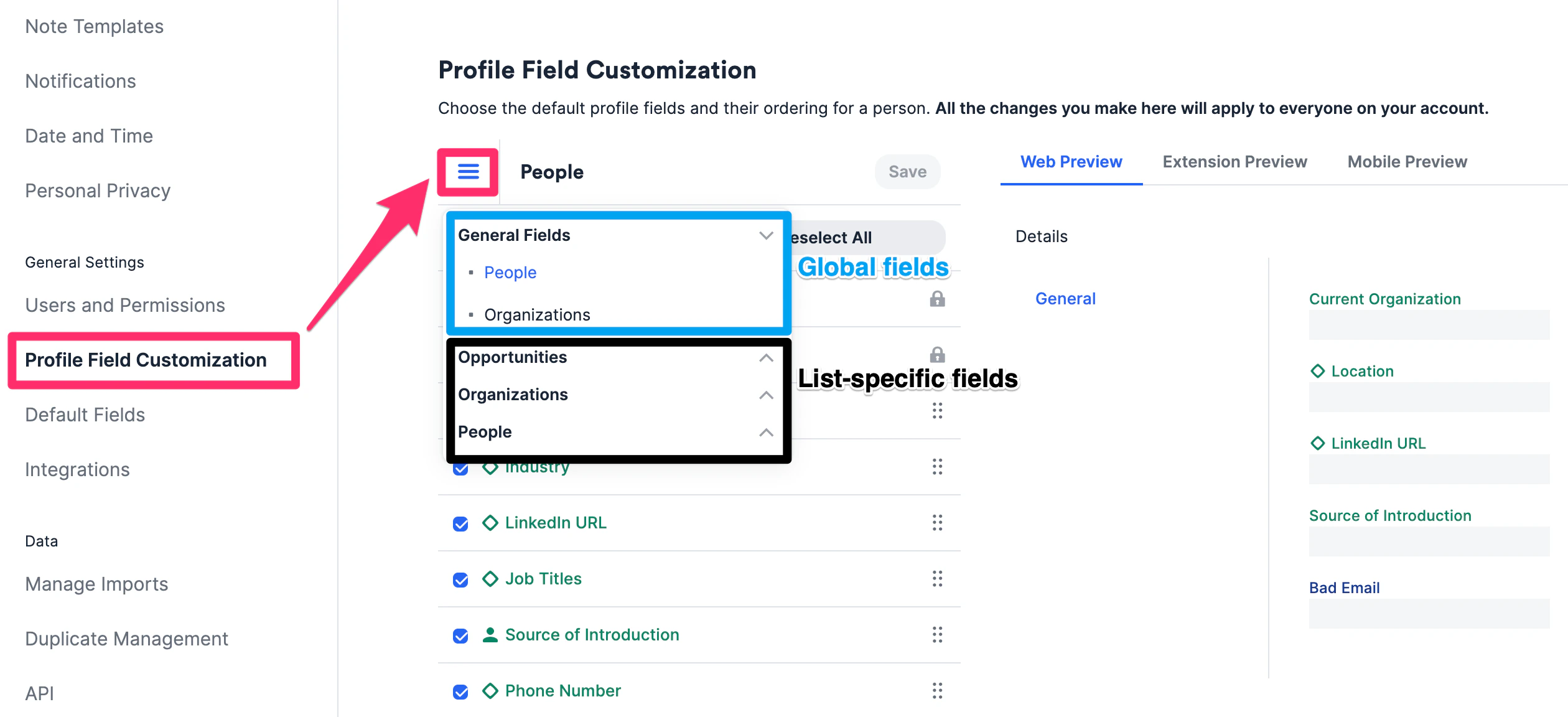
  3. General Fields: Account admins can choose which global fields to show on a person’s/organization’s profile page.
  4. Opportunities, Organizations, and People: Those who are list admins can choose which list-specific fields to show on profile pages.
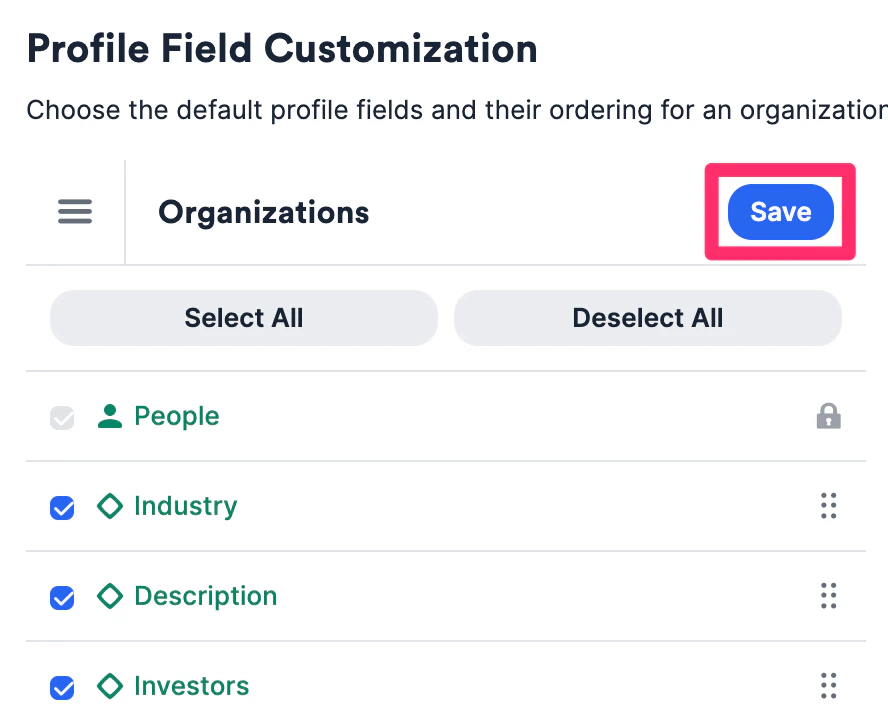
  5. Click the checkboxes for the fields you want to show and uncheck those you’d like to hide.
  6. Drag and drop to reorder the layout of the fields. You will notice that some fields (e.g. People) are locked - these are Affinity’s default fields and cannot be removed or reordered.
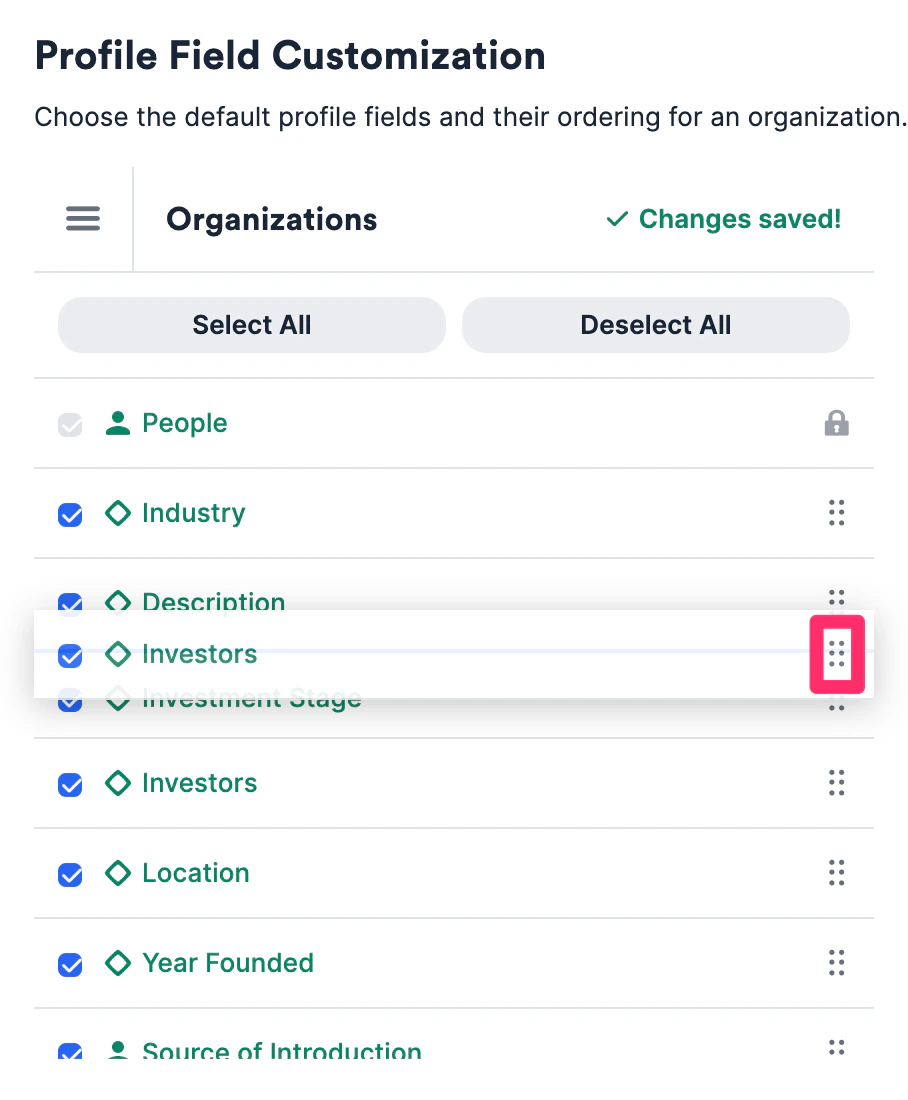
  7. Remember to click Save once you’re done. Please note that the number of fields shown on a profile page will vary depending on your screen size: 10 fields (in 2 columns) on smaller screens and 15 fields (in 3 columns) on larger screens.
  8. Click on Settings on the left-side of your screen.
  9. Click Profile Field Customization, then click the Menu icon to choose from the 4 different sections below:
  10. General Fields: Account admins can choose which global fields to show on a person’s/organization’s profile page.
  11. Opportunities, Organizations, and People: Those who are list admins can choose which list-specific fields to show on profile pages.
  12. Click the checkboxes for the fields you want to show and uncheck those you’d like to hide.
  13. Drag and drop to reorder the layout of the fields. You will notice that some fields (e.g. People) are locked - these are Affinity’s default fields and cannot be removed or reordered.
  14. Remember to click Save once you’re done. Please note that the number of fields shown on a profile page will vary depending on your screen size: 10 fields (in 2 columns) on smaller screens and 15 fields (in 3 columns) on larger screens.