

How-to — task-oriented recipe.
How to create Note Templates
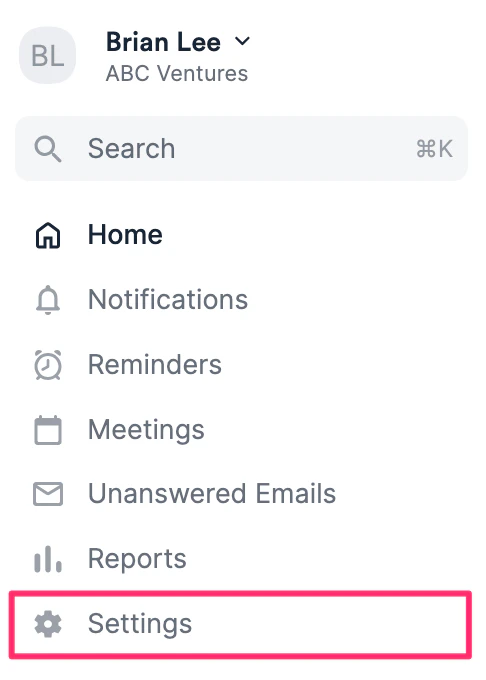
- Click Settings on the left-side of your screen.
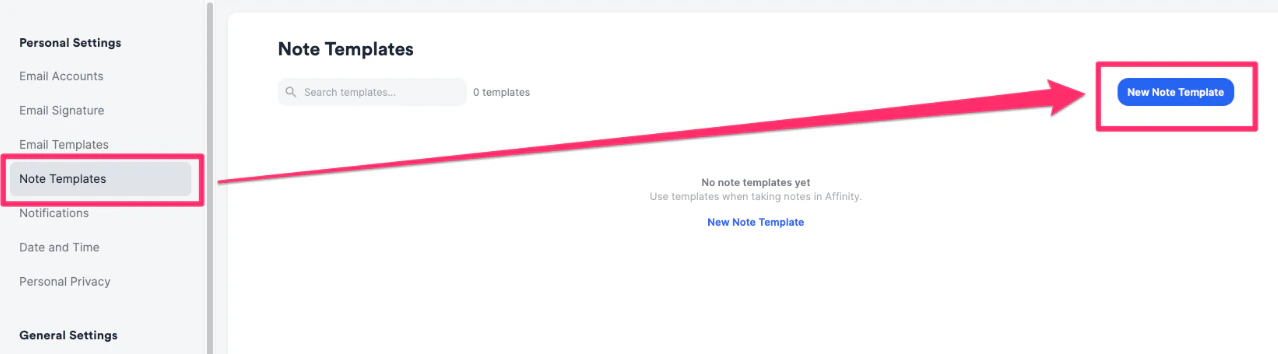
- Select Note Templates on the left side, then click the New Note Template button.
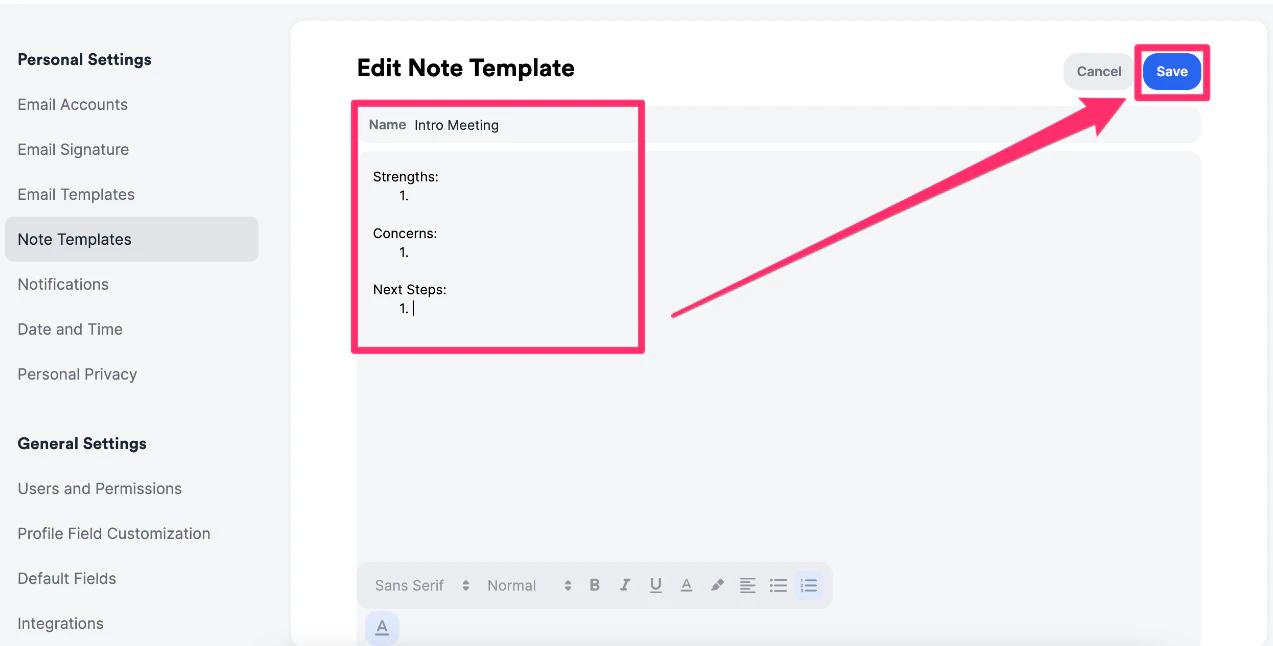
- After naming the note template and adding body text, click the Save button on the top-right corner.
How to manage Note Templates
Once you’ve created multiple note templates for different use cases, use the features below to manage your note templates more efficiently.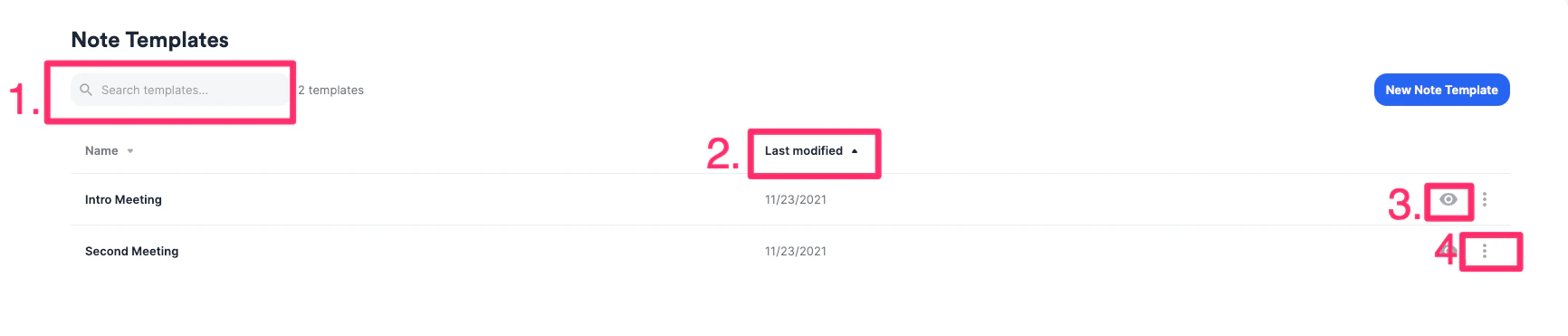
- Search for a note template
- Sort by Last Modified to know which note templates had the most recent changes
- Preview note templates
- Edit or delete a note template as needed
Where can Note Templates be used?
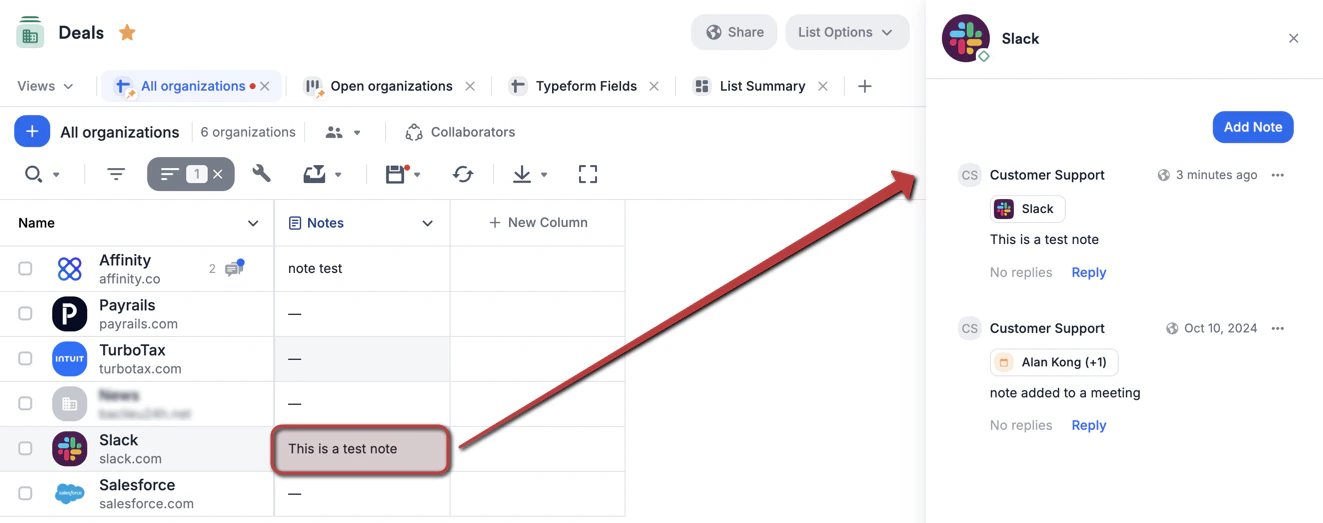
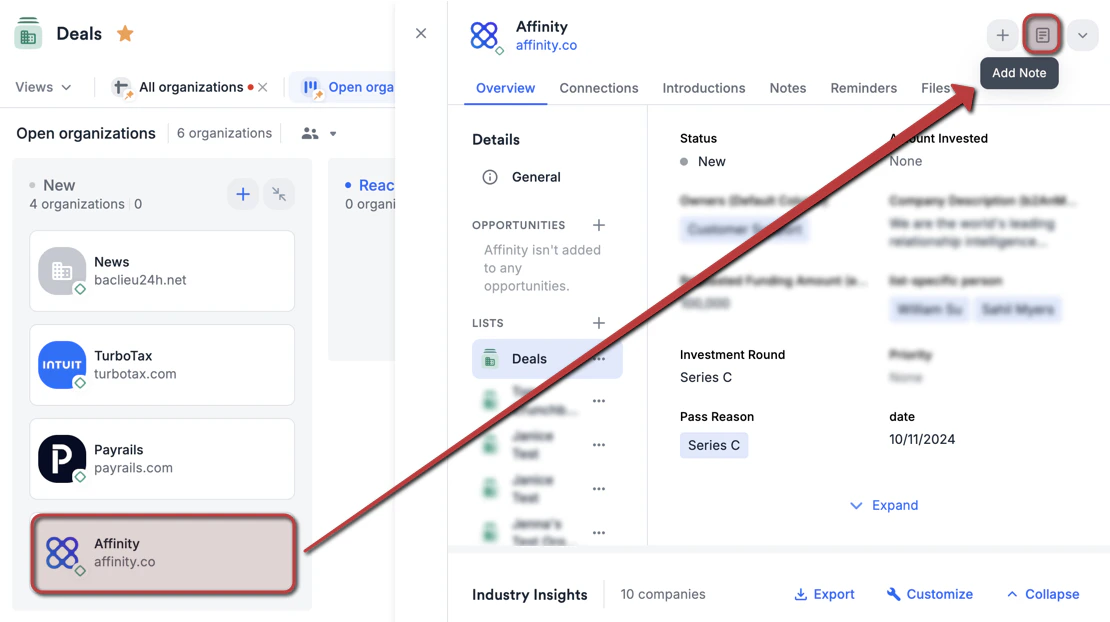
You can find note templates in a few different places:- Add Note and Log Interaction buttons on the top-right corner of profile pages.

- Replying to notes, meetings, and logged interactions found in the Activity Timeline on profile pages.

- Sheet views within a list, where you can click on a cell in the Notes column.
- Board views within a list, where you can click on a card to open the profile page and add notes.
Important Callouts
- Note templates are not shareable across the team or between team members. All templates are only available to the one who created them. Please email support@affinity.co with specific team members on the CC line if you’d like to have your note templates duplicated for these team members.
- @ mentions cannot be saved into a note template itself but can be added after inserting a note template.
- Note templates are not available in the Affinity mobile app, Chrome extension, or Outlook Add-in.
- You can only have a total of 100 note templates. To create a new one, simply delete an unused note template.