

Reference — what each setting does.
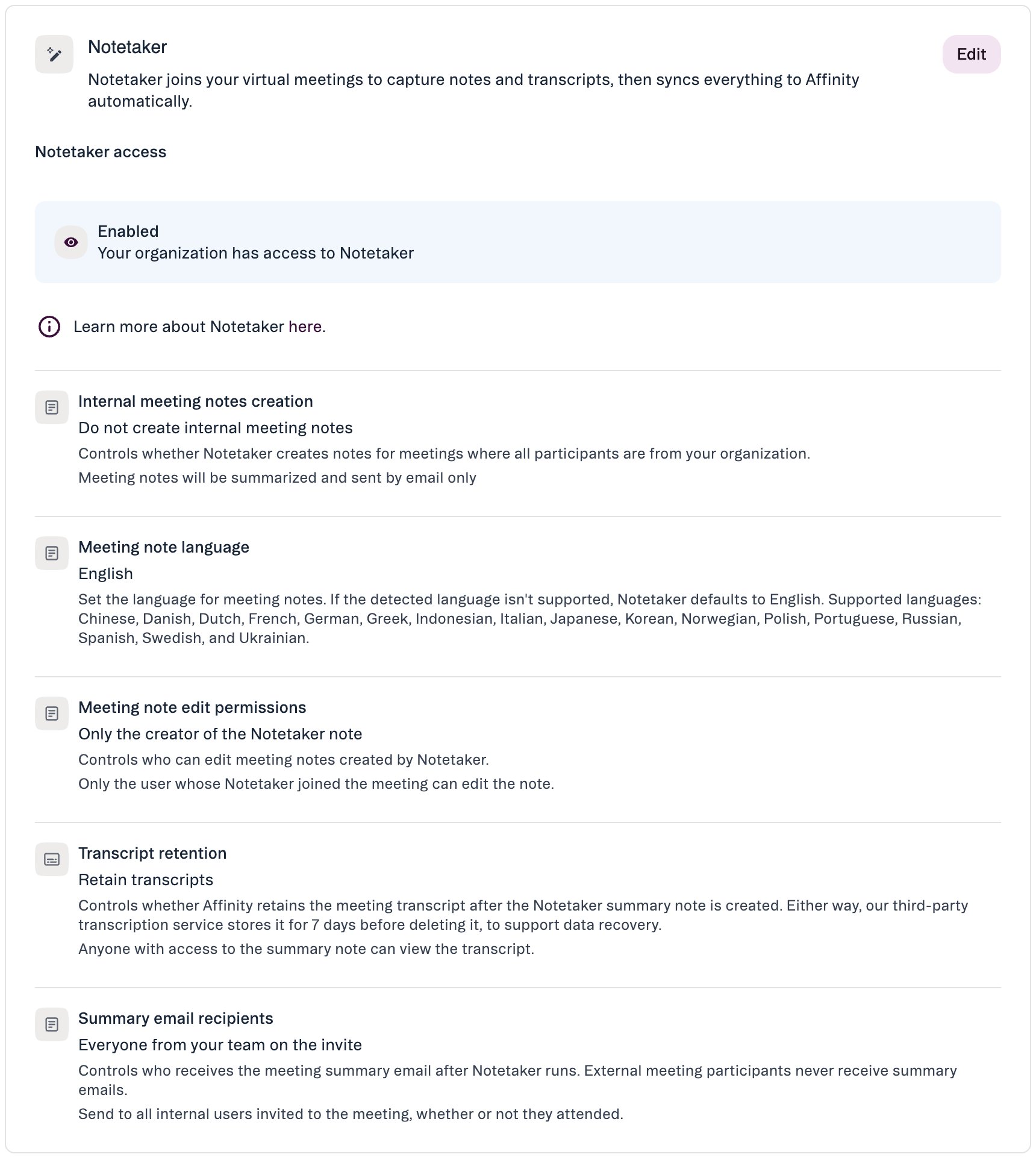
Notetaker access
- Enable gives your organization access to Notetaker.
- Disable turns it off for everyone. The Settings → Notetaker page is hidden for all users while it’s off.
Internal meeting notes creation
Controls whether Notetaker creates a note in Affinity for meetings where everyone invited is from your organization.- Create internal meeting notes automatically — a note is created and attached to the meeting. It doesn’t appear on your company’s profile; people open it from the summary email, or tag it to a person, company or opportunity to show it on their profile.
- Do not create internal meeting notes (default) — the meeting is summarized and sent by email only. No note or transcript is saved in Affinity.
Who can see internal meeting notes
- Enterprise: only the meeting participants, whatever your Fallback Behavior setting, unless someone who can edit the note changes its sharing.
- Scale and Advanced: notes have no sharing permissions, so everyone in your organization can see an internal meeting note, including people who weren’t in the meeting. That includes sensitive meetings such as 1:1s. People can find these notes in Notes Center, in search, and from a direct link.
Meeting note language
- English (default) — summary notes are always in English.
- Match meeting language — summary notes are in the language spoken during the meeting, including the section headings, if it’s supported: Chinese, Danish, Dutch, French, German, Greek, Indonesian, Italian, Japanese, Korean, Norwegian, Polish, Portuguese, Russian, Spanish, Swedish or Ukrainian. Otherwise they’re in English.
Meeting note edit permissions
Controls who can edit meeting notes created by Notetaker.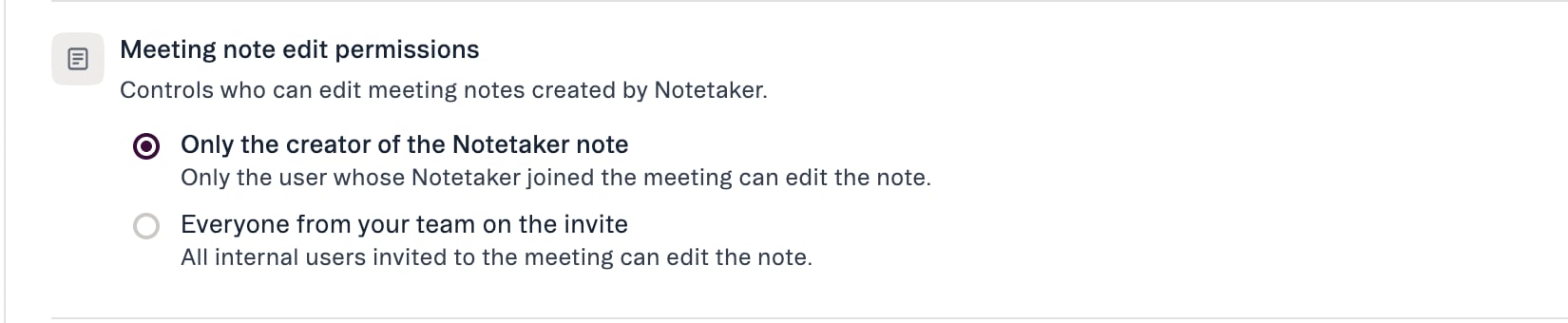
- Only the creator of the Notetaker note (default) — only the user whose Notetaker joined the meeting can edit the note.
- Everyone from your team on the invite — all internal users invited to the meeting can edit the note: its content, the people, companies and opportunities it’s tagged to, and its sharing.
- Only the note’s creator can delete the note or its transcript, whichever option is selected.
- External attendees can never edit the note.
- Teammates can only edit a note they can see, and can only tag it to records they have access to.
- Re-tagging a note can change who can see it, because a note’s visibility depends on what it’s tagged to.
- Teammates can’t edit the note from a profile’s Activity Timeline yet. They can edit it everywhere else notes appear, such as the Notes tab and Notes Center.
Transcript retention
Controls whether Affinity keeps the meeting transcript after the Notetaker summary note is created. Either way, our third-party transcription service stores it for 7 days before deleting it, to support data recovery.- Retain transcripts (default) — anyone with access to the summary note can view the transcript.
- Do not retain transcripts — the transcript is deleted as soon as the summary note is created.
Worth knowing before you turn retention off:
- The summary note is still created and attached as usual. Only the transcript is removed.
- It applies going forward only. It doesn’t delete transcripts Affinity has already stored.
- To delete a single transcript instead, the note’s creator can delete it from the note.
Summary email recipients
Controls who receives the meeting summary email after Notetaker runs. External meeting participants never receive summary emails, whichever option is selected.
Summary emails only go to active Affinity users. There’s no per-user opt-out: this setting applies to everyone.
Export transcripts in bulk
You can export every meeting transcript you have access to as a single download, from the same settings tab as the bulk note and list exports.- Go to Settings → Data & Privacy → Export Data.
- Next to Export all meeting transcripts I have access to, click Export.
- The export is prepared in the background. You’ll be notified when it’s ready to download, by email and under Notifications in the left sidebar.
.zip holding one .txt file per transcript. Each file opens with the meeting title, date, duration and participants, then the transcript itself as timestamped, speaker-labelled lines.
- This needs the same access as the existing Export all notes I have access to option — in practice, Enterprise Admins. See How to export notes from Affinity.
- The export respects permissions: you get the transcripts you can already open in Affinity, and no others.
- If you’d rather pull transcripts programmatically, there is also a Transcripts API and the Snowflake and Databricks data shares. Both need development work on your side; this in-app export is the self-serve option.