

How-to — task-oriented recipe.
Overview
Find notes quickly using Notes Center’s five filter types: Associated With (entities), Created Date (when), Created By (who), Capture Method (how), and Text Search (keywords). Combine filters to create precise queries across all your firm’s notes.How to Access Notes Center
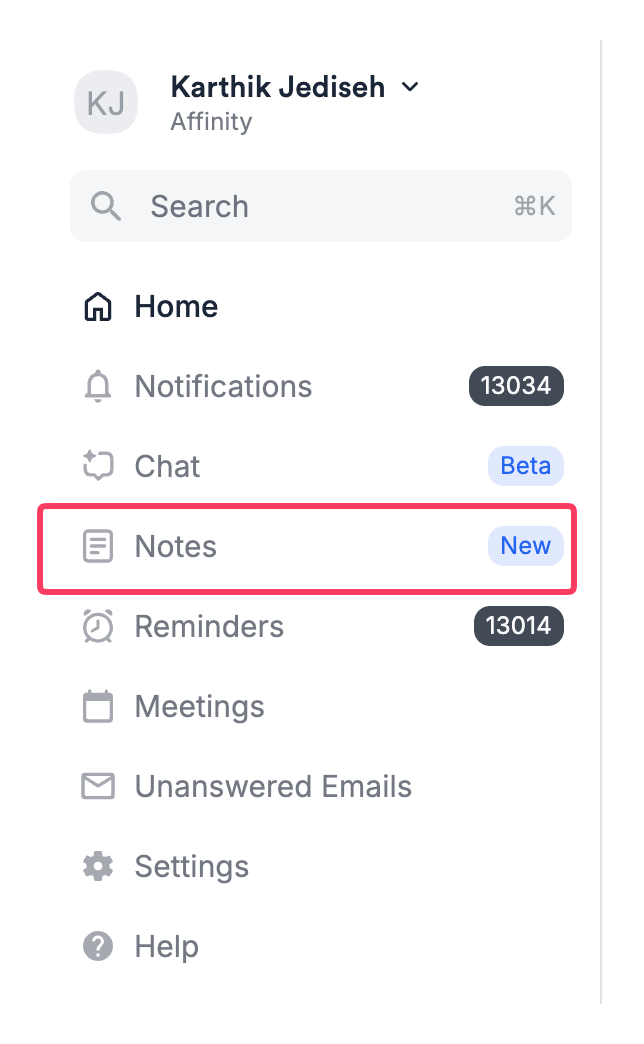
- Open Affinity web app
- Look for Notes in left sidebar navigation
- Click Notes Center
- Full notes feed appears in main view
- All notes you have permission to view
- Sorted newest first (reverse chronological)
- No filters applied
How to Browse Notes Chronologically
Without applying any filters:- Open Notes Center
- Scroll down through the feed
- Notes load automatically as you scroll
- View notes in order of creation (newest to oldest)
How to Filter by Associated Entity
Find all notes linked to specific companies, people, or opportunities:- Click Associated With filter button
- Search bar appears
- Type company, person, or opportunity name
- Select from dropdown results
- Repeat to add more entities
- Notes linked to ANY selected entity appear
- Select “Acme Corp”
- Results: All notes associated with Acme Corp
- Add “Sarah Chen” (CEO of Acme)
- Results: Notes associated with Acme Corp OR Sarah Chen
- Click X next to entity name in filter
- “Show me all notes about this target company”
- “Find notes related to these 5 deals”
- “Everything we know about this person”
How to Filter by Author
Find notes by who created them:Finding Your Own Notes
- Click Created By filter
- “Me” will appear at the top of the Created by filter list
- Select yourself from dropdown
- Only your notes appear Use when: Reviewing your weekly activity, finding notes you took but can’t remember where
Finding Teammate Notes
- Click Created By filter
- Search for teammate’s name
- Select from dropdown
- Only their notes appear
- Select multiple teammates
- Notes from ANY selected author appear (OR logic)
- Select “Rachel” and “Alex”
- Results: Notes from Rachel OR Alex Use when: Catching up on teammate activity, coordinating on shared deals
How to Filter by Date Range
Find notes created during a specific time period:Single Day
- Click Created Date filter
- Click calendar icon
- Select one date
- Notes from that day only
Date Range
- Click Created Date filter
- Click calendar icon
- Select start date
- Select end date
- Notes from that period appear
- Start: March 1, End: March 31 → All notes from March
- Start: Jan 1, 2026, End: Mar 31, 2026 → All notes from Q1 2026
- “What did we learn last week?”
- “All notes from Q4 2025”
- “Notes from the past month”
How to Search by Keyword
Find notes containing specific terms:- Click in Text Search box (or type directly)
- Enter search term or phrase
- Press Enter or click search icon
- Notes containing term anywhere in body appear
- Search: healthcare
- Finds: Notes with healthcare, Healthcare, HEALTHCARE
- Case-insensitive matching
- Search: “product-market fit”
- Finds: Exact phrase “product-market fit” in notes
- Search: “Series B funding”
- Finds: Notes containing all three words (may not be consecutive)
- Search: “health”
- Finds: “health”, “healthcare”, “healthy”
- “Find every note mentioning ‘due diligence’”
- “Notes discussing ‘competitor analysis’”
- “References to ‘San Francisco‘“
How to Combine Filters
Create precise queries by combining multiple filters:Example 1: Find Your Recent Notes About a Company
Goal: Your notes about Acme Corp from past month- Filter Created By: Select yourself
- Filter Associated With: Select “Acme Corp”
- Filter Created Date: Past 30 days
- Result: YOUR notes about Acme Corp from the past month
Example 2: Find All AI Notetaker Notes from This Week
Goal: All meeting summaries from this week- Filter Capture Method: AI Notetaker
- Filter Created Date: Past 7 days
- Result: All meeting summaries from this week
Example 3: Find Specific Topic Notes by Your Team
Goal: Team notes mentioning competitive analysis from Q1- Filter Created By: Select multiple teammates
- Search Text: “competitive analysis”
- Filter Created Date: select the date range corresponding to this quarter
- Result: Team notes mentioning competitive analysis from Q1
Example 4: Comprehensive Deal Research
Goal: All notes about multiple companies mentioning pricing- Filter Associated With: “Loom” + “Figma” + “Notion”
- Search Text: “pricing strategy”
- Filter Created Date: Past 6 months
- Result: All notes about these companies mentioning pricing from past half year Understanding the logic:
- Multiple entities = OR (notes linked to ANY entity)
- Multiple authors = OR (notes from ANY author)
- Multiple filter types = AND (notes matching ALL criteria)
Tips & Best Practices
Start broad, narrow progressively:- Apply one filter first (e.g., date range)
- Review results
- Add second filter to narrow (e.g., entity)
- Continue until you find what you need
- Your past 7 days (weekly self-review)
- Team + this week (standup prep)
- Specific company + past quarter (deal prep)
- AI Notetaker + past month (meeting review)
- Specific enough to filter noise
- Broad enough to catch variations
- Try different phrasings if first search fails
- If too many results → Add more filters
- If too few results → Remove a filter or broaden date range
- If zero results → Check spelling, try different keywords