

Reference — lookup information.
Overview
Notes Center is a dedicated space in Affinity where you can find, browse, and search all of your firm’s notes in one place—without navigating to individual company, person, or opportunity profiles. What it does: Provides a centralized, filterable feed of every note your workspace has access to, displayed in reverse chronological order by default. Who it’s for: Partners, Associates, and anyone who takes or reviews notes regularly across multiple deals and relationships. Why it matters: Before Notes Center, finding a note required remembering the exact profile it lived on or knowing a specific keyword to search for. Notes Center eliminates that friction with filters that let you find notes by author, date, entity, capture method, or keyword—or combine all five at once.What Notes Appear in Notes Center
Notes Center includes all note types from across your workspace: AI Notetaker notes:- Meeting summaries and transcripts generated by Affinity’s AI Notetaker
- Includes both external and internal meetings (depending on your admin’s Notetaker settings)
- Full transcript accessible from Notes Center
- Notes you or teammates wrote directly on company, person, or opportunity profiles
- Created using the Add Note button or note editor
- Notes associated with manually logged meetings, calls, and chats
- Created when logging outside interactions
- Notes created from email conversations
- Attached to email interactions
- Programmatically created notes appear alongside manually created ones
- Supports automated note workflows
Notes Permissions and Visibility
Notes Center respects your access permissions: You only see notes you have permission to view:- “Only me” notes: Visible only to creator
- Specific users/teams: Visible only to those people
- “Everyone” notes: Visible to all workspace members
- Notes Center respects Enterprise Permissions settings
- You see notes based on your team/group access
- Visibility matches what you see on individual profiles
- Notes associated only with a blocklisted company or person — including meeting notes where a blocklisted person attended — are hidden in Notes Center. If a note is associated with both a blocklisted and a visible entity, the note will appear in Notes Center but the blocklisted entity will not be shown.
- Notes exclusively associated with blocklisted people or companies are hidden entirely in Notes Center, and any connection to a blocklisted entity is removed from notes that are otherwise visible.
- If a note is only associated to blocklisted people or companies (or includes a blocklisted meeting attendee), it won’t appear in Notes Center. Notes connected to both blocklisted and visible entities will still show up, but will not show the association to the blocklisted entity.
Accessing Notes Center
Why it matters: Before Notes Center, finding a note required remembering the exact profile it lived on or knowing a specific keyword to search for. Notes Center eliminates that friction with filters that let you find notes by author, date, entity, capture method, or keyword—or combine all five at once.What Notes Appear in Notes Center
Notes Center includes all note types from across your workspace: AI Notetaker notes:- Meeting summaries and transcripts generated by Affinity’s AI Notetaker
- Includes both external and internal meetings (depending on your admin’s Notetaker settings)
- Full transcript accessible from Notes Center
- Notes you or teammates wrote directly on company, person, or opportunity profiles
- Created using the Add Note button or note editor
- Notes associated with manually logged meetings, calls, and chats
- Created when logging outside interactions
- Notes created from email conversations
- Attached to email interactions
- Programmatically created notes appear alongside manually created ones
- Supports automated note workflows
Notes Permissions and Visibility
Notes Center respects your access permissions: You only see notes you have permission to view:- “Only me” notes: Visible only to creator
- Specific users/teams: Visible only to those people
- “Everyone” notes: Visible to all workspace members
- Notes Center respects Enterprise Permissions settings
- You see notes based on your team/group access
- Visibility matches what you see on individual profiles
- Notes associated only with a blocklisted company or person — including meeting notes where a blocklisted person attended — are hidden in Notes Center. If a note is associated with both a blocklisted and a visible entity, the note will appear in Notes Center but the blocklisted entity will not be shown.
- Notes exclusively associated with blocklisted people or companies are hidden entirely in Notes Center, and any connection to a blocklisted entity is removed from notes that are otherwise visible.
- If a note is only associated to blocklisted people or companies (or includes a blocklisted meeting attendee), it won’t appear in Notes Center. Notes connected to both blocklisted and visible entities will still show up, but will not show the association to the blocklisted entity.
Accessing Notes Center
Location: Left sidebar navigation in Affinity web app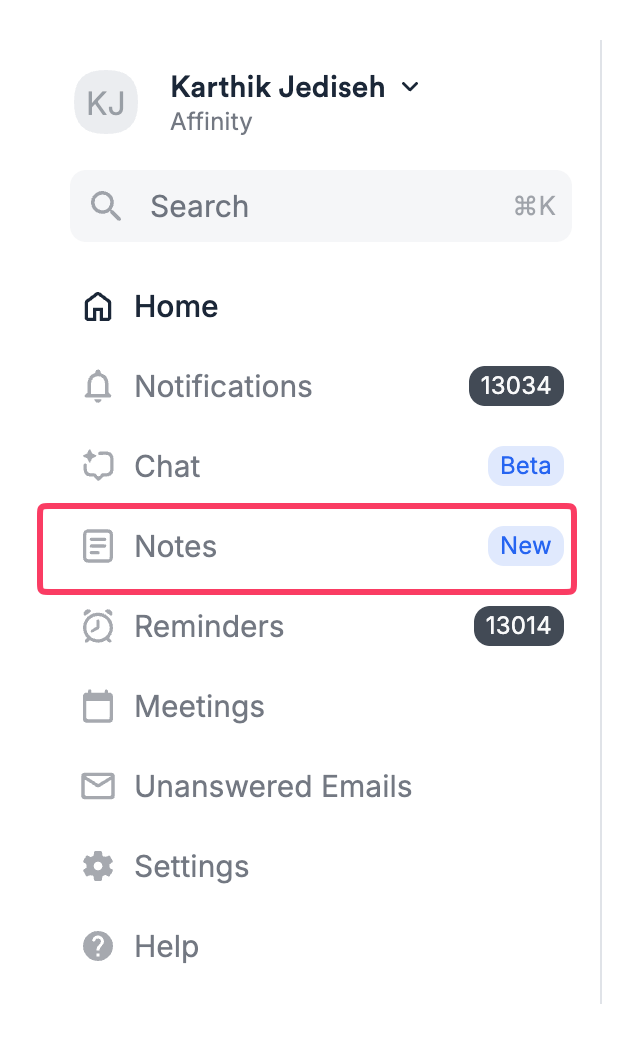
- Click Notes Center in left sidebar
- Full notes feed appears in main view
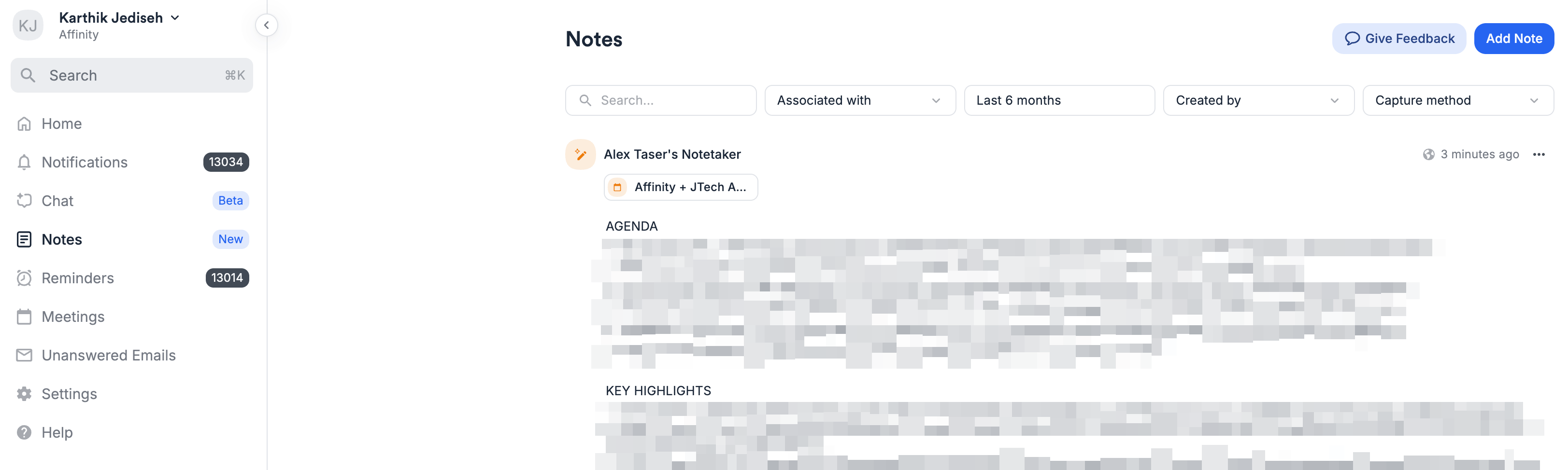
- Notes displayed in reverse chronological order (newest first)
- Scroll down to load more notes Default view:
- All notes you have permission to view
- Sorted by creation date (newest first)
- No filters applied
- Full note content visible
Filtering and Search
Available Filters
Use the filter bar at the top of Notes Center to narrow results. Apply filters individually or combine for precise queries.Associated With
What it does: Filter notes linked to specific companies, people, or opportunities How to use:- Click Associated With filter
- Search for and select one or more entities
- Results show notes linked to ANY selected entity (OR logic)
- Select “Acme Corp” and “Sarah Chen”
- Results: Notes associated with Acme Corp OR Sarah Chen OR both
- “All notes about this company”
- “Notes about this person or their company”
- “Everything related to these 5 target deals”
Created Date
What it does: Filter by when a note was created How to use:- Click Created Date filter
- Set start date, end date, or both
- Supports single-day and multi-month ranges
- Start: March 1, 2026
- End: March 31, 2026
- Results: Notes created anytime in March 2026
- “What did we capture during Q3 last year?”
- “Notes from this week”
- “Everything we learned in the past 30 days”
Created By
What it does: Filter by note author How to use:- Click Created By filter
- Select yourself, a teammate, or multiple people
- Results show notes from ANY selected author (OR logic)
- Select “Rachel” and “Alex”
- Results: Notes written by Rachel OR Alex
- “Show me everything I wrote this month”
- “What has Rachel been working on?”
- “Notes from my deal team”
Capture Method
What it does: Filter by how note was created Options:- Manual notes (notes that are not created by AI Notetaker)
- AI Notetaker notes (meeting summaries + transcripts)
- Both (default) How to use:
- Click Capture Method filter
- Select Manual, AI Notetaker, or both
- Select “AI Notetaker” only
- Results: Only meeting summaries and transcripts
- “Show me all AI Notetaker notes from the past 30 days”
- “Only manual notes I’ve written”
- “Meeting summaries for this quarter”
Text Search
What it does: Full-text search across note content How to use:- Type search term in text search box
- Returns notes containing term anywhere in body
- Supports single words, phrases, multi-word queries
- Search: “Series B”
- Results: Every note mentioning “Series B”
- Case-insensitive
- Searches full note body
- Matches partial words (“health” finds “healthcare”)
- Phrase matching supported Use when:
- “Find every note that mentions ‘due diligence’”
- “Notes discussing ‘product-market fit’”
- “References to specific technology or sector”
Filter Combination Logic
Understanding how filters work together: Within a filter type: OR logic Selecting multiple values within one filter type shows notes matching ANY of those values. Examples:- Created By: “Alex” + “Rachel” → Notes from Alex OR Rachel
- Associated With: “Loom” + “Figma” → Notes linked to Loom OR Figma
- Between filter types: AND logic Combining different filter types shows notes matching ALL filter criteria.
- Created By: “Alex” AND Associated With: “Loom” → Notes from Alex that are linked to Loom
- Created Date: “Last 7 days” AND Capture Method: “AI Notetaker” → AI Notetaker notes from past week Complex combinations: You can combine all five filter types simultaneously:
- Created By: “Alex”
- Associated With: “Loom”
- Created Date: “March 1-15, 2026”
- Capture Method: “Manual”
- Text Search: “investor meeting” Result: Manual notes written by Alex, associated with Loom, created in first half of March, containing the phrase “investor meeting”
Working with Notes in Notes Center
Creating Notes
Create notes directly from Notes Center:- Click Add Note button
- Note editor opens
- Select entity to attach note to (company, person, or opportunity)
- Write note content (supports formatting, images, links)
- Set sharing permissions (Only me, Specific users, Everyone)
- Click Publish
- Note appears in feed immediately
- Rich text formatting
- Image embedding
- Sharing settings
- Entity associations
Editing Notes
Edit any note you’ve created- On the note of interest, click on the … and select Edit
- Note editor opens
- Make changes
- Click Save
- Confirmation toast appears
- Updates reflected immediately in feed
- Note content
- Formatting
- Images
- Entity associations
- Sharing permissions
Replying to Notes
Add replies to notes directly from Notes Center:- Click Reply on any note
- Reply editor opens
- Write your reply
- Click Save
- Reply appears under original note
- Edit your own replies
- Delete your own replies
- Hide/show reply threads
- See reply count before expanding
Deleting Notes
Delete notes you have permission to remove:- Click ••• menu on note
- Select Delete
- Confirmation modal appears
- Confirm deletion
- Note permanently removed Important: Deletion is permanent and cannot be undone.
Opening Notes in New Tab
View notes in dedicated tab:- Click ••• menu on note
- Select Open in new tab
- Single-note page opens
- Shows full note and all replies
- Shareable URL for that specific note Use when:
- Sharing note link with teammates
- Focusing on one note without distractions
- Reviewing note and replies
AI Notetaker Notes in Notes Center
AI Notetaker: AI Notetaker notes appear alongside manual notes in Notes Center with special capabilities: Filtering AI Notetaker notes:- Use Capture Method filter
- Select “AI Notetaker” to show only meeting notes
- Combine with other filters (date, author, entity)
- Click on AI Notetaker note to expand
- Scroll to the bottom of the Meeting summary
- Click the View Full Transcript link
- Filter by date range to see meetings from specific period
- Filter by associated entity to see meetings about specific companies
- Search keywords within meeting summaries
- Filter by author (if it was your Notetaker that joined the call to take notes)
Internal Meeting (AI Notetaker) Notes
Visibility depends on admin settings: If admin configured: “Create internal meeting notes”- Internal meeting notes (ones taken via AI Notetaker) appear in Notes Center
- Visible to meeting participants
- Can filter and search like external meeting notes If admin configured: “Do not create notes”
- No note generated for internal meetings
- Only external meeting notes appear To check your settings: Contact your Account Admin or check Settings > Notetaker
Frequently Asked Questions
How is Notes Center different from searching for notes in global search? Global search requires remembering specific keywords. Notes Center shows ALL notes you have access to with five filter types you can combine. You can browse chronologically, filter by author or date range, and find notes without knowing exact keywords. Can other people see my notes**?** It depends on the sharing settings for your notes, and which profiles the notes are associated with. Notes Center respects all sharing settings, so other people in your firm can only see notes they have access to based on your sharing selection (Only me, Specific users/teams, Everyone). Notes Center also hides notes that are exclusively associated with blocklisted people or companies. And users can never see notes that are associated with opportunities that they do not have access to (i.e. on a private opportunity list). Notes Center respects all sharing settings, so other people in your firm can only see notes they have access to based on your sharing selection (Only me, Specific users/teams, Everyone). Notes Center also hides notes that are exclusively associated with blocklisted people or companies. And users can never see notes that are associated with opportunities that they do not have access to (i.e. on a private opportunity list) Can I save my filter settings for later? Not currently. Filter configurations must be re-applied each time you open Notes Center. Saved filter configurations are under consideration for a future release. Can I export filtered notes from Notes Center? Not currently. Export functionality for filtered note sets is planned for a future release. You can export notes from individual profiles, however. How do I see AI Notetaker transcripts? Filter by Capture Method > AI Notetaker to show only meeting notes. Click any AI Notetaker note and scroll to the bottom to the “View Transcript” button to open the complete meeting transcript. Can I filter to show only internal vs external meetings? Not in the current release. You can filter to show all AI Notetaker notes, but cannot distinguish internal from external meetings. This capability is under consideration for a future release. What happens when I create a note from Notes Center? The note is created and attached to the entity you selected during creation. It immediately appears in Notes Center and on that entity’s profile page. All teammates with access can see it based on sharing settings. Does text search include replies and transcripts? Not currently. Text search only searches root note content, not reply text. Reply and transcript search is under consideration for a future release. Can I use Notes Center on mobile or extensions? Not currently. Notes Center is available on Affinity web app only. Mobile access is under consideration for a future release.- Click Notes Center in left sidebar
- Full notes feed appears in main view
- Notes displayed in reverse chronological order (newest first)
- Scroll down to load more notes Default view:
- All notes you have permission to view
- Sorted by creation date (newest first)
- No filters applied
- Full note content visible
Filtering and Search
Available Filters
Use the filter bar at the top of Notes Center to narrow results. Apply filters individually or combine for precise queries.Associated With
What it does: Filter notes linked to specific companies, people, or opportunities How to use:- Click Associated With filter
- Search for and select one or more entities
- Results show notes linked to ANY selected entity (OR logic)
- Select “Acme Corp” and “Sarah Chen”
- Results: Notes associated with Acme Corp OR Sarah Chen OR both
- “All notes about this company”
- “Notes about this person or their company”
- “Everything related to these 5 target deals”
Created Date
What it does: Filter by when a note was created How to use:- Click Created Date filter
- Set start date, end date, or both
- Supports single-day and multi-month ranges
- Start: March 1, 2026
- End: March 31, 2026
- Results: Notes created anytime in March 2026
- “What did we capture during Q3 last year?”
- “Notes from this week”
- “Everything we learned in the past 30 days”
Created By
What it does: Filter by note author How to use:- Click Created By filter
- Select yourself, a teammate, or multiple people
- Results show notes from ANY selected author (OR logic)
- Select “Rachel” and “Alex”
- Results: Notes written by Rachel OR Alex
- “Show me everything I wrote this month”
- “What has Rachel been working on?”
- “Notes from my deal team”
Capture Method
What it does: Filter by how note was created Options:- Manual notes (notes that are not created by AI Notetaker)
- AI Notetaker notes (meeting summaries + transcripts)
- Both (default) How to use:
- Click Capture Method filter
- Select Manual, AI Notetaker, or both
- Select “AI Notetaker” only
- Results: Only meeting summaries and transcripts
- “Show me all AI Notetaker notes from the past 30 days”
- “Only manual notes I’ve written”
- “Meeting summaries for this quarter”
Text Search
What it does: Full-text search across note content How to use:- Type search term in text search box
- Returns notes containing term anywhere in body
- Supports single words, phrases, multi-word queries
- Search: “Series B”
- Results: Every note mentioning “Series B”
- Case-insensitive
- Searches full note body
- Matches partial words (“health” finds “healthcare”)
- Phrase matching supported Use when:
- “Find every note that mentions ‘due diligence’”
- “Notes discussing ‘product-market fit’”
- “References to specific technology or sector”
Filter Combination Logic
Understanding how filters work together: Within a filter type: OR logic Selecting multiple values within one filter type shows notes matching ANY of those values. Examples:- Created By: “Alex” + “Rachel” → Notes from Alex OR Rachel
- Associated With: “Loom” + “Figma” → Notes linked to Loom OR Figma
- Between filter types: AND logic Combining different filter types shows notes matching ALL filter criteria.
- Created By: “Alex” AND Associated With: “Loom” → Notes from Alex that are linked to Loom
- Created Date: “Last 7 days” AND Capture Method: “AI Notetaker” → AI Notetaker notes from past week Complex combinations: You can combine all five filter types simultaneously:
- Created By: “Alex”
- Associated With: “Loom”
- Created Date: “March 1-15, 2026”
- Capture Method: “Manual”
- Text Search: “investor meeting” Result: Manual notes written by Alex, associated with Loom, created in first half of March, containing the phrase “investor meeting”
Working with Notes in Notes Center
Creating Notes
Create notes directly from Notes Center:- Click Add Note button
- Note editor opens
- Select entity to attach note to (company, person, or opportunity)
- Write note content (supports formatting, images, links)
- Set sharing permissions (Only me, Specific users, Everyone)
- Click Publish
- Note appears in feed immediately
- Rich text formatting
- Image embedding
- Sharing settings
- Entity associations
Editing Notes
Edit any note you’ve created- On the note of interest, click on the … and select Edit
- Note editor opens
- Make changes
- Click Save
- Confirmation toast appears
- Updates reflected immediately in feed
- Note content
- Formatting
- Images
- Entity associations
- Sharing permissions
Replying to Notes
Add replies to notes directly from Notes Center:- Click Reply on any note
- Reply editor opens
- Write your reply
- Click Save
- Reply appears under original note
- Edit your own replies
- Delete your own replies
- Hide/show reply threads
- See reply count before expanding
Deleting Notes
Delete notes you have permission to remove:- Click ••• menu on note
- Select Delete
- Confirmation modal appears
- Confirm deletion
- Note permanently removed Important: Deletion is permanent and cannot be undone.
Opening Notes in New Tab
View notes in dedicated tab:- Click ••• menu on note
- Select Open in new tab
- Single-note page opens
- Shows full note and all replies
- Shareable URL for that specific note Use when:
- Sharing note link with teammates
- Focusing on one note without distractions
- Reviewing note and replies
AI Notetaker Notes in Notes Center
AI Notetaker: AI Notetaker notes appear alongside manual notes in Notes Center with special capabilities: Filtering AI Notetaker notes:- Use Capture Method filter
- Select “AI Notetaker” to show only meeting notes
- Combine with other filters (date, author, entity)
- Click on AI Notetaker note to expand
- Scroll to the bottom of the Meeting summary
- Click the View Full Transcript link
- Filter by date range to see meetings from specific period
- Filter by associated entity to see meetings about specific companies
- Search keywords within meeting summaries
- Filter by author (if it was your Notetaker that joined the call to take notes)
Internal Meeting (AI Notetaker) Notes
Visibility depends on admin settings: If admin configured: “Create internal meeting notes”- Internal meeting notes (ones taken via AI Notetaker) appear in Notes Center
- Visible to meeting participants
- Can filter and search like external meeting notes If admin configured: “Do not create notes”
- No note generated for internal meetings
- Only external meeting notes appear To check your settings: Contact your Account Admin or check Settings > Notetaker