

Reference — lookup information.
Overview
Saved Views in New Lists allow you to save and quickly access specific List configurations including columns, filters, sorts, and display preferences. With the introduction of New Lists, Saved Views now support advanced filtering and sorting capabilities through a seamless variant system that maintains compatibility with Classic Lists. What Saved Views Store:- Column selection (which fields are visible)
- Column order and width
- Filter settings (including Boolean logic available in New Lists)
- Sort settings (up to 5 sorts)
- View permissions (Private or Shared)
What is a Saved View?
Definition: A Saved View is a stored configuration of your List that preserves your exact setup so you can return to it instantly without recreating filters, sorts, or column layouts. Important distinction: Saved Views contain the same data as the List - they’re just different ways to view and organize it. Removing a List entry from one view removes it from the entire List, not just that view. Think of it like:- A List is your full database of companies/people/opportunities
- Saved Views are different “lenses” or “perspectives” on that data
- You can have multiple lenses (views) on the same underlying data
View Variants: New Lists vs Classic Lists
The Challenge: New Lists offers advanced filters and sorts (Boolean logic, multiple conditions, 5-level sorting) that don’t exist in Classic Lists. Users need to use both experiences during the transition period. The Solution: View Variants Each Saved View can have two variants:- Classic Lists variant: The configuration visible in Classic Lists
- New Lists variant: The configuration visible in New Lists (with advanced features)
- When you first open a view in New Lists, it starts “Linked to Classic”
- The view shares the same configuration between Classic and New Lists
- Any Classic-compatible filters/sorts work in both experiences
- Changes made in either experience affect both

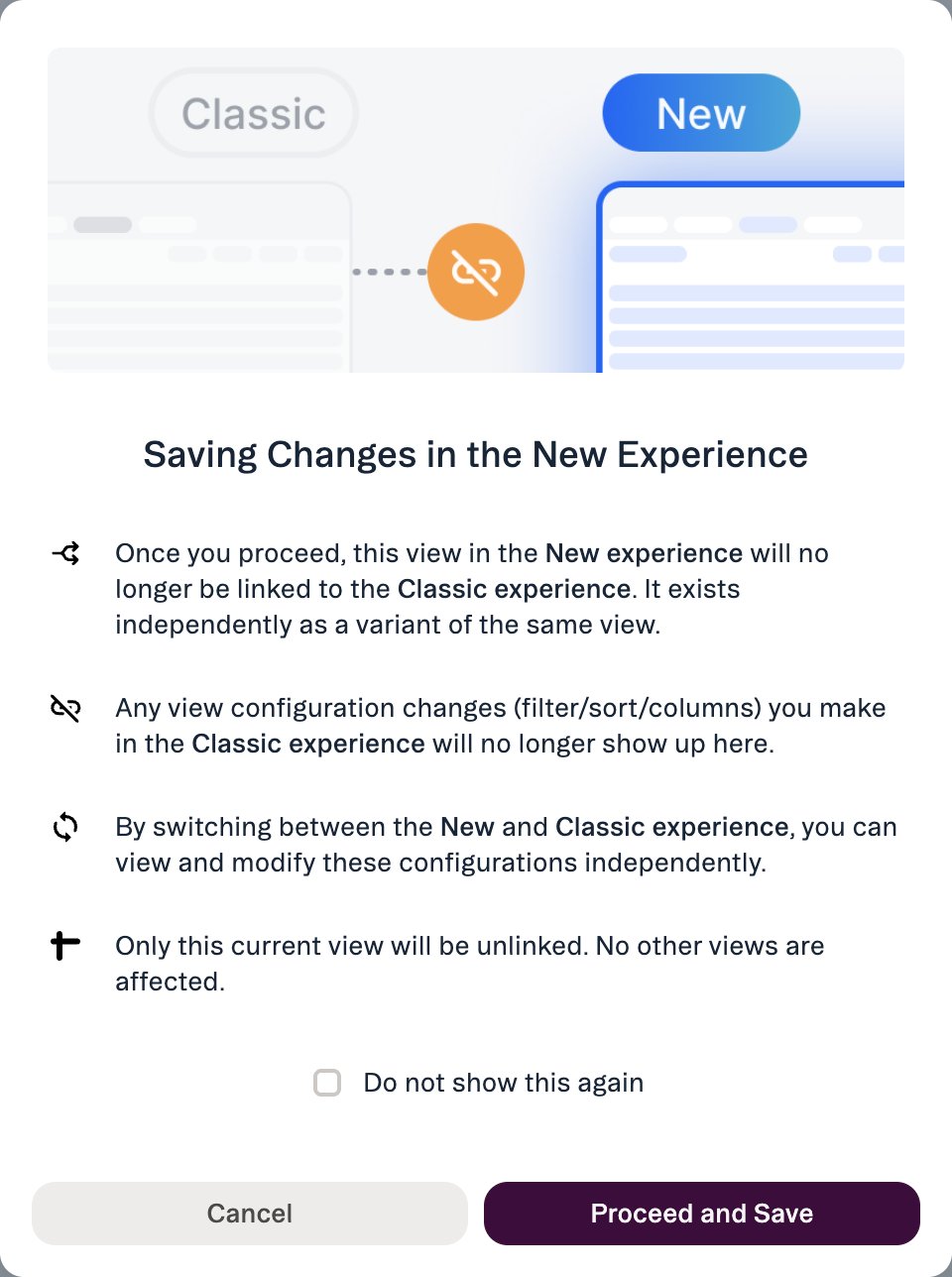
- When you save changes in New Lists (advanced filters, Boolean logic, 5-level sorts), the view stops being linked to Classic
- Creates a separate New Lists variant with your advanced configuration
- Classic Lists variant remains unchanged (preserves team members’ Classic workflow)
- You can switch between variants by switching between the New and Classic experiences
- Allows you to use advanced New Lists features without disrupting teammates still using Classic
- Maintains single view name/identity (no “View Name - New Lists” duplication)
- Seamless transition - works in both experiences simultaneously
- When Classic Lists is deprecated, all views will simply become regular Saved Views
- “Active Pipeline” view exists in Classic with Status = Active filter
- You open it in New Lists - starts “Linked to Classic”
- You add advanced Boolean filter: (Status = Active) OR (Owner = Me OR Owner = Jane)
- You click Save, confirm in the dialog, and the view is no longer linked to Classic
Saved View Lifecycle
Update:- Make changes to existing view
- The Save button turns amber to show the view has unsaved changes, and Filter and Sort show a badge with the number of conditions applied
- Click Save to update

- Changes apply to everyone with access (if Shared)
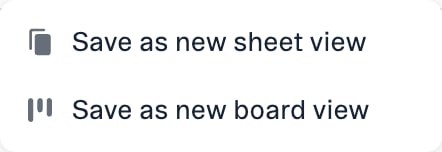
- Click view menu (three dots) → Duplicate
- Creates exact copy with “[Name] Copy”
- Preserves Classic variant if duplicating in Classic
- Preserves New Lists variant if duplicating in New Lists AND original has New variant
When to Use Saved Views
Saved Views vs Other Features
Use Saved Views when:- You frequently need the same filtered/sorted/column configuration
- Team needs standardized views for meetings or processes
- You want to quickly switch between different data perspectives
- You need to preserve complex filter combinations
- You want to share a specific data cut with team members
- One-time ad-hoc exploration
- Testing filter combinations before finalizing
- Quick temporary filtering
- Quick keyword search within current view
- Temporary highlighting without changing filters
- Ad-hoc lookups while maintaining your view setup
- You need completely separate datasets (not just different views)
- Different teams need independent data management
- Archiving data while keeping active List clean
Common Use Cases
Pipeline Management & Deal Prioritization
Save different views of your pipeline to quickly focus on what matters most at different times. Examples:- “I want to save a view of all Active deals sorted by Last Contact so I can prioritize follow-ups during my weekly review.” → Save view: Status = Active, Sort by Last Contact (newest first)
- “I need a view of all deals in Series B stage with funding above 10M, Sort by Location
- “I want to track all deals where I’m the Owner that have moved to Meeting Held in the last 30 days.” → Save view: Owner = Me, Status = Meeting Held, Time in Current Status < 30 days
Team Collaboration & Standardized Workflows
Create shared views that your team can rely on for consistent processes and meetings. Examples:- “Our team needs a standardized view for Monday pipeline reviews showing all deals in Stage 2 or 3, sorted by Priority.” → Save shared view: Stage = Stage 2 OR Stage 3, Sort by Priority (High to Low), Permissions = Everyone
- “I want to create a view for my associate that shows all new inbound deals from the last week that need initial screening.” → Save view: Source = Inbound, Date Added = Last 7 days, Status = New, Share with team
- “We need a view for our monthly portfolio check-ins that shows all portfolio companies with Next Meeting in the next 30 days.” → Save shared view: Lists = Portfolio, Next Meeting = Within next 30 days
Data Hygiene & Maintenance
Save views that help you identify gaps in your data and maintain CRM cleanliness. Examples:- “I want to see all companies where the ‘Next Steps’ field is empty so I can ensure my team is keeping records up to date.” → Save view: Next Steps = is empty, Sort by Last Contact (newest first)
- “I need to identify all deals that have moved to ‘Closed Lost’ in the last quarter with no notes, so I can audit why they were lost.” → Save view: Status = Closed Lost, Time in Current Status < 3 months, Notes = is empty
- “I want to find all companies where we haven’t had any contact in the last 6 months but are still marked as Active.” → Save view: Status = Active, Last Contact = Not within last 6 months
Meeting Preparation
Quickly access the exact view you need before important meetings or check-ins. Examples:- “I need a view showing all deals my partner owns that are in active conversation, sorted by Next Meeting date, for our weekly sync.” → Save view: Owner = [Partner Name], Status = Active, Sort by Next Meeting (soonest first)
- “Before the week starts, I want a view set up with all of the companies I’m meeting this week.” → Save view: Owner = Me, Next Meeting = This week
- “I want a view for my 1-on-1s showing all deals where my associate is the owner with reminders due this week.” → Save view: Owner = [Associate Name], Reminder Due Date = This Week
Migrating from Classic Lists
Seamlessly transition your existing Classic Lists views to New Lists while maintaining existing workflows. Examples:- “I have a complex view in Classic Lists with multiple filters and sorts. I want to start using New Lists features without breaking the view for my team members still using Classic.” → Open view in New Lists, add advanced filters (Boolean logic), Save to create New Lists variant while preserving Classic variant
- “I need to test New Lists features but still have a fallback to Classic Lists if needed.” → Use version toggle to switch between New Lists variant (advanced features) and Classic variant (Classic configuration)
Best Practices
Naming Conventions
Be descriptive and specific:- View 1”, “My View”, “Test”
- “West Coast Active Deals”, “Q1 2025 New Leads”, “Sarah’s Portfolio Check-ins”
- Owner/team: “BD Team - Weekly Pipeline”
- Time period: “Q4 Closes”, “This Week’s Meetings”
- Purpose: “Data Cleanup - Empty Fields”, “Partner Review Prep”
- Geography: “EMEA Companies”, “SF Bay Area Prospects”
Organization Strategy
Use duplication liberally:- Better to have multiple specialized views than constantly changing one
- Duplicate before experimenting with team views
- Create personal copies of shared views for customization
Collaboration Tips
When creating shared views:- Test thoroughly before sharing with team
- Document purpose in team wiki if complex
- Announce new shared views to team
- Communicate before making changes to team views
- Duplicate first if experimenting
- Consider creating personal variant instead of changing team view
- Remember: Shared view changes affect everyone
- Open views in New Lists to create variants with advanced features
- Classic variant remains for team members not yet on New Lists
- Use version toggle to verify both variants work as expected
Filter and Sort Strategy
For reusable queries:- Save as view if you’ll use it more than 3 times
- Don’t save one-time exploratory filters
- Test filter logic before saving
- Document complex filters in view name or team wiki
- Saved views load faster than recreating filters each time
- Use saved views for frequently accessed data cuts
View Variants Technical Details
When Views Become Unlinked
A view becomes “Unlinked from Classic” when you save any configuration changes in new Lists.What Gets Saved in Each Variant
Classic Lists Variant:- All columns
- Filters compatible with Classic (simple conditions)
- Sorts (up to 3)
- Column order and width
- All columns
- Advanced filters with Boolean logic
- Sorts (up to 5)
- Column order and width (may differ from Classic)
Switching Between Variants
Using the version toggle:- Located in view header
- Switch from New Lists → Classic Lists (or vice versa)
- Automatically loads appropriate variant
- Seamless transition When to use which variant:
- New Lists variant: When you need advanced filtering, more sorts, or New Lists-specific features
- Classic variant: When team members need Classic compatibility or you want simpler configuration
Frequently Asked Questions
General
What’s the difference between a List and a Saved View? A List contains all your data (companies, people, opportunities). A Saved View is a specific configuration of how you see that data (which columns, filters, sorts). Multiple views can show different perspectives on the same List data. How many Saved Views can I create? There’s no hard limit. Create as many as you need for different workflows. However, too many views can make the view selector cluttered - delete unused views regularly. What happens when I delete a Saved View? Only the view configuration is deleted - all List data remains intact. Other views of the same List are unaffected.View Variants
What are view variants? View variants allow a single saved view to have two configurations: one for New Lists (with advanced features) and one for Classic Lists (simpler configuration). This maintains compatibility during the transition period. When does a view become “Unlinked from Classic”? When you save any configuration changes in New Lists, a view becomes unlinked. Can I re-link a view to Classic after it’s unlinked? Not directly. Once unlinked, variants remain separate. To recreate a linked view, you’d need to create a new view or duplicate the Classic variant. What happens to view variants when Classic Lists is deprecated? Variants will merge into single regular Saved Views. The New Lists variant will become the standard configuration. This transition will be seamless for users.Troubleshooting
Problem: “I don’t see my view in the view selector” Solutions:- Check if it’s a Private view (only visible to a single user)
- Verify you have access to the List
- View may have been deleted by creator or admin
- Try refreshing the page
- In New Lists, verify you clicked Save after applying filters
- Filters set in New Lists are not backwards compatible with Classic Lists
- Check if someone updated the shared view
- Use Revert to Last Saved in Classic if you made unwanted changes
- Verify you have permission to edit the configuration of this view
- Shared views with toggle OFF restrict editing to List Owner/Admins/EA
- Duplicate the view to create your own editable copy
- This is expected if the view is “Unlinked from Classic”
- New Lists variant has advanced features (Boolean filters, more sorts)
- Classic variant has simpler configuration Solutions:
- Use version toggle to switch between variants
- Both variants are valid - use whichever suits your needs
- When Classic deprecates, New Lists variant will be the standard
- Check view permissions (might be Private)
- Verify team member has access to the List itself
- Make view Shared if intended for team use