

Advanced — power-user technique.
How to create formula fields within your Affinity lists
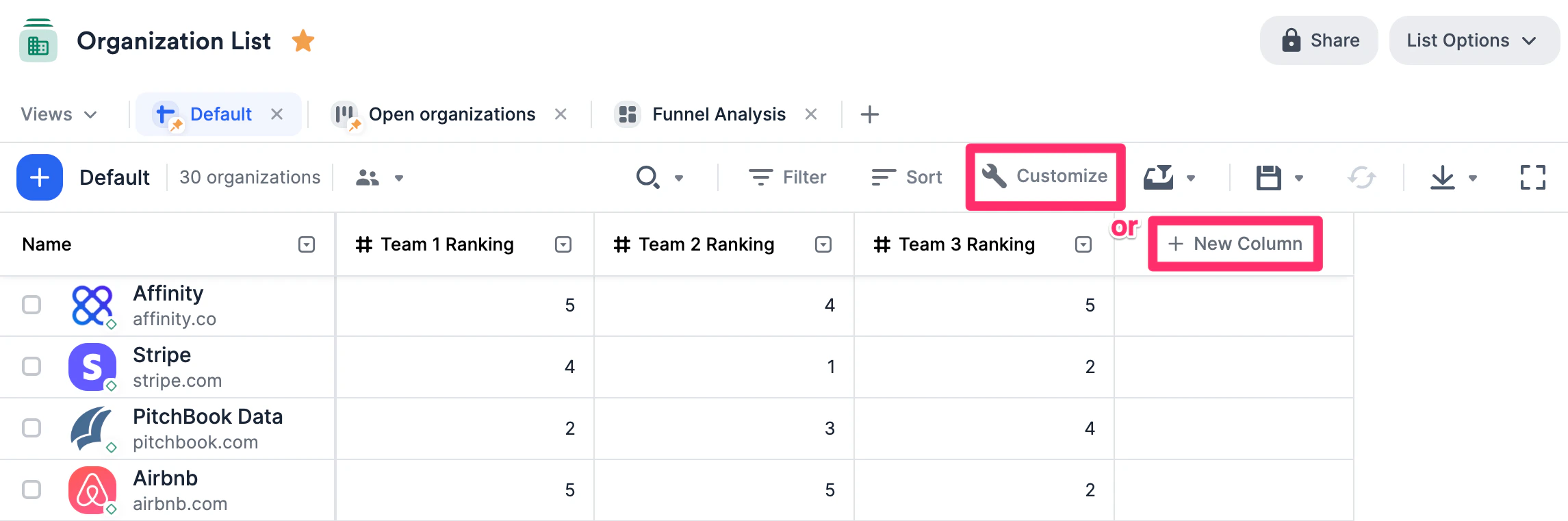
- To create a formula field, click into any list and click on the Customize View button or + New Column at the very right.
- If you click the Customize View button, click on the + icon on the top-right corner to create.
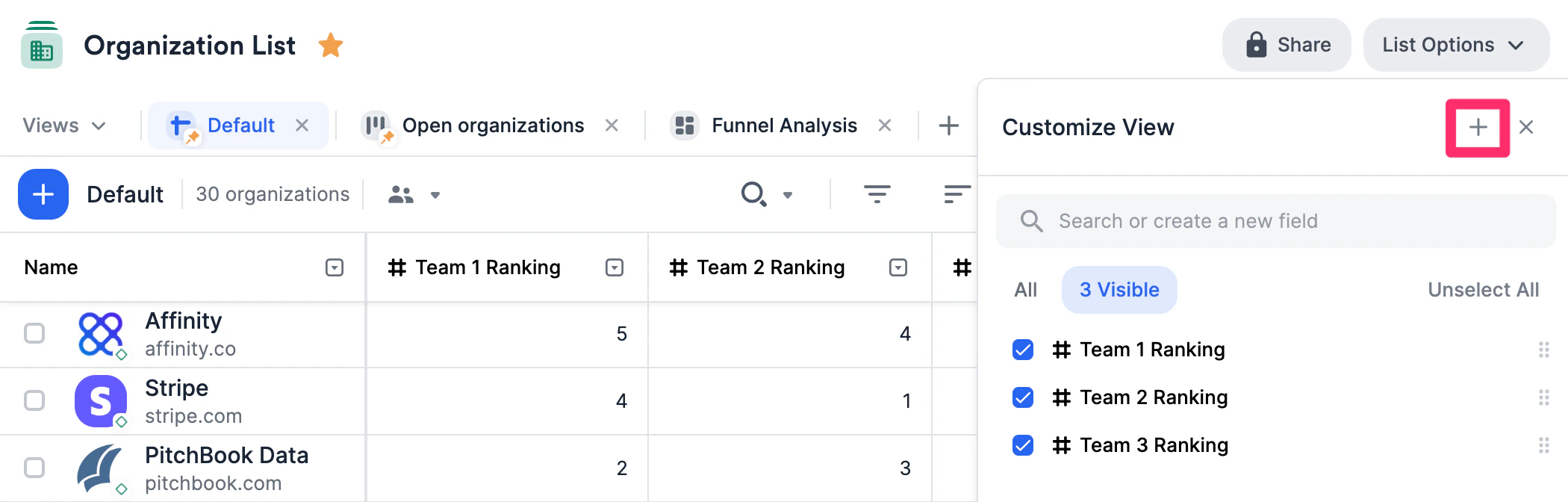
- If you click the Customize View button, click on the + icon on the top-right corner to create.
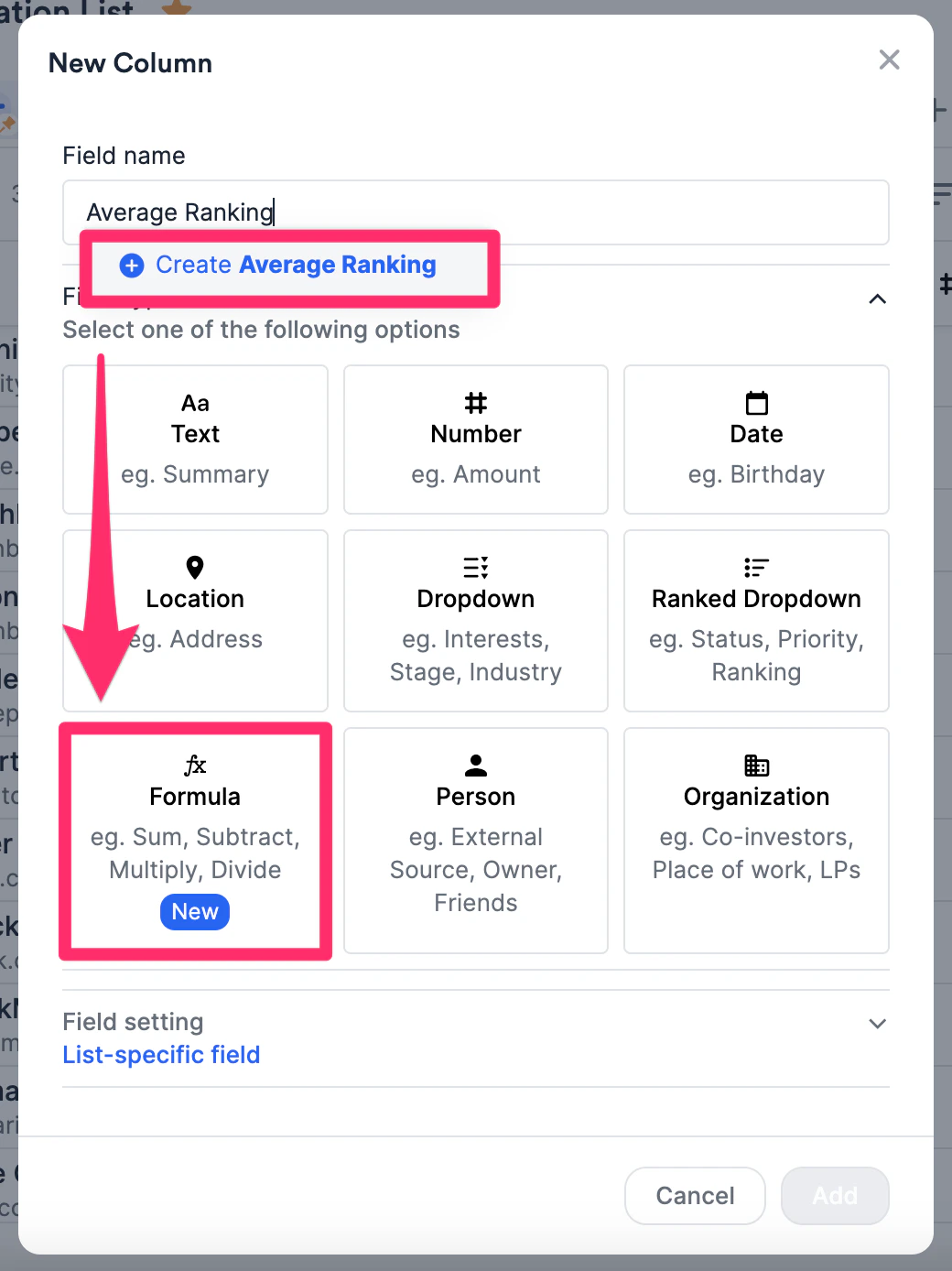
- Give the new field a name. For this example, we’ll create a new formula field called Average Ranking. Then, select the Formula option below.
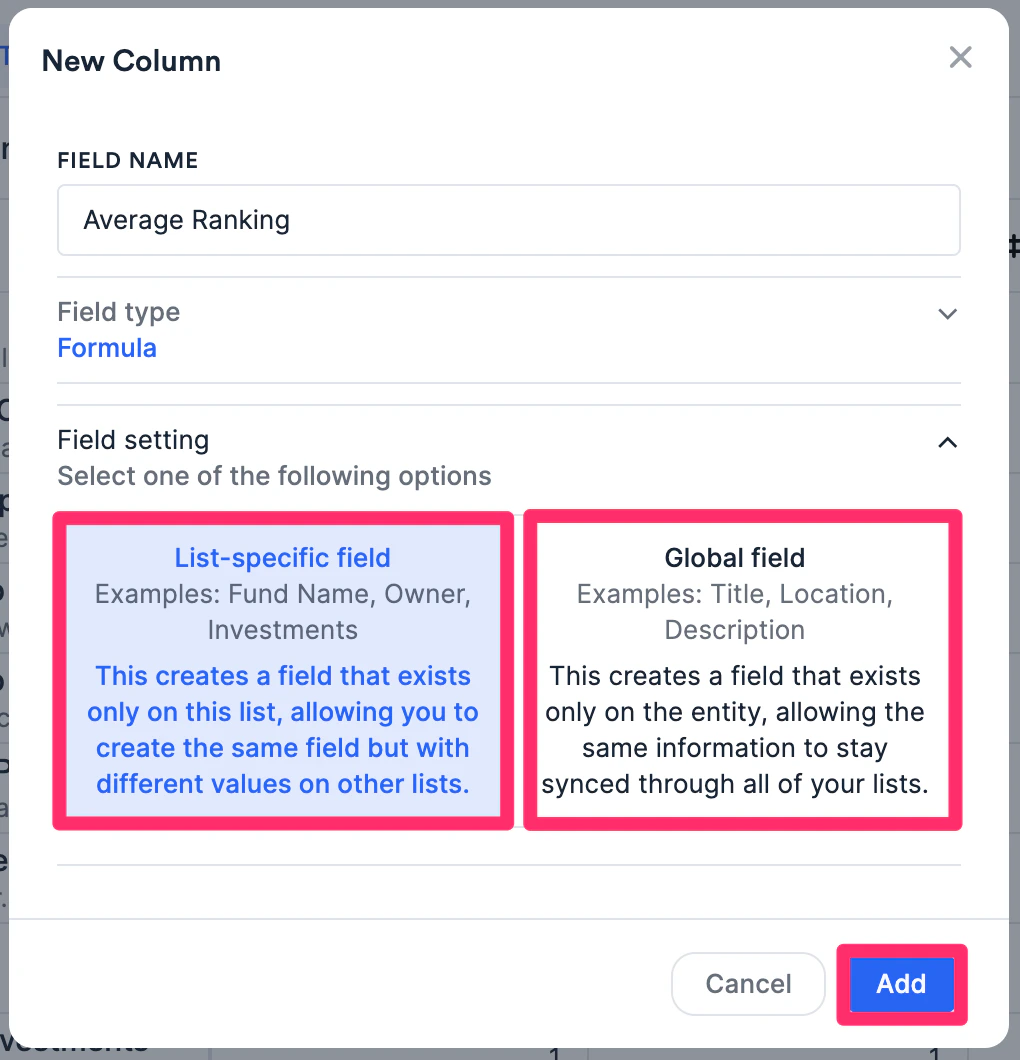
- Select either list-specific or global depending on whether you’d like this new formula field to only appear on the list you’re creating it in or to appear across all other lists of the same type (e.g. for this example, it would appear across all other organization lists). Then, click Add.
- If you make a list-specific formula field, then you can use both list-specific fields (from that particular list) and global fields within the formula itself.
- If you make a global formula field, then you can only use global fields within the formula itself.
- Select the function type you’d like to use - there are currently 5 different function types available (each function type supports up to 16 values):
- Sum - Add up to 16 values from different fields
- Subtract - Subtract up to 16 values from different fields
- Multiply - Multiply up to 16 values from different fields
- Divide - Divide up to 16 values from different fields
- Average - Get the average of up to 16 values from different fields
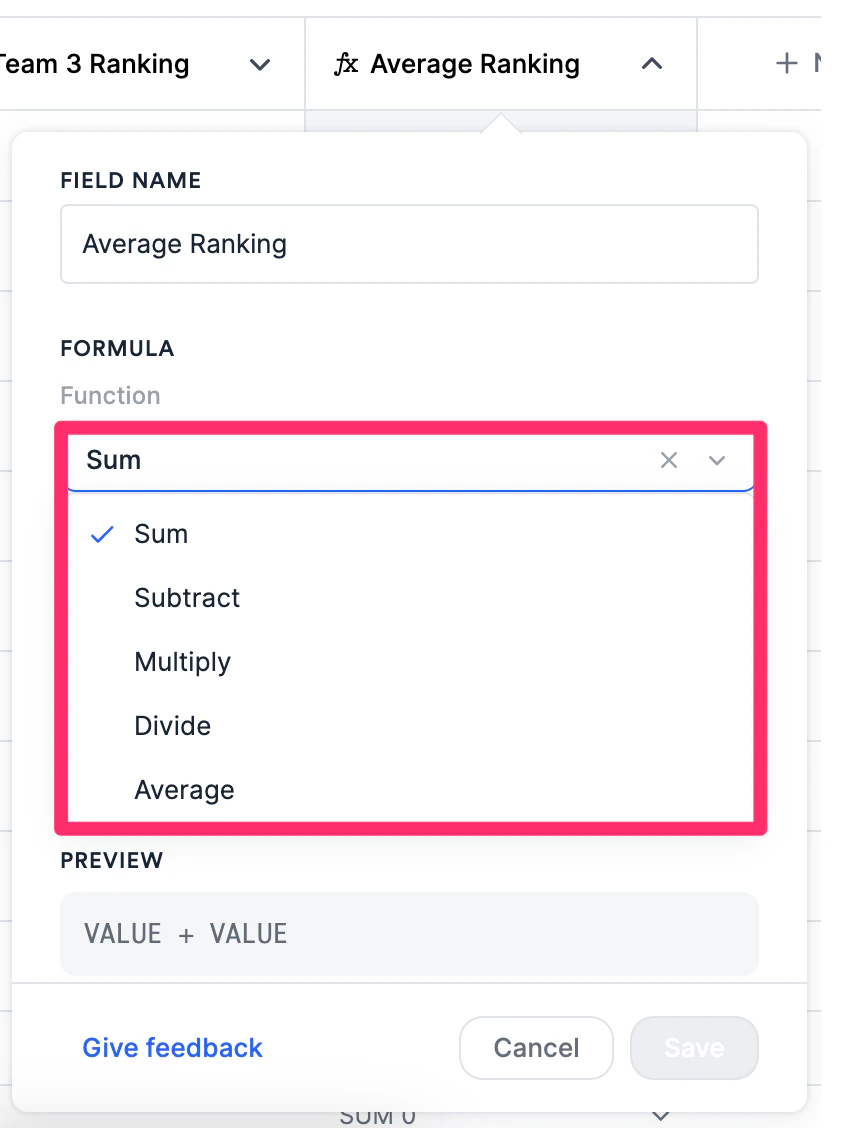
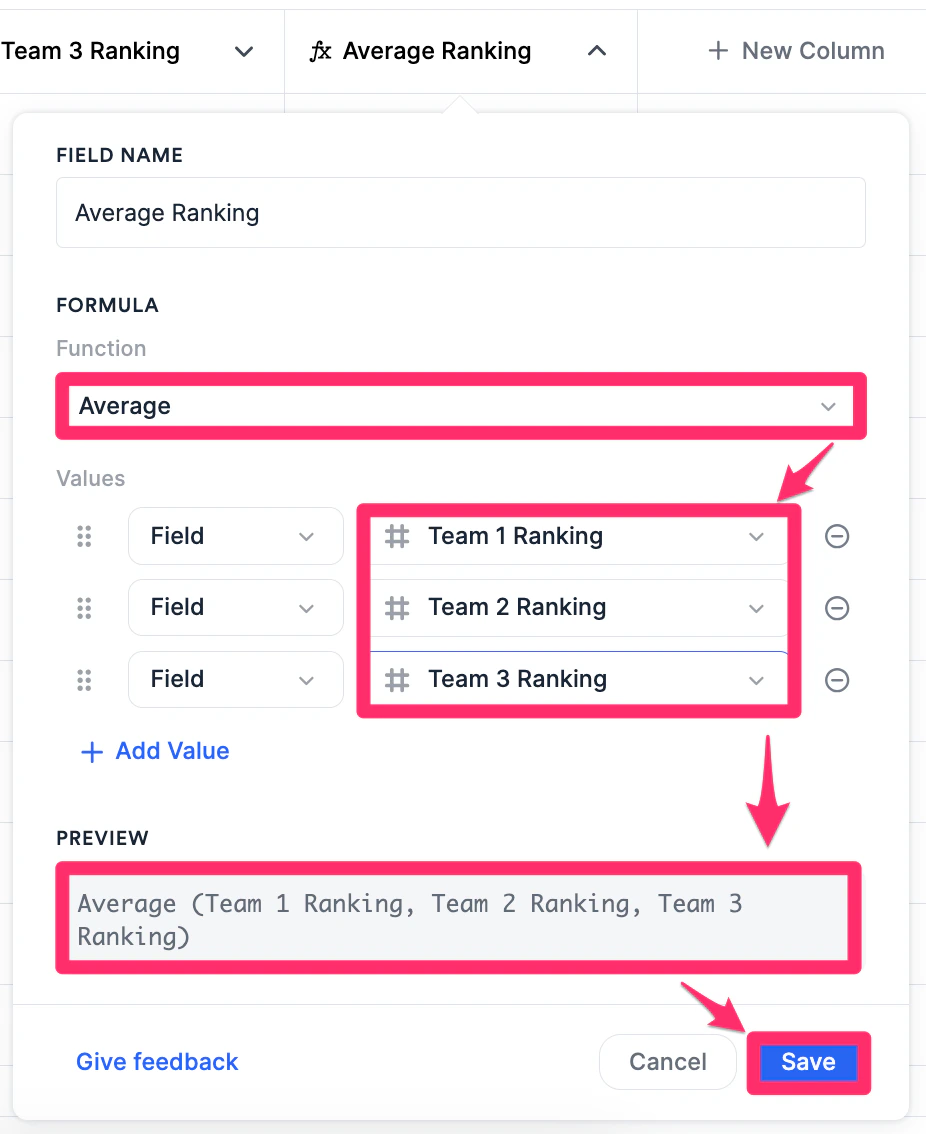
- For this example column called Average Ranking, these are the steps we would take:
- Select Average for the function type.
- Then, we will select three number-type fields that will be used for the formula (e.g. Team 1 Ranking, Team 2 Ranking, and Team 3 Ranking).
- Check the formula preview section below to make sure that it’s correct, then click Save.
- Last but not least, formula fields can be converted into 3 different formats depending on the use case:
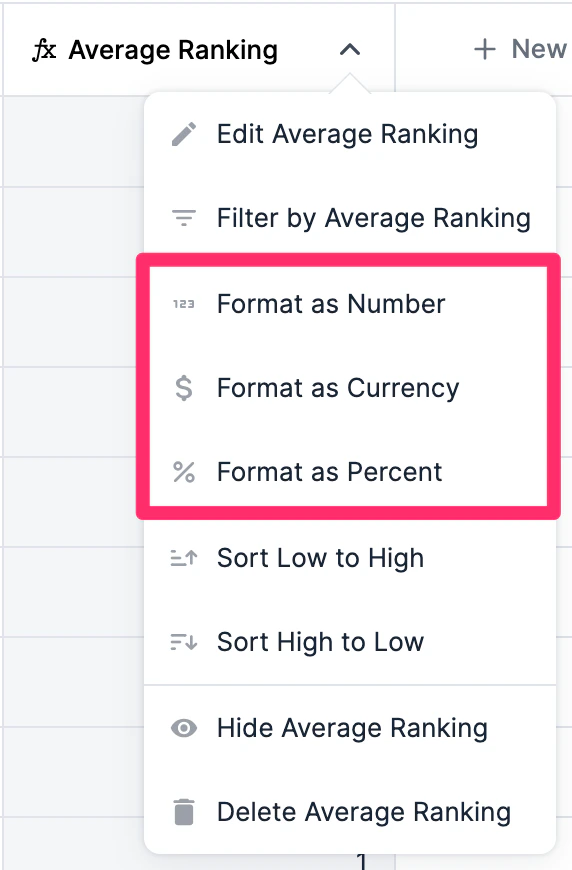
- Option 1 - Format as Number
- Option 2 - Format as Currency (e.g. Dollar, Pound, Yen/Yuan, Euro, Rupee, and New Shekel)
- Option 3 - Format as Percent
- Not sure what types of calculations to start off with? Check out the “Common use cases and examples” section just below.
How to identify and fix errors for miscalculations
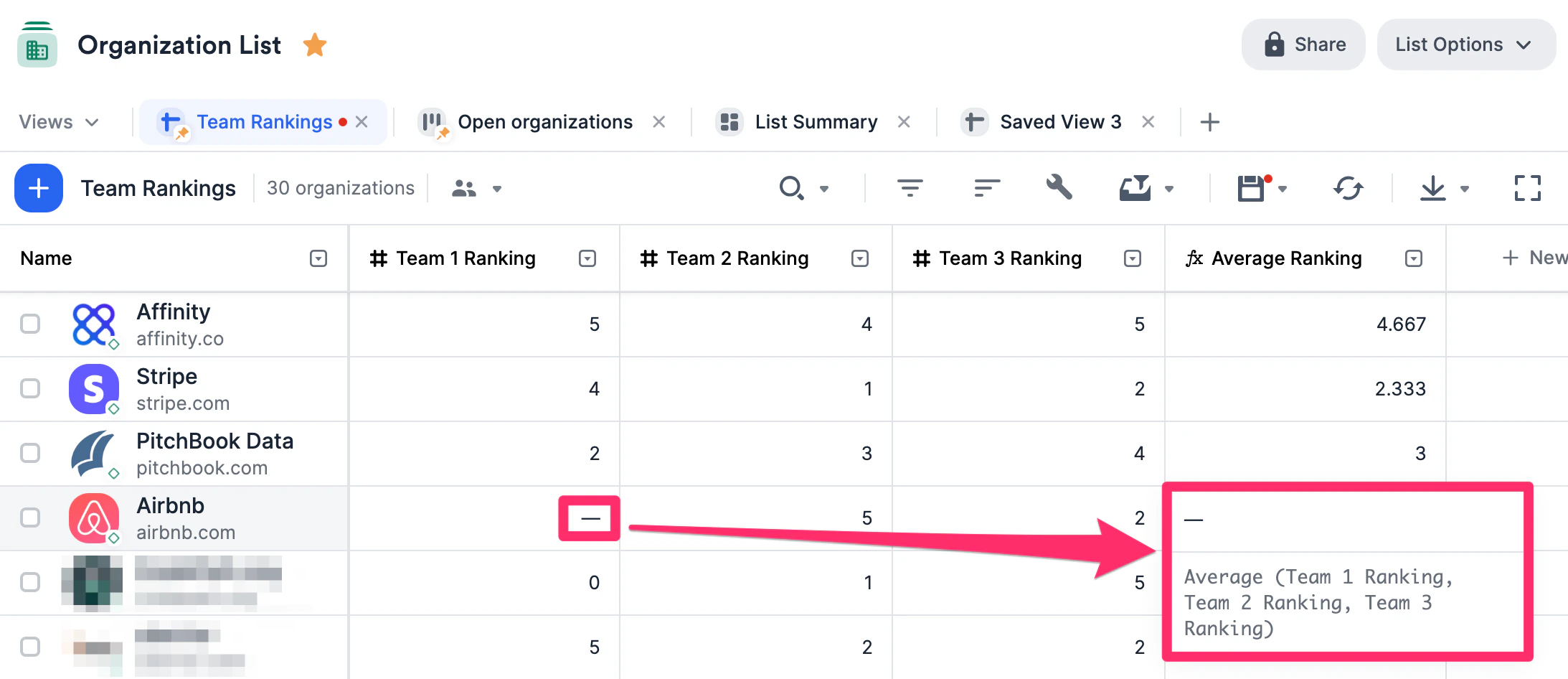
- Depending on the columns used, you may come across empty cells (as shown with a dash ”-”) indicating that one of the values from the columns used is either incompatible or empty.Note: When it comes to formula fields based on addition, subtraction, division, and multiplication, empty cells will be automatically treated as zeros (0) to complete the calculation. However, formula fields based on averages will consider empty cells as null and therefore will not complete the calculation.
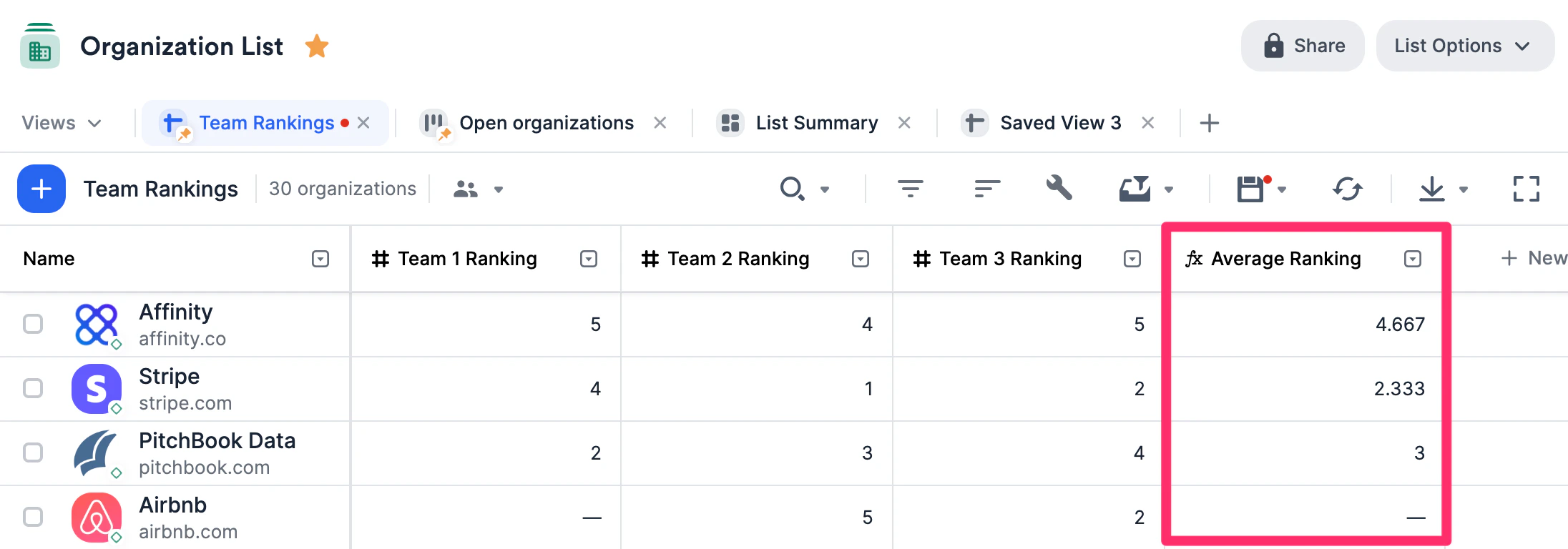
- Click on the cell to see a preview of the formula so you can identify the issue. In this example, the “Team 1 Ranking” field value is empty for Airbnb, which is why the “Average Ranking” field value is empty as well.
- From here, you can decide whether to:
- Edit the values of the columns being used for the formula field.
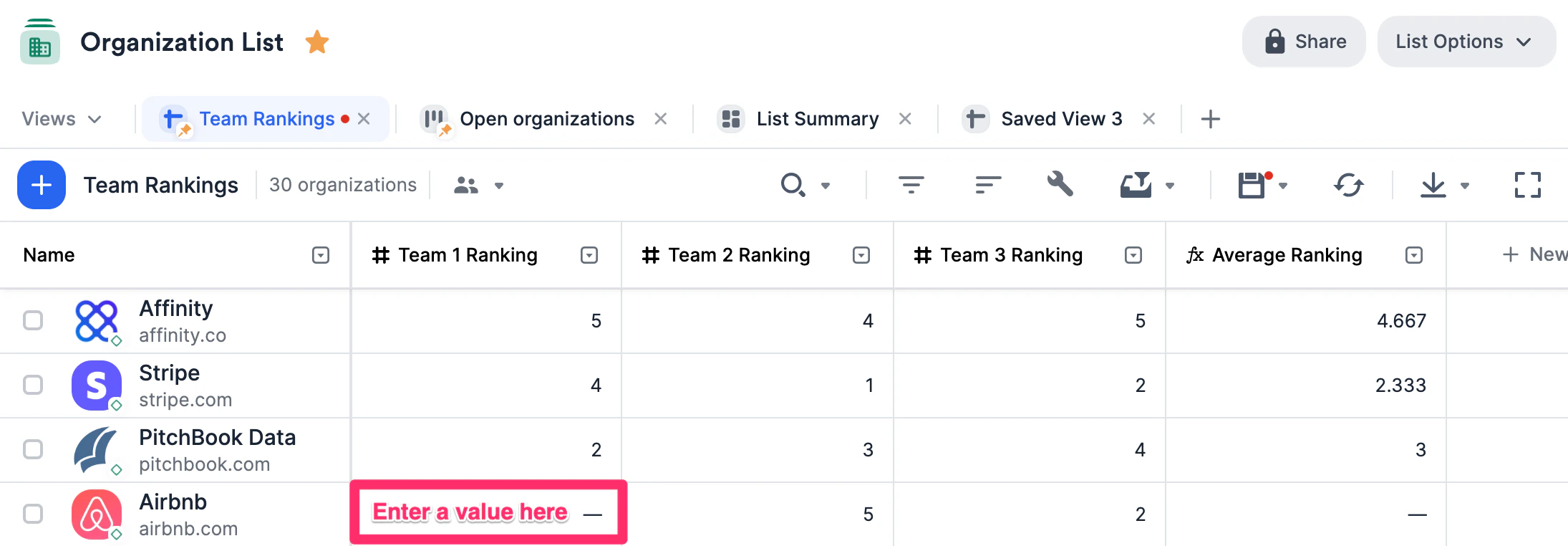
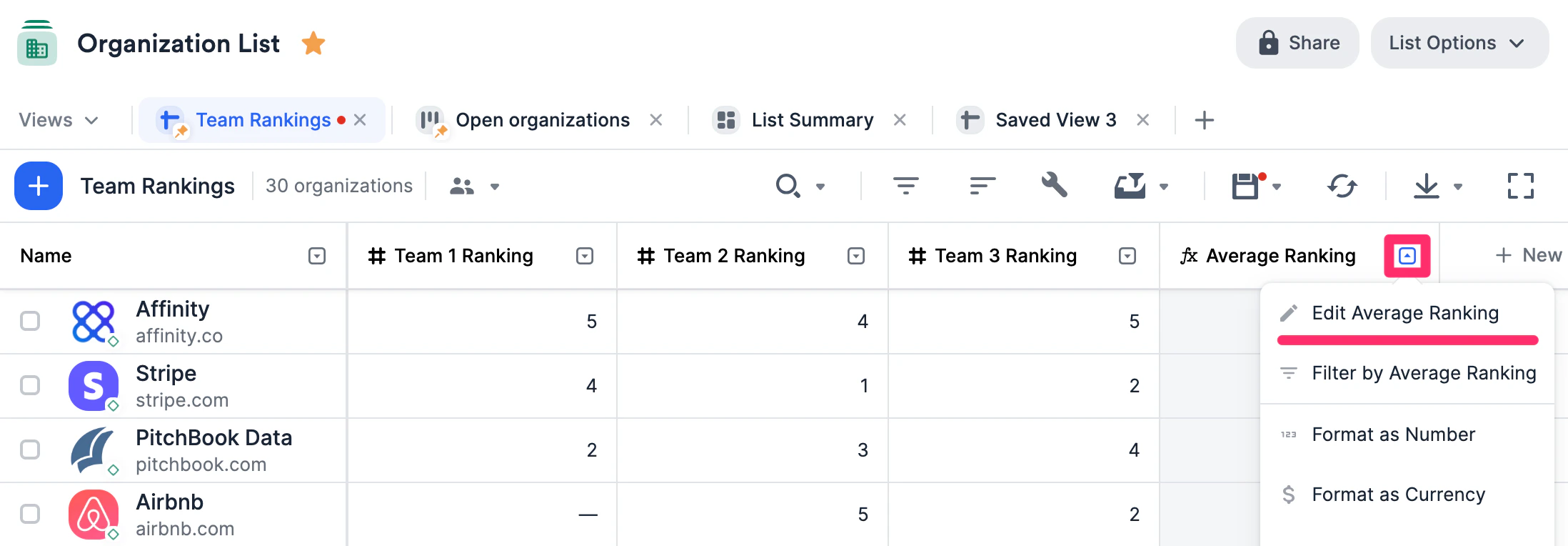
- Edit the formula field itself by clicking on the dropdown arrow next to the column name.
- Or leave it as is for now.
- Edit the values of the columns being used for the formula field.
Where you can use formula fields within Affinity
Once you’ve created your formula fields, check out all the areas where they can be used:Lists (Sheet Views and Board Views)
- On sheet views, you can click the Customize View button to show the formula fields within the sheet itself.
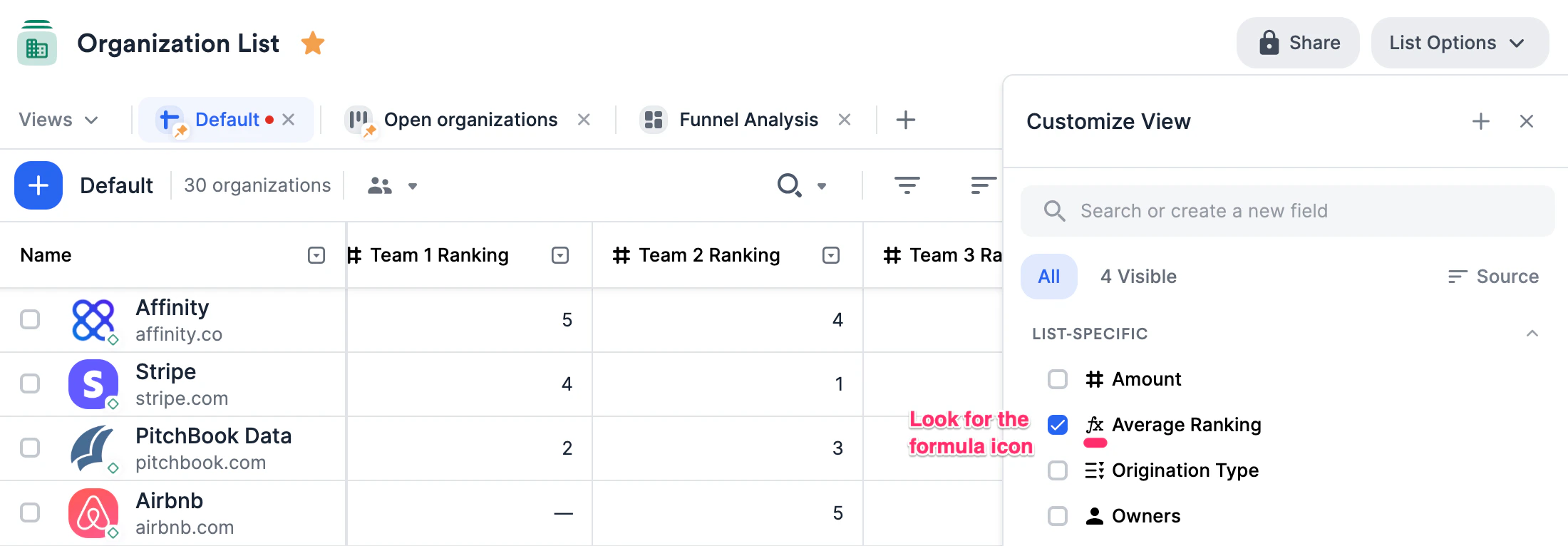
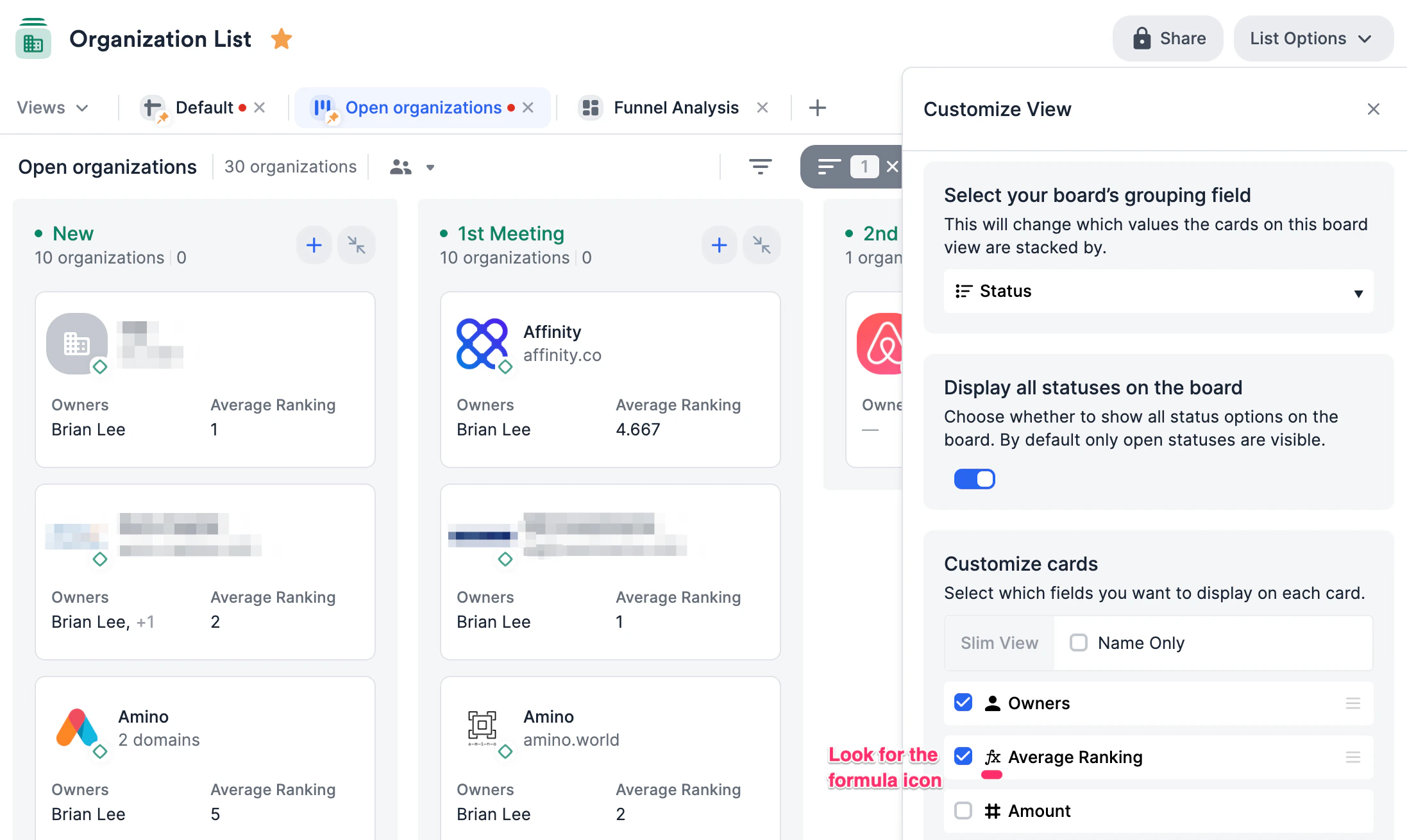
- On board views, you can click the Customize View button to show the formula fields within each card.
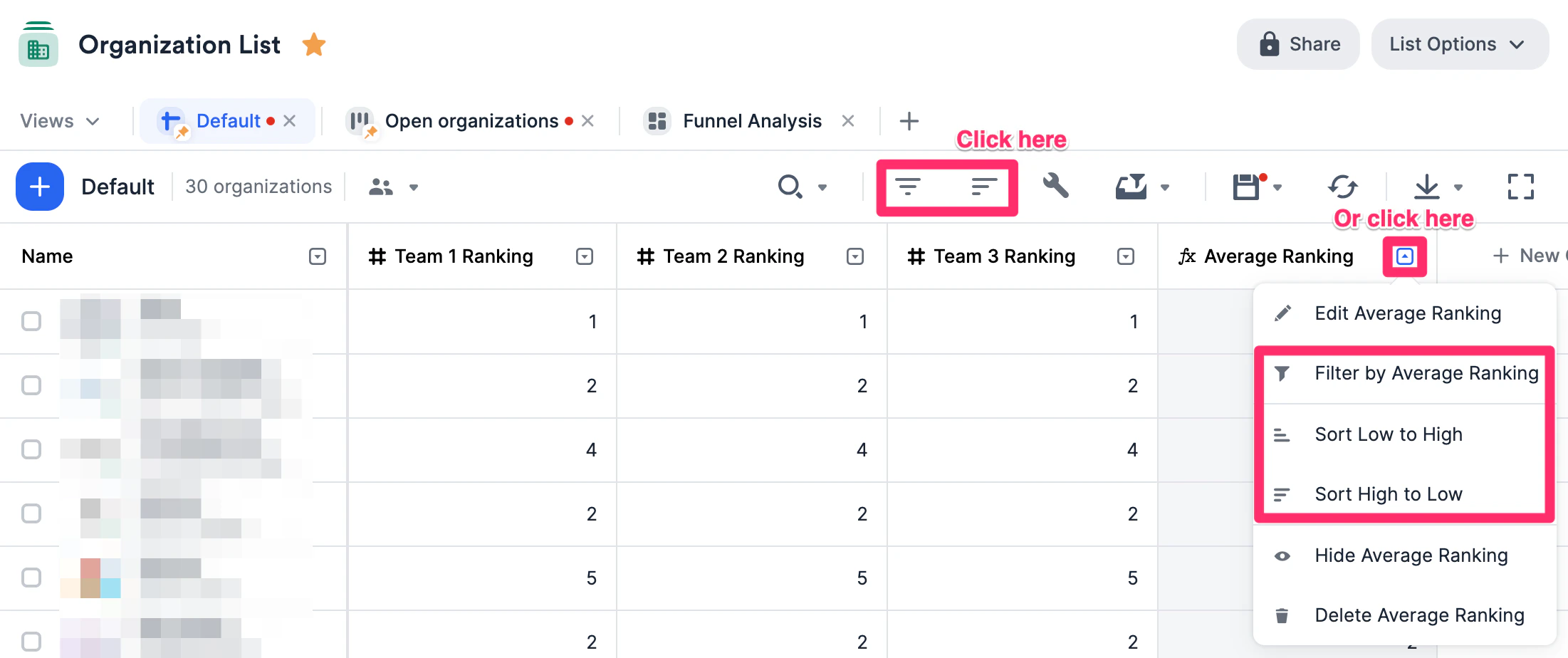
- Whether it’s a sheet view or board view, you can filter and sort by these formula fields as well.
Affinity Analytics (Dashboard Views)
-
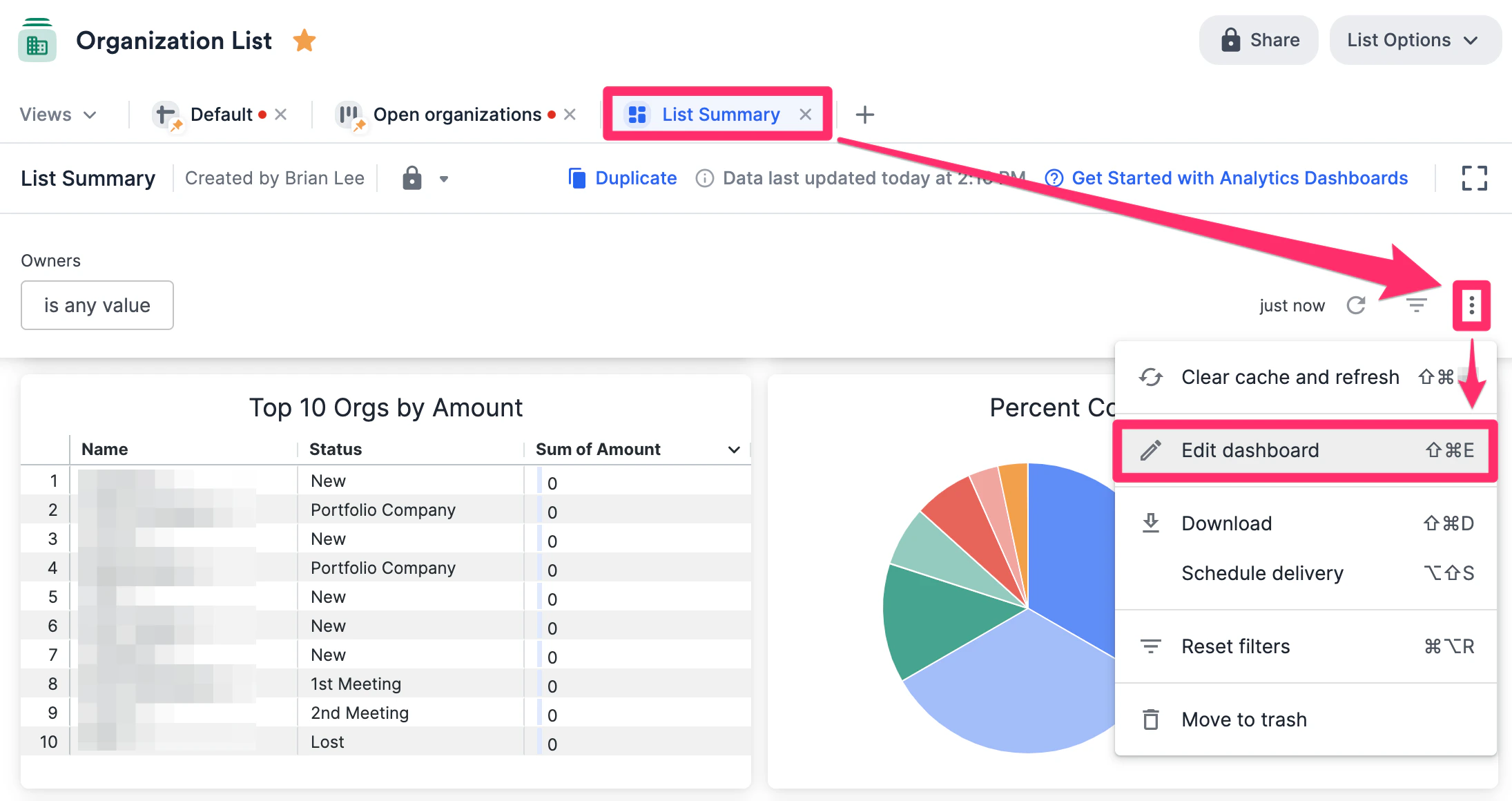
In the list that contains a dashboard view that you’d like to leverage your formula fields within, click the 3-dotted icon and click Edit dashboard (for Creator roles only).
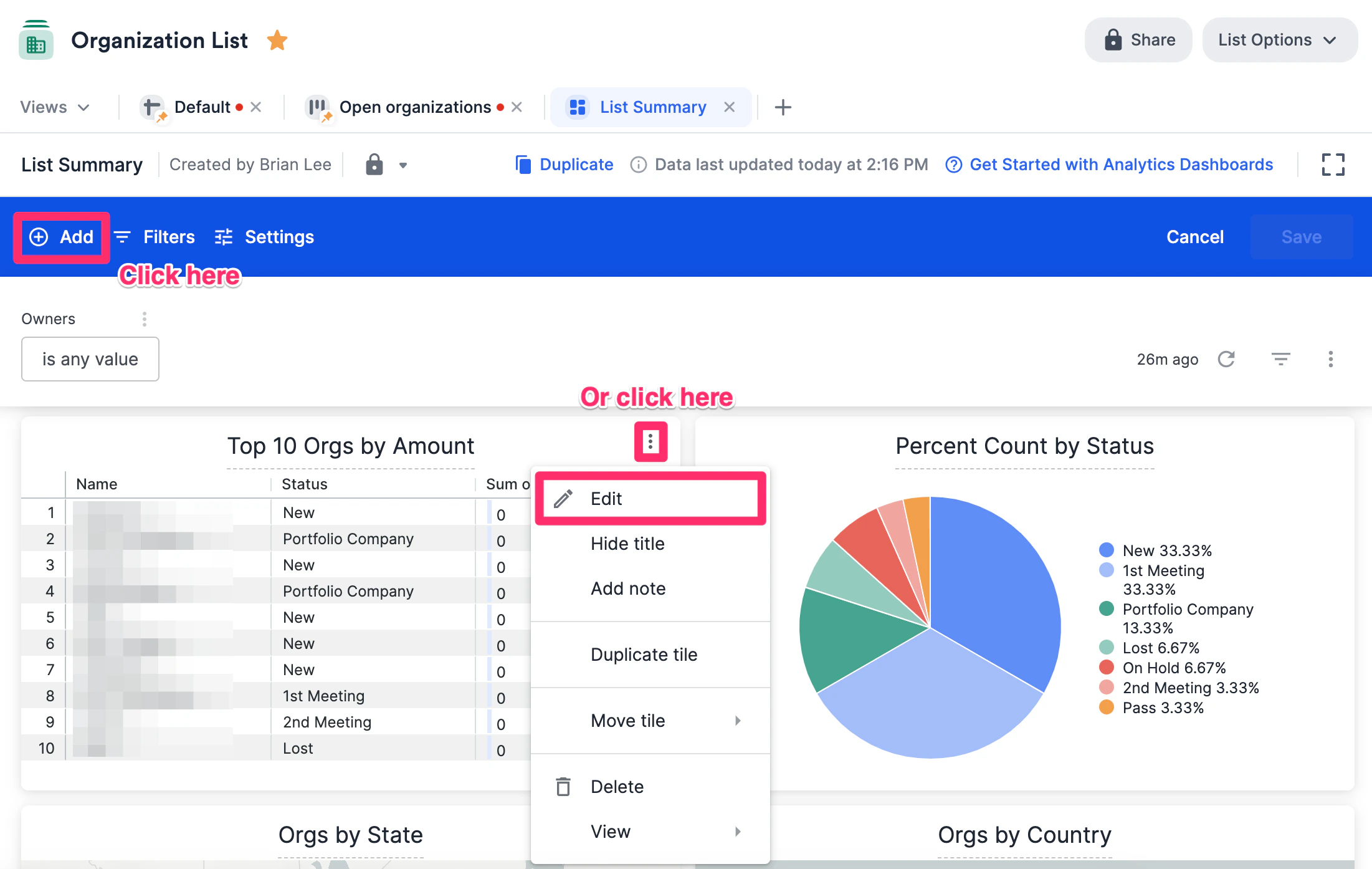
- From here, you can click Add to create a new visualization tile or click the 3-dotted icon for an existing visualization tile that you’d like to edit. For this example, we’ll show you how to edit an existing visualization tile.
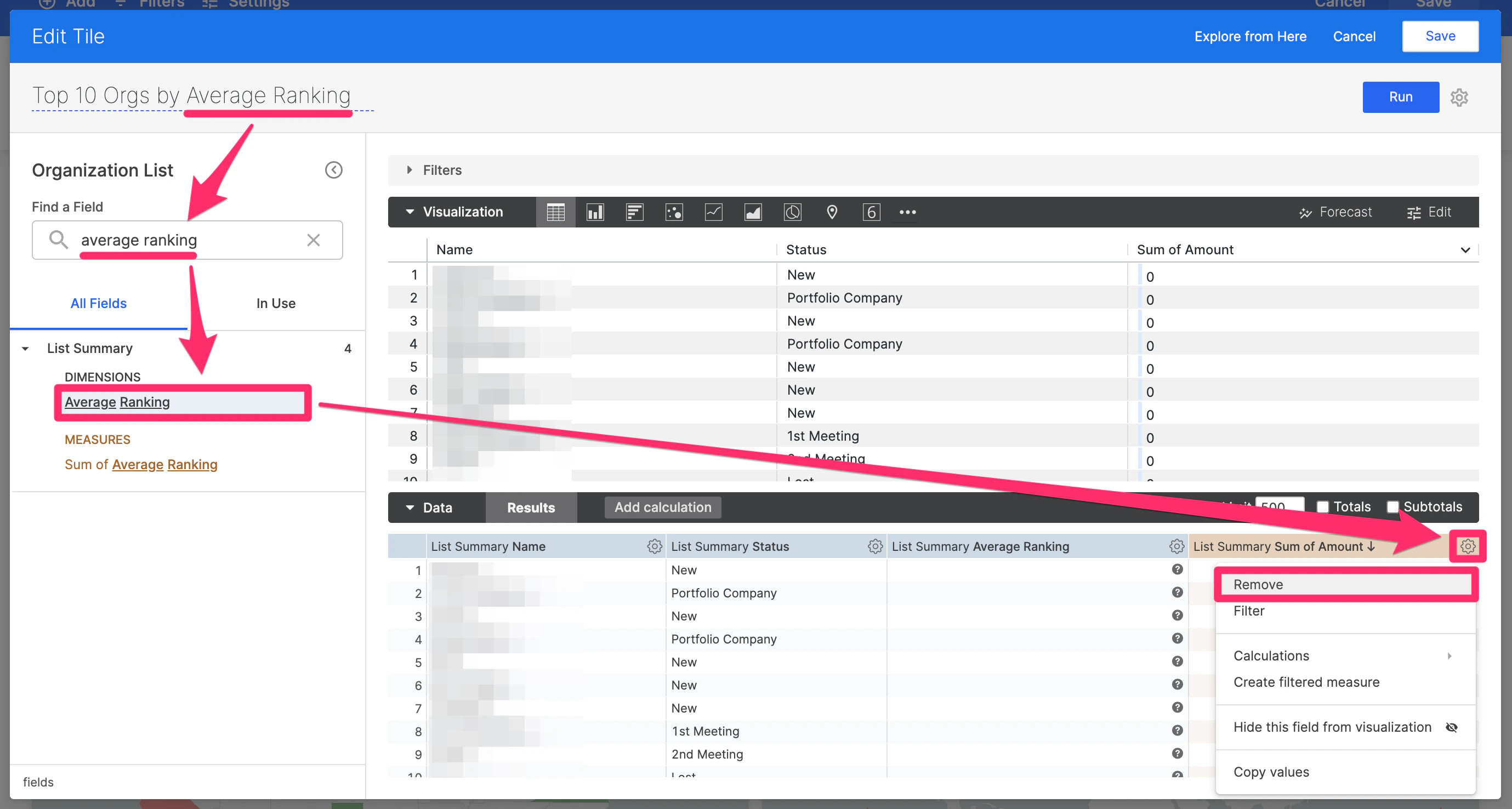
- Since we’re editing the tile from showing “Top 10 Orgs by Amount” to “Top 10 Orgs by Average Ranking”, we will do the following:
- Rename the tile.
- Then, search for the Average Ranking formula field, then click on it to make it appear.
- Finally, remove any fields that you wouldn’t like to see - in this example, we’ll remove Sum of Amount since it’s no longer necessary.
-
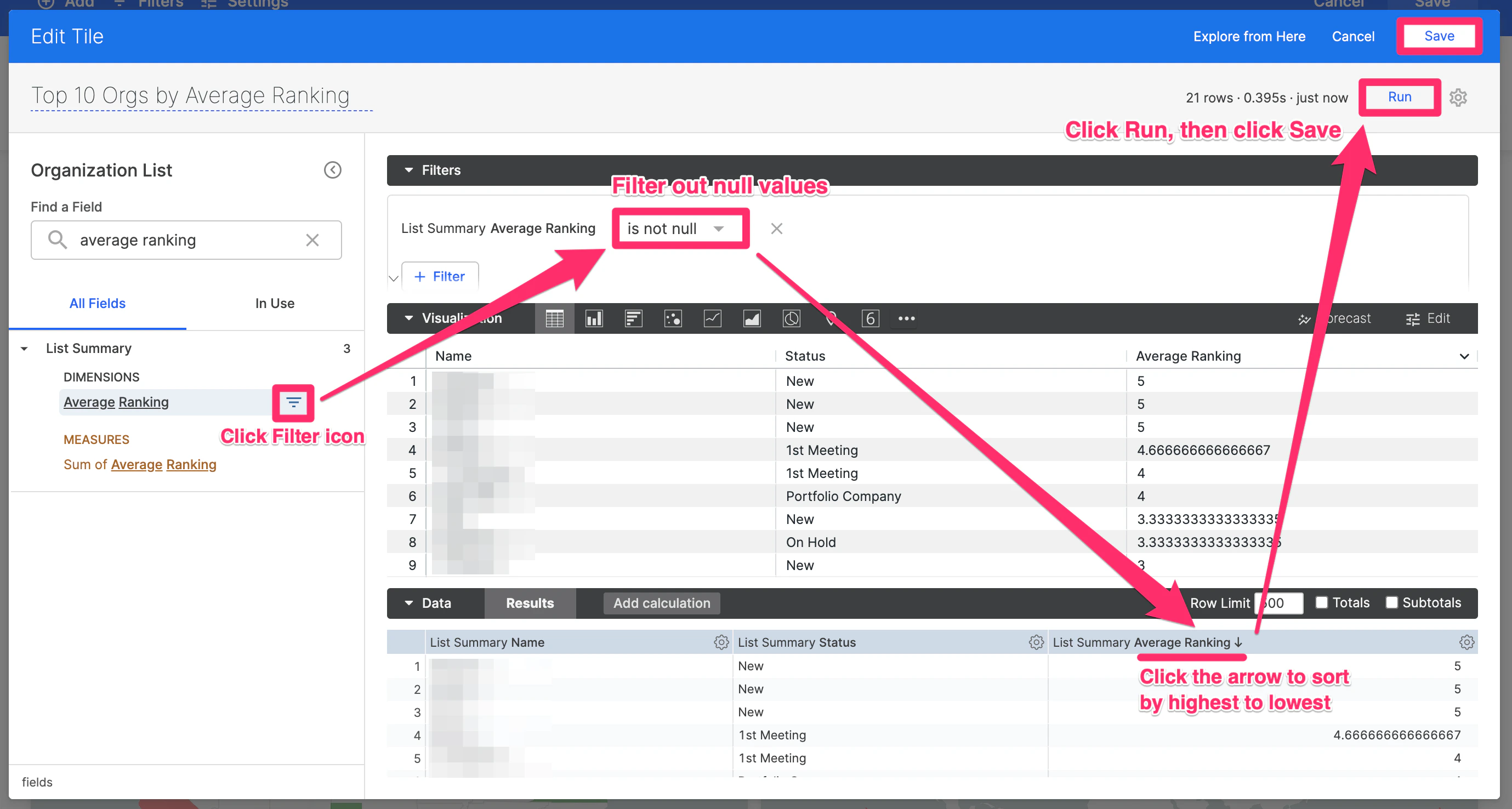
To clean up the results, we will do the following:
- Click the Filter icon next to Average Ranking on the left sidebar to remove any rows that may include null values.
- Click the Arrow icon next to “List Summary Average Ranking” in the Data section to sort by highest to lowest.
- Click Run to generate the new results, then click Save.
-
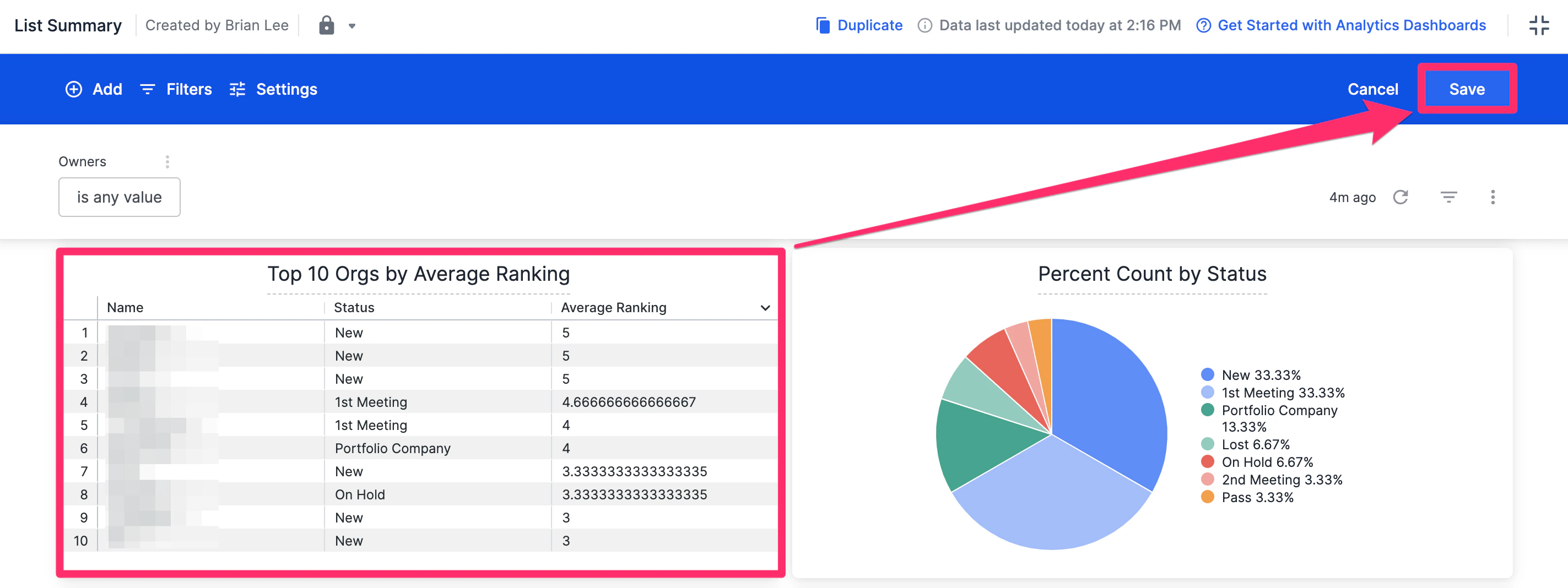
Now, you’ll see the visualization tile showing “Top 10 Orgs by Average Ranking” - click Save one more time to save all the changes made to the dashboard view and you’re all set.
Profile Pages
-
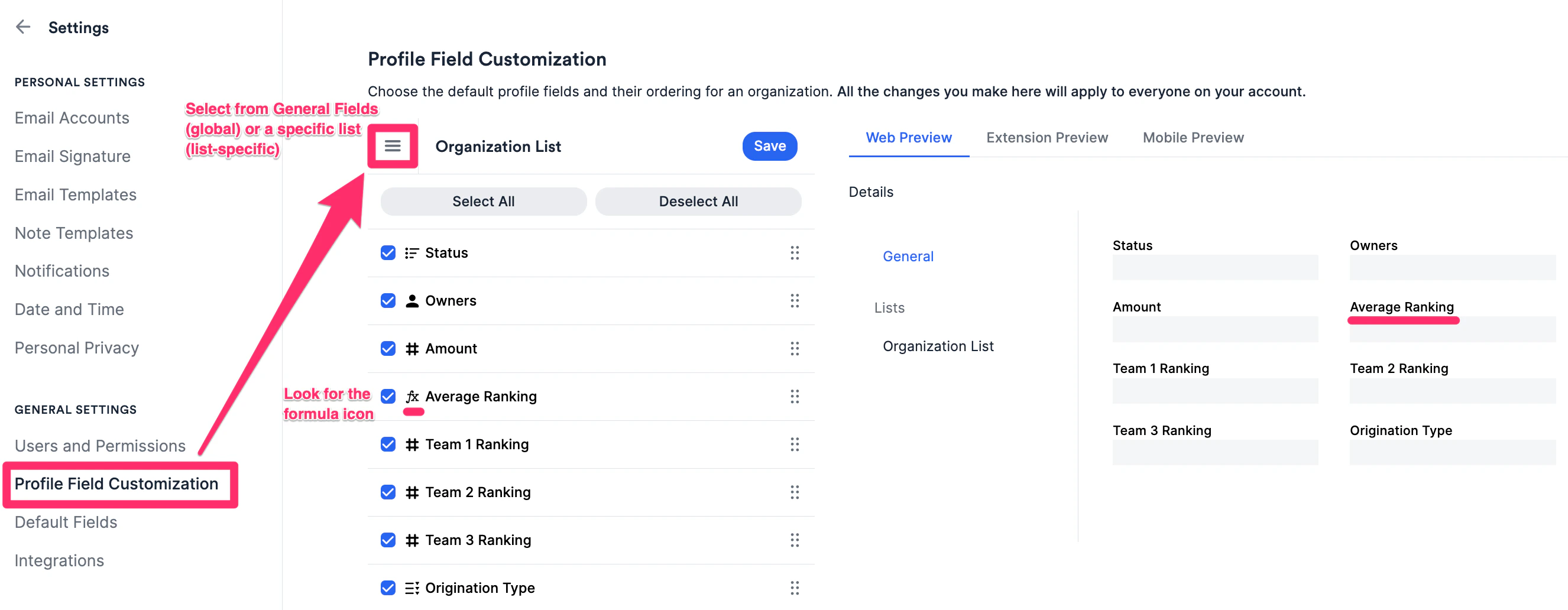
Go to Settings > Profile Field Customization and click the Menu icon to select from General Fields or from a specific list depending on whether the formula fields are global or list-specific.
-
Once you click Save, navigate to a profile page that would include the formula fields you selected.
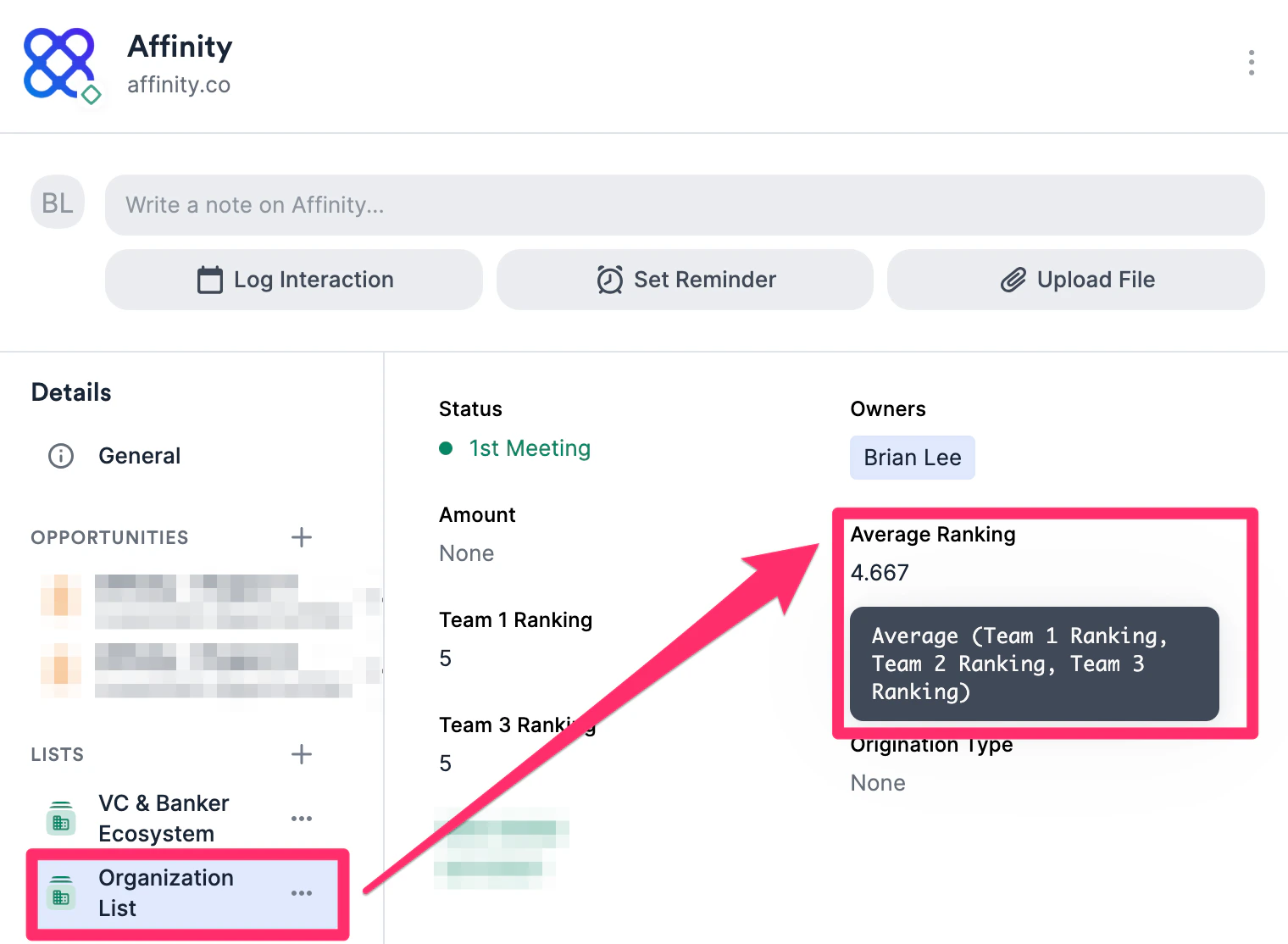
Common use cases and examples
Here are some of the most common list calculations you can create. Each bracket containing names or numbers represents a single column:Important Callouts
- Each formula field can currently only use one function type at a time — you cannot combine two or more function types (e.g., multiplication and subtraction, addition and division).
- If you make a list-specific formula field, you can use both list-specific fields (from that particular list) and global fields within the formula itself.
- If you make a global formula field, you can only use global fields within the formula itself.
- Formula fields are currently not available via the Affinity API, the Affinity mobile app, Affinity extensions (Pathfinder and Outlook), or Basic Reporting.
- Only single-value number-type fields can be used as inputs within formula fields. Multi-value number-type fields or any other field types cannot be used as inputs.
- Formula fields cannot use other formula fields as inputs at this time.