

How to switch a list to Classic
- Open the list you want to switch.
- Look for a Switch to Classic button in the list header, towards the top right. Click it to move that list back to Classic.
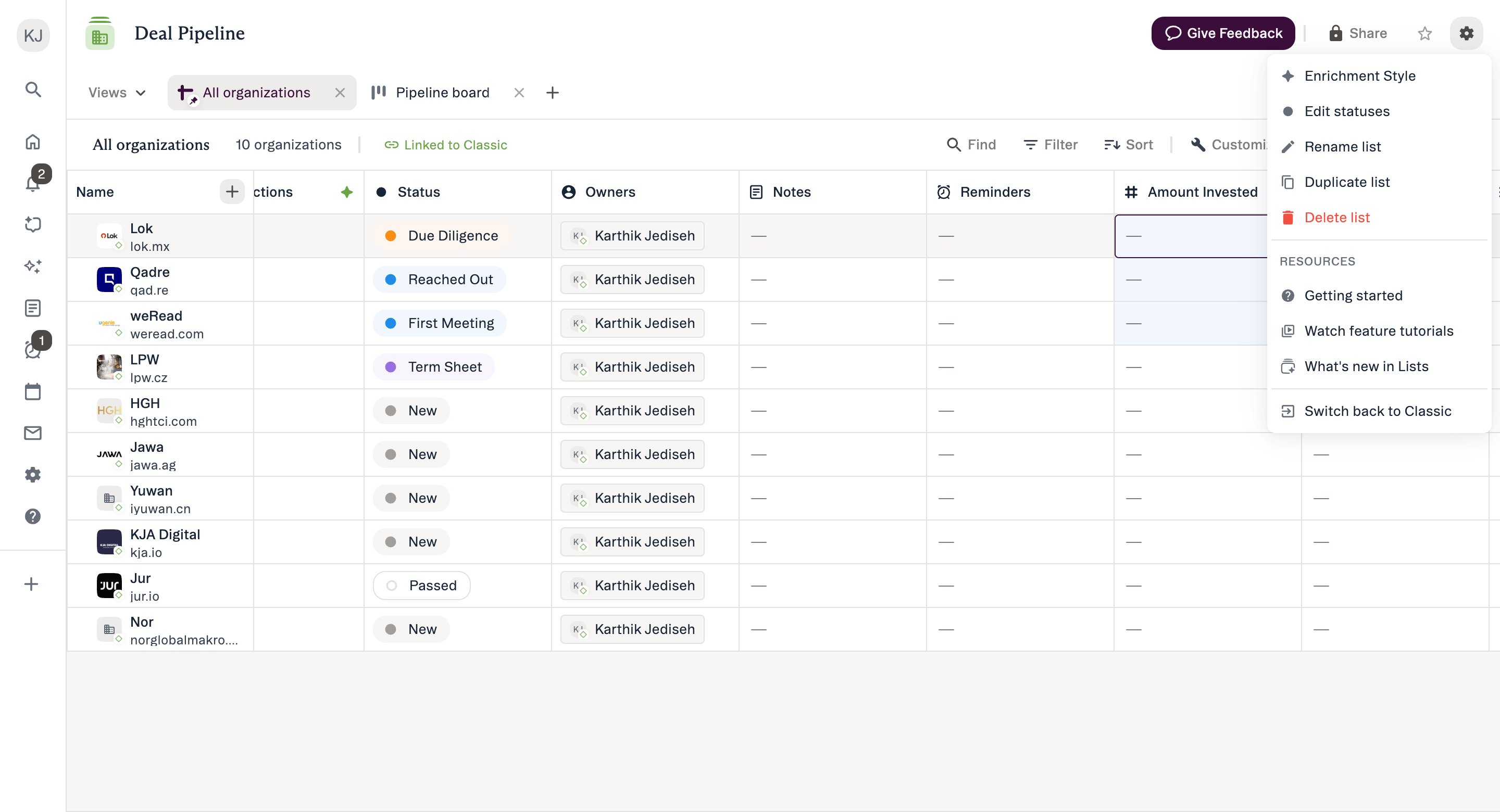
- If that button isn’t there, open List Options — the gear icon in the top right, which has no tooltip — and choose Switch back to Classic at the foot of the menu.
What to expect
- Your data is safe and synced. Entries, edits, and field values stay consistent across both experiences — switching doesn’t move or lose any data.
- Saved views are preserved. Views you saved using New Lists features (like advanced filters) are kept as variants, so your Classic version stays intact for teammates still on Classic. See the Saved Views in New Lists Reference.
- We’ll ask why. When you switch a list back to Classic, we’ll ask a quick question about what’s missing. That feedback directly shapes which features we bring to New Lists next.
When you might switch to Classic
A few lower-usage Classic features aren’t in New Lists yet. Each has a workaround (see what’s not yet supported), but the most common reasons to use Classic for now are:- Bulk email or bulk convert to opportunity — bulk copy to list and bulk remove are available in New Lists.
- Importing data — coming to New Lists soon. Import in Classic in the meantime.
- Collaborators — collaborators always see Classic Lists.
Good to know
- New Lists is now the default for every customer — and you can always switch an individual list back to Classic.
- Classic Lists will be retired once the features customers depend on have moved to New Lists. We’ll give notice well before it happens. The Classic-only features listed above are moving across, apart from bulk email — we’re still evaluating the best approach there. We’ll give clear notice ahead of the change.