

Reference — lookup information.
How does Affinity determine unanswered emails?
- Affinity will consider outbound cold emails (sent by you), since you may want to follow up on them.
- Affinity will check both the To and CC lines to determine whether to notify you about an unanswered email.
- Affinity will not consider emails only consisting of you and your team members (based on matching email domains).
- Affinity will not consider cold inbound emails (sent to you), effectively treating them as spam.
- However, if the spam contact already exists in your All People Directory then cold inbound emails will show up as unanswered emails. To prevent them from showing up as unanswered emails moving forward, simply delete the contact. Check out the section titled “Log Interactions, Set Reminders, Upload Files, Edit Name/Email/Domain, Export Notes, Merge Duplicates, or Delete Entity” in the article Navigating profile pages in Affinity
- Notifications for Unanswered emails are generated every two hours.
Where to find your unanswered emails
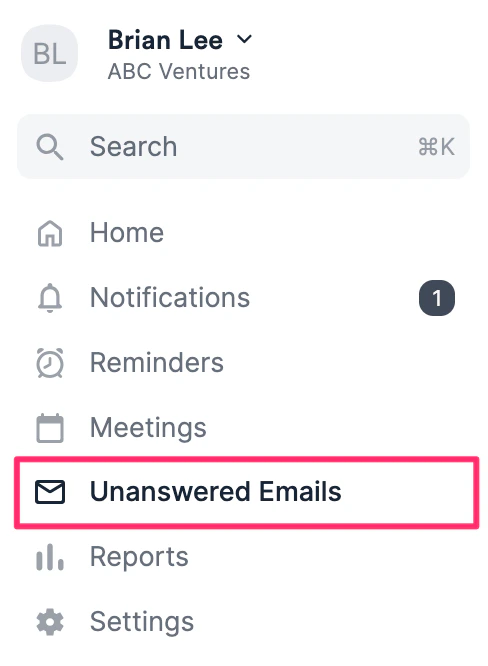
- Click on the Unanswered Emails on the global navigation bar on the left side of your screen.
- If you have set your email notifications for unanswered emails to Daily, you will also receive an email in your inbox accordingly.
- If you have set your email notifications for unanswered emails to Daily, you will also receive an email in your inbox accordingly.
Important Callout:
- If you have your Notification settings for Unanswered Emails set to off and “Never”. The Unanswered Email tab will be removed from your sidebar.
