

How-to — task-oriented recipe.
- Note Bot: Attach notes to people, organizations, and opportunities.
- List-Specific Bot: Add a person, organization, or opportunity to a list.
- For Gmail users on a laptop/desktop, you can use the Affinity Pathfinder Chrome Extension.
- For Outlook users on a laptop/desktop, you can use Affinity’s Outlook Add-in.
- When you’re on-the-go, you can use the Affinity mobile app.
How to find the Email Bot
-
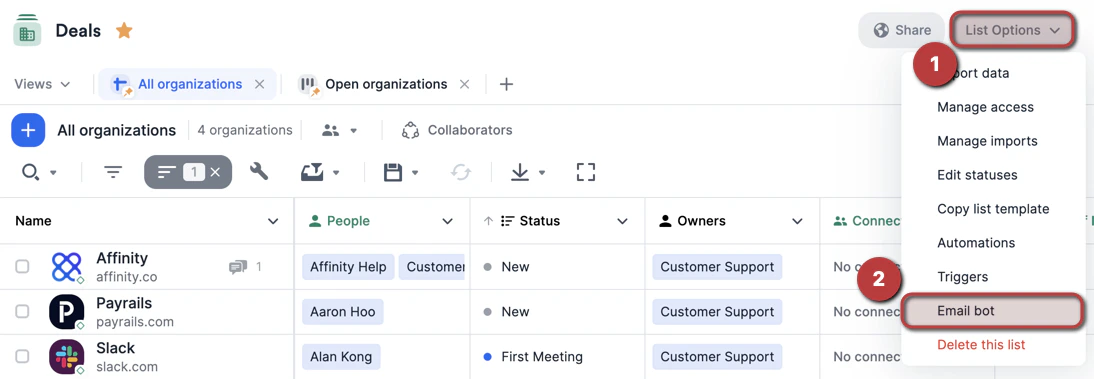
Click List Options on the top-right corner, then click Email bot.
-
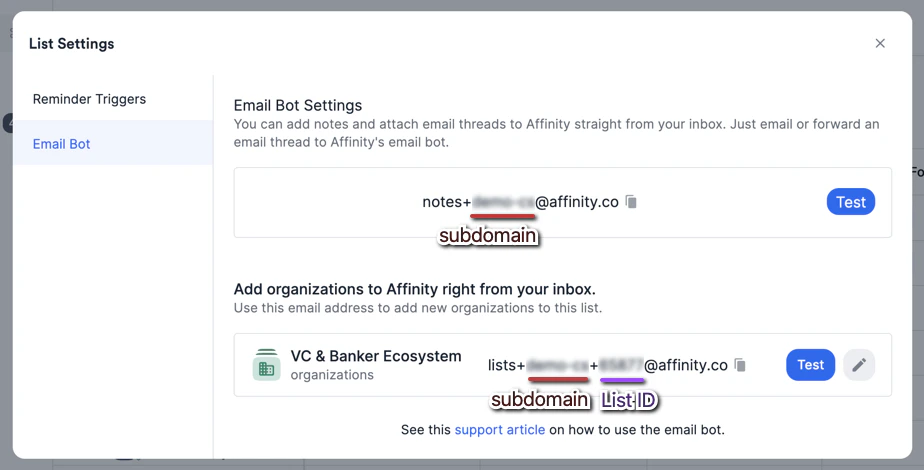
You will see two email addresses: the Note Bot Email Address and the List-Specific Bot Email Address. You can copy/paste either to the “To” or “CC” lines in your email draft based on whether you’d like to add a note to an entity or add an entity to the given list.
How to use the Note Bot
-
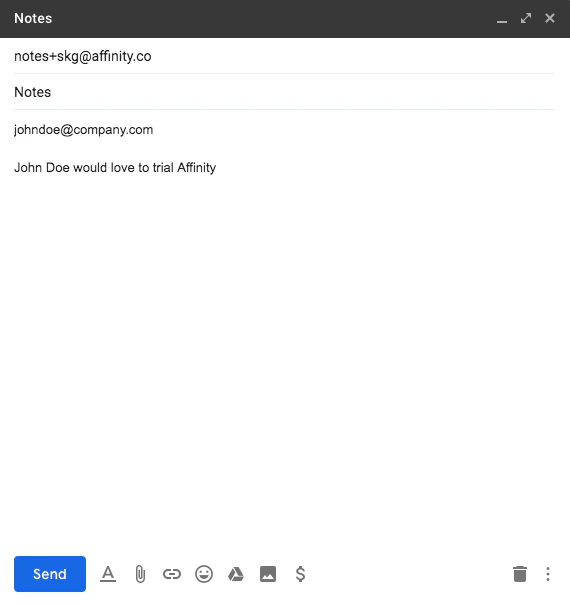
Use the Note Bot Email Address. The format would look like the following:
- The subject line can include a relevant title for the note.
-
The first line of the email should consist of one of the three:
- Organization URL of the organization you wish to attach a note to.
- Email Address of the person you wish to attach a note to.
- Opportunity Name of the opportunity you wish to attach a note to.
- Skip the second line and leave it blank (see below).
- The third line will contain the note you wish to attach to the contact.
-
Be sure to include a line break between the object (line 1) and the note (line 2). It will take approximately 15-20 minutes for the new note to attach to the contact’s profile page.
-
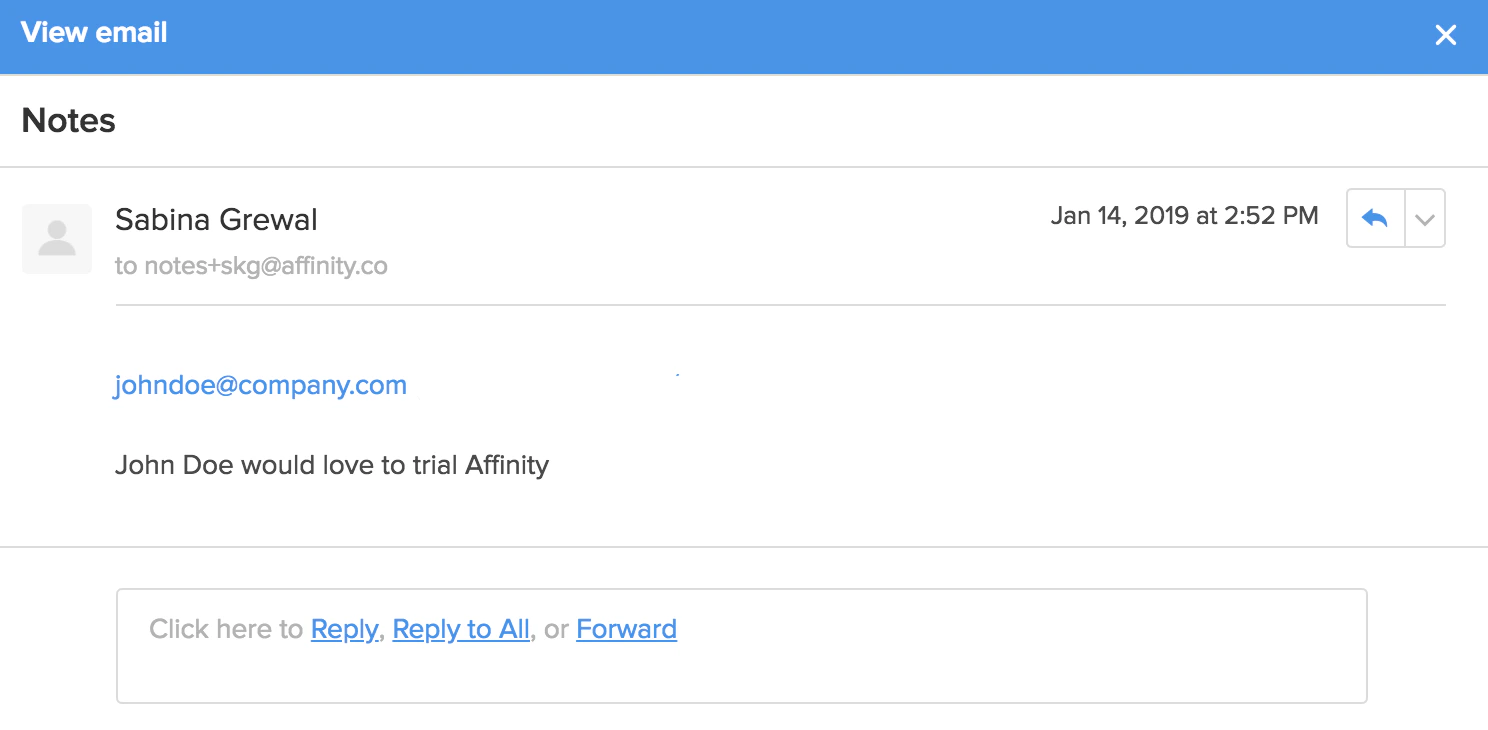
Below is an example of how the attached note would look like.
How to use the List-Specific Bot
-
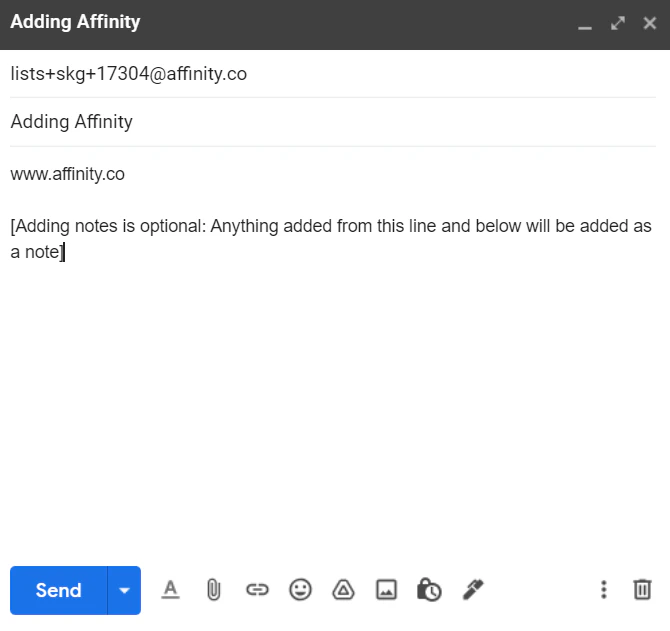
Use the List-Specific Bot Email Address. The format would look like the following:
- The subject line can include a relevant title for the note.
-
The first line of the email should consist of one of the three:
- Organization URL of the organization you wish to add to an organization list.
- Email Address of the person you wish to add to a people list.
- Opportunity Name of the opportunity you wish to add to an opportunity list.
- Skip the second line and leave it blank (see below).
- The third line will contain the note you wish to attach to the new list entry (not available for opportunities).
-
Be sure to include a line break between the object (line 1) and the note (line 2). It will take approximately 15-20 minutes before the new note appears in Affinity.
Note: When adding contacts to lists using the List-Specific Bot, please be aware that if you add an organization URL to a People list (or an email address to an Organization list), the Email Bot will fail.
-
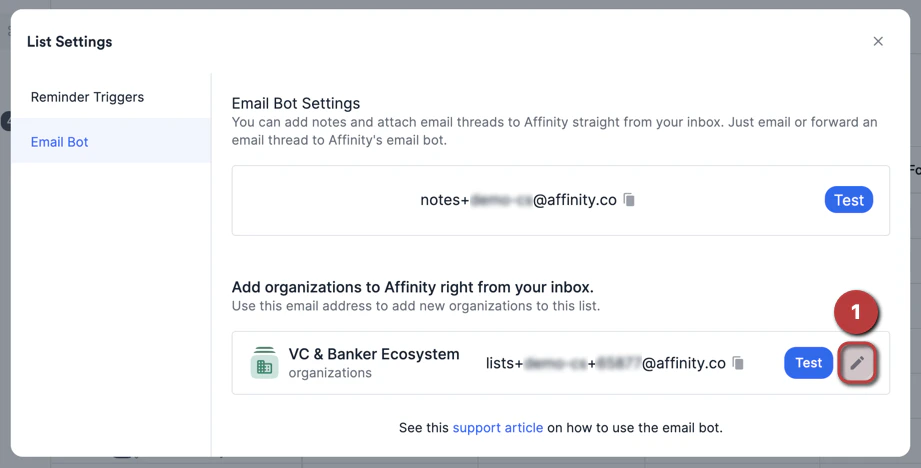
If it’s easier to identify which List-Specific Bot belongs to which list, you can click the Edit icon to rename the List ID to the relevant List Name.
Important Callouts
-
Please be aware that the list ID is different for each list, so be mindful of which List-Specific Bot you select when drafting up an email.
- If it’s easier to identify which List-Specific Bot belongs to which list, you can click the Edit icon to rename the List ID to the relevant List Name.
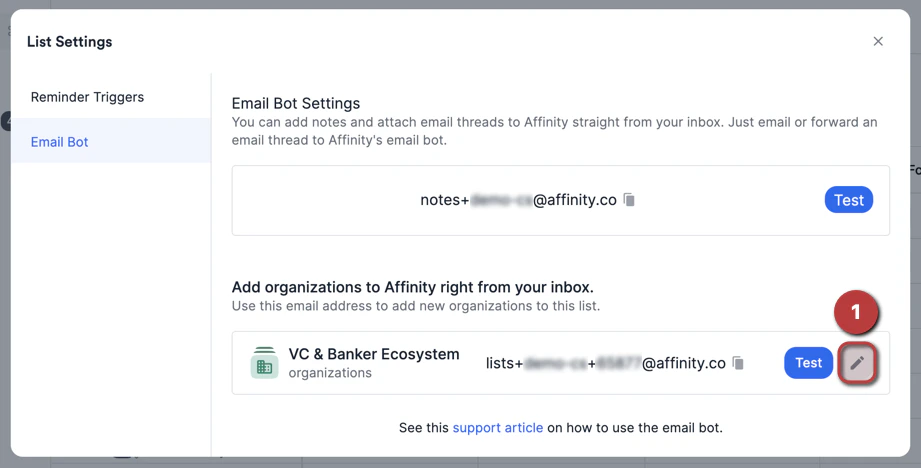
- If it’s easier to identify which List-Specific Bot belongs to which list, you can click the Edit icon to rename the List ID to the relevant List Name.
- Notes can only be sent to a profile that already exists within Affinity. The Email Bot will not create a profile if one doesn’t already exist.
- Adding new contacts to a list via the Email Bot will not work — you can only add existing contacts in your All People directory to a list via the Email Bot.
- The Note Bot Email Address and the List-Specific Bot Email Address can only be on the “To” or “CC” lines. If they are on the “BCC” line, it will not work.
- Only Affinity users with access to the CRM may leverage the Email Bot.
- You must be syncing with Affinity to use the Email Bot (check your Email Accounts tab to see if syncing is disabled, then reenable syncing if needed).
- Adding entries to an Opportunity type list will require a unique name each time you wish to add a new entry.
-
If there was a name and/or subdomain change for your Affinity instance:
- (i.e.
[oldsubdomain].affinity.co→[newsubdomain].affinity.co) - Make sure to check the email addresses of the Note Bot and the List-Specific Bot that you’re sending emails to, they will have been updated to the new subdomain.
- (i.e.