How-to — task-oriented recipe.
How to sign in with Microsoft Office 365
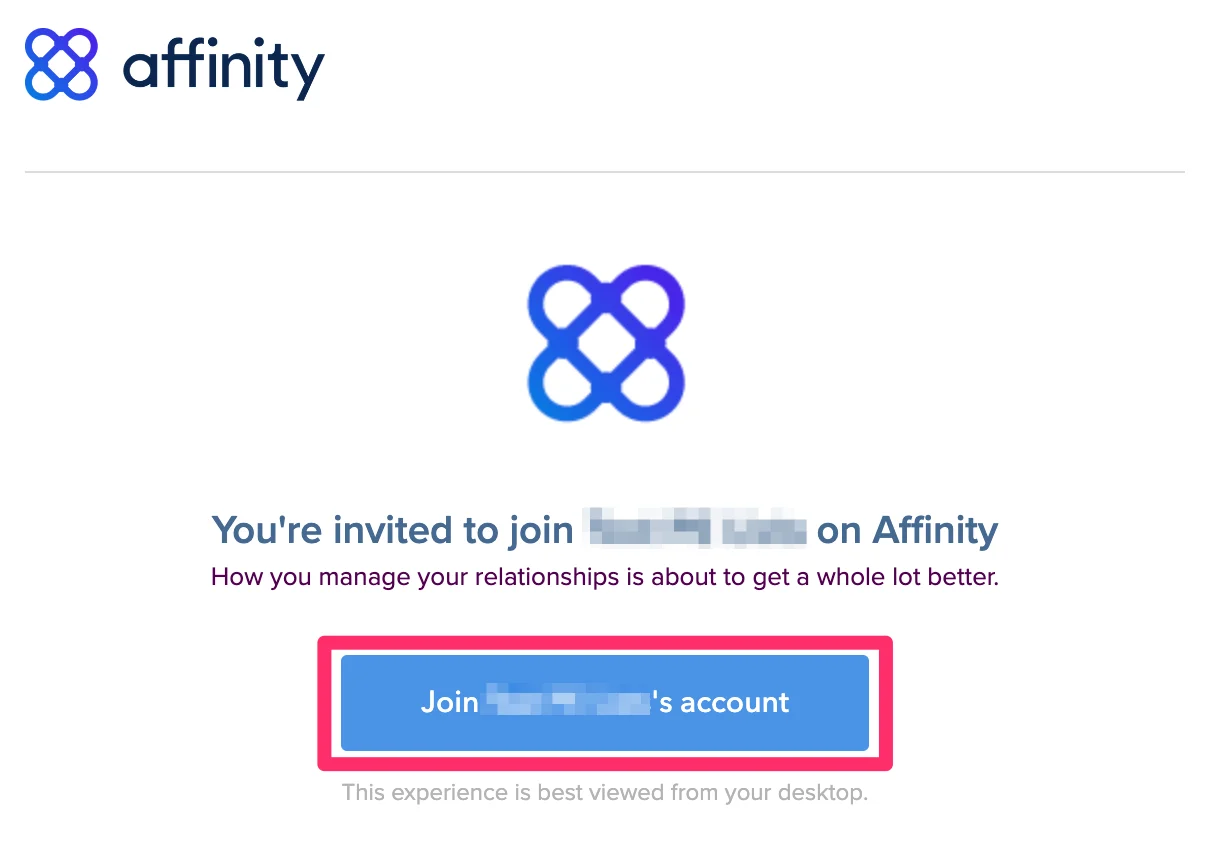
- If you’re signing in for the first time, please sign in via the email invite that was sent to your inbox. Already signed in before? Type in “https://[subdomain].affinity.co” on your web browser (see How to find your Affinity subdomain).
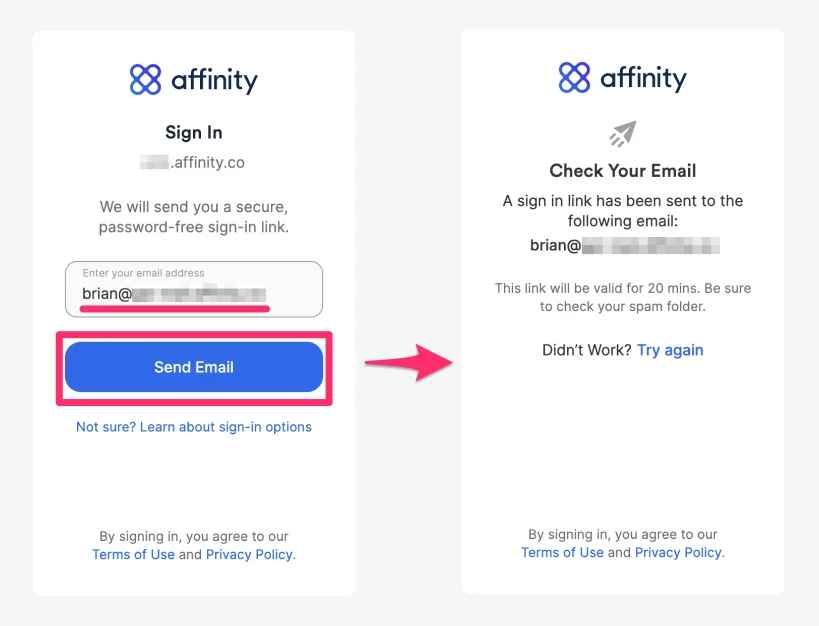
- Enter your email address, then click Send Email to receive your unique sign in link.
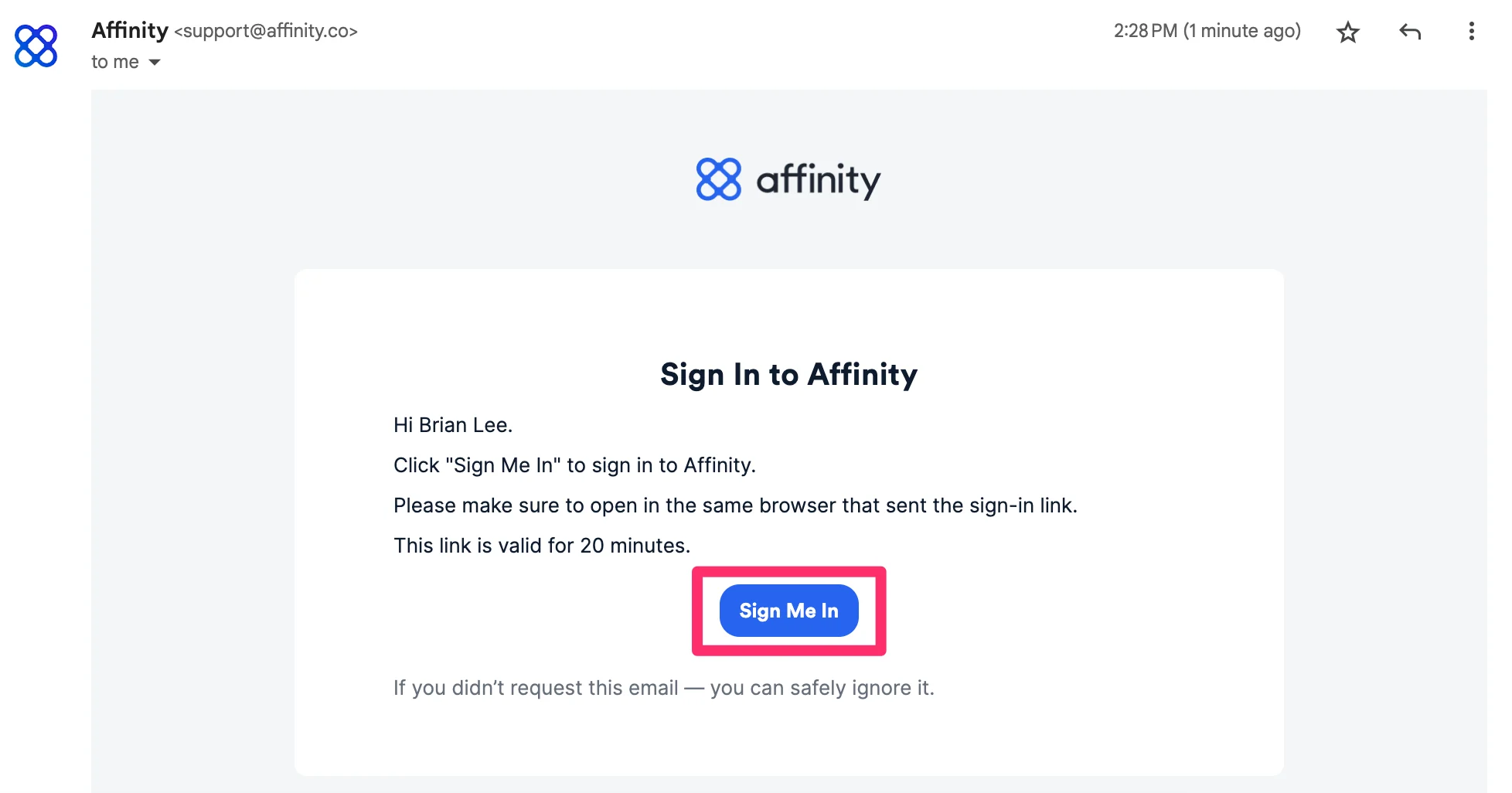
- Click into the email that Affinity just sent you, then click Sign Me In.
- If you’re signing in for the first time, you will be prompted to grant Affinity access to your account.
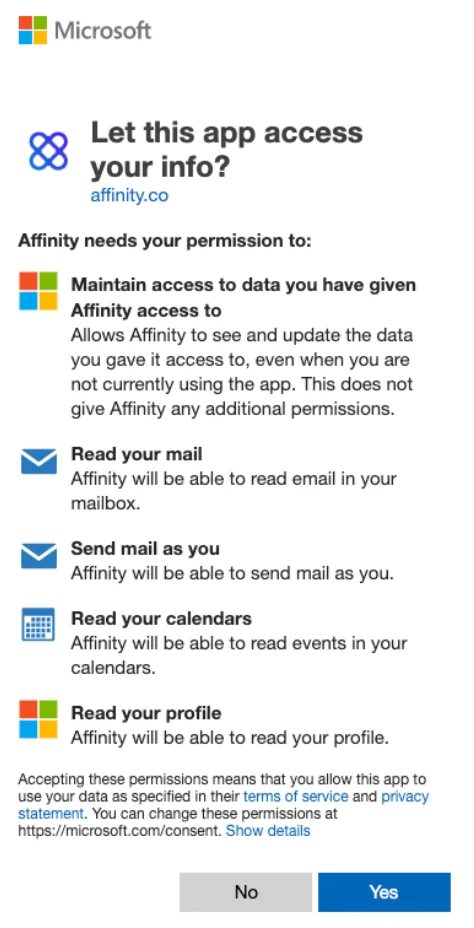
- Why does Affinity need to maintain access to my data?
- This allows us to continually sync your email/calendar data to provide you with the most up-to-date metrics.
- What does it mean when Affinity reads my emails, calendars, and profile?
- This allows Affinity to confirm your identity, set up your account, and surface your email/calendar data in a format that’s easy to read.
- Why would Affinity send mail as myself?
- This allows you to send outbound emails directly from Affinity - recipients will see that the email is from you.
- We do not have access to your password and we cannot create, update, delete any emails, attachments, folders, and contacts from your account.
Important Callouts
- You can only sign into Affinity with your email credentials. You cannot create a custom password for Affinity.
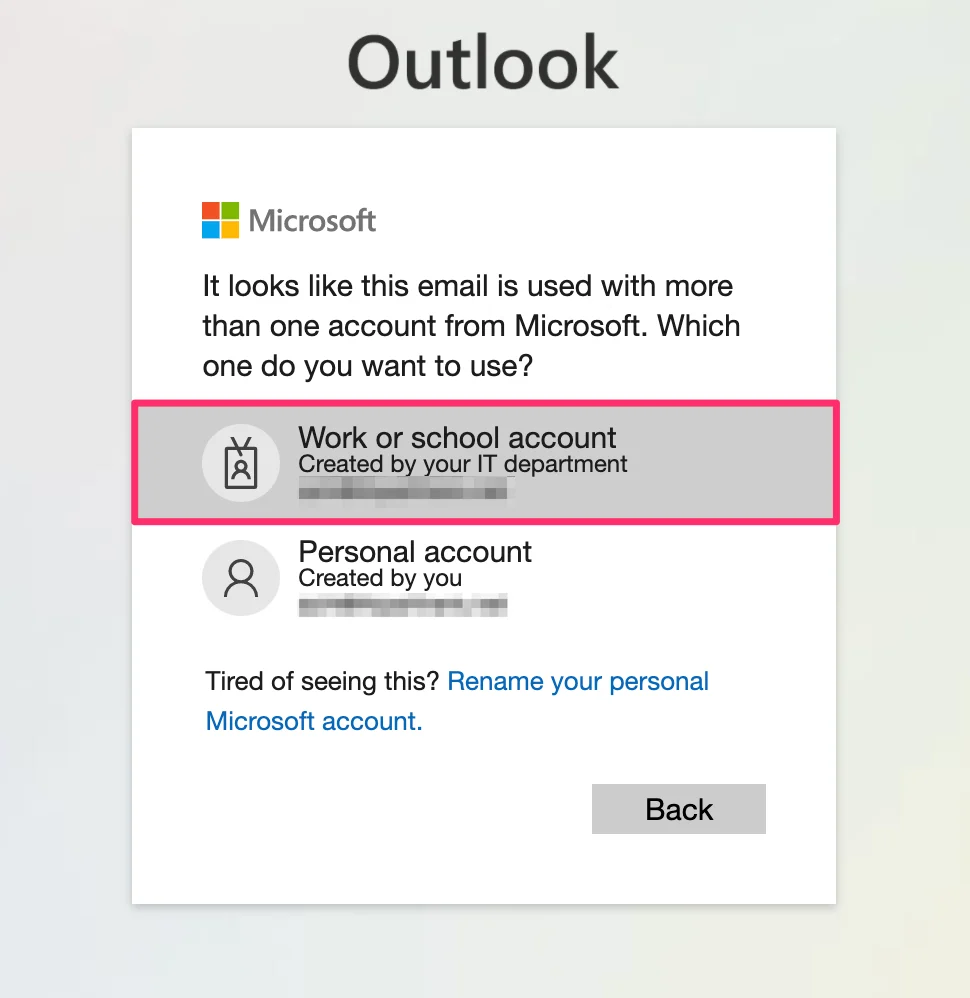
- When signing in via Office 365, you may encounter the following screen with two options. The most common and recommended option is to select Work or school account.