
Documentation Index

Fetch the complete documentation index at: https://support.affinity.co/llms.txt

Use this file to discover all available pages before exploring further.

How-to — task-oriented recipe.
You can sync additional Gmail, Microsoft Office365, and Microsoft Exchange (On-Prem) email accounts in Affinity. Just make sure that they are your own email accounts and not someone else’s, since it would interfere with your relationship strengths with your connections. Note: Affinity does not support email accounts from Yahoo (yahoo.com), iCloud (icloud.com), and other email clients that are not under Google or Microsoft.

How to add additional email accounts to Affinity

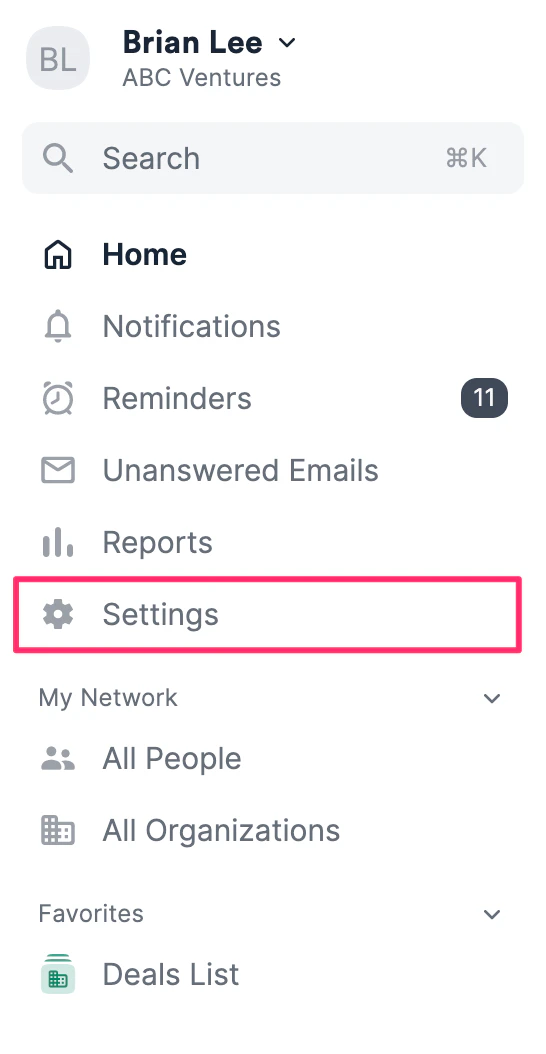
  1. Click Settings on the left-side of your screen.
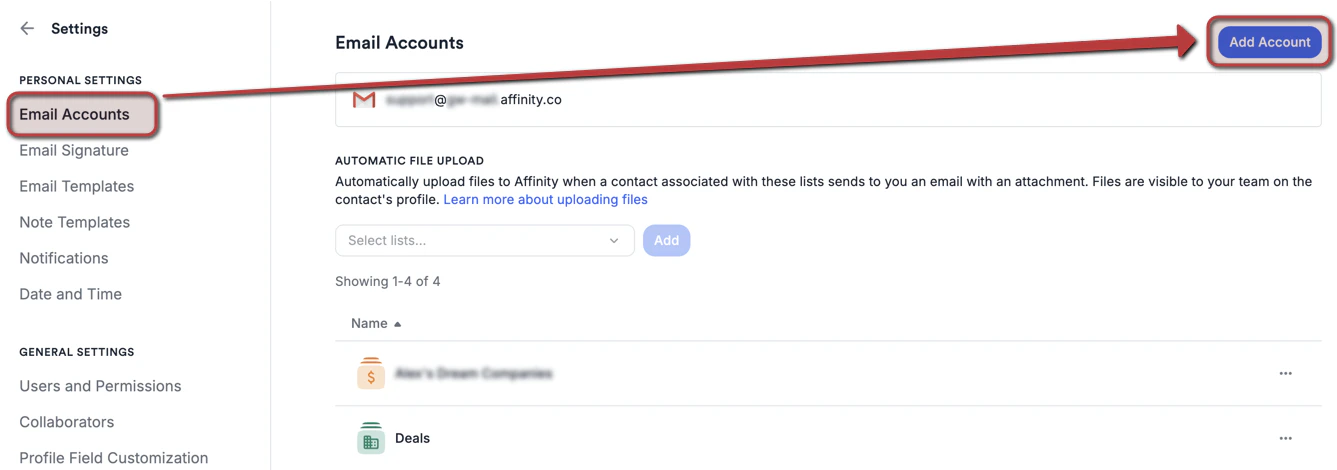
  1. Click the Email Accounts tab, then click Add account.
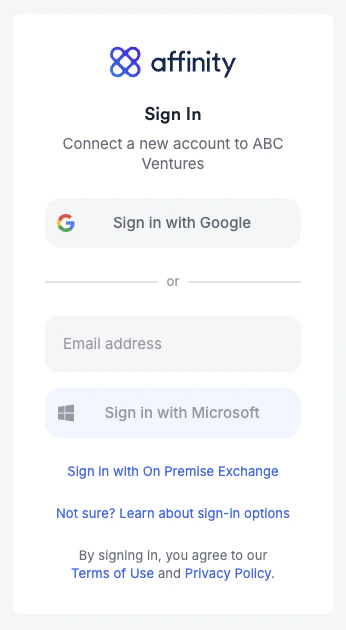
  1. Once you come across the sign in page, please sign in with either Google, Microsoft Office 365, or Microsoft Exchange (On-Premise), depending on which email client your account is based on.
How to remove your email accounts from Affinity

To remove your email accounts, simply email us at support@affinity.co with the email address(es) you’d like to have removed. Removing email accounts will do the following:
  • Stop data syncing moving forward
  • Delete the email/calendar data that have synced until now
  • Revoke login access using the stated email address(es)

Email account’s syncing got disabled? How to reenable syncing

Are your recent email/calendar communications not surfacing as expected? See How to reenable syncing into Affinity.