

How-to — task-oriented recipe.
Overview
How to sign in with Google for the first time
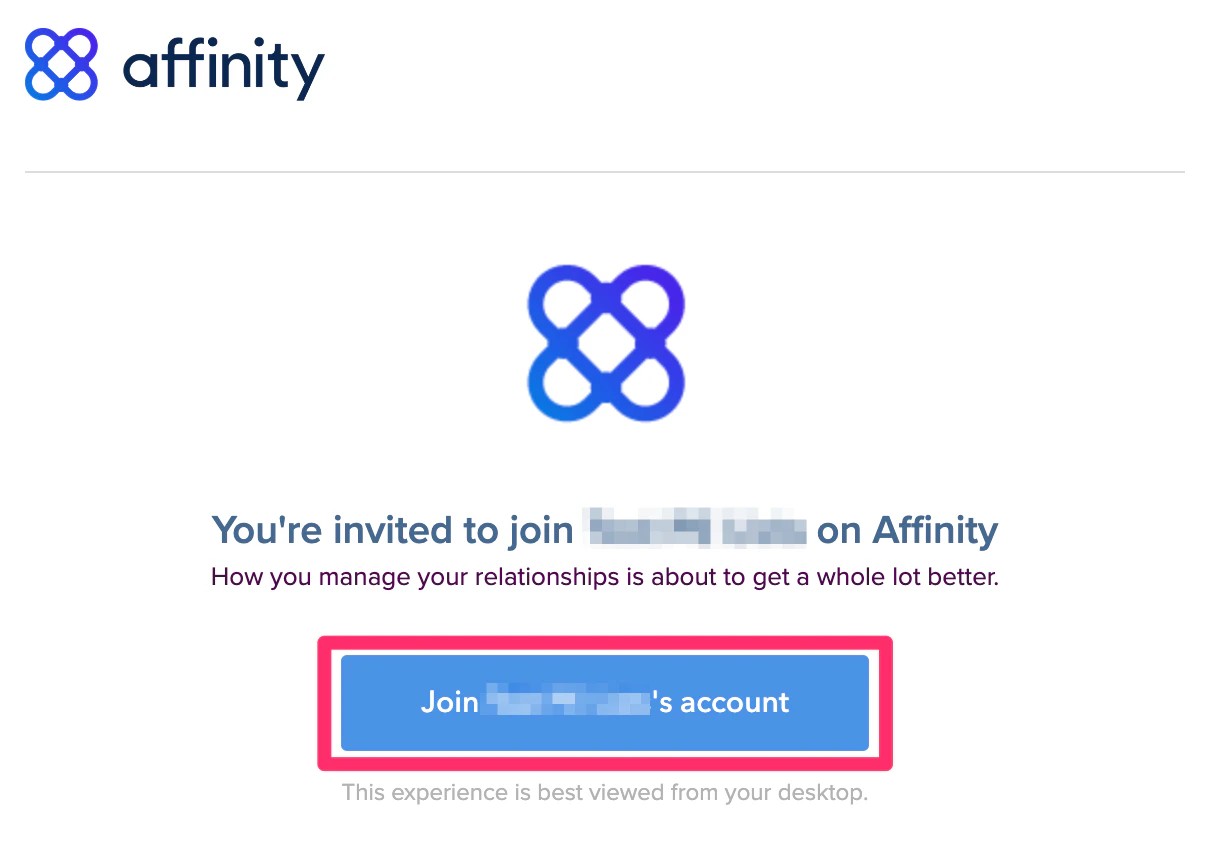
- If you’re signing into Affinity for the first time, please sign in via the email invite that was sent to your inbox.
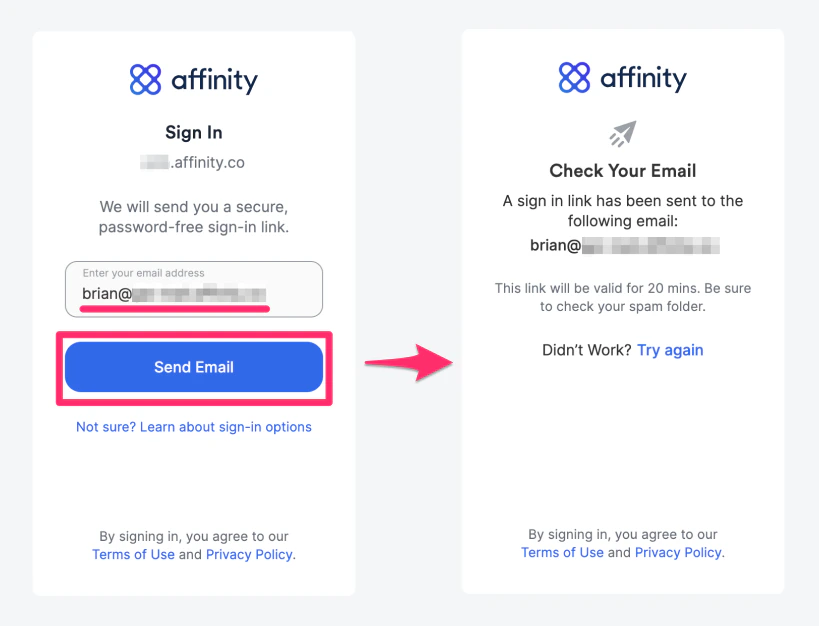
- Enter your email address, then click Send Email to receive your unique sign in link.
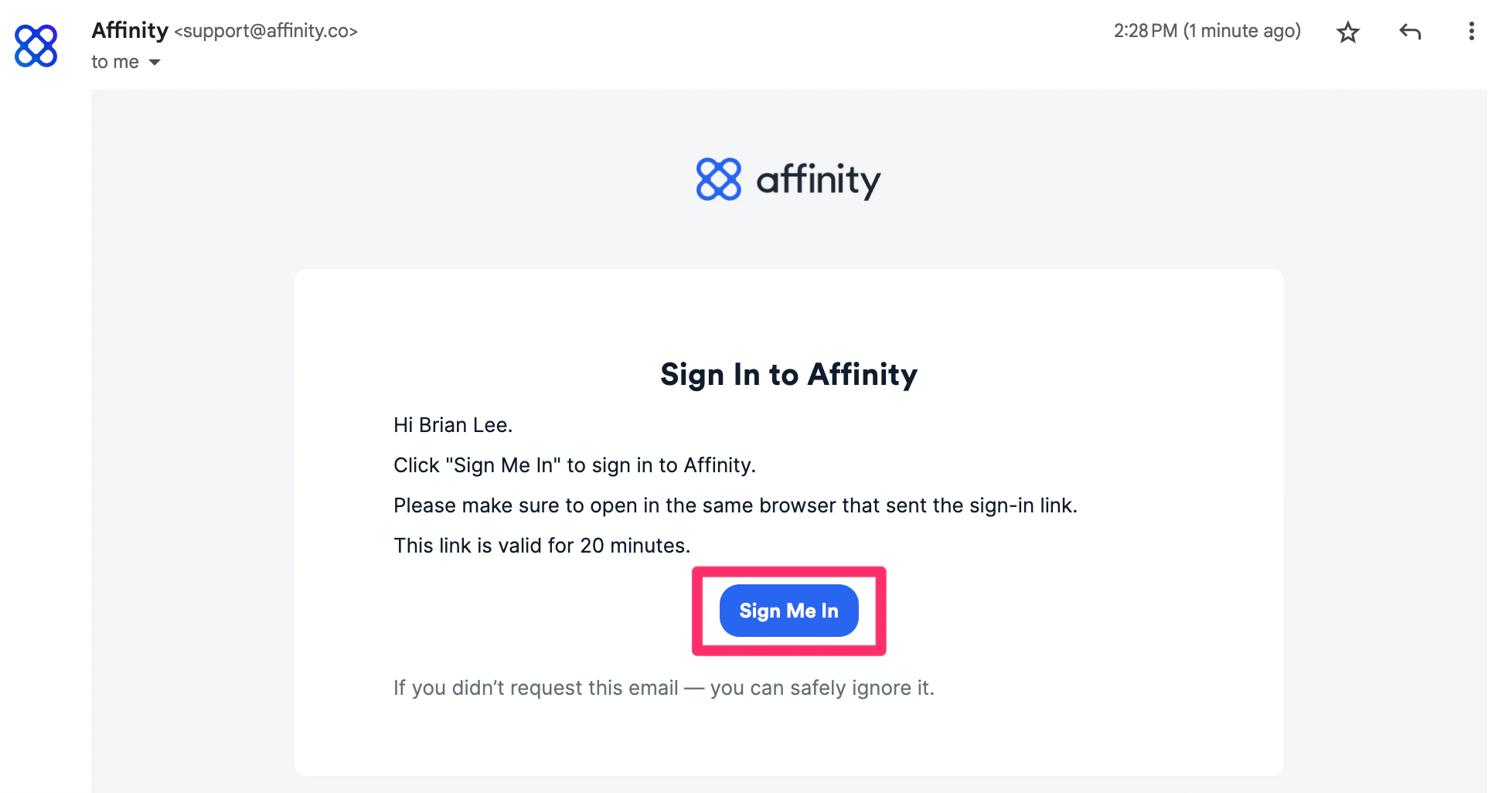
- Click into the email that Affinity just sent you, then click Sign Me In.
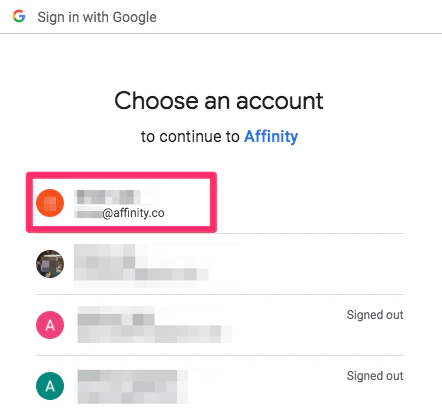
- Select the email address that has access to your Affinity account.
- If this is your first time signing in, you must accept the Google permissions for Affinity to sync your email/calendar data and make the most of your Affinity experience (learn more).
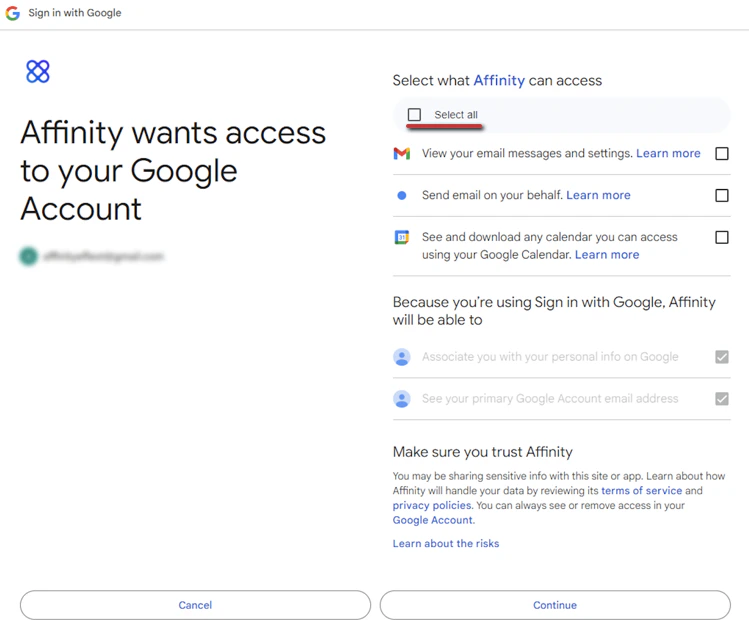
Google OAuth Scopes/Permissions
When you sign in with Google for the first time and accept the permissions, Affinity will request the following scopes/permissions to sync your email and calendar data:- calendar.readonly Allows the app to read events in your Google Calendar.
- gmail.readonly Allows the app to read email in your Gmail mailbox.
- gmail.send Allows the app to send mail as you.
- userinfo.email Allows the app to read your primary email address.
- openid Allows the app to verify your identity and authenticate your sign-in to Affinity.
How to sign in with Google moving forward
- Already signed in before? Type in “https://[subdomain].affinity.co” on your web browser (see How to find your Affinity subdomain) and bookmark it to your web browser for easy access moving forward.
Important Callouts
- You can only sign into Affinity with your email credentials. You cannot create a custom password for Affinity.