

How-to — task-oriented recipe.
How to use the Meetings tab
- The Meetings tab lives on the global navigation bar so you can easily access it regardless of where you are within the CRM.
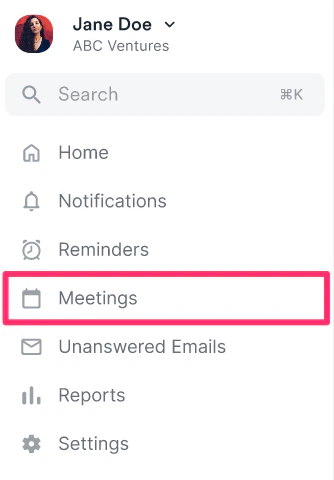
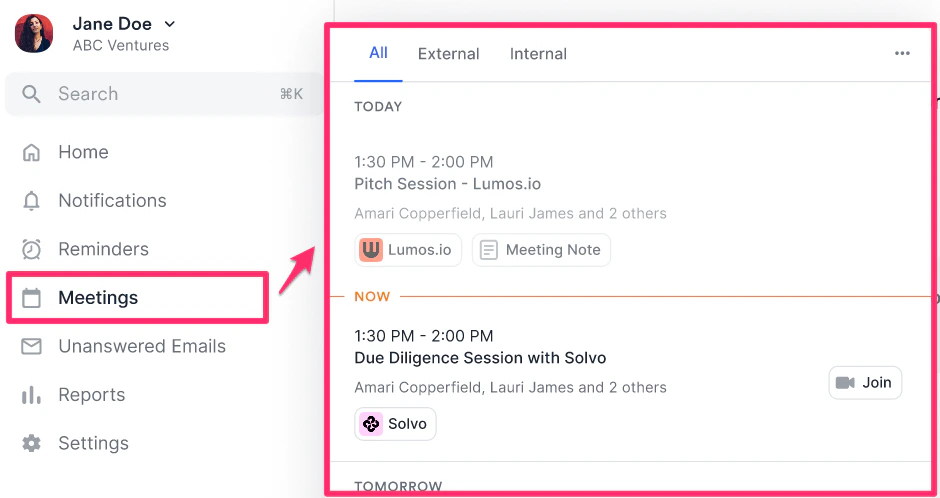
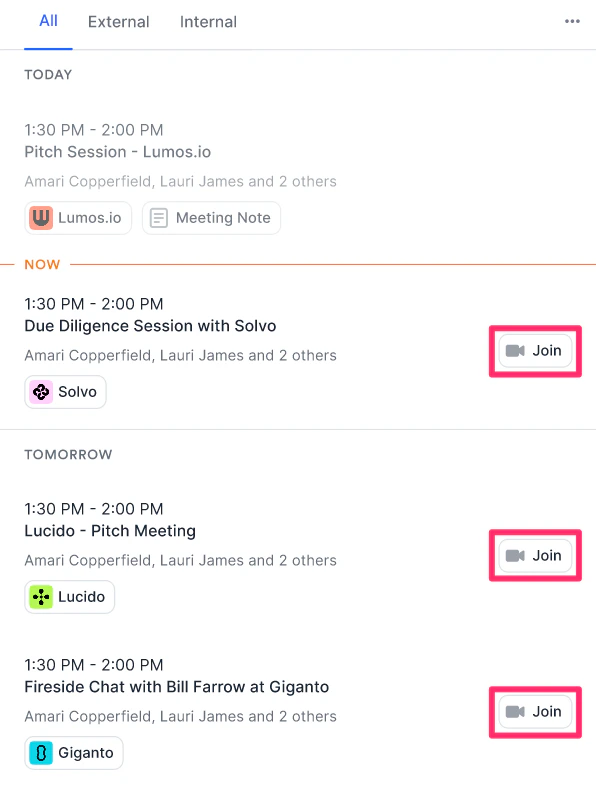
- Click on the Meetings tab to see all of your meetings from yesterday, for today, and coming up within the next two weeks. This includes both internal meetings (meetings only consisting of you and your team members) and external meetings (meetings that include people outside of your company).
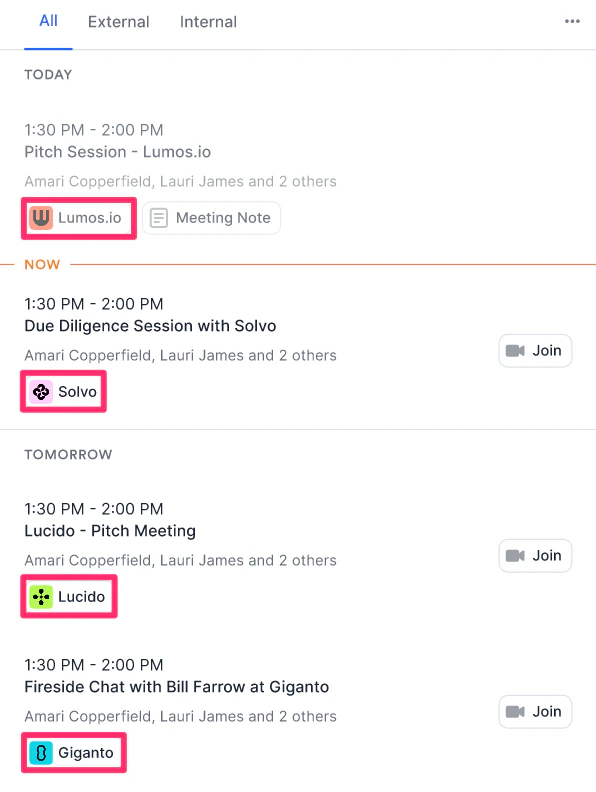
- Quickly prep for your next meeting by clicking on the associated people or organizations (based on the meeting participants) to view their profile pages.
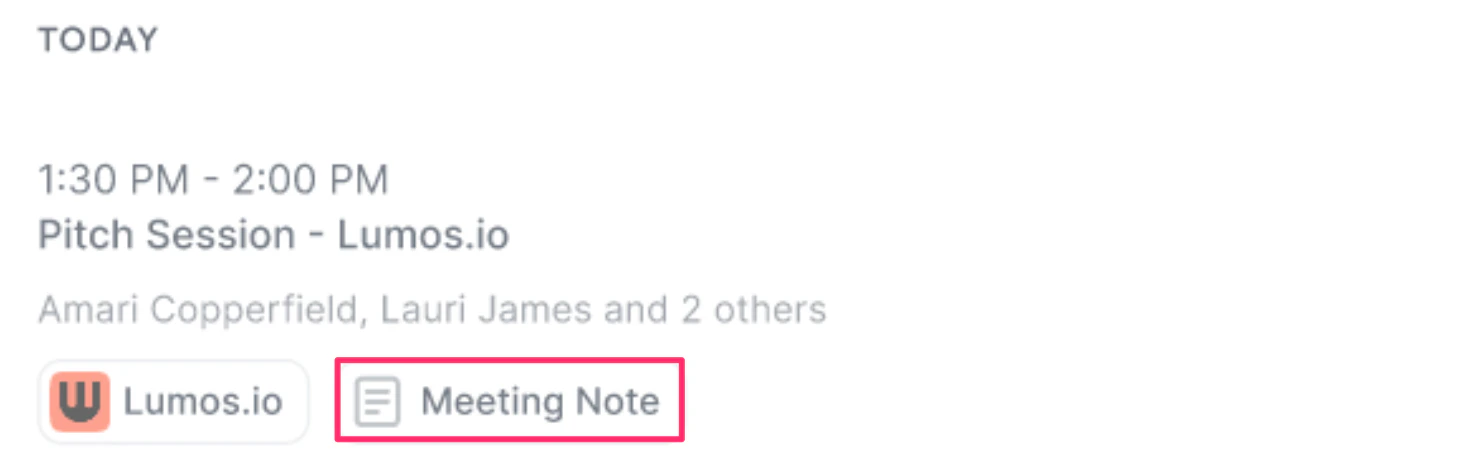
- You can also click on the Meeting Note for a specific meeting to view the note details. It will only appear if a note has already been created for that meeting.
- For virtual meetings, click on Join now to immediately enter the meeting (only for Zoom, Microsoft Teams, and Google Meet).
Important Callouts
- The Meetings tab is available to all users, regardless of your account role or subscription tier.
- The Meetings tab will show both internal meetings (only you and your team members) and external meetings (includes people outside of your company).
- The Join now button will only appear if the meeting link is from Zoom, Microsoft Teams, or Google Meet.
- Affinity will only display the Join now button if the meeting link is in one of the three following areas:
- Conferencing Details field for the event.
- Location field for the event.
- The Description field for the event - if there are multiple links in this field, the very first link will be used.
- If you don’t see a meeting appear, it may be due to one of the following reasons:
- If one of the meeting participants is blocklisted (see section titled “How to blocklist people” in Setting up your privacy preferences in Affinity), therefore hiding the meeting.
- If the meeting was just created or just appeared on your calendar - please wait 15-20 minutes for Affinity to sync the meeting.
- If 15-20 minutes pass and you still don’t see it appear, please check to see if your email account has been disabled from syncing (see How to reenable syncing into Affinity).
- If you can confirm that syncing is enabled for your email account and you still don’t see the meeting appear, feel free to reach out at support@affinity.co.