

How-to — task-oriented recipe.
Important callout for Enterprise tier accounts
- If the Enterprise Admin on your account has set Synced Emails and Meetings to be shared with Everyone, then users can set their own privacy settings (see How to select your personal privacy preference).
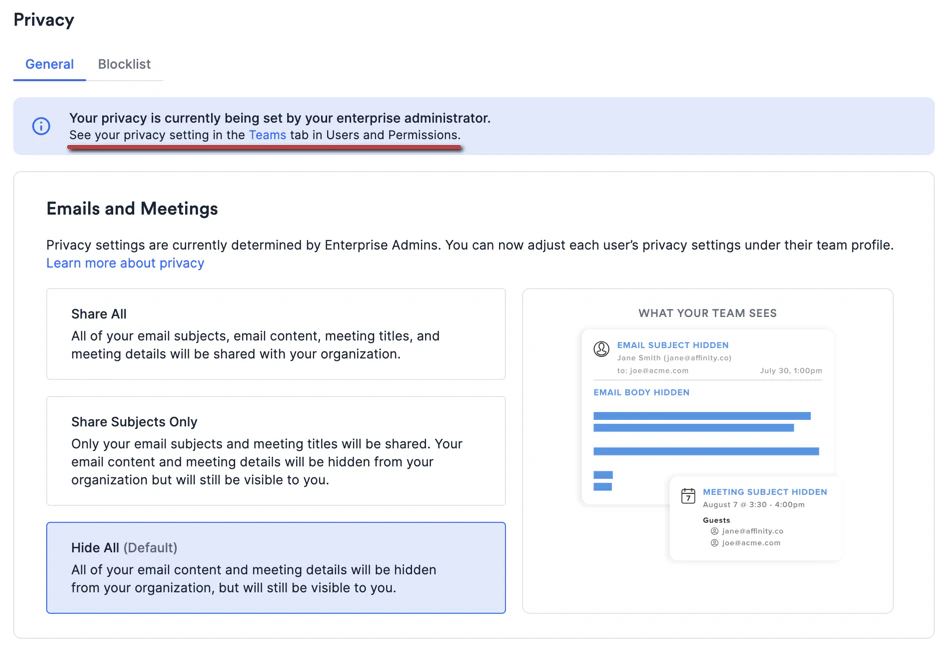
- If the Enterprise Admin on your account has set Synced Emails and Meetings to be shared with Teams only, then only the Enterprise Admin can set your privacy settings. As a result, you will see this alert in your current privacy preferences.
Changes to privacy settings in Affinity
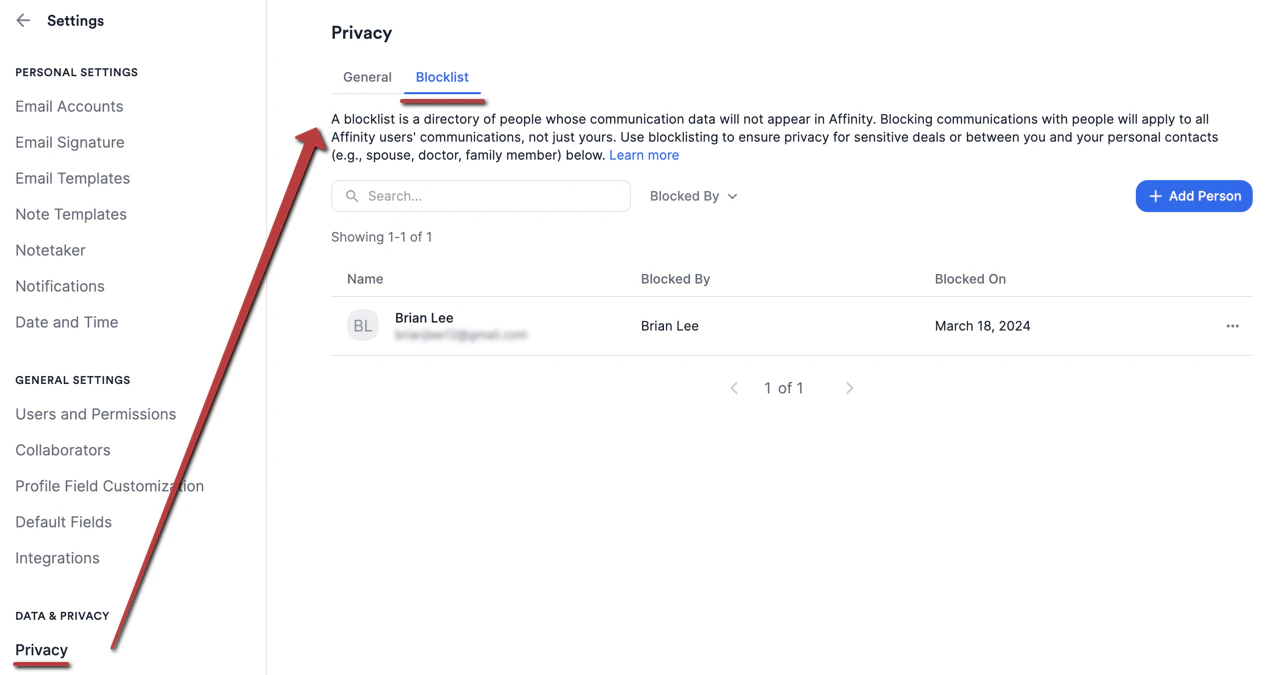
- Change #1 - Blocklist People (previously known as Hidden Contacts), a feature that hides the communications between you/your team and specific external contacts outside of your team (e.g. spouse, doctor, accountant, etc.), now lives under the Blocklist tab within Privacy.
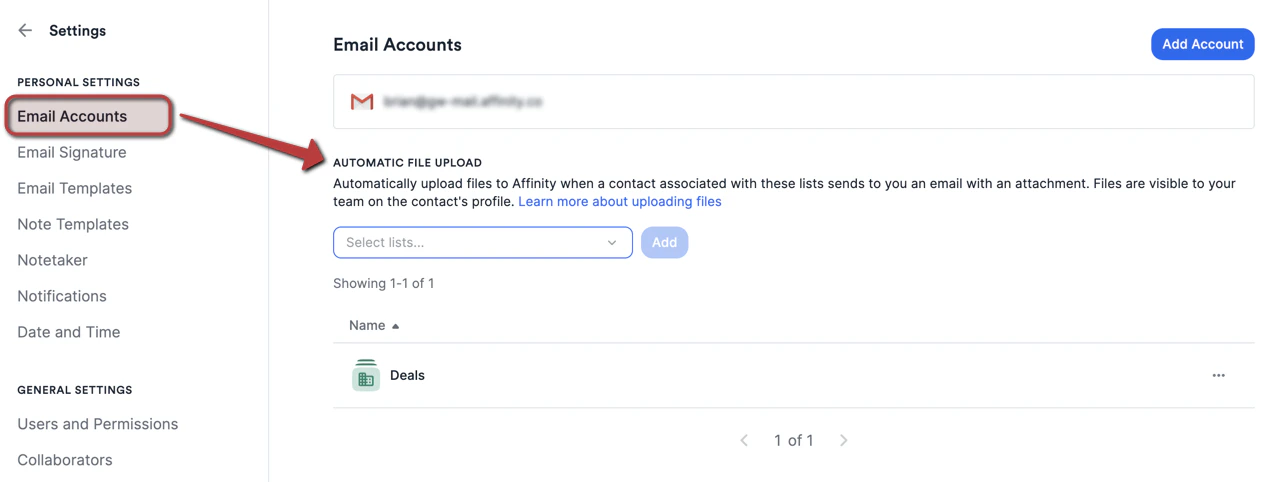
- Change #2 - Automatic File Upload, a feature that auto-uploads files to Affinity profile pages based on email interactions with people in certain lists that you have approved of, now lives within Email Accounts.
How to select your personal privacy preference
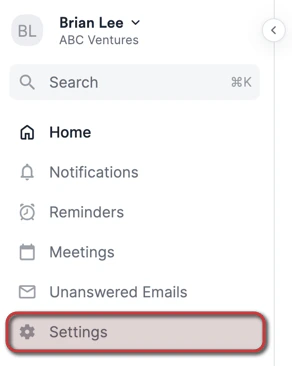
- Click Settings on the left side of your screen.
- Click on Privacy, then under the General tab, select one of the three following privacy preferences. Any changes you make will apply retroactively to your synced email/calendar data.
- Share All - All of your email subjects, email content, meeting titles, and meeting details will be shared with your organization.
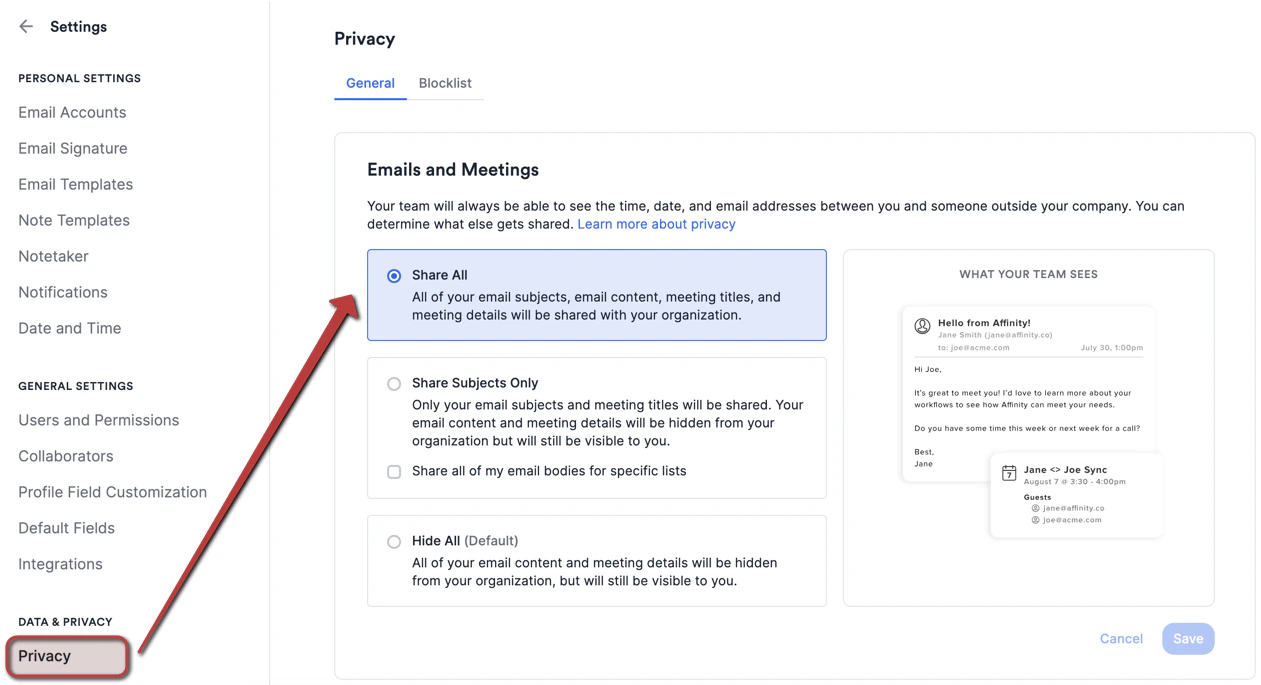
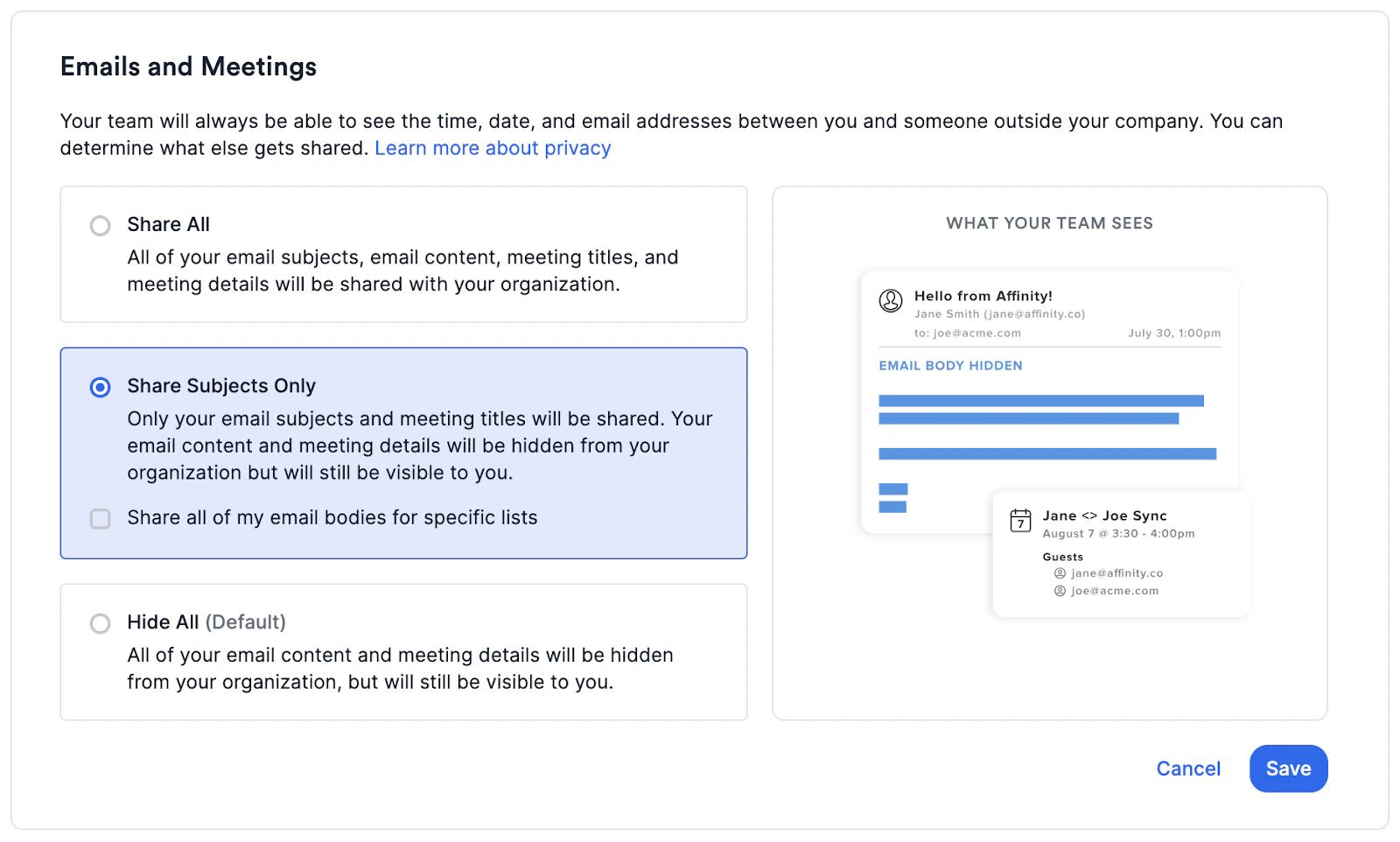
- Share Subjects Only - Only your email subjects and meeting titles will be shared. Your email content and meeting details will be hidden from your organization but will still be visible to you.
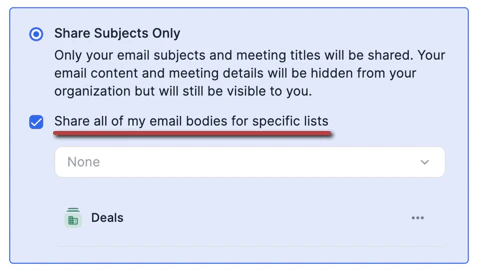
- Optional: Share all of my email bodies for specific lists - While email bodies will be hidden everywhere, you can still make an exception to share email bodies with team members on a for specific lists that you approve of. This means that only the team members with access to those specific lists will be able to see the email bodies of the interactions you have with people within those lists.
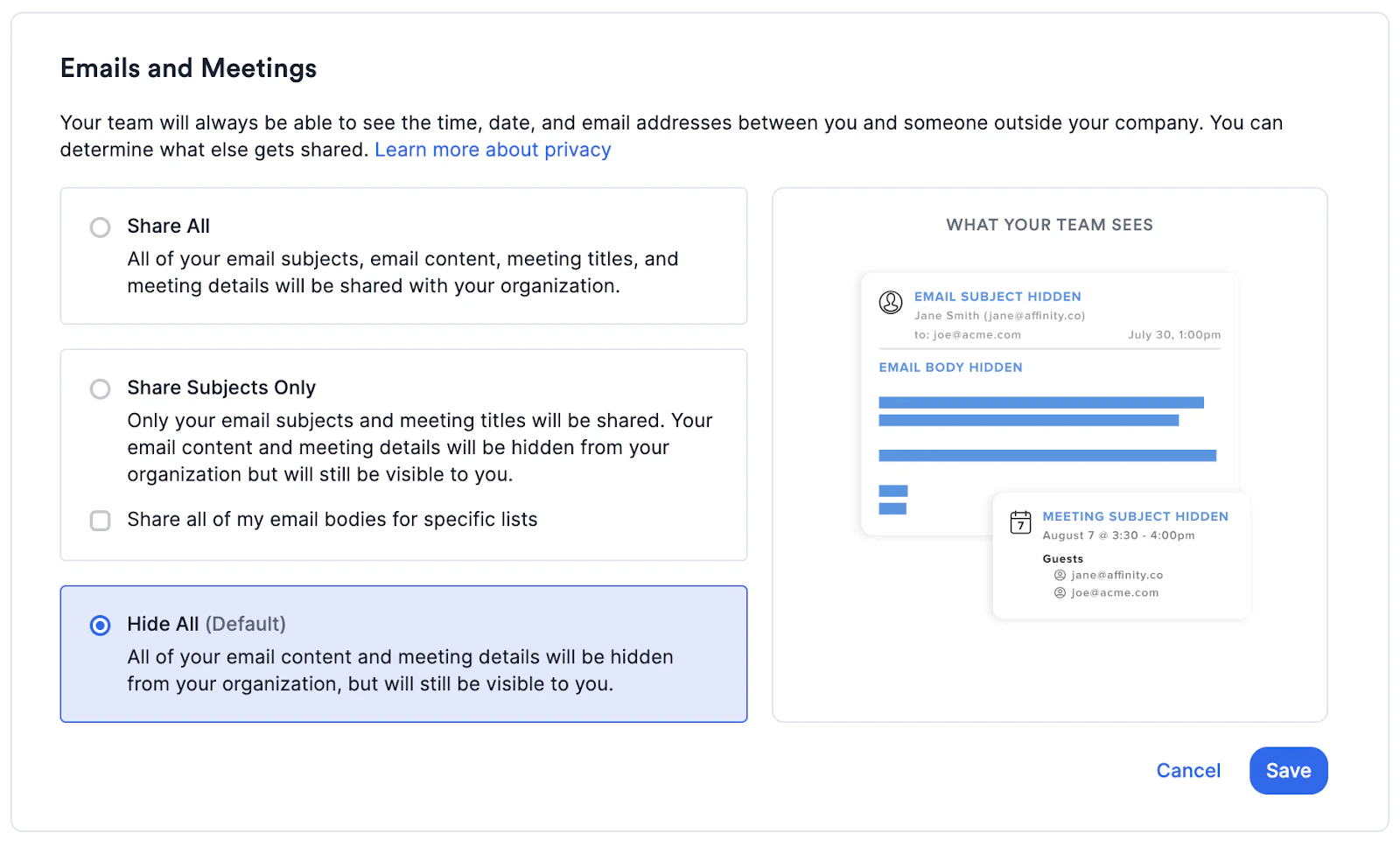
- Hide All (Default) - All of your email content and meeting details will be hidden from your organization, but will still be visible to you. Your team will only see the participants associated with the interaction, followed by the date and time the interaction took place.
How to blocklist people
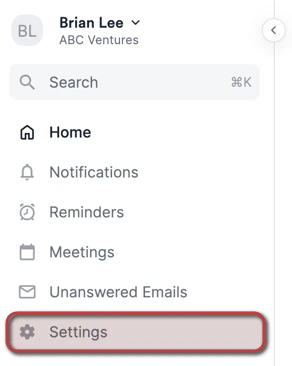
- Click on Settings on the left side of your screen.
- Click on Privacy, then click the Blocklist tab.
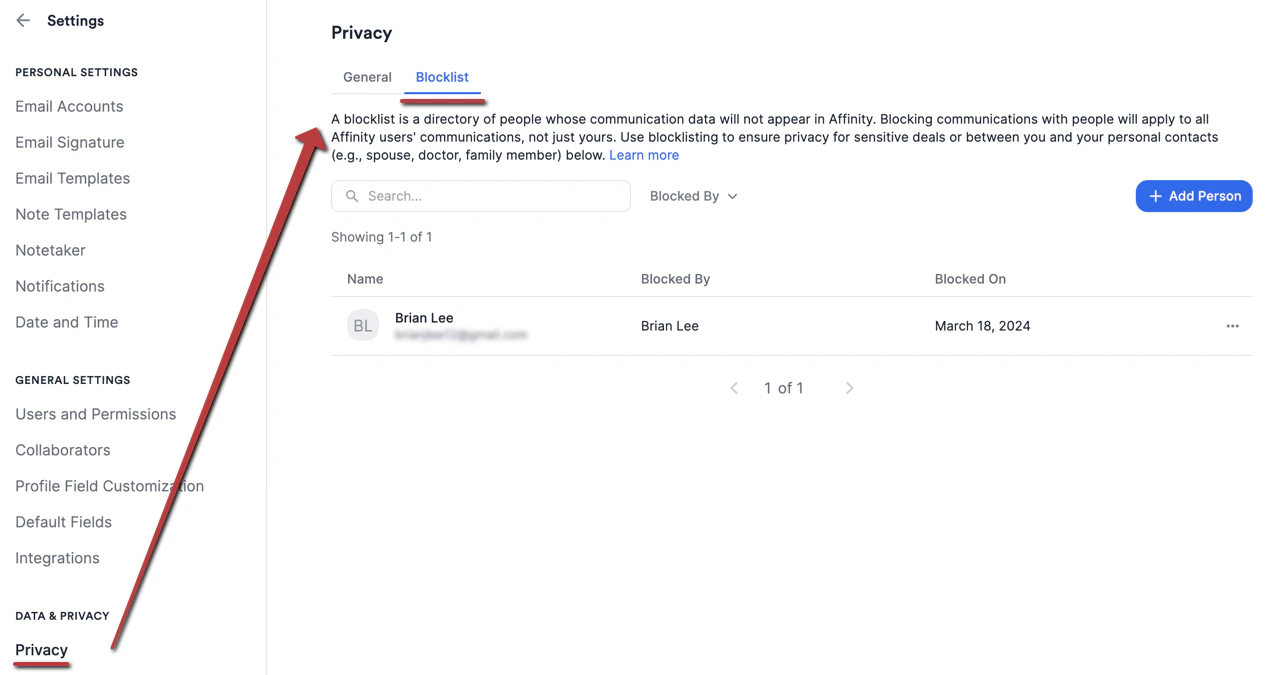
- Depending on your account role, you will see a different interface:
- If you’re a Standard user, you will only be able to see the list of people that you’ve personally blocklisted.
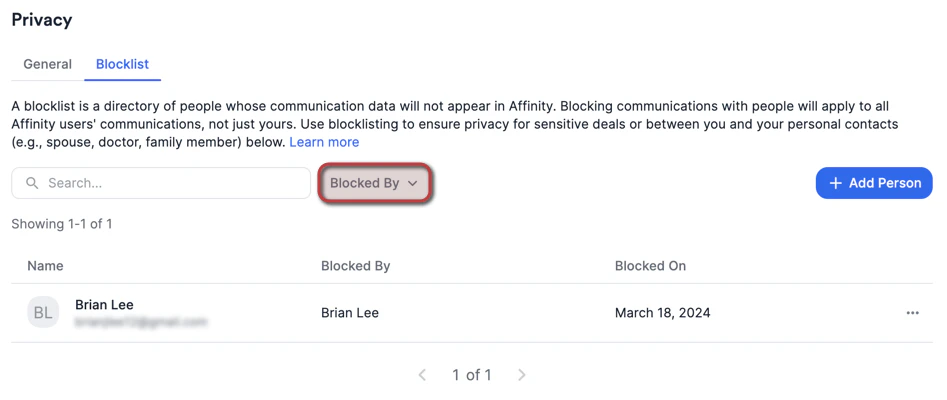
- If you’re an Admin (or Enterprise Admin on the Enterprise tier), you will also be able to click Blocked By in order to:
- View all the people that all users on your account have blocklisted
- Filter by users to narrow down the results.
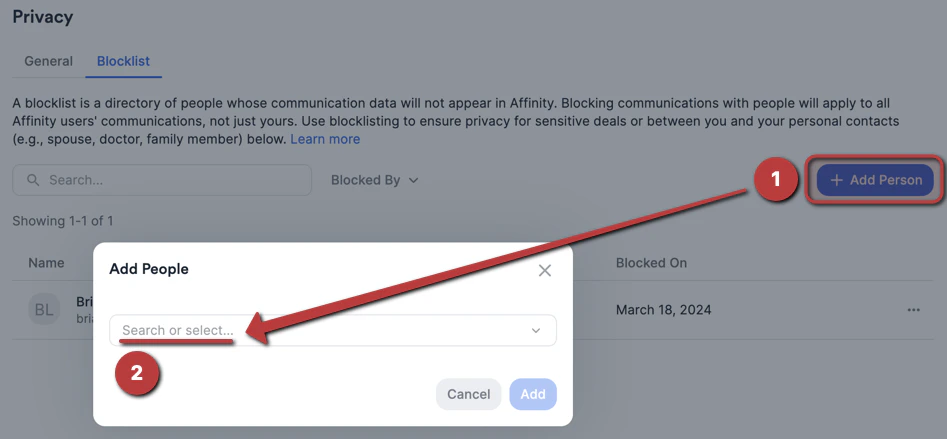
- Click the blue + Add Person button on the top-right to add more people to the blocklist (e.g. doctors, lawyers, accountants, etc.).
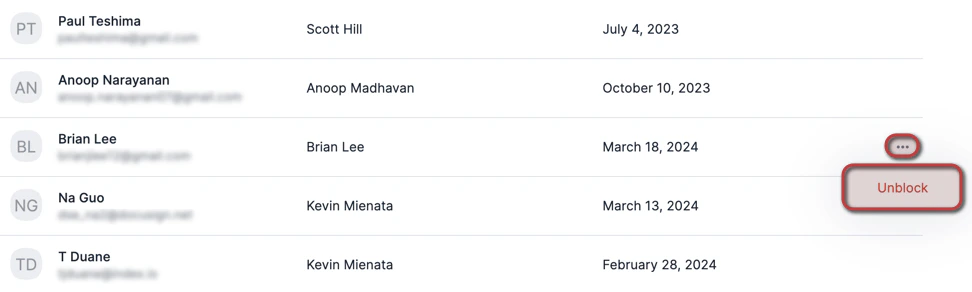
- You can always click the ellipsis (3-dotted icon) to unblock an individual later on should you change your mind.
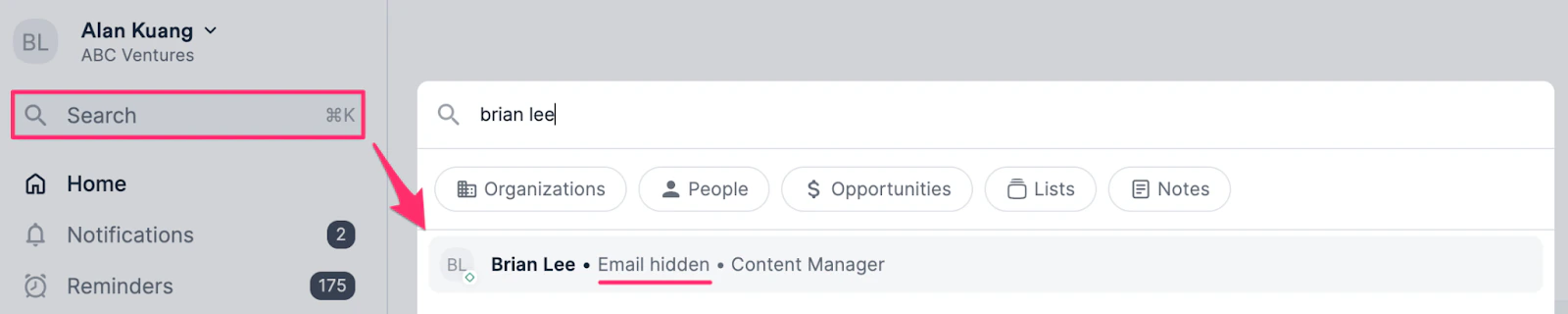
- Though blocklisted people can still be added to lists, found in search results, and accessible via their profile pages, Affinity will completely hide the following:
- Their email address
- All interactions associated with them, even if they’re part of an email thread or calendar meeting associated with other external participants who aren’t hidden contacts.
- Connections and Relationship Strengths
- Some enriched fields (Last Email, Last Meeting, Last Contact, etc.)
What you can’t do with a blocklisted person
While a person is blocklisted, you can’t add new content to their profile:- In the web app, Add Note, Log Interaction, Set Reminder, and Upload File are disabled.
- In the Chrome extension and the Outlook add-in, Add Note, Add Thread as Note, and Upload Files are disabled.
How to blocklist organizations (Scale, Advanced, and Enterprise tiers only)
Whereas blocklisting people is done on an individual basis, Enterprise Admins and Admins can blocklist organizations to automatically blocklist all people associated with these organizations.- Scale tier: Only Admins at the account level can blocklist organizations.
- Advanced tier: Only Admins at the account level can blocklist organizations.
- Enterprise tier: Only Enterprise Admins and Admins at the account level can blocklist organizations.
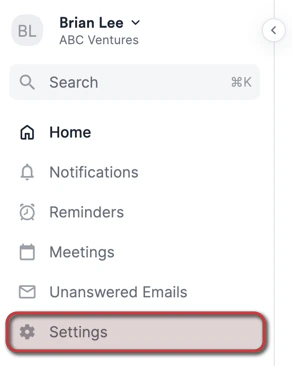
- Click on Settings on the left side of your screen.
- Click on Privacy > Blocklist > Organizations.
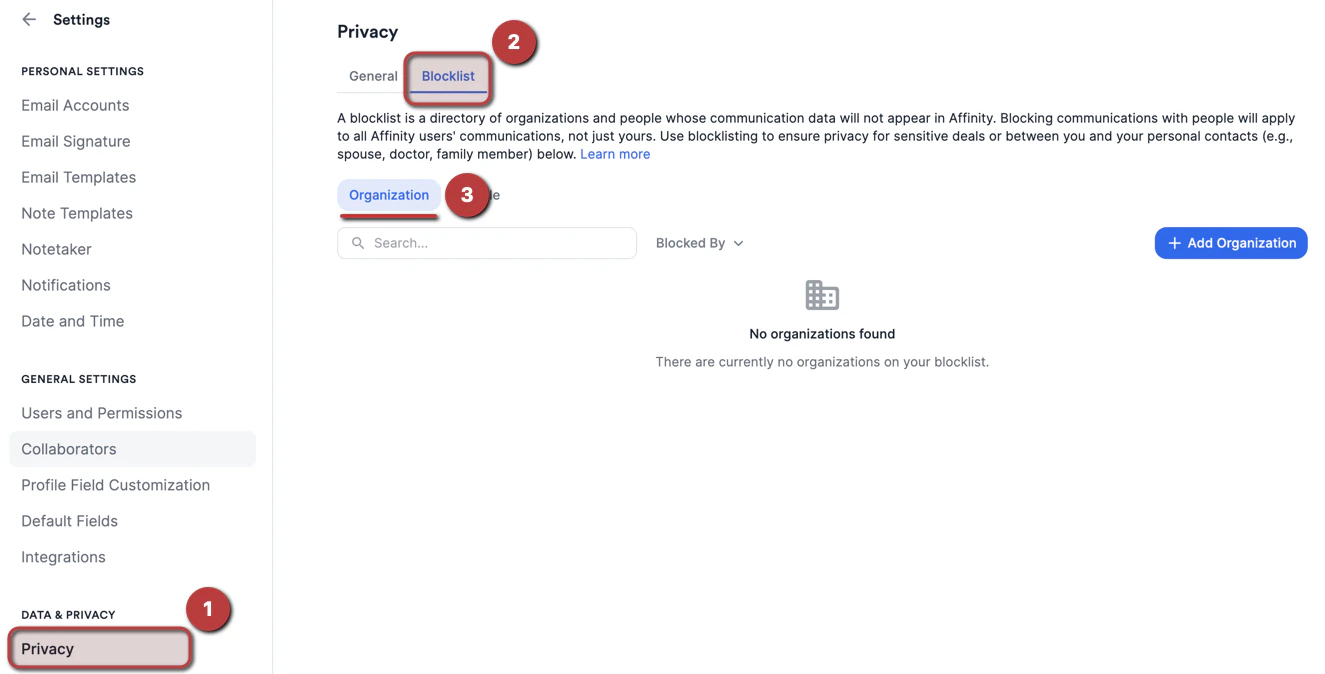
- Under the Organizations tab, click the Add Organization button to blocklist the organizations that you’d like to hide all communications with.
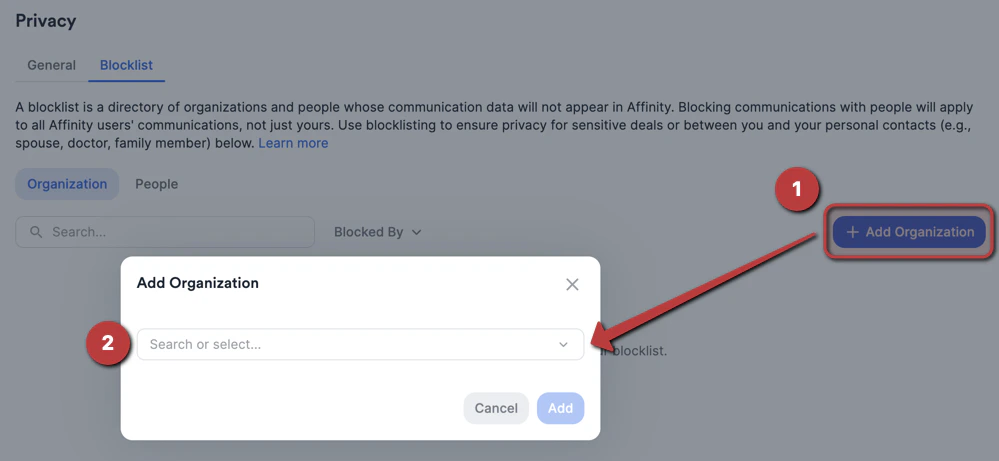
- Please note that other Enterprise Admins and Admins on your account can unblock any organizations that you’ve originally blocklisted.
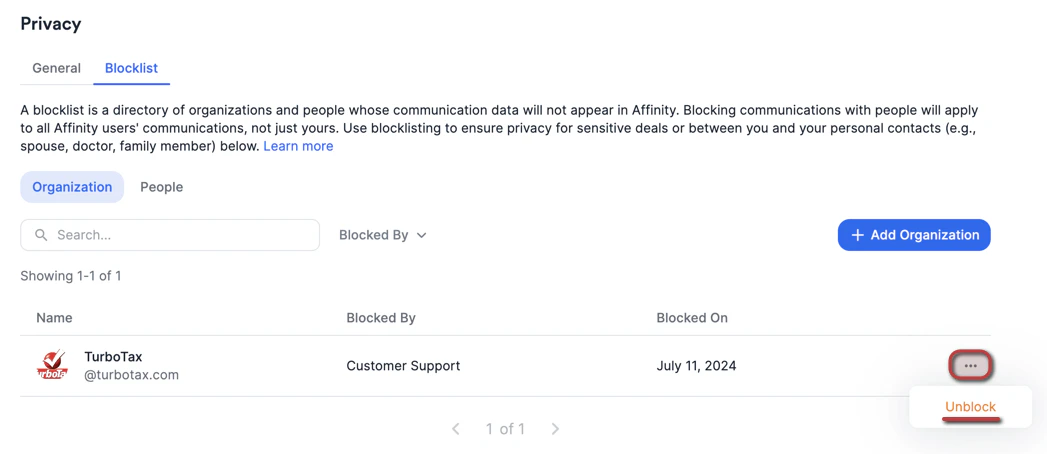
- By blocklisting an organization, you will effectively blocklist all individuals with an email domain that matches that organization’s domain.
- Though blocklisted organizations can still be added to lists, found in search results, and accessible via their profile pages, Affinity will completely hide the following:
- All interactions between internal team members and external contacts associated with the given organization
- Activity Timeline
- Connections and Relationship Strengths
- Enriched fields (Last Email, Last Meeting, Last Contact, etc.)
- While an organization is blocklisted, you can’t add notes, log interactions, set reminders, or upload files on its profile (in the Chrome extension and the Outlook add-in: Add Note, Add Thread as Note, and Upload Files). You also can’t edit its name and domain, export its notes, merge it, or delete it until an Enterprise Admin or Admin unblocks it. Hovering over a disabled action explains why.
- Blocklisted organizations don’t appear as options when you add associations to a note or associate a reminder, or in the Suggested section of the Chrome extension and the Outlook add-in.
Important Callouts
- Affinity only surfaces your interactions that include external contacts (i.e. people outside of your team). Any interactions that only consist of internal contacts (i.e. your team members) will be hidden (learn more).
- If you and your team members have different personal privacy preferences, but are all involved in an interaction with an external contact, the privacy preference that is most revealing out of all users will take precedence by default. On the Enterprise tier, an Enterprise Admin can choose to apply the most restrictive preference instead (see Enterprise Permissions (Enterprise only)).