

Concept — background and overview.
How to determine who is an internal contact
Affinity will hide communications amongst internal contacts due to potentially sensitive information such as salary discussions, one-on-one meetings, performance reviews, and more. There are three reasons why a person is considered an internal contact:
- Internal Contact - All registered users in your team Affinity account (as shown in Settings > Users and Permissions).
- Inferred Internal Contact - People who are not registered users in your team Affinity account, but have email domains that match the registered email domain of the respective Affinity account that they are in. They will be treated just like internal contacts from a privacy perspective.
- If your Affinity account is companyxyz*.affinity.co* and the registered email domain for this account is “@companyxyz.com”, then all team members who aren’t Affinity users (but have email addresses that contain “@companyxyz.com”) will be considered inferred internal contacts.
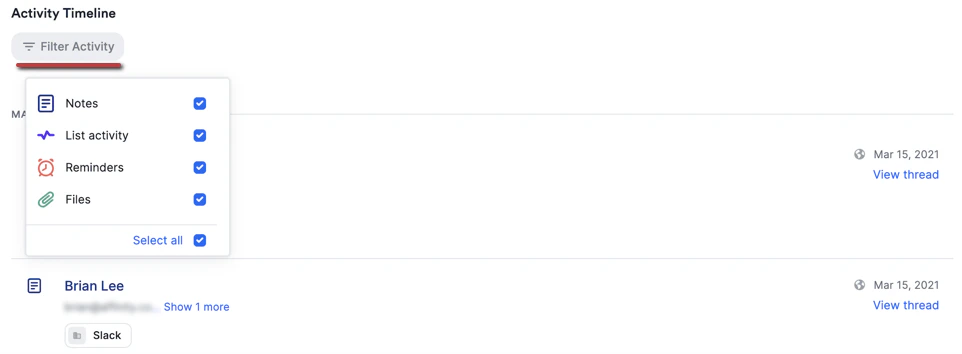
- As previously mentioned, you will not be able to see the email/calendar interactions that anyone has had with the internal/inferred internal contact when viewing their profile page.
How to determine who is an external contact
There are two ways to know whether a contact is considered an external contact:- Verify whether any of their email addresses have email domains that do not match the registered email domain(s) of the team Affinity account that you are in.
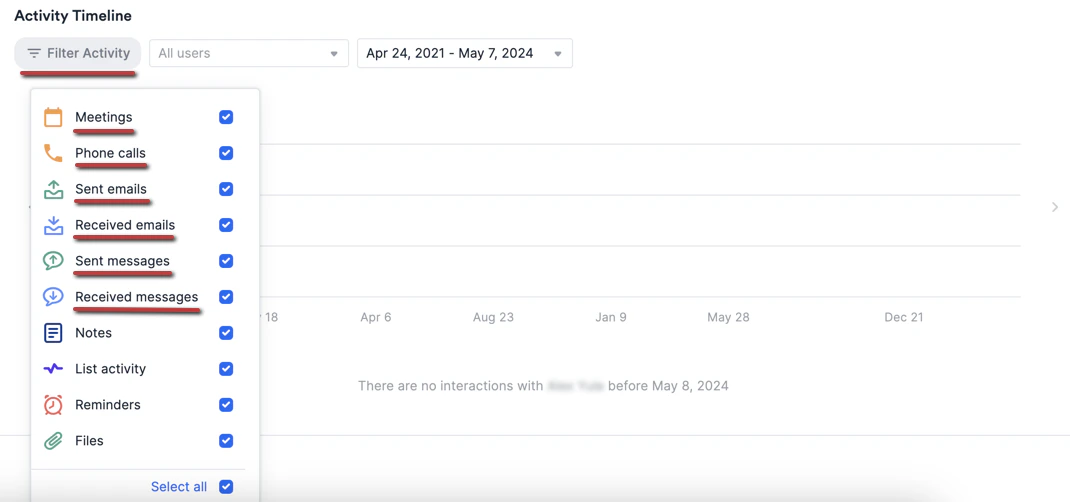
- You will be able to see the email/calendar interactions that you and your team members have with that external contact.
- You will be able to delete external contact’s profile pages.