

How-to — task-oriented recipe.
If your Affinity account was created before March 8, 2024
If you/your team created an Affinity CRM account before March 8, 2024, and your work calendar has edit access to your personal calendar data, then it is most likely that your personal calendar data is syncing into Affinity is well.Gmail users: How to stop syncing/remove your personal calendar data
Gmail users have two options available:- Option 1 - You can reach out to us at support@affinity.co and request that you and your entire team would only like to sync your primary calendar data. Please note that this will be applied to all users and not just yourself.
- Option 2 - You can individually change your personal calendar settings if other team members don’t want to comply with Option 1 above. If you choose Option 2, follow these steps below:
- Go to your personal calendar’s Settings.

- Then, under the Settings for my calendars tab, click the dropdown for your personal email account.
- Then, click Share with specific people and make sure the preference is set to See all event details, not Make changes to events.
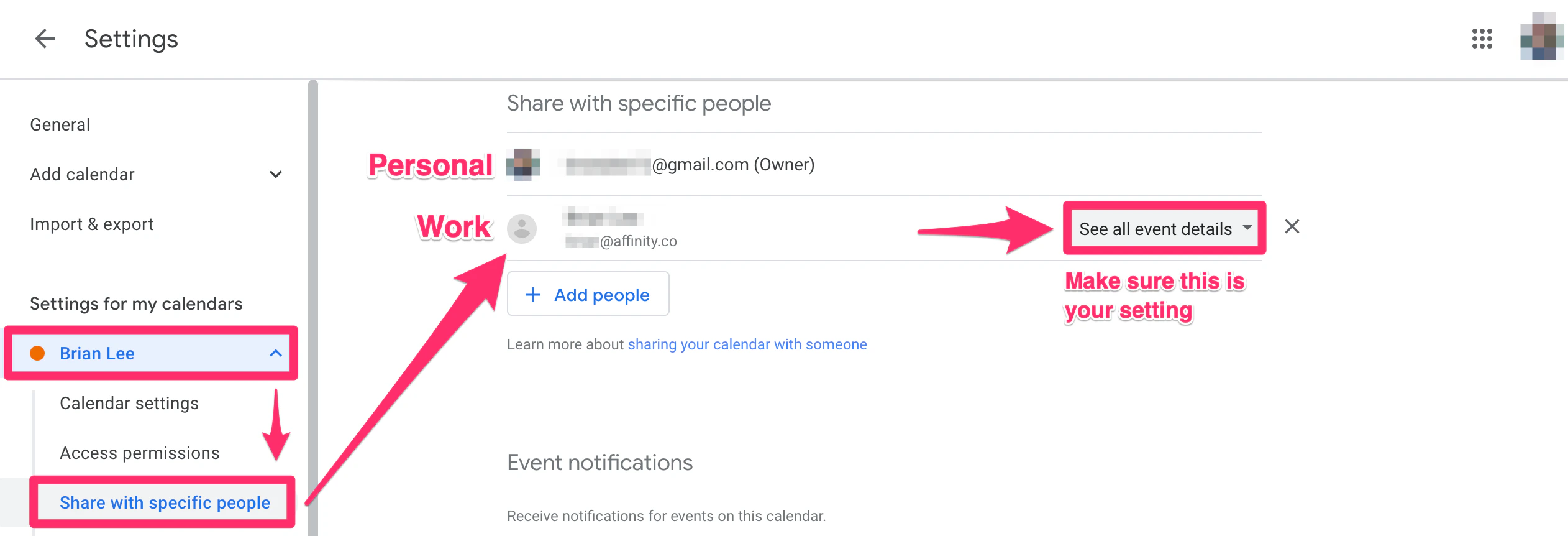
- Your personal calendar events should disappear from Affinity within the next 2-3 days.
- After 2-3 days, click into an external contact’s profile page to see that your personal calendar data should now be removed accordingly.
- If you still notice your personal calendar data surfacing on profile pages, send an email to support@affinity.co with examples and we’d be happy to take a deeper look.
Outlook users: How to stop syncing/remove your personal calendar data
- Outlook users have two options available:
- Option 1 - You can reach out to us at support@affinity.co and request that you and your entire team would only like to sync your primary calendar data. Please note that this will be applied to all users and not just yourself.
- Option 2 - Since Outlook users cannot simply change their calendar settings to prevent syncing their personal calendar data, they will have to completely remove access to their work calendar by going to their personal calendar’s settings.
- If you still notice your personal calendar data surfacing on profile pages, send an email to support@affinity.co with examples and we’d be happy to take a deeper look.
If your Affinity account was created on/after March 8, 2024
- If you/your team created an Affinity CRM account on/after March 8, 2024, and your work calendar has edit access to your personal calendar data, Affinity has set the new default so that it only syncs your primary (work) calendar data moving forward. No further action is required on your end.
- However, if you were initially invited to join your team’s Affinity account with your personal email account, then synced your work email account afterwards, please reach out to us at support@affinity.co so that we can change the primary account from your personal account to your work account.