

How-to — task-oriented recipe.
Overview
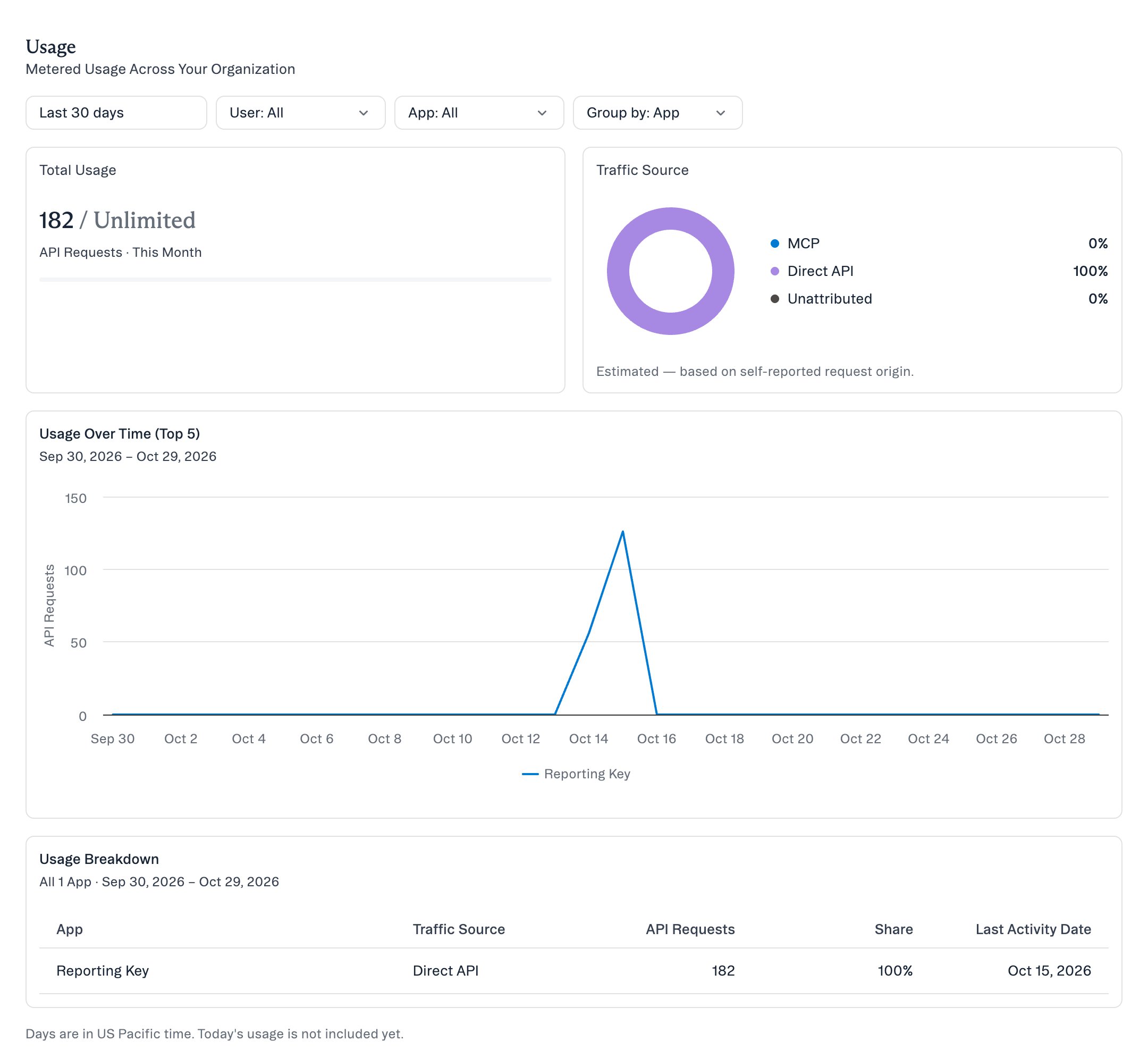
The Usage page in Settings shows how your organization uses the Affinity API. You can see:- Your total API requests this month, against your monthly limit.
- Requests over time, by user, and by app.
- How much of your traffic comes from Affinity MCP, and how much comes from other tools calling the API directly.
Prerequisites
Plan: Your plan must include API access. Permissions required: View API usage. Enterprise Admins can grant it to other roles under Settings → Users and Permissions → Roles, in the APIs / Integrations section. If you don’t see Usage in Settings, ask an admin for this permission.Step 1: Open the Usage page
- Click Settings in the left navigation.
- Under Usage, click Usage. If you can also see Billing, this section is called Usage & Billing.
Step 2: Check your total for the month
The Total Usage card shows the API Requests your organization has made This Month.- If your organization has a monthly limit, the card shows the limit, how much of it you’ve used (for example, 37% Used), and how many requests remain (Remaining).
- If your organization has no monthly limit, the card shows Unlimited.
Step 3: Choose what to look at
Use the filters at the top of the page. They apply to the Traffic Source card, the chart and the table.
The User and App lists only include users and apps that made requests in the selected date range.
Step 4: See where your traffic comes from
The Traffic Source card splits your requests into three sources:
The split is an estimate. It’s based on the source each request reports about itself.
Step 5: See usage over time
The Usage Over Time (Top 5) chart shows daily API Requests for the five apps or users with the most requests. Use Group by to switch between apps and users. Hover over the chart to see each day’s numbers.Step 6: Find your busiest apps and users
The Usage Breakdown table lists every app or user with requests in the selected date range, most requests first.
Some rows have a placeholder name:
- Unnamed app is an API key that was saved without a name, or requests that aren’t linked to an app. To name a key, edit it in Settings → Manage Apps.
- Unattributed, when grouped by user, is requests that aren’t linked to a user.
How this page relates to Manage Apps
The API Usage This Month card in Manage Apps and the Total Usage card on the Usage page show the same monthly total. Requests from API keys, OAuth apps and Affinity MCP all count toward it. Use Manage Apps to create, edit or revoke apps. Use Usage to see which of them make the most requests.Current limitations
- Days are in US Pacific time.
- Today’s requests aren’t in the chart, the table or the Traffic Source card yet. They appear the next day.
- The Traffic Source split is an estimate.
- The page shows request counts only. It doesn’t show which endpoints an app calls.