

Concept — background and overview.
Invoices
- All invoices will be emailed to the address that is provided as the “Bill To ” address on the latest order that has been signed. Affinity uses the platform MonetizeNow to send invoices regarding your Affinity subscription.
- Invoices will be emailed from noreply@monetizenow.io, so please make sure this email address is marked as allowed to ensure timely receipt of invoices.
- If you would like to have additional recipients copied on all invoices that are issued, send us an email at billing@affinity.co with their names and email addresses.
- If you would like to change the primary billing contact for your subscription, send us an email at billing@affinity.co.
- If you have multiple open invoices with us, click on any of the open invoices to see all the other open invoices and the entire balance that is due.
- If you have any questions or concerns with any invoice that you have received, send us an email at billing@affinity.co.
Payment Methods
When you receive an invoice from us, you can use one of the four payment methods below:- Option 1 - Credit Card (Only for invoice amounts up to $10,000)
- Click the View Invoice button within the invoice email that gets sent out.
- In the top-right corner, select Pay Invoice.
- From here, enter your credit card details, which will be securely processed by Stripe.
- If the invoice amount is greater than $10,000, please use Option 3 or Option 4.
- Option 2 - Bank Account Direct Debit (Only for invoice amounts up to $10,000)
- Click the View Invoice button within the invoice email that gets sent out.
- In the top-right corner, select Pay Invoice.
- If your bank is supported, you can sign in securely through Stripe to validate the account, after which the amounts can be pulled directly from your account.
- If your bank is not supported or you wish to not provide verification this way, you can manually enter the details. If you select this way to verify your account, it will be done with micro-deposits sent and received to your account. You will have to return in 1-2 business days to enter the amount of the micro-deposits to validate the account. Note this is only supported for checking accounts.
- If the invoice amount is greater than $10,000, please use Option 3 or Option 4.
- Option 3 - ACH Credit Transfer
- If you would like to pay via wire or send us an ACH payment from your account, you can find the account details to send the payment to on your invoice.
- At the bottom of your invoice, review the section titled Payment Information, which will include all details you will need to initiate the payment.
- Please note that the account number is unique to your account. If you have multiple accounts with us, they will have different account numbers, so please make sure that you use the appropriate one for each account.
- If you would like to verify the bank details with us directly prior to initiating the payment, contact us at billing@affinity.co and we can schedule a time to verify the details with you.
- Option 4 - Mailed Check
- If you wish to pay for your subscription via mailing a check, please make the check payable to Project Affinity Inc and send the check to our lockbox POB 92151, Las Vegas, NV 89193-2151 (this information is also included on all invoices).
- Please do not send payments to our business address.
Sales Tax
- Depending on where you live, your country/state may impose a transaction tax (e.g. sales tax or VAT) on SaaS purchases.
- We utilize the address that you provide to us as your “Bill to ” address on your order form to assess any transaction taxes.
- Note : It is also reflected as your “Service Address (or Ship to)” on your invoices. If this is a jurisdiction where we are required to collect and remit this tax, you will notice a tax line on your invoice.
How do you add and pay for additional seats?
- If you wish to add more seats than you have currently purchased, you can simply do so by sending them an invite directly within Affinity. Please note that you will receive the following notification:
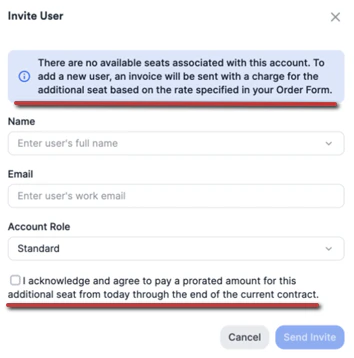
- To simply exchange/recycle a current seat, you must first deactivate the current user before sending the invite out for the new user. By deactivating the current user first, you are making sure that you don’t get charged for an additional unnecessary seat.
- If you’d like to find out the prorated amount before sending out the invite and agreeing to be charged, you can request a quote at billing@affinity.co.
- Once you click Send invite , the user will be able to sign in and access Affinity immediately.
- An invoice will be emailed from noreply@monetizenow.io for the fees for this additional seat, so please make sure this email address is marked as allowed to receive your invoices accordingly.
- If you are enrolled in automatic collection (previously known as automated billing) your default payment method will be automatically charged on the due date.
- If you are looking to purchase additional seats in bulk, please contact your Affinity Customer Success Manager or Account Executive.
Billing Settings
Some billing information is available within Affinity. Please note that only certain account roles will have access to your Billing Settings based on your Affinity subscription tier:- Trial Accounts : If you’re currently on a trial for Affinity, you will not see Billing Settings. To purchase and start your Affinity subscription, please speak with your Affinity account executive.
- Professional (Legacy) , Premium (Legacy) , Essentials , Scale , and Advanced tiers: Only Admins will be able to access Billing Settings.
- Enterprise (Legacy) and Enterprise tiers: Only Enterprise Admins and Admins will be able to access Billing Settings.
- To access Billing Settings , click on Settings on the global navigation sidebar.
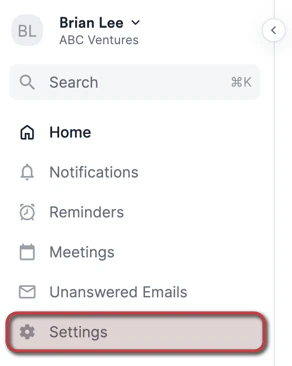
- Then, click Billing Settings on the bottom-left corner. On this page, you can see the following information:

- Current Billing Address on file
- Current annual amount you are paying for seats purchased. Note that this will not reflect any seats that you have purchased at a future date
- Users which shows how many seats you have purchased as well as how many of those seats are currently in use
- Collaborators shows how many collaborator seats you have purchased as well as how many of those are currently in use
- If any of this information is different than you expect or if you would like to make changes, please reach out to your Affinity CSM or billing@affinity.co.
How to find/change your billing information
Authorized Individuals- When requesting billing information or changes to billing information, please ensure that the reach out comes from someone who is authorized to make changes to your account (“Bill To” or “Service Contact” specified in your last order form).
- If you are set up for automatic collection (previously known as automated billing), we save your latest payment method within Stripe to be used for future invoices. If you would like to know your current payment method on file and/or change it, send us an email at billing@affinity.co
- If you are not set up for automatic collection, each invoice that you receive will be able to receive any of the payment methods detailed in the Payment Methods section above.
- You can find your current billing address by going to Settings > Billing Settings (as shown in Billing Settings above). You can also find this address by referencing your latest invoice or order form (whichever is more current).
- Feel free to reach out to billing@affinity.co if you’d like to change your billing address moving forward.
- The majority of our customers have the same address for their Billing Address and Service/Shipping Address.
- If this address is not the same, you can find your current shipping address by referencing your latest invoice or order form (whichever is more current) and update this address if needed by sending us an email at billing@affinity.co.
Changes to billing processes at Affinity (as of April 2024)
- We have replaced our historical billing system (Affinity & Stripe) with MonetizeNow.
- All invoices that you have received through April 12, 2024 were issued through our historical billing system.
- All invoices that you have received after April 12, 2024 are now issued through MonetizeNow.
- Though Stripe is no longer our billing system, Stripe will remain our designated payment processor. There will be no change to payment methods or the way you pay for invoices.
- As of April 12, 2024, all existing Affinity customers on automated billing have been converted to invoice billing.
- If you were on automated billing, you will now receive an invoice for all fees regarding your Affinity subscription.
- Your default payment method will be automatically charged on the due date of all invoices unless you desire to pay it at an earlier date.This is now known as automatic collection.
- Historically, you had to generate a charge yourself for any additional seats. Now, you will be invoiced and charged automatically (see How do you add and pay for additional seats?).
- Listed below are the billing information that will no longer be available within Affinity, please reach out to billing@affinity.co for this information:
- Invoice/Payment History
- Payment Method
- **Renewal Date
- Listed below are the billing information that will still be available within Affinity:
- Billing Address
- Current Annual Plan Amount (exclusive of agreed upon changes)
- Service Agreement
- # of User seats currently in use / # of User seats purchased
- # of Collaborator seats currently in use / # of Collaborator seats purchased