How-to — task-oriented recipe.
How do I decide whether to invite Users or Collaborators?
- Users have full read-and-edit access to the Affinity account, including Directories, Lists, Profiles, etc.
- Collaborators only have read-only access to specific saved views within Affinity lists.
- You must be on the Scale, Advanced, or Enterprise tiers in order to invite Collaborators (see How do I know which Affinity subscription tier I am on?).
- Team members cannot be invited as Collaborators, they must be invited as Users.
Who can add new users to their Affinity account?
- Essential, Scale, and Advanced tiers:
- Only Admin users at the account level (see Account Level Permissions).
- Enterprise tier:
- The Enterprise Admin will be able determine who can invite team members as new users to their Affinity account (see the section titled “What permissions can the Enterprise Admin change? (Enterprise only)” in the article Account Level Permissions).
How do I know who’s already been invited, active, or deactivated?
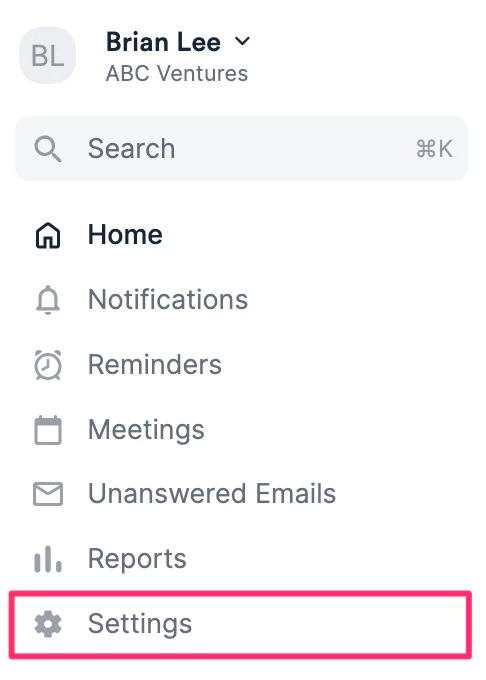
- Click Settings on the left side.
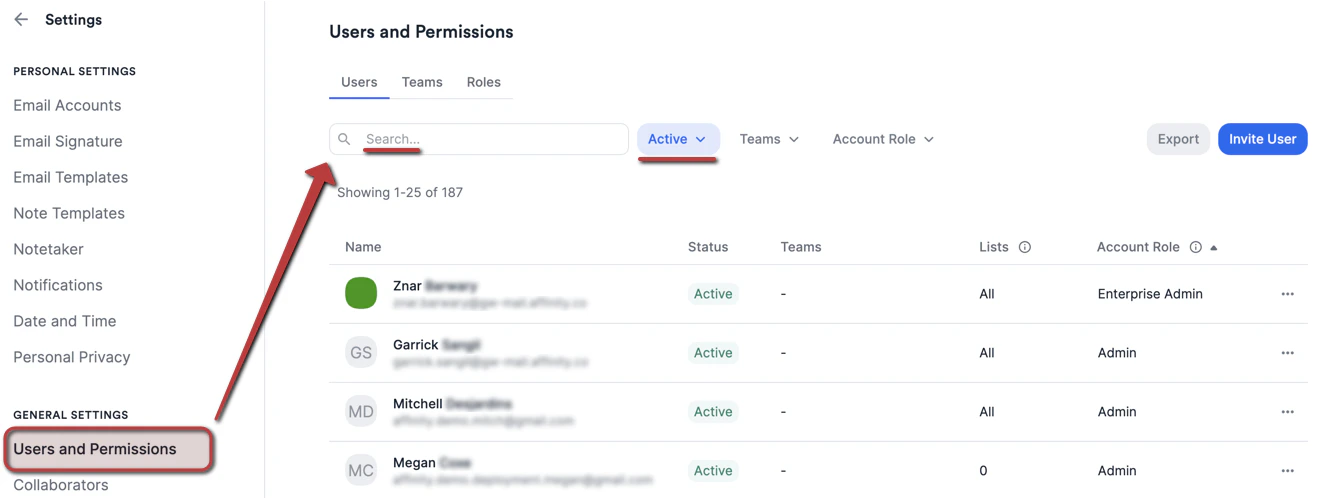
- Click on the Users and Permissions tab, then click the Search bar to search for a specific user or click the Active button right next to it to filter by status: Active, Deactivated, or Invited.
How to add a new user
Note: If the user you are trying to add was a former Affinity user within your organization but was removed, please first check if they are in the Deactivated section (dropdown) within the User’s tab inside Users and Permission settings page. If so, you can re-activate them to add them back into the Account.- Click Settings on the left side.
- Click on the Users and Permissions tab, then click Invite User.
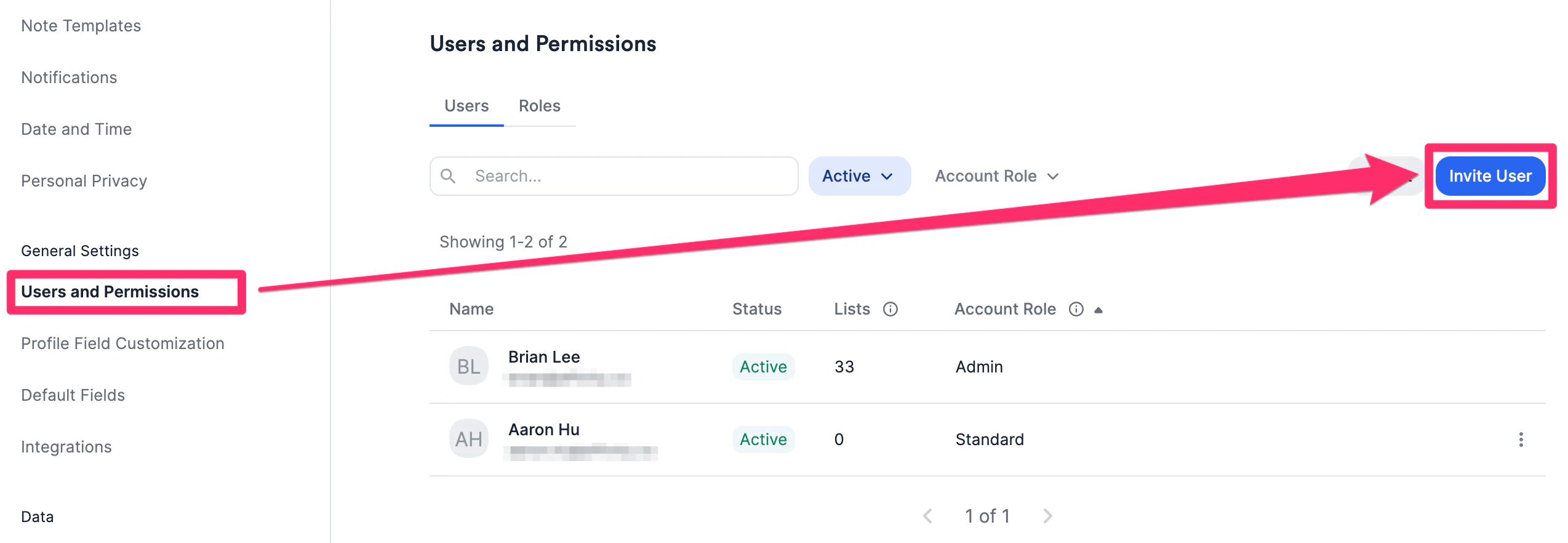
- Type in their full name and the email address that they’ll be signing in with. They will receive an email invite and must use their email credentials to sign in.
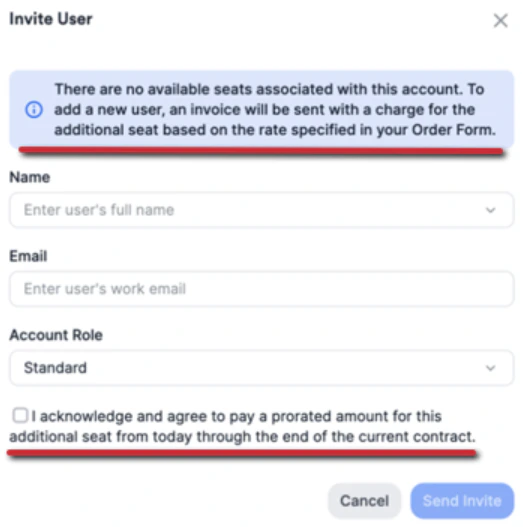
- If you already reached the maximum seat count for your Affinity subscription, you will receive the following notification. To learn more, see the section titled “How do you add and pay for additional seats?” in the article Getting started with billing in Affinity.
- Want to simply reassign a seat? You can deactivate the team member that is no longer using Affinity (see How to deactivate/remove users from your Affinity account), then send an invite to the new team member.
How to resend an invite to a new user
- Click Settings on the left side.
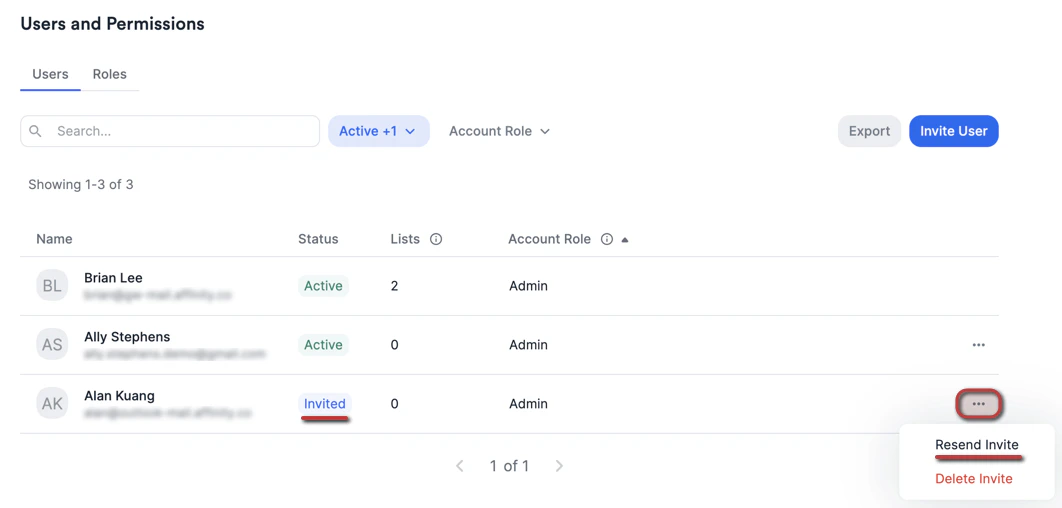
- Click on the Users and Permissions tab, then click the Active button to make sure you also filter by Invited users as well.
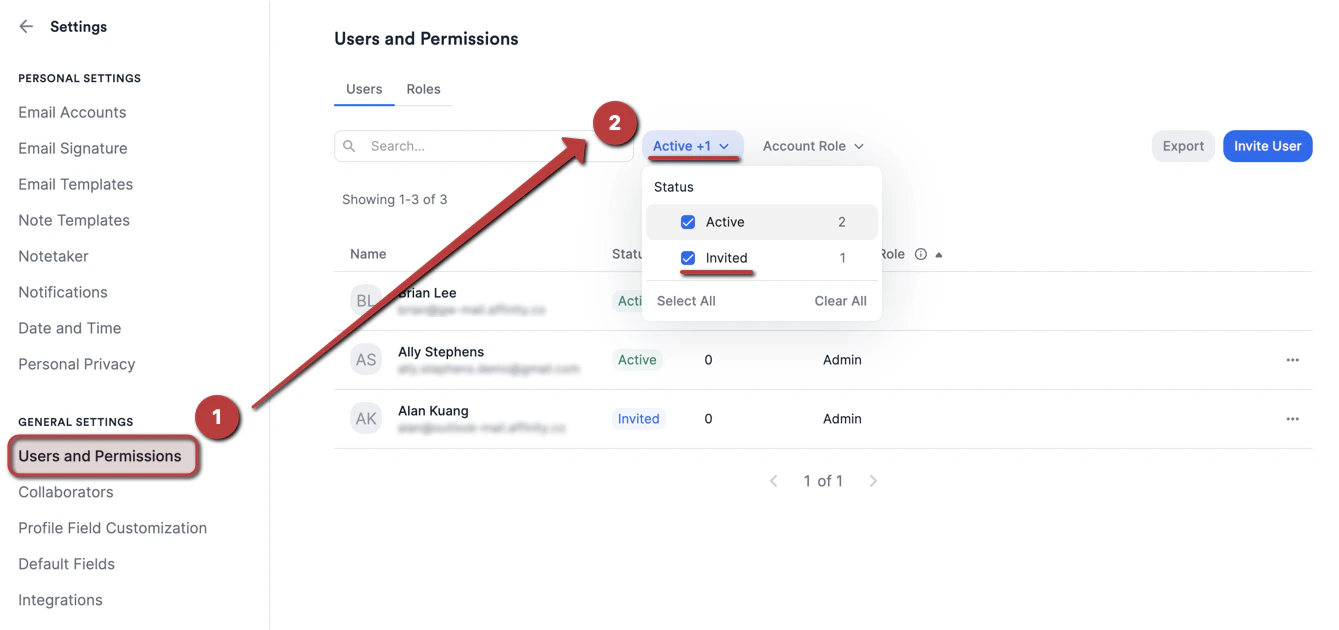
- For the user that has already been invited, click the ellipsis (3-dotted icon), then click Resend invite.