

Reference — comprehensive feature documentation.
What you can control
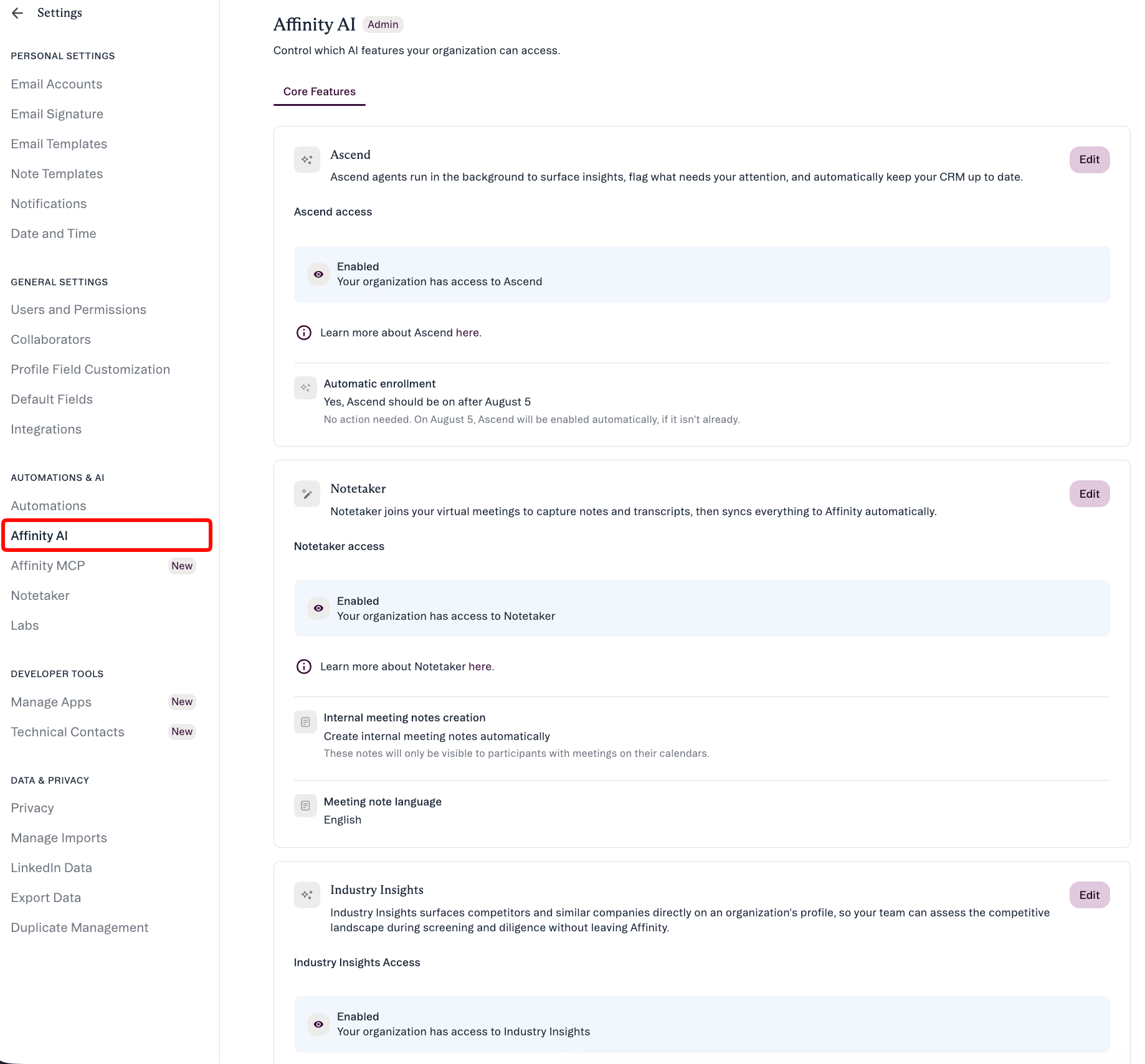
- Core AI features: Ascend, Notetaker, Industry Insights, and AI Chat (enable/disable for entire org)
- Ascend agent instructions: On the Ascend card, Agent instructions → Manage opens the Meeting Prep agent’s org-wide instructions
- Labs program access: Turn the Labs experimental program on or off for your organization
- Specific Labs features: When Labs is enabled, control which experimental features are accessible
- Labs defaults: Set whether newly released Labs features are enabled or disabled by default
- Notetaker admin settings: Configure internal meeting notes, meeting note language, transcript retention, and summary email recipients
Who this is for
Account admins and Operations users at firms who manage their team’s Affinity usage and need to ensure compliance with internal policies on AI tool usage.All settings are org-wide. Access is either on or off for the entire account. Role-, team-, or user-level controls are not available.
Who can access this page
Default access:- Enterprise Admins (always have access, cannot be removed)
- Admins (have access by default, can be removed)
How to check your access
- Navigate to Settings.
- Look for Affinity AI in the left sidebar.
- If you see it, you have permission.
- If not, contact your Enterprise Admin to request access.
Enterprise Admin access is permanent and cannot be revoked.
How to access Affinity AI Settings
- Log into the Affinity web app.
- Click your profile icon (top right).
- Select Settings.
- In the left sidebar, click Affinity AI.
This page is available in the web app. In Affinity for Salesforce (A4S), you can manage Notetaker access and admin settings instead.
Managing Core AI features
Core AI features are generally available Affinity AI capabilities (not experimental).Features you can control
Ascend:- Agents that do a specific job — meeting prep, field updates, warm intros etc.
- Most agents run in the background; some on demand when you ask in Chat.
- An agent never changes your CRM on its own
- Agent instructions (on the card, with Manage): steer how Meeting Prep briefs are written for everyone in your organization. See Give Ascend agents your firm’s context
- AI-powered meeting transcription and summaries
- Automatically joins meetings and generates notes
- Integrates with Zoom and other meeting platforms
- AI-generated industry news and company updates
- Appears on company profiles
- Summarizes relevant market developments
- Conversational AI interface to query your CRM
- Available in Affinity web app
- Natural language queries for meeting prep, pipeline, company search
How to enable or disable Core AI features
From the Affinity AI Settings page:- Open the Core Features tab.
- Find the card for the feature you want to enable or disable (Ascend, Notetaker, Industry Insights, or AI Chat) and click Edit.
- Choose Enable or Disable.
- Click Save on that card.
- Changes apply immediately to all users.
- Feature is no longer visible in the UI for any user in your account
- Users cannot access that feature’s functionality
- Feature-specific settings pages are hidden (e.g., Notetaker Settings page)
- Data previously created by the feature is preserved (e.g., meeting notes already generated)
- Feature becomes visible and accessible to all users immediately
- Feature-specific settings pages appear in Settings
- Users can begin using the feature right away
Notetaker admin settings
These settings are on the Notetaker card (click Edit to change them): Create internal meeting notes:- When enabled: Notetaker generates notes for internal Affinity meetings (meetings where all participants are from your organization)
- When disabled: Notetaker only generates notes for external meetings
- Default: Enabled
- Set the language for AI-generated meeting notes
- Options: English, or Match meeting language (supported: French, German, Spanish, Italian, Japanese, Korean, Indonesian, and Portuguese; if the detected language isn’t supported, Notetaker uses English)
- Default: English
- Retain transcripts — anyone with access to the summary note can view the transcript
- Do not retain transcripts — the transcript is deleted as soon as the summary note is created
- Either way, Affinity’s third-party transcription service stores the transcript for 7 days before deleting it, to support data recovery
- Choose who receives the meeting summary email: Everyone from your team on the invite, Only people who requested Notetaker, Only the meeting organizer, or No one
- External meeting participants never receive summary emails
Individual user Notetaker preferences (Zoom connection, join automatically, appearance) remain on the Notetaker Settings page.
Managing Labs access
Labs is Affinity’s experimental AI features program. Features in Labs are in trial/beta phase and may graduate to Core AI features or be retired based on feedback.Enabling or disabling Labs
From the Affinity AI Settings page:- Open the Labs tab and click Edit on the Labs card.
- Choose Enable or Disable for Labs access.
- Click Save.
- Labs Settings page appears in Settings for all users
- Users can toggle individual Labs features on/off for their personal experience
- Permitted users can control which specific Labs features are accessible
- Labs Settings page is hidden from all users
- All Labs features become inaccessible
- Your Labs configuration is preserved (if you re-enable later, settings are restored)
Controlling specific Labs features
When Labs is enabled, you can control which features are accessible. Available Labs features:- Notes AI Summary — AI-generated summaries of meeting notes
- Recent News on Profiles — Company news on profile pages
- Pitch Deck Analyzer — Summarize pitch decks, surface related news, and update your CRM
- AI Field Suggestions from Notes — Suggestions to update CRM fields when creating notes about people and organizations
- Ensure Labs is enabled (if disabled, individual feature controls are hidden).
- In the Labs features list, toggle specific features on or off.
- Click Save.
- Enabled features appear on the Labs Settings page for users to toggle personally.
- Disabled features do not appear on the Labs Settings page and are inaccessible to all users.
Individual users can toggle Labs features for their own personal experience via the Labs Settings page (if the feature is enabled at the org level). User personal preferences do not affect other users.
Setting defaults for new Labs features
Control whether newly released Labs features are automatically enabled or disabled for your org. From the Affinity AI Settings page:- On the Labs card, find Default access for new Labs features.
- Select:
- Automatically enable new Labs features for all users — New Labs features are accessible when released.
- Require admins to enable each new feature individually — You enable each new feature yourself.
- Click Save.
- Your team wants early access to experimental features
- You trust Affinity’s Labs development process
- You prefer to evaluate features as they release
- Your firm is risk-averse about experimental features
- You prefer to manually review new capabilities before rollout
- You have strict policies requiring pre-approval of new tools
Affinity AI Settings vs Labs Settings
Understanding the difference between admin controls and user preferences:Example workflow
- Admin enables Labs and turns on Notes AI Summary + Pitch Deck Analyzer (but not Recent News).
- All users see Labs Settings page with only Notes AI Summary and Pitch Deck Analyzer.
- Individual user disables Notes AI Summary for their own account (personal preference).
- Other users are not affected — they still see Notes AI Summary.
- Admin later disables Pitch Deck Analyzer — it disappears for all users immediately.
Managing permissions
How to grant Standard users access to Affinity AI Settings:- Navigate to Settings → Users and Permissions.
- Find the Manage Affinity AI feature access permission.
- By default: Enabled for Enterprise Admin and Admin.
- To add Standard users:
- Click the permission row to expand.
- Check the box for Standard role.
- Click Save.
- Standard users can now access the Affinity AI Settings page.
- Uncheck the Admin role.
- Enterprise Admin permission cannot be removed.
- Your Operations lead manages tool configuration but isn’t an Admin.
- Standard users need visibility into what AI features are enabled.
Frequently asked questions
Q: What happens when I disable a Core AI feature? The feature is no longer visible or accessible to any user in your account. Changes take effect immediately after you click Save. Data previously created by the feature (e.g., existing meeting notes from Notetaker) is preserved. Q: What happens to my Labs configuration if I turn Labs off and then back on? Your previous configuration is fully restored. If you had specific Labs features enabled or disabled before turning Labs off, those settings are preserved exactly as you left them. Turning Labs off is treated as a pause, not a reset. Q: Can I control access for individual users or teams? Not in this release. All settings on the Affinity AI Settings page are org-wide — access is either on or off for the entire account. Role-, team-, or user-level controls are not available at this time. Q: What happens to the Labs Settings page if I disable Labs? When you disable Labs access, the Labs Settings page is hidden from all users in your account. When you re-enable Labs, the page reappears and all user personal preferences are restored. Q: Will this affect the Notetaker Settings page? Notetaker admin settings (internal meeting notes, meeting note language, transcript retention, and summary email recipients) are on the Affinity AI Settings page. Individual user Notetaker preferences (Zoom connection, join automatically, appearance) remain on the Notetaker Settings page. If you disable Notetaker at the org level, the Notetaker Settings page will be hidden for all users. Q: I’m an A4S customer — does this apply to me? Admin AI Settings in A4S gives Admins the ability to control Notetaker access and manage its Admin settings. Q: Can I enable Labs but disable all Labs features? Yes. You can enable Labs for your organization (making the Labs Settings page visible to users) without requiring any individual Labs feature to be active. This represents an “opted in” state where users have access to the Labs page but no experimental features are currently available. This is useful if you want users to see that Labs exists without giving them access to specific features yet. Q: What if new Labs features are released while my default requires admins to enable each feature? New Labs features will not be automatically accessible to your users. You’ll need to manually enable each new feature from the Affinity AI Settings page when you’re ready for your team to access it. Q: What if I navigate away from the page without saving? If you’ve made changes, you’ll see a confirmation modal asking if you want to discard your unsaved changes. If you haven’t made any changes, you can navigate away without any warning.Troubleshooting
I can’t find the Affinity AI Settings page
Check:- You have the “Manage Affinity AI feature access” permission.
- If you’re an Admin or Standard user and don’t see the page, contact your Enterprise Admin to check permission settings in Users and Permissions.
- Enterprise Admins always have access and cannot be removed from this permission.
Changes I made aren’t taking effect
Check:- You clicked Save after making changes.
- No error message appeared when saving.
- Page refreshed or confirmation appeared.
- Try refreshing the page to see if changes were applied.
- If the issue persists, contact support@affinity.co.
Users are still seeing a feature I disabled
Check:- You clicked Save after disabling the feature.
- Users have refreshed their browser or logged out/in.
- You disabled the correct feature (check feature name and description).
- Ask users to refresh their browser or clear cache.
- Verify the feature is showing as disabled in your Affinity AI Settings page.
- Changes are org-wide and immediate — if users still see it after refresh, contact support@affinity.co.
I enabled Labs but users don’t see the Labs Settings page
Check:- Labs is enabled in your Affinity AI Settings page.
- At least one Labs feature is enabled (or Labs can be enabled with no features).
- Users are on web app (not A4S).
- Users have refreshed their browser.
- Verify Labs toggle shows as enabled and saved.
- Ask users to navigate to Settings → Labs to check if page appears.
- If issue persists, contact support@affinity.co.