Documentation Index
Fetch the complete documentation index at: https://support.affinity.co/llms.txt
Use this file to discover all available pages before exploring further.
How-to — task-oriented recipe.
Overview
Use AI Chat to prepare for investor meetings, founder calls, and portfolio check-ins by getting instant context on relationship history, recent conversations, and key discussion points—without clicking through multiple profiles or asking teammates for updates. Goal: Walk into every meeting fully briefed in 5 minutes instead of 20+ minutes of manual research. Who this is for: Associates and Analysts preparing for meetings, Partners doing quick prep before calls, anyone needing fast context.The Problem: Scattered Meeting Context
Before AI Chat: You have a call with Acme Corp’s CEO in 2 hours. To prepare:- Click to Acme’s company profile → Scan recent activity
- Click Notes tab → Read through 10+ notes from different teammates
- Ask on Slack: “Who’s met with Acme recently?”
- Check your calendar → When did WE last talk?
- Click to CEO’s person profile → Check their background
- Piece together context from 6 different sources Time: 15-20 minutes. Result: Fragmented, possibly incomplete.
With AI Chat: Type: “Help me prepare for my meeting with Acme Corp” AI Chat returns:
- Last interaction (when, who, what was discussed)
- Recent notes summary from all teammates
- Relationship strength and key contacts
- Outstanding action items
- Context for today’s discussion Time: 5 minutes. Result: Comprehensive, ready to use.
Step-by-Step: Meeting Prep Workflow
Step 1: Ask AI Chat to Prepare
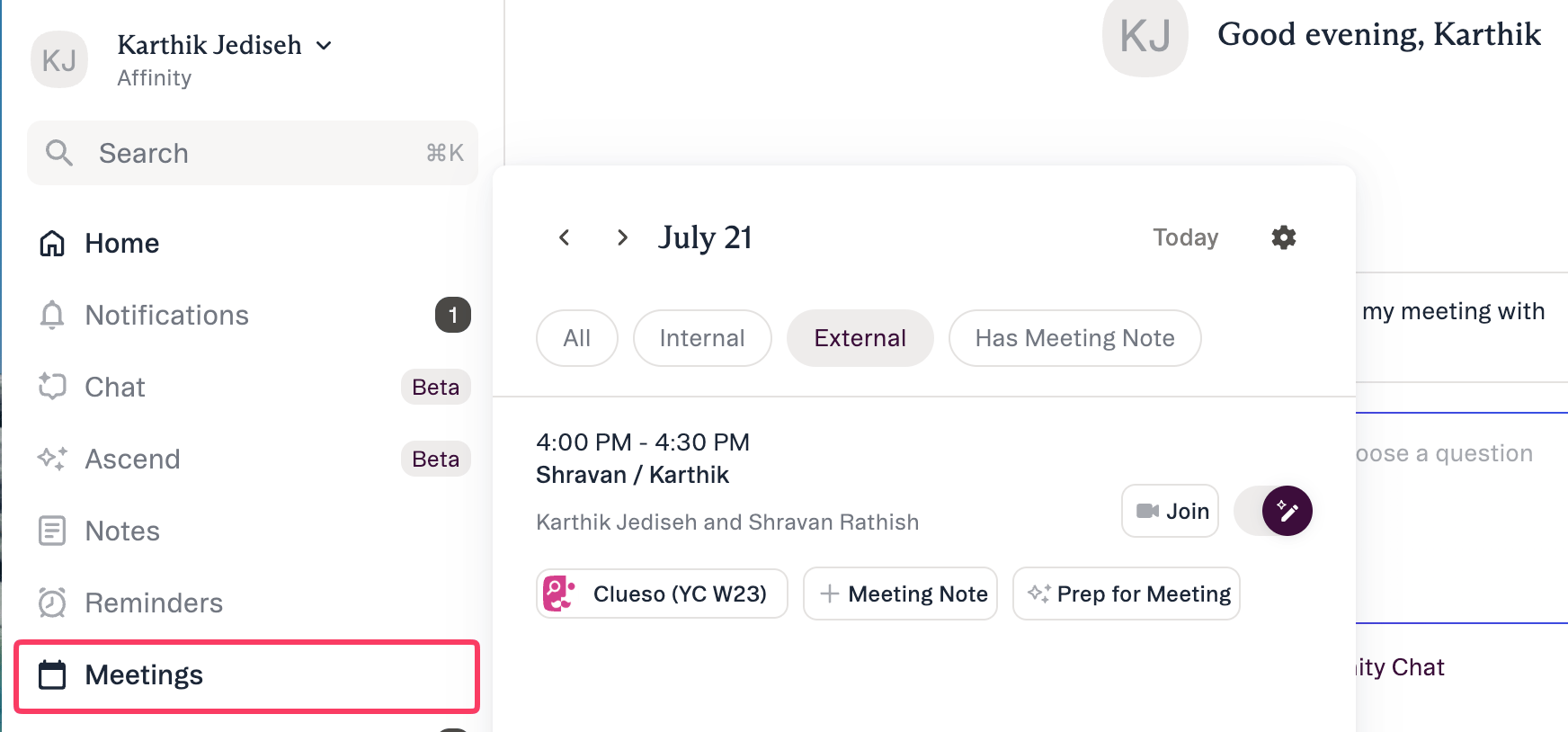
One day (or hours) before your meeting:- Open AI Chat
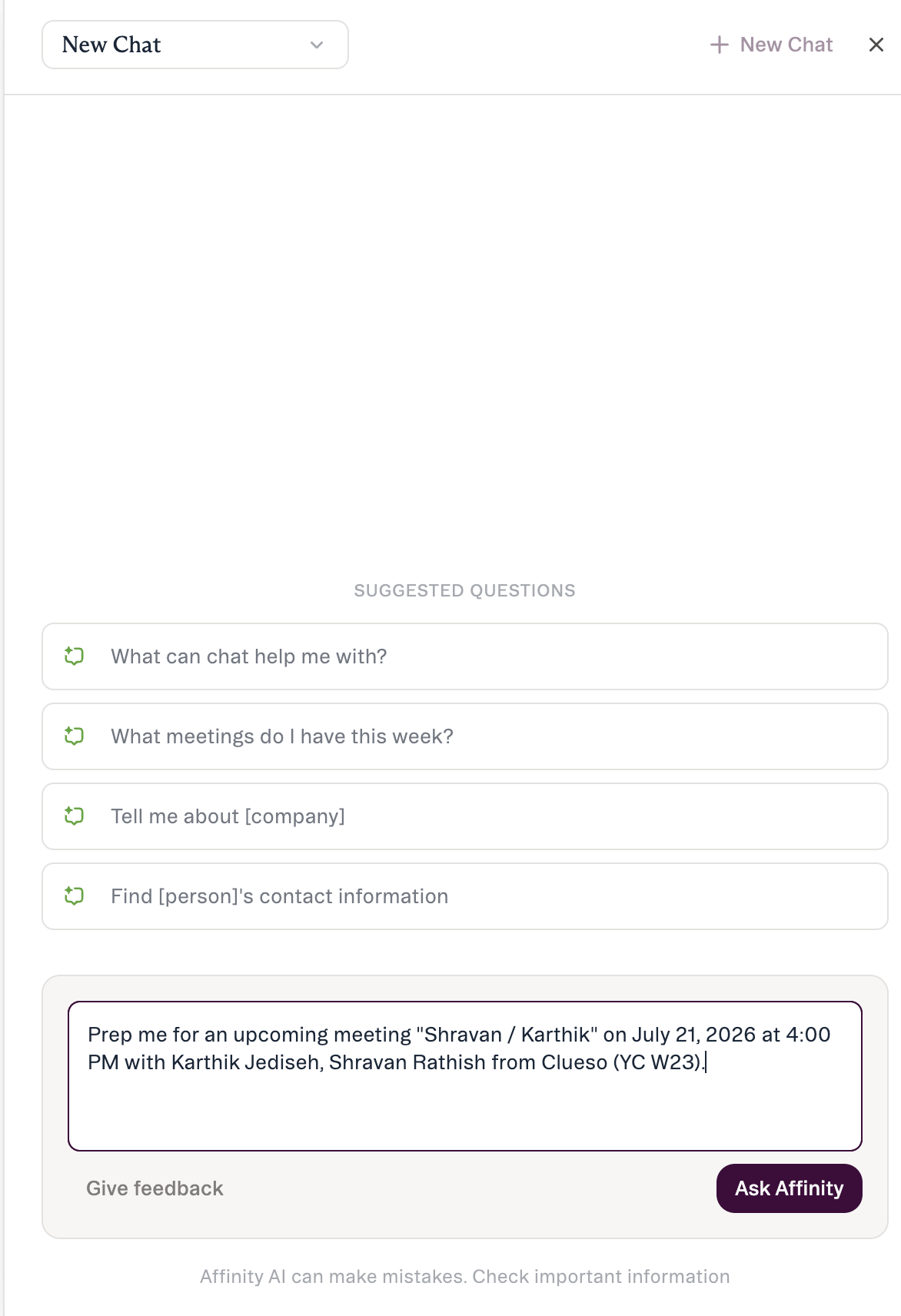
- Type: “Help me prepare for my meeting with [Company Name]”
- Press Enter Use actual company name from your CRM
Step 2: Review the Brief
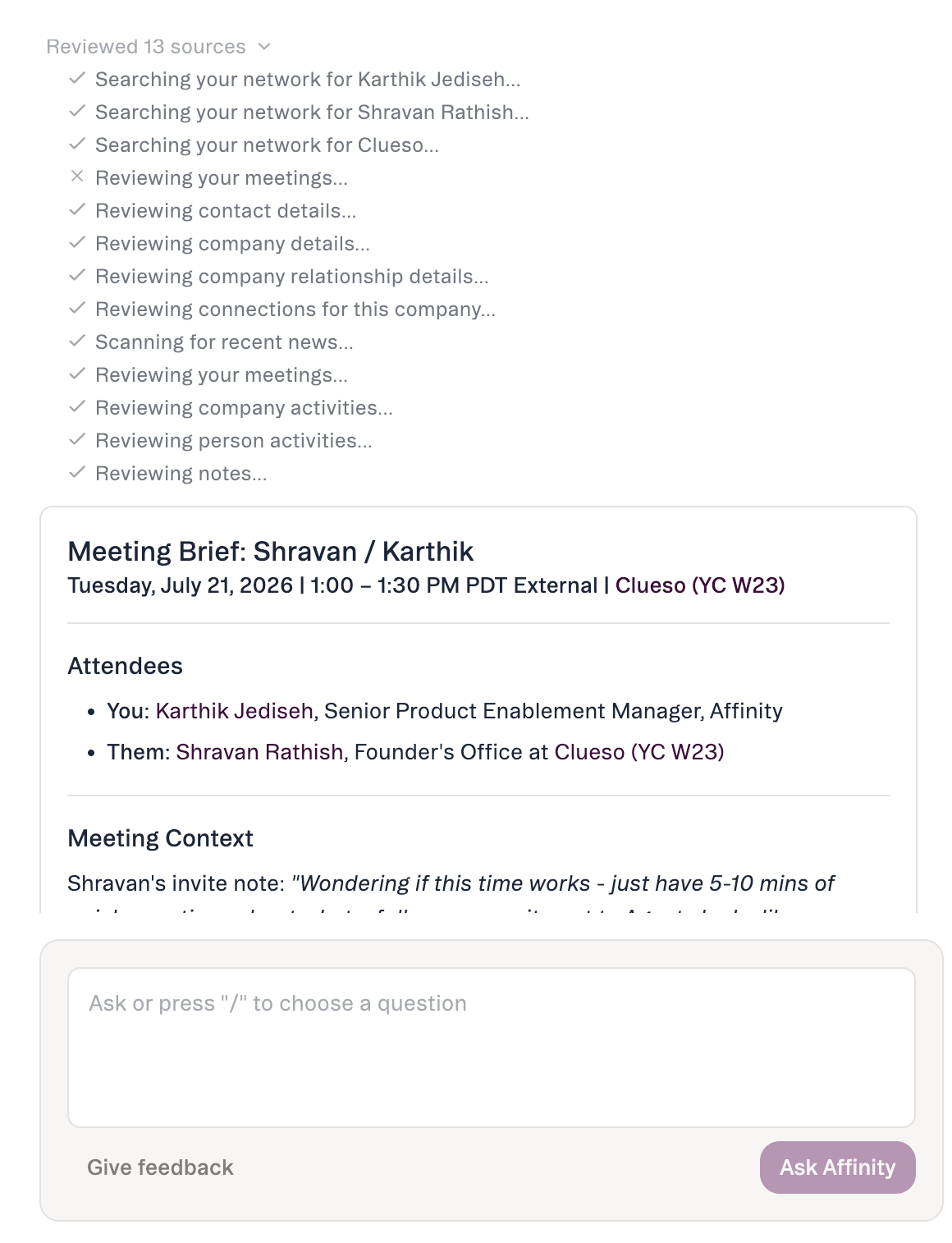
AI Chat returns:- Last interaction (when, who, what discussed)
- Recent notes summary
- Relationship context
- Company data and list memberships Look for: Outstanding action items, recent concerns, relationship history
Step 3: Ask Follow-Ups If Needed
Dig deeper where helpful:- “Summarize our last 3 meetings with [Company]”
- “What action items are outstanding?”
- “Who has the strongest relationship there?” AI Chat is conversational—refine as needed
Step 4: Copy Key Info Into Note
- Click Copy on AI Chat response
- Create new note in Affinity
- Paste (formatting preserved)
- Add your talking points
- Share with team Reference during the meeting
Real Example: Full Meeting Prep Workflow
Scenario
You’re an Associate preparing for a follow-up call with Loom’s VP of Product tomorrow at 2pm. Your firm has had 3 previous meetings with Loom over the past 4 months. You’ve never met with them personally—a Partner on your team has been leading the relationship.Preparation
Initial query You: “Help me prepare for my meeting with Loom tomorrow” AI Chat returns:- Last interaction: Partner call 2 weeks ago (discussed integration timeline)
- 6 notes from team spanning 4 months
- Partner has strongest relationship
- Loom is on “Active Pipeline” and “Q1 Targets” lists
- Recent News highlighted to call out items of relevance or usefulness
- Current stage: Partner Review
Review team notes summary AI Chat summarizes key points: From 2 weeks ago (Partner meeting):
- Discussed technical integration timeline
- Loom interested but needs security review before proceeding
- VP Product mentioned Q2 expansion goals From 1 month ago (Engineering sync):
- Technical feasibility confirmed
- API documentation shared
- Integration complexity: moderate From 3 months ago (Initial call):
- VP Product specifically asked about custom pricing tiers
- Interested in enterprise offering
- Decision timeline: Q2 2026
Ask follow-up questions You: “What action items are outstanding from our last meeting?” AI Chat: “Follow up with security documentation” (from 2-week-ago meeting) You: “Who has met with Loom’s VP of Product before?” AI Chat: “Partner met with VP Product on [dates]. No other team members have engaged.”
Identify discussion topics Based on AI Chat’s context, you identify: Topics to cover:
- Security review status (follow-up from 2 weeks ago)
- Custom pricing tiers (VP Product asked in initial call)
- Q2 expansion timeline (their stated priority) Questions to ask:
- Has security review started?
- What’s the decision timeline?
- Who else needs to be involved on their side?
- What is being talked about in the media about Loom? Context to leverage:
- They’re interested but need enterprise security clearance
- Technical team already confirmed feasibility
- VP Product has Q2 expansion goals
Create meeting prep note
- Copy AI Chat response
- Create new note in Affinity
- Attach to Loom company profile
- Title: “Meeting Prep - Loom - April 9, 2026”
- Paste AI Chat context
- Add your talking points:
- Share with team (set sharing to “Everyone”)
Result
You walk into the meeting:- Knowing full relationship history (even though you’ve never met them)
- Understanding their priorities (Q2 expansion, custom pricing)
- Ready to follow up on commitments (security documentation)
- Positioned to advance the deal (security review phase)
Meeting Prep Scenarios
First Meeting with Founder/Exec Team
Query: “Help me prepare for my first meeting with [Company]” Focus: How you discovered them, why interesting, initial research, mutual connections Timeframe: All available history (6-12 months)Follow-Up After Pitch
Query: “What did we discuss in our last meeting with [Company]?” Focus: Questions raised, concerns, next steps agreed, information requested Timeframe: Past 30-60 daysTaking Over a Deal
Query: “What’s our complete relationship history with [Company]?” Follow-up: “What notes has [Previous Owner] written?” Focus: How relationship started, key milestones, their assessment, commitmentsMeeting Prep Techniques
For Founders Calls (First-Time Meetings)
Query sequence:- “Help me prepare for my first meeting with [Company]”
- “How did we discover [Company]?” (understand source)
- “What makes [Company] interesting to our firm?” (thesis fit)
- “Who can introduce us?” (if not already connected) Focus:
- Why this company fits your thesis
- How you found them (warm intro, event, research)
- What initial research showed
- Questions to validate investment hypothesis
For Follow-Up Calls (Deal Progression)
Query sequence:- “What did we discuss in our last meeting with [Company]?”
- “What action items are outstanding?”
- “Has [Company]‘s status changed since we last spoke?” Focus:
- Honoring commitments (send what you promised)
- Addressing concerns raised previously
- Moving deal forward (next stage in process)
- Building momentum
For Portfolio Company Check-Ins
Query sequence:- “Summarize our interactions with [Portfolio Company] this quarter”
- “What challenges has [Company] mentioned in recent notes?”
- “When is our next board meeting with them?” Focus:
- Progress since last check-in
- Support they need from your firm
- Strategic guidance opportunities
- Relationship health
For IC Presentations (Internal Reviews)
Query sequence:- “What notes mention ‘investment committee’ for [Company]?”
- “Summarize our team’s assessment of [Company]”
- “What due diligence have we completed on them?” Focus:
- Team consensus and concerns
- Open questions for IC
- Due diligence findings
- Investment thesis validation
What to Do When AI Chat’s Response Isn’t Perfect
Issue: Response Too General
What happened: AI Chat gave basic overview, missing specific details you need Solution: Ask more specific follow-up:- “What specific concerns did we raise about [Company]‘s pricing?”
- “What did [Teammate] write in their notes about the founder?”
- “When exactly did we last meet?”
Issue: Missing Recent Information
What happened: You know there was a meeting last week, but AI Chat didn’t mention it Solution:- Verify the meeting was logged in CRM
- Check if notes were added
- Try: “What’s our most recent interaction with [Company]?”
- If still missing, use manual check (Notes tab on profile)
Meeting Prep Checklist
24 hours before meeting:- Use AI Chat: “Help me prepare for meeting with [Company]”
- Review all sections of response (2-3 minutes)
- Ask follow-up questions for deeper context
- Copy response into Affinity prep note
- Add your talking points and questions
- Share prep note with team 1 hour before meeting:
- Quick re-scan of prep note
- Review your talking points
- Clear any last-minute questions 5 minutes before meeting:
- Glance at key discussion topics
- Ready to engage After meeting:
- Add meeting notes to CRM
- Document action items
- Update deal status if progressed
Common Mistakes to Avoid
Mistake 1: Not Being Specific Enough
❌ Vague: “Prep me for my meeting”- AI Chat doesn’t know which meeting ✅ Specific: “Help me prepare for my meeting with Acme Corp tomorrow at 2pm”
Mistake 2: Not Using Follow-Up Questions
❌ One query only: Get basic overview, stop there ✅ Conversational: Use initial response to guide follow-up questions for depthMistake 3: Not Verifying Critical Data
❌ Trust blindly: Accept all AI Chat info as fact ✅ Verify: Click through to profiles for critical details before meetingMistake 4: Not Saving the Context
❌ Lose it: Read AI Chat response, close chat, forget details ✅ Preserve: Copy into note for reference during and after meetingWhen AI Chat Saves the Most Time
Situations where AI Chat is 10x faster than manual: 🚀 Taking over someone else’s deal: Get full relationship history without asking teammate for summary 🚀 Meeting with company you haven’t touched in months: Refresh memory instantly instead of reading old notes 🚀 Multiple meetings back-to-back: Prep for each in 5 minutes instead of 20+ per meeting 🚀 Last-minute meeting added: Quick context when meeting scheduled with 1 hour noticeBeta Limitations (What’s Not Available Yet)
⚠️ Known Beta Issues:- Dates may be incorrect: Past meetings may show as “upcoming”—verify all dates manually
- No** actions:** Cannot set reminders, create notes or update fields
- No context-aware suggestions: V1 has 4 canned prompts (dynamic suggestions coming later)
- Web app only: No mobile access in Beta Workarounds:
- Verify dates in your calendar
- Use reminder feature for follow-ups
- Copy response into note, create agenda manually
- Use desktop/laptop for access