Note: The pipeline examples referenced throughout come from Affinity’s demo environment. Your own charts will reflect whatever fields and naming your team actually uses.
What you can do
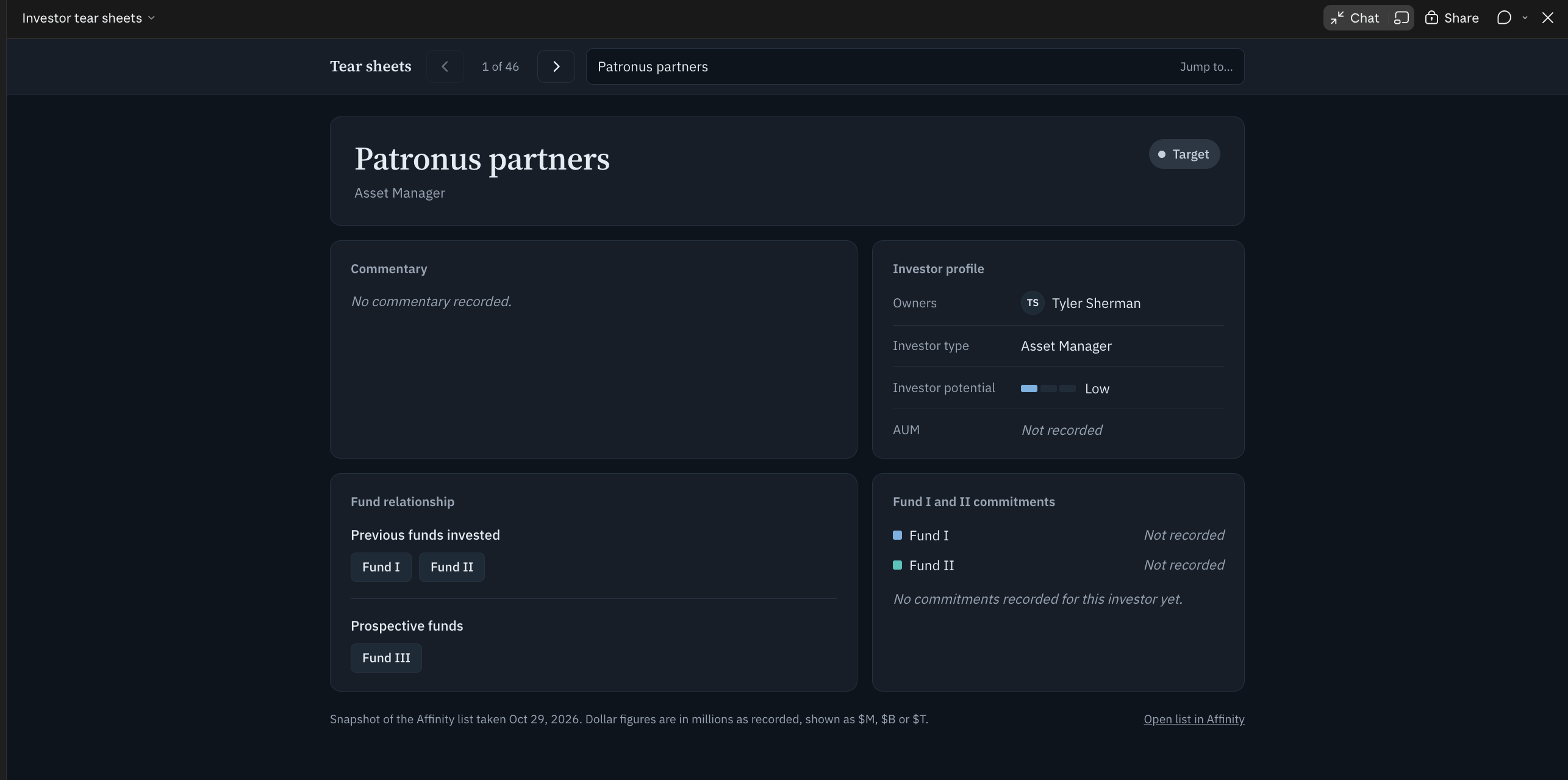
- View one clean, professional page per opportunity, with every key field in one place
- Page through opportunities with prev/next buttons
- Jump to any opportunity using an Opportunity Name filter
- See on each page:
- Opportunity Name
- Commentary
- Owners
- Investor Type and Investor Potential
- Current Status
- Previous Funds Invested and Prospective Funds
- AUM
- Fund I / Fund II Commitment breakdown
Prerequisites
- Affinity MCP connected in Claude (or another MCP client)
- A maintained list in Affinity. Claude reads directly from it, so no new data entry is needed.
- The fields you want on each page populated (Commentary, Owners, Investor Type, Investor Potential, Status, Previous Funds Invested, Prospective Funds, AUM, Fund I/II commitments). Empty fields will show as blank on the page.
- A minute or two of patience, since Claude has to pull every entry and every field before laying out the pages.
Tear Sheet
When to use it: You want a pulse check before a pipeline meeting: are you top-heavy with new inbound, or mostly late-stage deals?How to do it: Open Claude with the Affinity MCP connected and ask:
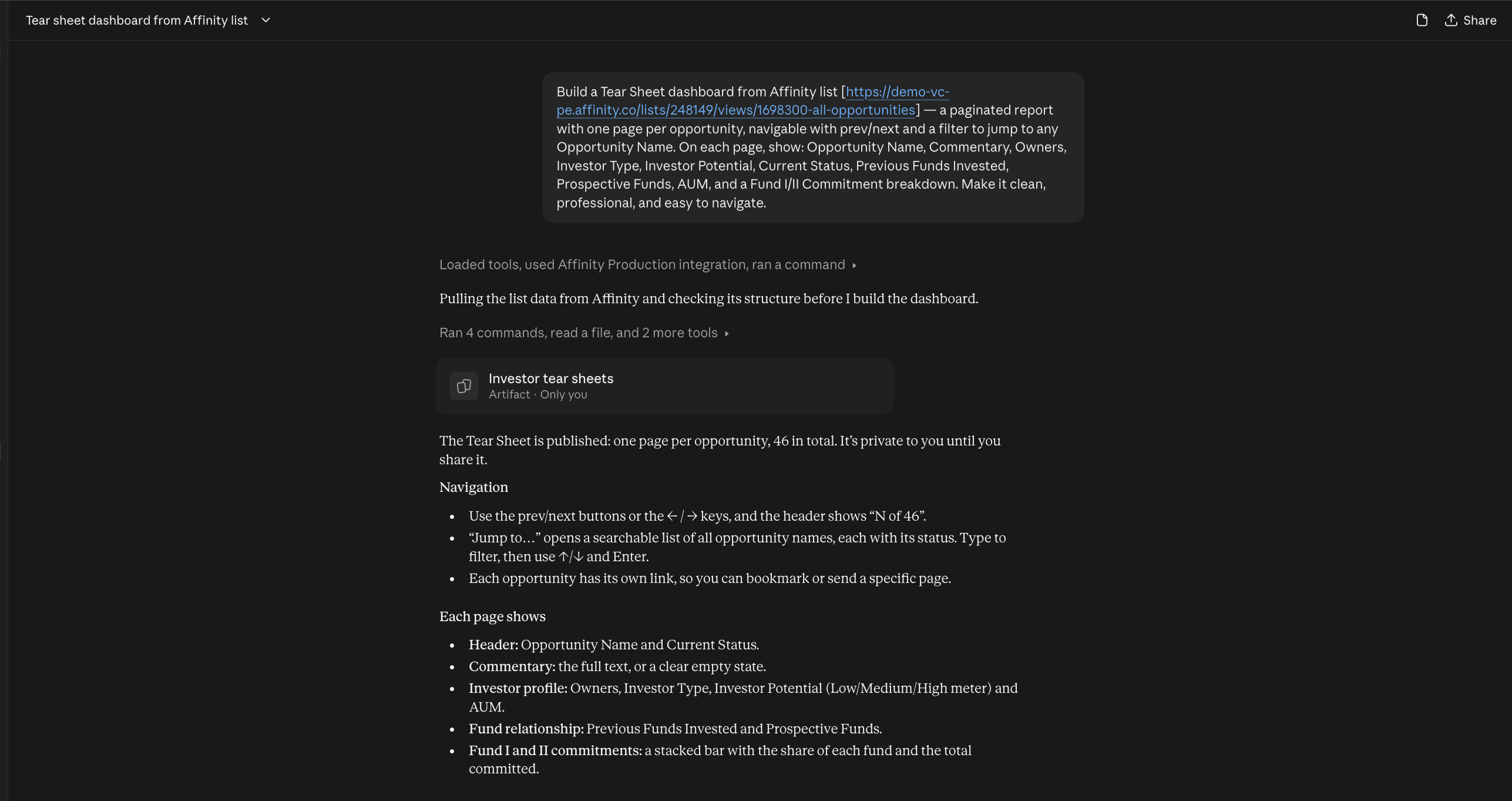
Note: The more specific you are, the better the result. Name the exact list, the exact fields, and the layout you want. A vague prompt like “show me my investors” won’t reliably produce the same tear sheet twice.
Schedule a task
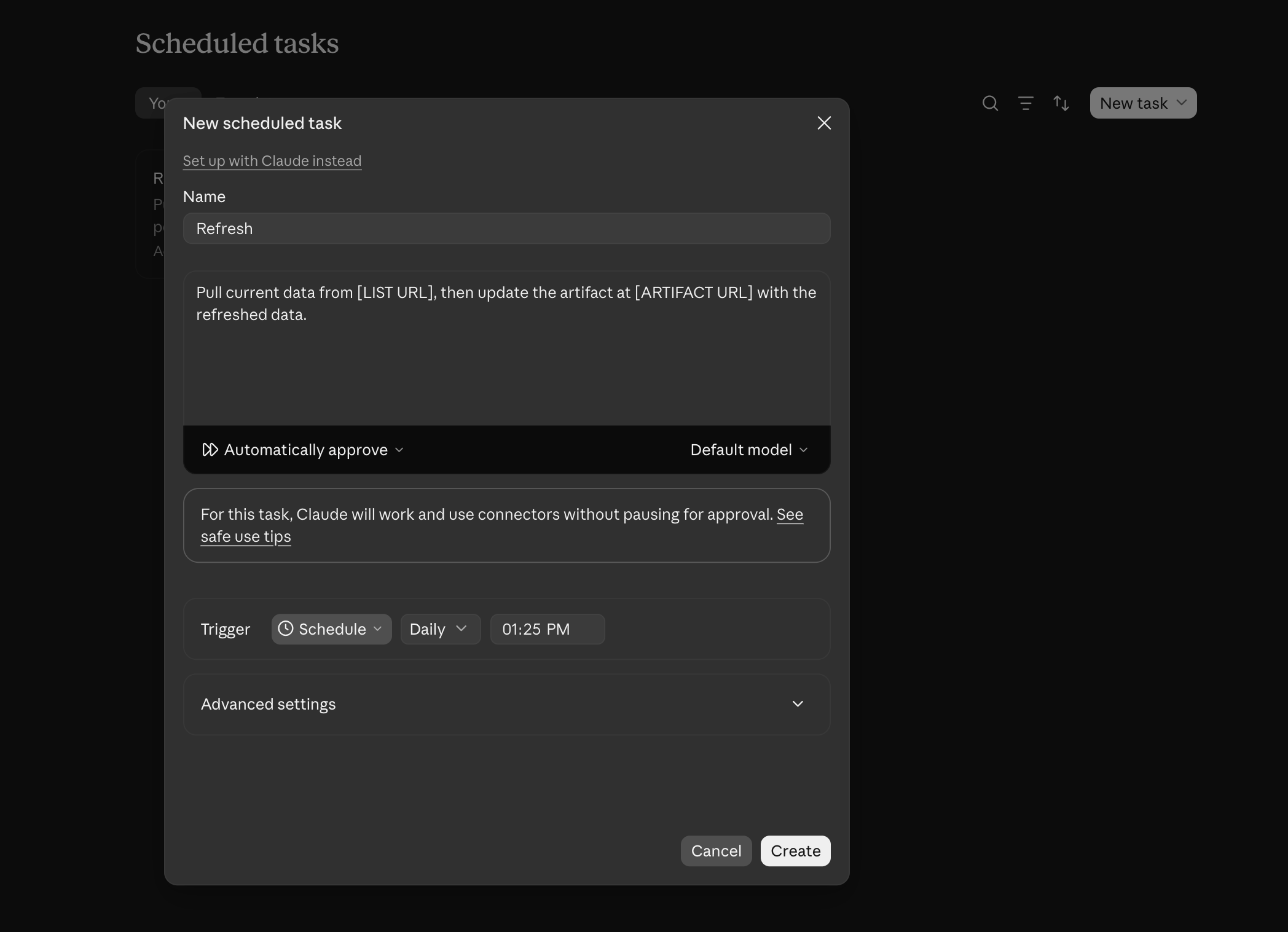
Once you create your dashboard, it’s only a snapshot of your pipeline. To make sure your data is up to date, you need to schedule a task to refresh it. Use the following steps to schedule your task:- Navigate to “Scheduled”.
- Click on “New Task”
- Click on “Set up manually”
- In the pop up window, fill out relevant information. Refer to the example below:
- Name: Refresh Dealflow Dashboard.
- Instructions: Pull current data from [pipeline list name], then update the artifact at [artifact link] with the refreshed data.
- Frequency: Daily at 10:30AM.
- Permissions: Automatically approve.
- Save.