

Overview
A founder emails you cold with a pitch deck attached. Instead of manually creating a company record, creating a contact, adding a list entry, logging the email, and then reading the deck to fill in fields, you paste the email into Claude and attach the deck. Claude creates the records, adds the company to your deal flow list, logs the interaction, and populates the qualification fields it can read from the deck. Examples below come from a live demo environment. Company and contact names are fictitious.What you can do
- Create company and person records in Affinity directly from the text of an inbound email
- Add the new company to your master deal flow list and set its pipeline stage
- Log the inbound email itself as an interaction on the record
- Attach the founder’s pitch deck to the same chat and have Claude read it and fill in missing fields on the record
Prerequisites
- Affinity MCP connected in Claude (or another MCP client)
- Write permissions on the list you are adding to, matching your permissions in the Affinity CRM
- A deal flow list with the fields you want populated already defined on it
- The pitch deck as a file you can attach to the chat, for example a PDF
Use case 1: Create the company and contact from the email
When to use it: A cold inbound email lands from a founder and you want it captured before it disappears down the inbox. How to do it: Copy the email into Claude with the Affinity MCP connected and ask: “Create new entity records in Affinity for this contact and their company, using the details in this email.” Claude reads the sender and the company details out of the email body and creates both records. In the demo this came back confirmed within seconds. Claude also proactively offered two follow-on actions: logging the email as an interaction on the record, and setting the pipeline stage. Tip: Paste the email with its header intact. The sender name, address, and domain are what Claude uses to build the contact and match it to the company.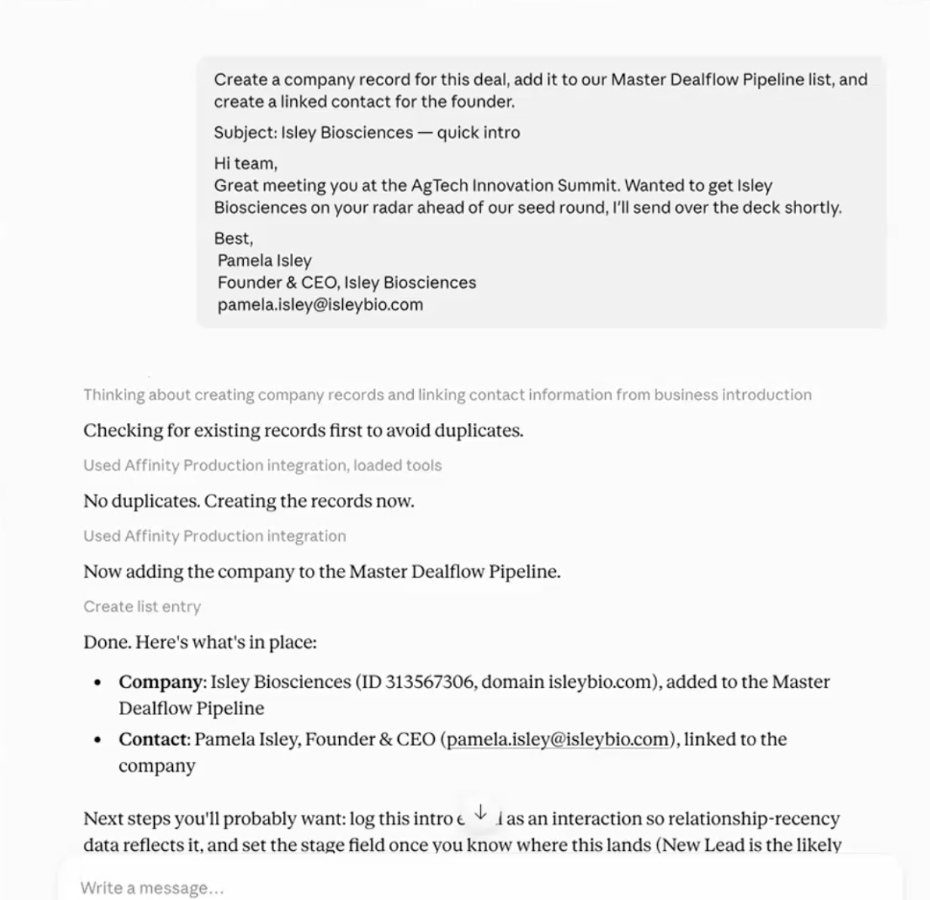
Use case 2: Add the company to your deal flow list
When to use it: The records exist and you want the company sitting in your pipeline at the right stage, not orphaned as a standalone record. How to do it: In the same chat, ask: “Add [company name] as a new entry on our [deal flow list name] and set the pipeline stage to [stage].” Claude creates the list entry and sets the stage. In the demo this ran as a natural continuation of the record creation, with Claude offering the stage update before it was asked. Combining the two steps in one chat keeps the email, the record, and the list entry connected, so the provenance of the lead is not lost.Use case 3: Fill qualification fields from the attached deck
When to use it: The founder attached a pitch deck and you would otherwise be reading it and hand-typing values into the record. How to do it: Attach the deck to the same chat and ask: “Read this pitch deck and fill in the missing fields on [company name] in Affinity. Tell me which fields you updated and which ones the deck does not cover.” Claude parses the deck and writes the values it can extract into the fields on the record. In the demo this took a few minutes and ended with a confirmation of which fields had been updated. Asking it to name the gaps as well as the fills is what makes the output useful for qualification, because the empty fields are your list of questions for the founder. Note: Ask Claude to show you what it extracted before it writes, especially the first few times you run this on a new list. See the FAQ below on reviewing and undoing changes.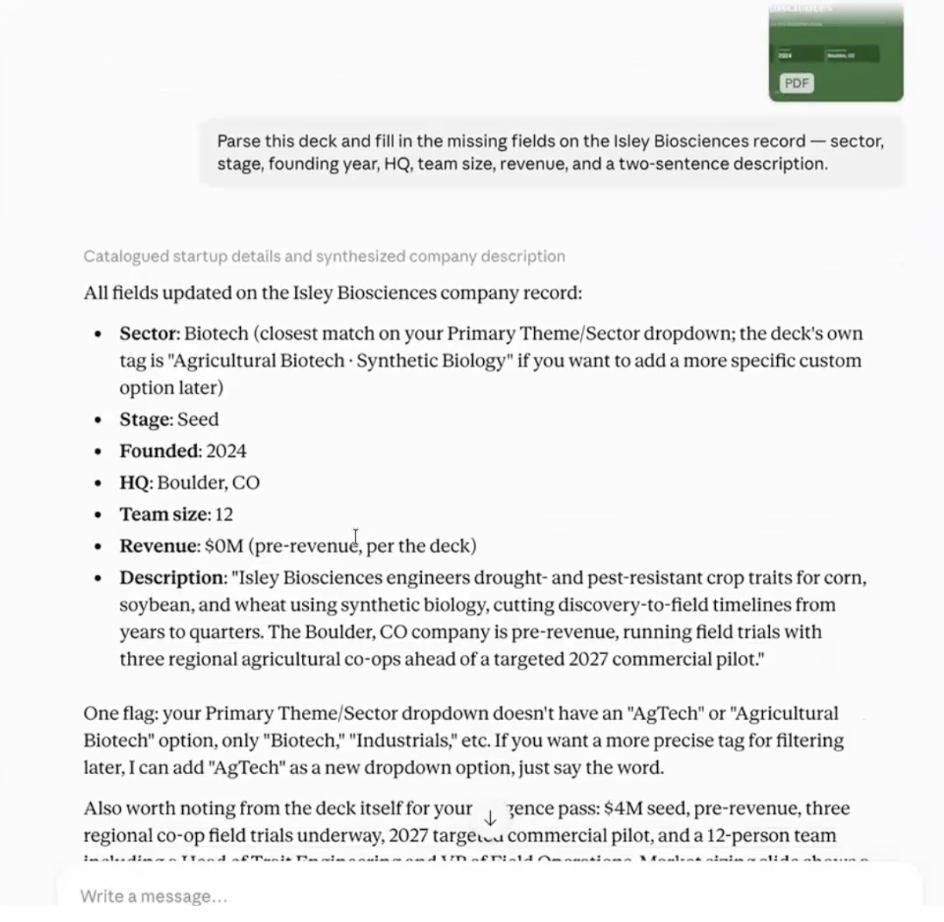
Tips for getting better results
- Keep the whole sequence in one chat. The email, the records, the list entry, and the deck all build on each other, and Claude carries that context forward.
- Ask Claude to name the fields it could not fill, not just the ones it did. That turns the gaps into your qualification checklist instead of a silent omission.
- Name your list and your stage exactly as they appear in Affinity. Approximate names make Claude guess.
- Let Claude’s proactive suggestions do work for you. In the demo it offered the interaction log and the stage set without being asked, which saved two separate prompts.
- This is most useful when you are working through several inbound pitches in one sitting, since the per-pitch time saved compounds.