

Getting started with lists
To get started, we’ll focus on three different lists you can create from scratch.- Deals List - Use an organization list to track all your/your team’s deals in one place
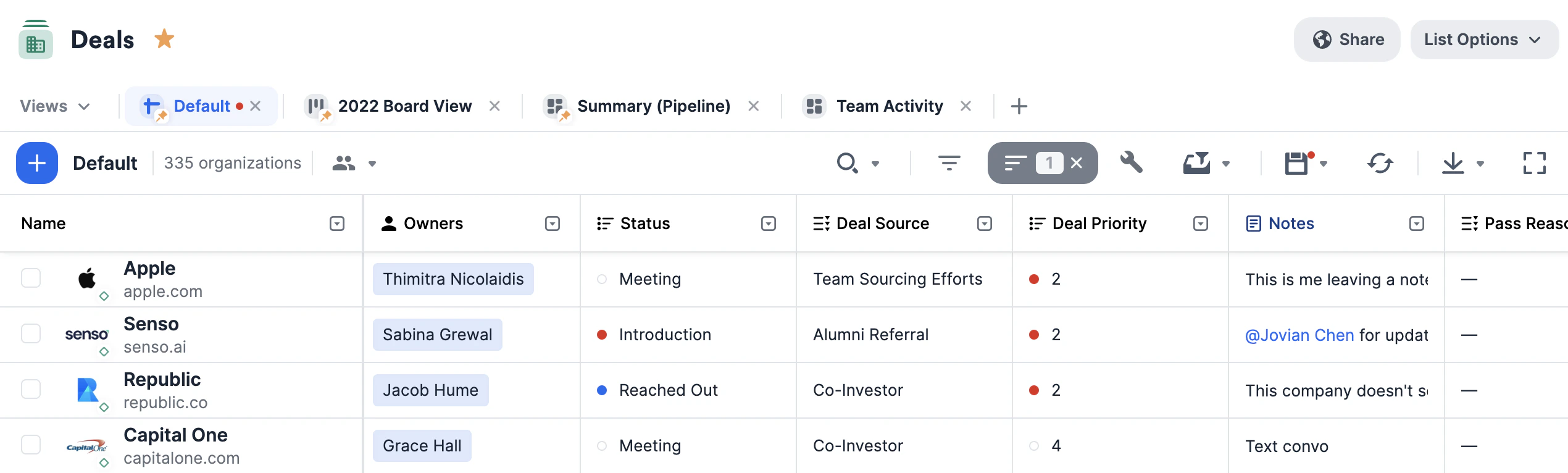
- Leverage the default Status, Owners, Notes, and Reminders columns.
- Create custom columns like Focus, Deal Source, Referred By, and Thesis.
- Filter and sort by different columns to create a saved view.
- You can create a board view within this list to visualize your deals by different stages of the pipeline.
- Keep these relationships warm by setting up reminder triggers.
- Portfolio Companies List - Use an organization list to track all of your portfolio companies in one place.
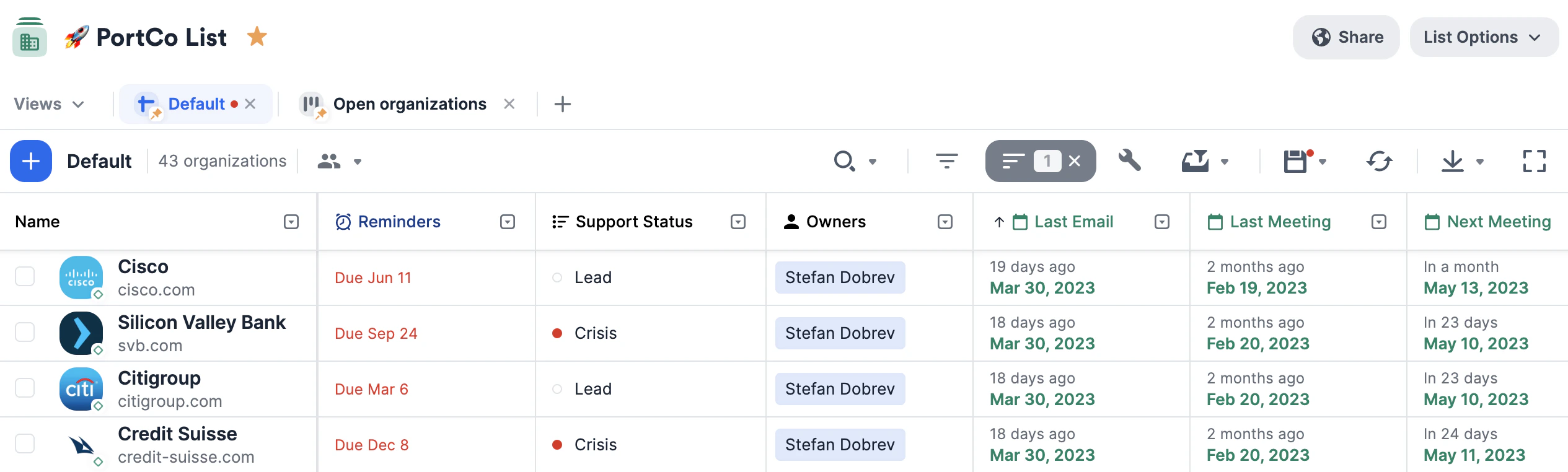
- Leverage the default Status, Owners, Notes, and Reminders columns.
- If you’re on the Enterprise tier, you can leverage exclusive Affinity Data fields like Employee Hires, Employee Departures, and Employee Growth.
- Create custom columns like Number of Shares, Share Class, Board Seat, % of Ownership, and Fund.
- Filter and sort by different columns to create a saved view.
- Co-Investors List - Use an organization list to track all of your current and potential co-investors in one place.
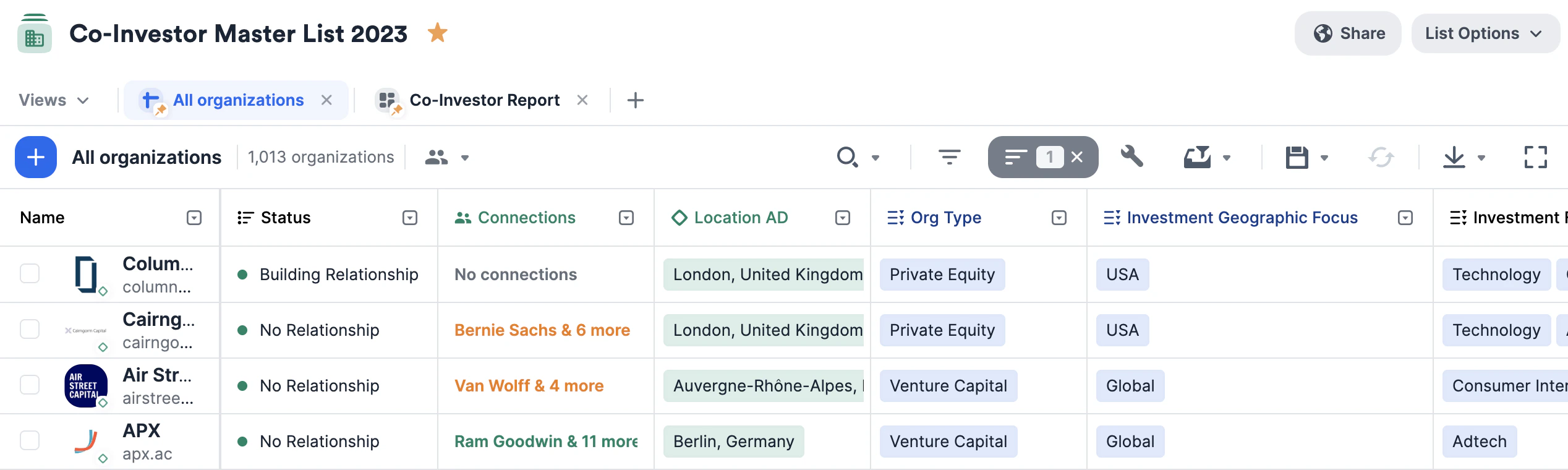
- Leverage the default Status, Owners, Notes, and Reminders columns.
- Create custom columns like Investment Focus, Investment Geographic Focus, Minimum Check Size, Maximum Check Size, and Org Type.
- Keep these relationships warm by setting up reminder triggers.
Importing data into these lists
Now that you have these lists set up, quickly migrate data from other CRMs into Affinity using our data importer. We highly encourage you to review our article on How to import your data into Affinity.Getting started with reporting/analytics
Once your lists are filled with relevant data, you can leverage Affinity Analytics if you’re on the Scale, Advanced, or Enterprise tiers.- Getting started with Affinity Analytics
- Affinity Analytics - List Summary Reports
- Affinity Analytics - Status Reports for Investment Banking
- Affinity Analytics - Introductions Summary Reports
- Affinity Analytics - Team Activity Reports
- Affinity Analytics - Funnel Analysis Reports
- Get notified when certain metrics/thresholds are met using Affinity Analytics alerts.