

How-to — task-oriented recipe.
Overview
Create multiple saved views that give you instant access to different pipeline perspectives - from weekly follow-ups to geographic planning to upcoming meetings. This workflow eliminates manual filter recreation and ensures you always have the right data cut for your current task. What you’ll accomplish: Build a suite of 5-8 saved views that cover your core pipeline management needs, enabling you to switch contexts instantly rather than spending time recreating filters. Who it’s for: Investment professionals, deal managers, sourcing teams, and anyone managing a pipeline of companies or opportunities. When to use this: Setting up your pipeline management system, onboarding to New Lists, or optimizing your daily deal flow workflows. Note: If you need to change view permissions and don’t see the option in New Lists, switch that list to Classic to manage them.Prerequisites
- Active pipeline or sourcing List
- Understanding of your regular pipeline workflows and review cadences
- Familiarity with filters and sorts (see How to Filter and Sort in New Lists)
Workflow Steps
Step 1: Identify Your Core Pipeline Perspectives
Map out your regular workflows: Weekly/Daily reviews:- What do you review every Monday?
- What needs daily attention?
- What filters help you prioritize? Common pipeline views needed:
- Purpose: Identify deals needing outreach
- Criteria: Active status, sorted by Last Contact (oldest first)
- Frequency: Weekly 2. Hot Deals View:
- Purpose: Track high-priority active opportunities
- Criteria: Status = Active, Priority = High, sorted by Next Meeting
- Frequency: Daily 3. Geographic Planning View:
- Purpose: Plan travel and regional meetings
- Criteria: Active deals, sort by Location, filter by region as needed
- Frequency: Monthly or before trips 4. Upcoming Meetings View:
- Purpose: Prepare for this week’s meetings
- Criteria: Next Meeting = This week, sorted by meeting date
- Frequency: Start of week 5. Data Quality Audit View:
- Purpose: Identify incomplete records
- Criteria: Empty critical fields (Next Steps, Status, Owner)
- Frequency: Monthly List your top 5-8 views: Document which perspectives you need most frequently
Step 2: Create Your First Core View (Weekly Follow-ups)
Build the view:- Open your pipeline List
- Apply filters:
- Status = Active (or your equivalent active stage)
- Apply sort:
- Last Contact (oldest first) - surfaces deals needing attention
- Customize columns:
- Show: Name, Status, Owner, Last Contact, Next Steps, Last Meeting
- Hide: Less relevant fields for follow-up workflow
- Test: Verify it shows deals you should contact
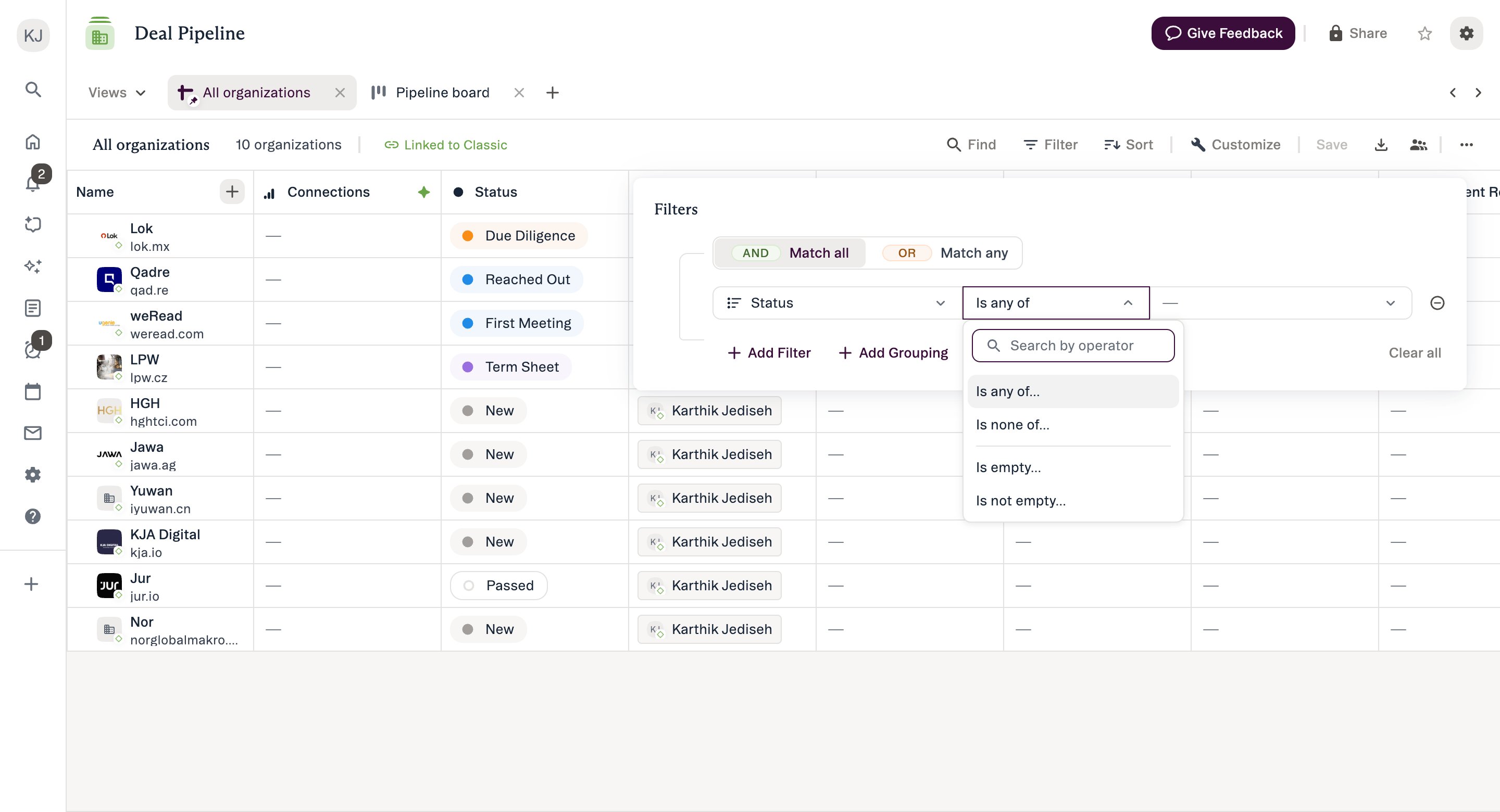
- Click Save button
- Name: “Weekly Follow-up Review”
- Click Save Use it:
- Every Monday, open this view
- See exactly which deals haven’t been contacted recently
- Work down the list systematically
Step 3: Create Geographic Planning View
Build the view:- Start from your default List view (or duplicate Weekly Follow-up)
- Apply filters:
- Status = Active
- Location = [Your target region, e.g., “California”] OR leave unfiltered to see all
- Apply primary sort:
- Location (alphabetical) - groups by city/region
- Apply secondary sort:
- Next Meeting (soonest first) - priorities within each location
- Customize columns:
- Show: Name, Location, Status, Next Meeting, Last Contact, Owner
- Reorder: Name → Location → Next Meeting → Status Save the view:
- Click Save
- Name: “West Coast Trip Planning” (or your region)
- Click Save Use it:
- Before travel or regional meetings
- Filter further by specific cities if needed
- Identify clustering opportunities (multiple companies in same city)
- Plan efficient meeting schedules
Step 4: Create Upcoming Meetings View
Build the view:- Apply filters:
- Owner = Me (your deals only)
- Next Meeting = This week (or Within next 7 days)
- Apply sort:
- Next Meeting (soonest first)
- Customize columns:
- Show: Name, Next Meeting, Last Contact, Meeting Notes, Agenda
- Hide: Less relevant fields for meeting prep Save the view:
- Click Save
- Name: “This Week’s Meetings”
- Click Save Use it:
- Monday morning: See week’s meeting lineup
- Before each meeting: Review company context
- After meetings: Update Next Steps directly in view
Step 5: Create Data Quality Audit View
Build the view:- Apply filters using Boolean logic (New Lists only):
- (Next Steps = is empty) OR (Status = is empty) OR (Owner = is empty)
- Apply sort:
- Last Contact (newest first) - most recently touched deals should have data
- Customize columns:
- Show: Name, Status, Owner, Next Steps, Last Contact, Date Added
- Highlight which fields are empty Save the view:
- Click Save
- Name: “Data Quality - Empty Critical Fields”
- Click Save Note: This creates a New Lists variant (Boolean OR filter not in Classic)
- Monthly data hygiene reviews
- Before pipeline reviews with partners
- When onboarding new team members (show them what needs completion)
Step 6: Create Hot Deals View
Build the view:- Apply filters:
- Status = Active
- Priority = High (or create Priority field if doesn’t exist)
- Apply sorts:
- Priority (High to Low)
- Next Meeting (soonest first)
- Last Contact (most recent first)
- Customize columns:
- Show: Name, Priority, Status, Next Meeting, Investment Amount, Owner Save the view:
- Click Save
- Name: “Hot Deals - High Priority”
- Click Save Use it:
- Daily check-in on most important opportunities
- Partner sync meetings
- Quick status updates to leadership
Step 7: Organize and Optimize Your Views
Favorite your most-used views:- Click Views navigator
- Star icon on your top 3-4 views:
- Weekly Follow-up Review
- This Week’s Meetings
- Hot Deals
- Favorited views easy to spot in selector Test view efficiency:
- Track: How often do you use each view?
- Note: Any missing views you wish you had?
- Observe: Any views you’re not using? Week 2: Optimize
- Delete unused views
- Create any missing views you identified
- Adjust filters/sorts based on actual usage
- Reorder columns if needed
Step 8: Establish View-Based Routines
Create time-based habits: Monday Morning (15 minutes):- Open “This Week’s Meetings” → Review and prep
- Open “Weekly Follow-up Review” → Identify top 5 to contact
- Open “Hot Deals” → Check for any urgent updates Daily (5 minutes):
- Open “Hot Deals” → Quick status check
- Open “This Week’s Meetings” → Tomorrow’s meeting prep End of Month:
- Open “Data Quality Audit” → Clean up empty fields
- Open “Geographic Planning” → Plan next month’s travel Quarterly:
- Review all saved views → Delete unused
- Create new views for emerging workflows
- Share effective personal views with team
Expected Outcome
- 5-8 saved views covering all core pipeline management needs
- Instant switching between perspectives (no manual filter recreation)
- Time saved: 10-15 minutes daily (vs recreating filters each time)
- More consistent pipeline reviews (saved filters ensure nothing missed)
- Better meeting preparation (dedicated view for upcoming meetings)
- Improved data quality (regular use of audit view)
- Clear weekly routines built around specific views
Tips & Best Practices
Starting Out:- Create 3 views first: Weekly follow-ups, upcoming meetings, hot deals
- Use for 2 weeks: See which views you actually use
- Add more as needed: Don’t create all 8 views day one
- Iterate: Views are easy to modify - start simple, refine over time View Design:
- Single clear purpose per view: “Weekly follow-ups” not “General pipeline”
- Match review cadence: Daily views = simple, monthly views = comprehensive
- Sort strategically: First sort = primary priority dimension Efficiency Tips:
- Use Find in View: Search within saved view without changing filters Advanced Techniques:
- Create time-boxed views: “This Week”, “This Month”, “This Quarter”
- Create stage-specific views: One view per deal stage for focused work
- Create owner-specific views: See your deals, partner’s deals, team’s deals
- Create audit views: Multiple data quality views for different field types
Common Mistakes
- Too many columns: Makes views slow and hard to scan
- Too complex filters: Hard to understand what view shows
- Not using enough: Creating views but still recreating filters manually
- Not cleaning up: View selector becomes cluttered with old views
Example Use Case
Lauren, an Associate at a growth equity fund, manages 120 companies in her pipeline: The Problem:- Spent 15 minutes every Monday recreating filters for weekly review
- Forgot to follow up with deals during busy weeks
- Couldn’t quickly see upcoming meetings
- Data quality issues (missing Next Steps, empty fields)
- Geographic trip planning was manual and time-consuming Week 1 - Created Core Views:
- Filters: Status = Active, Owner = Me
- Sort: Last Contact (oldest first)
- Columns: Name, Last Contact, Next Steps, Status
- Result: 22 deals needing outreach **View 2: “This Week’s Meetings” **
- Filters: Next Meeting = This week, Owner = Me
- Sort: Next Meeting (soonest first)
- Columns: Name, Next Meeting, Last Contact, Agenda Notes
- Result: 5 meetings lined up View 3: “Hot Deals”
- Filters: Priority = High, Status = Active
- Sort: Next Meeting, then Last Contact
- Columns: Name, Priority, Next Meeting, Investment Amount, Deal Champion
- Result: 8 critical opportunities Week 2 - Added Specialized Views:
- Filters: Status = Active, Location contains California OR Washington OR Oregon
- Sort: Location (alphabetical), then Next Meeting
- Result: 18 companies, clustered by city for trip planning View 5: “Data Quality Check”
- Filters: (Next Steps = empty) OR (Status = empty), Last Contact = Within 30 days
- Sort: Last Contact (newest first)
- Result: 12 recently touched deals missing critical data Week 3 - Established Routine:
- “This Week’s Meetings” view (2 min) → Reviewed 5 meetings, prepped context
- “Weekly Follow-ups” view (8 min) → Identified top 10 to contact, sent emails
- “Hot Deals” view (2 min) → Updated 2 statuses, checked partner meeting prep Daily (3 minutes):
- “Hot Deals” quick check
- “This Week’s Meetings” for tomorrow’s prep Month-End (20 minutes):
- “Data Quality Check” → Filled 12 empty Next Steps fields
- “West Coast Planning” → Scheduled 6 meetings for upcoming SF trip
- Created new view: “Q1 Target Closes” for quarterly planning