Note: The pipeline examples referenced throughout come from Affinity’s demo environment. Your own charts will reflect whatever fields and naming your team actually uses.
What you can do
- Get an instant read on how deals are distributed across pipeline stages
- See the same data as a funnel to spot where deals are stalling
- Pull a log of which fields changed, when, and by whom
- Understand at what stage you are losing your deals
- Deal movement on monthly basis
- Combine multiple views into a single dashboard artifact for a partner meeting or IC deck
Prerequisites
- Affinity MCP connected in Claude (or another MCP client)
- A maintained pipeline list in Affinity, since Claude reads directly from it and no new data entry is needed
- Stage column populated and at least a few status changes performed in Affinity.
- A few minutes of patience for the combined dashboard, since it aggregates more data than a single chart
Use case 1: Stage distribution at a glance
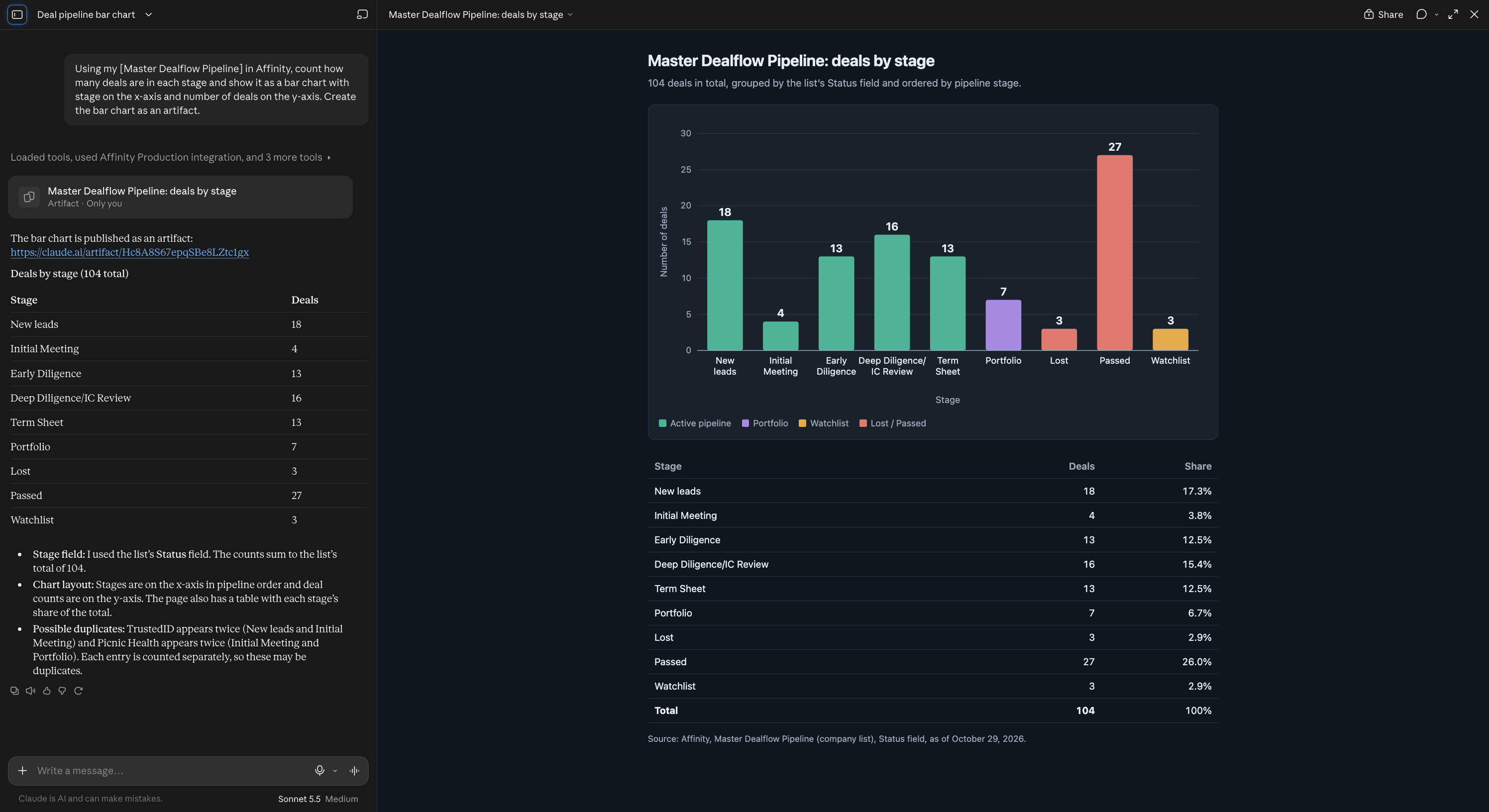
How to do it: Open Claude with the Affinity MCP connected and ask:
“Using my [pipeline list name] in Affinity, count how many deals are in each stage and show it as a bar chart with stage on the x-axis and number of deals on the y-axis. Create the bar chart as an artifact.” Claude will call the Affinity MCP, pull every entry on the list, read the stage field on each one, and total it up before building the chart. This typically takes 20-30 seconds; the more deals on the list, the longer the count takes.Note: the more specific you are, the better the result. Name the exact list and the exact chart type. A vague prompt like “show me my pipeline” won’t reliably produce the same chart twice.
Use case 2: Deal flow funnel
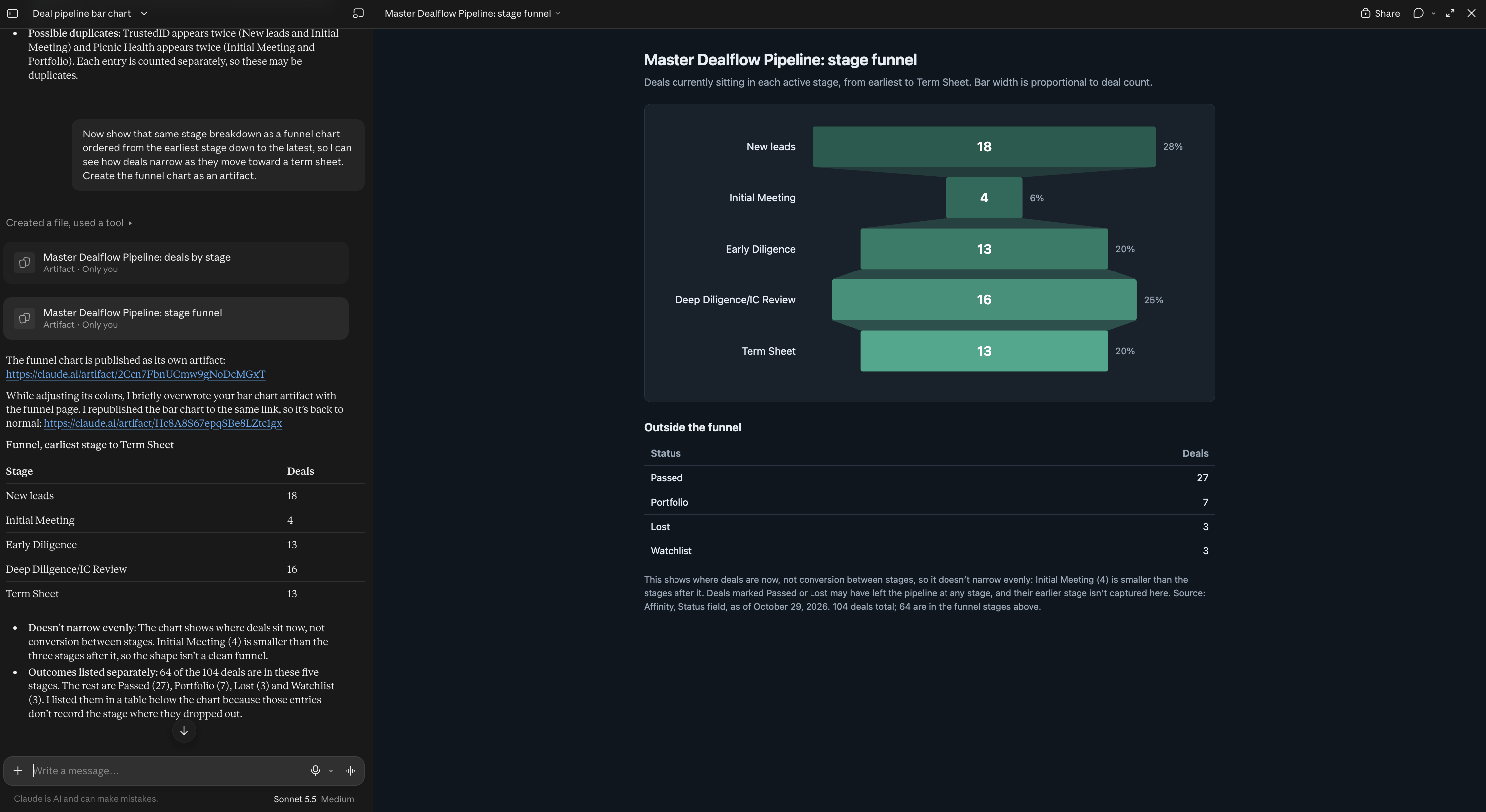
How to do it: In the same conversation, follow up with:
“Now show that same stage breakdown as a funnel chart ordered from the earliest stage down to the latest, so I can see how deals narrow as they move toward a term sheet. Create the funnel chart as an artifact.” Because Claude already pulled the pipeline data for the bar chart, this reshapes what it already has rather than re-querying Affinity, so it runs faster. A short funnel at the top usually points to a top-of-funnel sourcing gap; a wide bulge in the middle can mean a bottleneck, for example a backlog in IC review. This is the view worth bringing to an IC discussion or a quarterly LP update, since it shows discipline in moving deals forward, not just volume.Use case 3: Average Days in Each Status
When to use it: You want to identify bottlenecks. What stage do you spend the most time in?How to do it: Open Claude with the Affinity MCP connected and ask:
“Using my [pipeline list name] in Affinity, calculate the average days spent in each status. Then, turn it into a bar graph with status names on the x-axis and avg. days on the y-axis.” Claude will call the Affinity MCP, pull every entry on the list, read the stage changes on each one, and average it up before building the chart. This typically takes 2 minutes; the more deals on the list, the longer the count takes.Use case 4: Last Status Before Lost
When to use it: You want to analyze at what stages you are losing the most deals.How to do it: Open Claude with the Affinity MCP connected and ask:
“Using the [pipeline list name] list in Affinity, analyze the Status field change history to find every deal that moved into Lost. For each one, identify the status it was in immediately before the move to Lost. Then build a bar chart where:- X-axis: previous status name (for example, New leads, Early Diligence, Deep Diligence/IC Review, Passed)
- Y-axis: count of deals
Use case 5: Recent status-change log
When to use it: You want a log of what changed on your pipeline recently, and who made the change. Useful for a quick data-quality check or a team standup.How to do it: Ask:
“What deal statuses have changed in the last seven days? For each one, tell me the company, what changed, and who made the change. Create a table as an artifact.” Claude returns a change log: when each change was made, the company, what the change was, and who made it. This draws on the same status-change timestamps used for the time-in-stage view above.Use case 6: Deal Movement
When to use it: You want to understand how many deals you moved to a certain stage during a specific time period.How to do it: Open Claude with the Affinity MCP connected and ask:
“Using the [pipeline list name] list in Affinity, analyze the Status field change history to count how many deals moved into each status (New leads, Initial Meeting, Early Diligence, Deep Diligence/IC Review, Term Sheet, Portfolio, Lost, Passed, Watchlist) in each calendar month. Then build a stacked bar chart where:- X-axis: month and year (e.g., “Sep 2026”)
- Y-axis: count of deals
- Stack segments: status the deal moved into
Use case 7: One combined dashboard
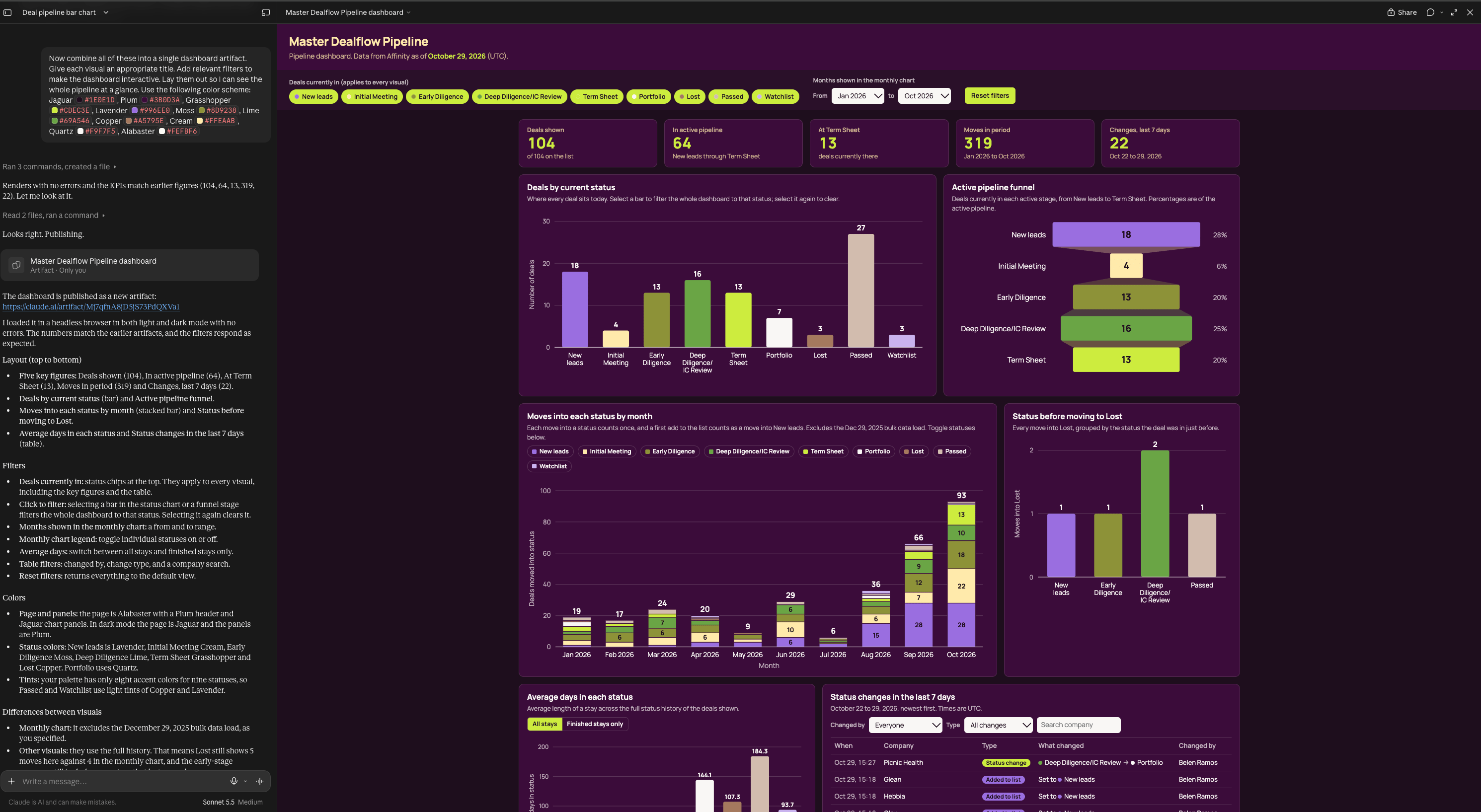
How to do it: Once you’ve asked for the views above in the same conversation, ask:
“Now combine all of these into a single dashboard artifact. Give each visual an appropriate title. Add relevant filters to make the dashboard interactive. Lay them out so I can see the whole pipeline at a glance. Use the following color scheme: Jaguar #1E0E1D, Plum #3B0D3A, Grasshopper #CDEC3E, Lavender #996EE0, Moss #8D9238, Lime #69A546, Copper #A5795E, Cream #FFEAAB, Quartz #F9F7F5, Alabaster #FEFBF6”AGUAR Because everything it needs is already in the conversation, Claude doesn’t re-query Affinity; it just arranges the data it already pulled. This is the heaviest ask of the five use cases here, since it’s aggregating and laying out multiple views, so expect it to take roughly a minute.Tips for getting better results
- Name the exact list. “My pipeline” is ambiguous; “my Master Deal Flow Pipeline list” isn’t.
- Ask for a specific chart type and axis layout. Bar, funnel, and horizontal bar all produce different results, so say which one and what goes on which axis.
- Build on the conversation. Once Claude has pulled your pipeline data, follow-up requests to reshape or combine it run faster and don’t require re-explaining the list.
- Create a consistent structure for your prompts. E.g when describing the visual, follow this structure:
- Title: # of Deals (L6M)
- Description: Get the number of deals added to the pipeline in the last 6 months. Use the date added date field for this.
- Layout: Build a bar chart with the name of the month on the x-axis and count of deals on the y-axis.
Schedule a task
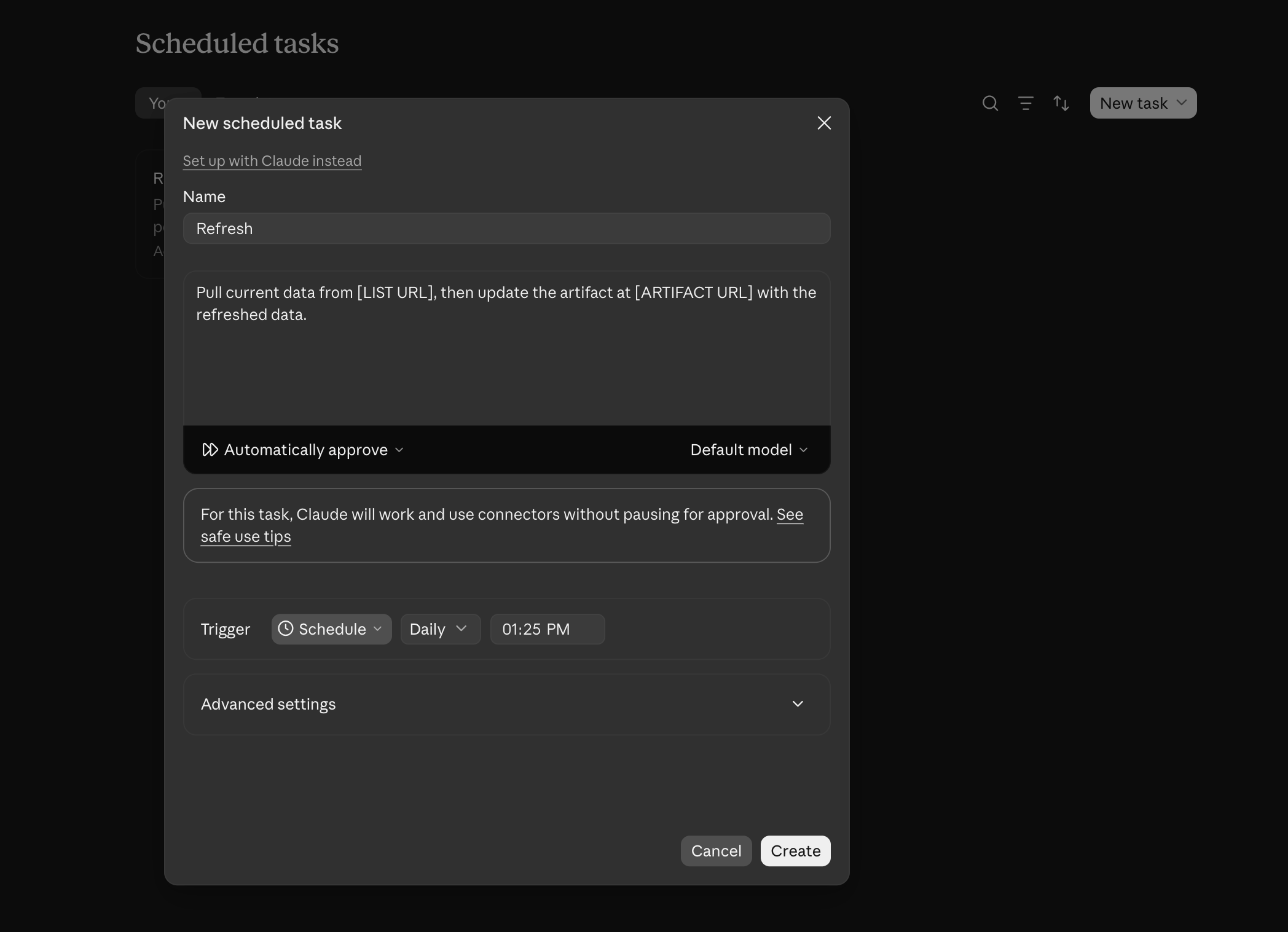
Once you create your dashboard, it’s only a snapshot of your pipeline. To make sure your data is up to date, you need to schedule a task to refresh it. Use the following steps to schedule your task:- Navigate to “Scheduled”.
- Click on “New Task”
- Click on “Set up manually”
- In the pop up window, fill out relevant information. Refer to the example below:
- Name: Refresh Dealflow Dashboard.
- Instructions: Pull current data from [pipeline list name], then update the artifact at [artifact link] with the refreshed data.
- Frequency: Daily at 10:30AM.
- Permissions: Automatically approve.
- Save.