

Before you start: prerequisites
- Your calendar is connected to Affinity. The agent works from your synced external meetings.
- Affinity Notetaker is turned on. It takes the note and attaches it to the meeting automatically, which is what triggers the suggested updates. Available on Scale, Advanced, or Enterprise.
- The Meeting Prep and Data Update agents are on. Ascend has been on by default since August 5 unless your org opted out (admins manage it at Settings → Automations & AI → Affinity AI, on the Ascend card). Then turn on Monitoring for each agent on the Ascend → Agents tab; it’s off until you do.
Step 1 — Before the meeting: open your brief
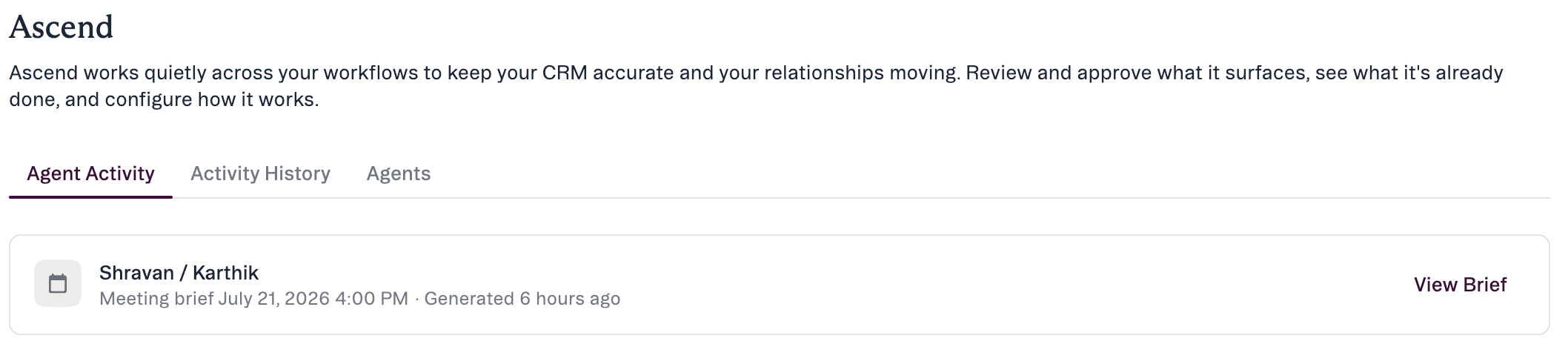
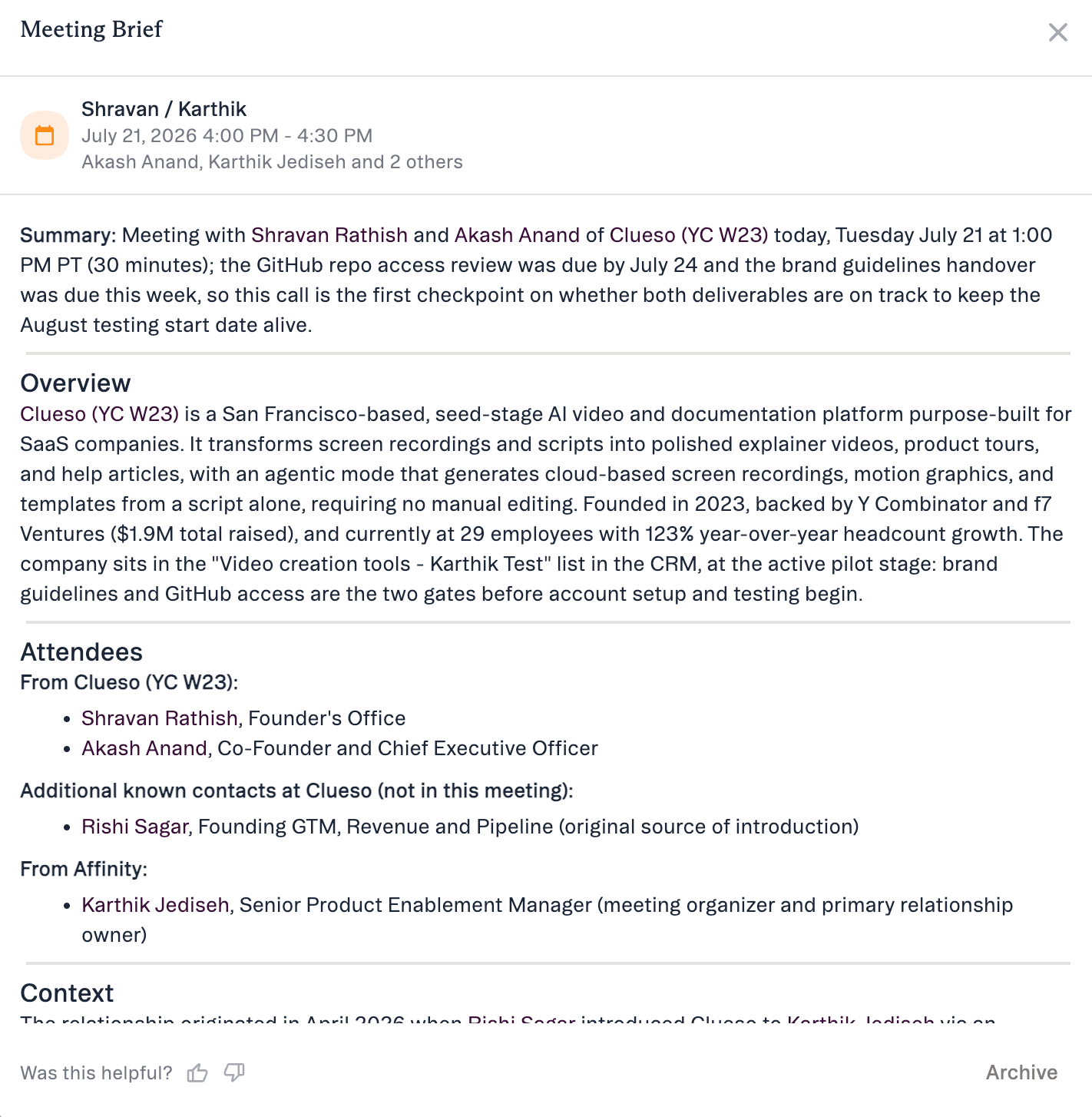
The Meeting Prep agent prepares a brief for your external meetings that pulls together relationship history, the last interaction and how recent it was, who else on your team is engaged, deal/pipeline context, and recent company news.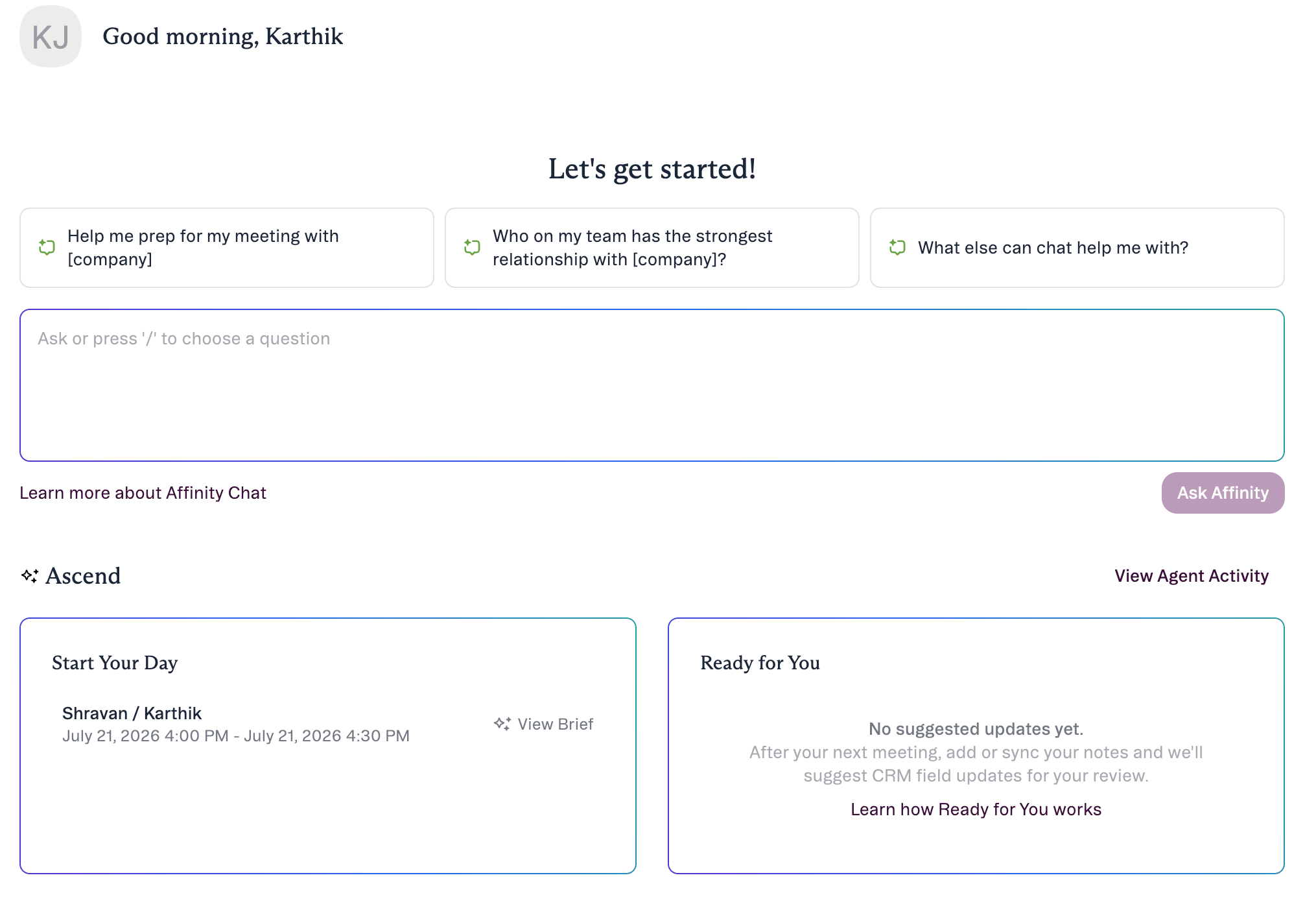
Step 2 — Have the meeting (a note gets created)
With Affinity Notetaker on, it captures the meeting note and attaches it to the meeting automatically. That attachment is the trigger: when a meeting note is created, the Data Update agent reviews the context and prepares suggested field updates in the background, usually in under a minute. External meetings only; you get one suggestion set per meeting, delivered to the note’s creator.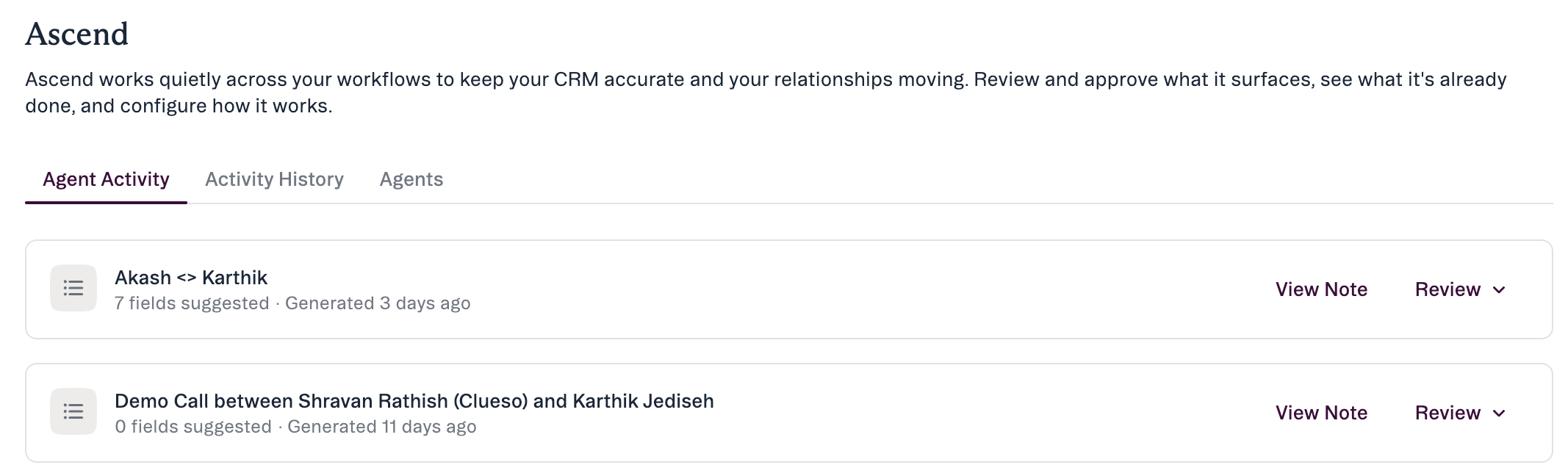
Step 3 — Open the suggestions
Go to the Agent Activity feed and expand Review on the Data Update agent’s item for that meeting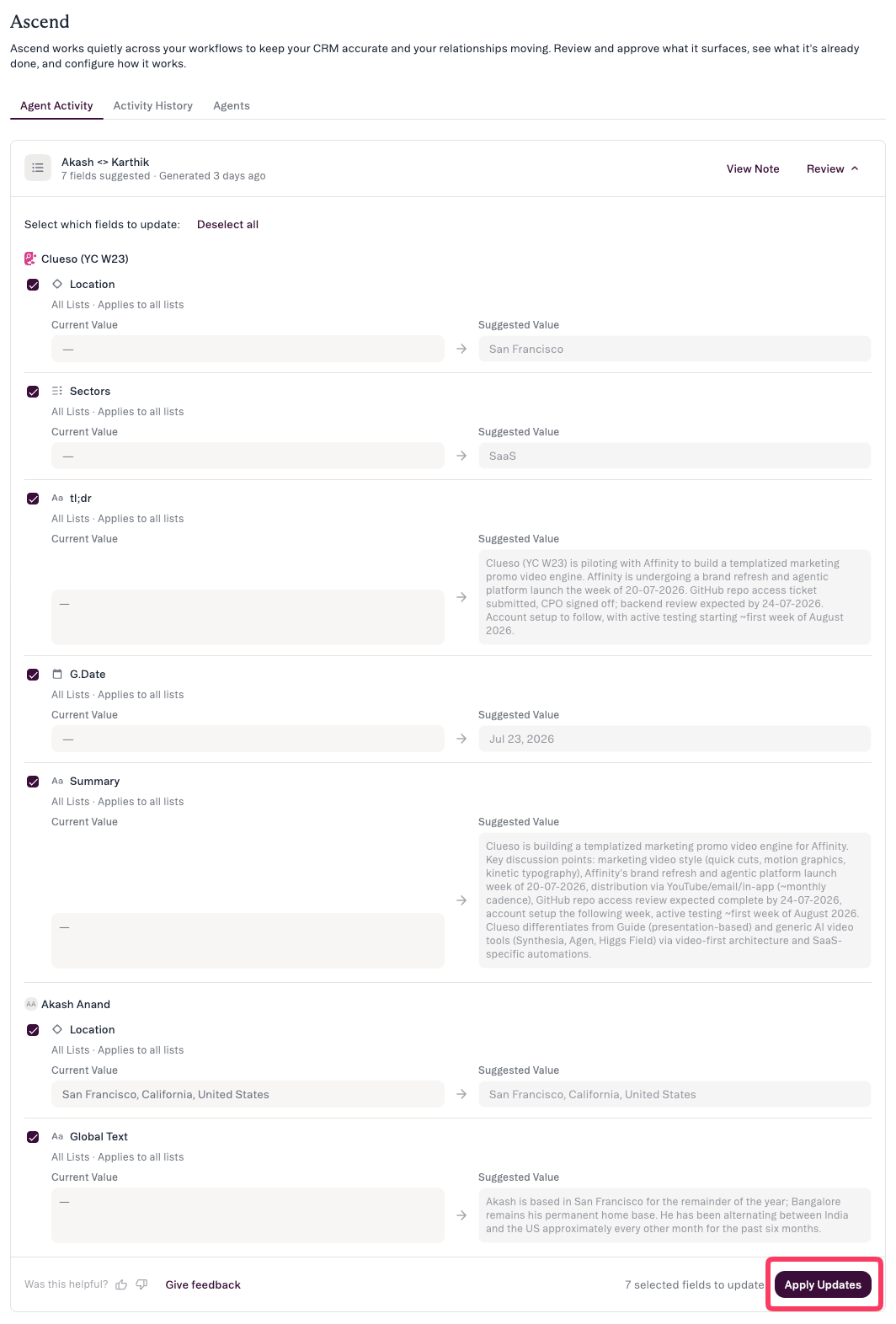
Step 4 — Review each change
With Review expanded, check the Current → Suggested value for each field, and open View Note to confirm it against the note:- Stage move — does it match how the call went?
- Next step — correct owner and action?
- Deal size — confirm against what was actually said.
Step 5 — Select the fields and apply
Nothing is written until you click Apply Updates.- Apply all — Select all, then Apply Updates.
- Apply some — check only the fields you agree with.
- Apply none — leave all boxes unchecked.
When it’s not perfect
- Suggested the wrong stage? Click Edit to pick the right one, or leave its checkbox unchecked and apply the rest.
- A figure looks wrong? Open View Note and verify before applying — it’s still AI.
- No suggestions appeared? The meeting may not have had enough context, the note may have attached to a record instead of the meeting (see the Granola tip in Step 2), or Monitoring may be off for Data Update (it’s off until you turn it on) — check Ascend → Agents.
- Wrong company on the item? Leave it unchecked; open View Note to see what it matched on.
Common questions
- Will it change anything on its own? No. Nothing is written until you click Apply Updates.
- Who sees the suggestions? The suggestion set goes to the note’s creator. The agent only sees and changes what your account can already access.
- I use Granola — why don’t I get suggestions? Suggestions trigger when a note is attached to the meeting; Granola attaches to the person/company record instead. See Getting your meeting notes into Affinity.
- How do I get access? GA on Scale / Advanced / Enterprise. Ascend is on by default for your org (admins manage it at Settings → Automations & AI → Affinity AI); each user turns on Monitoring on the Ascend → Agents tab.
Affinity AI can make mistakes. Review each suggestion before approving it.