

Overview
Before an event, hand Claude the organizer’s attendee CSV and have it check every name against your firm’s entire relationship history at once. You walk in knowing which firms you already know, who on your team owns each relationship, and which attendees are genuinely net new. This replaces searching every name against the database individually, which is the reason this prep usually never gets done. Examples below come from a live demo environment. Company and contact names are fictitious.What you can do
- Cross-reference an external attendee or invite list against your firm’s full relationship graph, not just your own contacts
- See which attending firms are already on a list you care about, ranked by relationship depth and recency of contact
- Isolate the attendees your firm has never had any contact with, so you know who to introduce yourself to
- After the event, bulk-update the contacts you added, setting follow-up status and priority in a single prompt
Prerequisites
- Affinity MCP connected in Claude (or another MCP client)
- The attendee list as a CSV or similar file you can upload into the chat
- Email and calendar sync turned on for your team, so the relationship intelligence layer has data to rank against
- A list in Affinity to match against, for example an LP prospects or target list
Use case 1: Cross-reference the attendee list against your firm’s network
When to use it: The organizer has sent the attendee list and you want to know who in the room you already have a relationship with, before you spend time prepping cold. How to do it: Upload the CSV into Claude with the Affinity MCP connected, then ask: “Cross-reference this conference attendee list against our Affinity network. Tell me which firms we already have a relationship with and which ones we have never had any contact with.” Claude matches every name in the file against your firm’s entire relationship history in one pass, rather than you searching them individually. In the demo, a single prompt split a 35-name room in real time: seven of the attending firms were already on the LP prospects list, ranked by depth and most recently logged interactions, and 13 allocators came back with no contact anywhere in the organization. Tip: Say “our firm’s network” or “our entire team,” not “my contacts.” The value here is that it reaches your colleagues’ relationships, not just your own.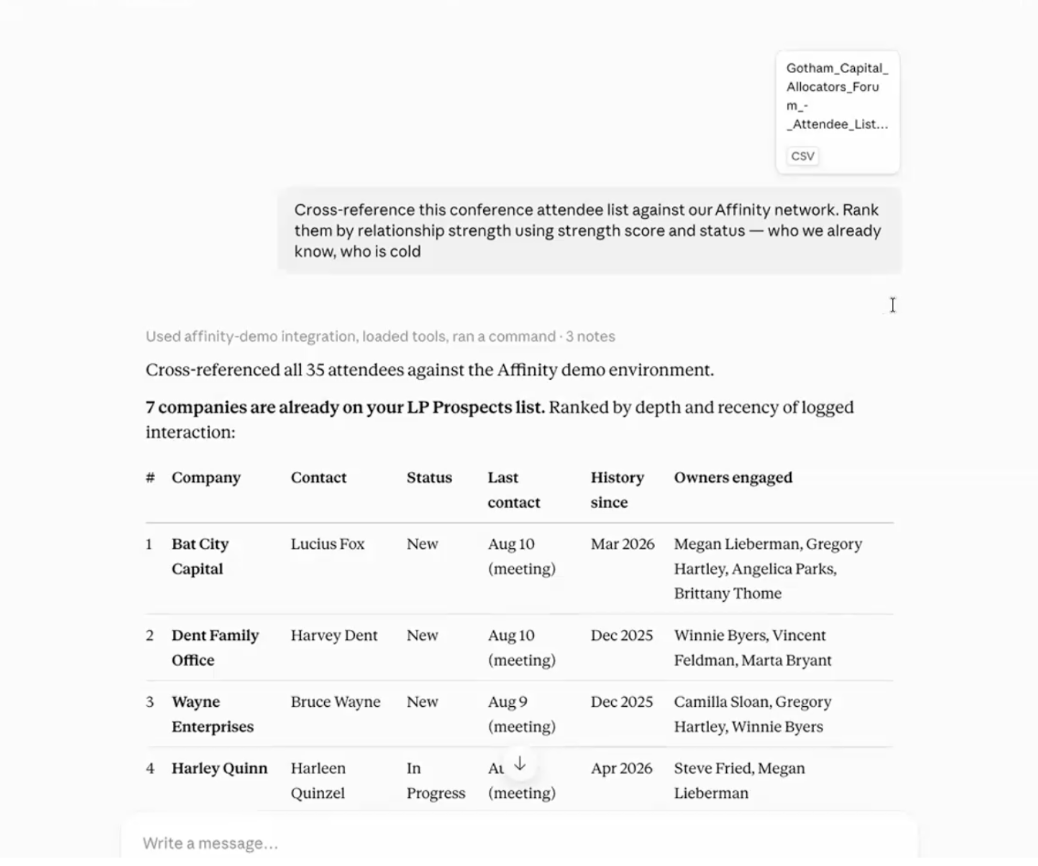
Use case 2: Rank the known names by relationship depth and owner
When to use it: You know which firms you already have history with, and now you need to decide who to seek out first and who on your team should make the introduction. How to do it: As a follow-up in the same chat, ask: “For the firms we already know, rank them by relationship depth and most recently logged interaction, and tell me who on our team owns each relationship.” This turns the match list into a priority order and names the colleague to route an introduction through. In the demo the ranking by depth and most recently logged interactions came back as part of the first cross-reference, so you can also ask for it inside the use case 1 prompt rather than as a second step.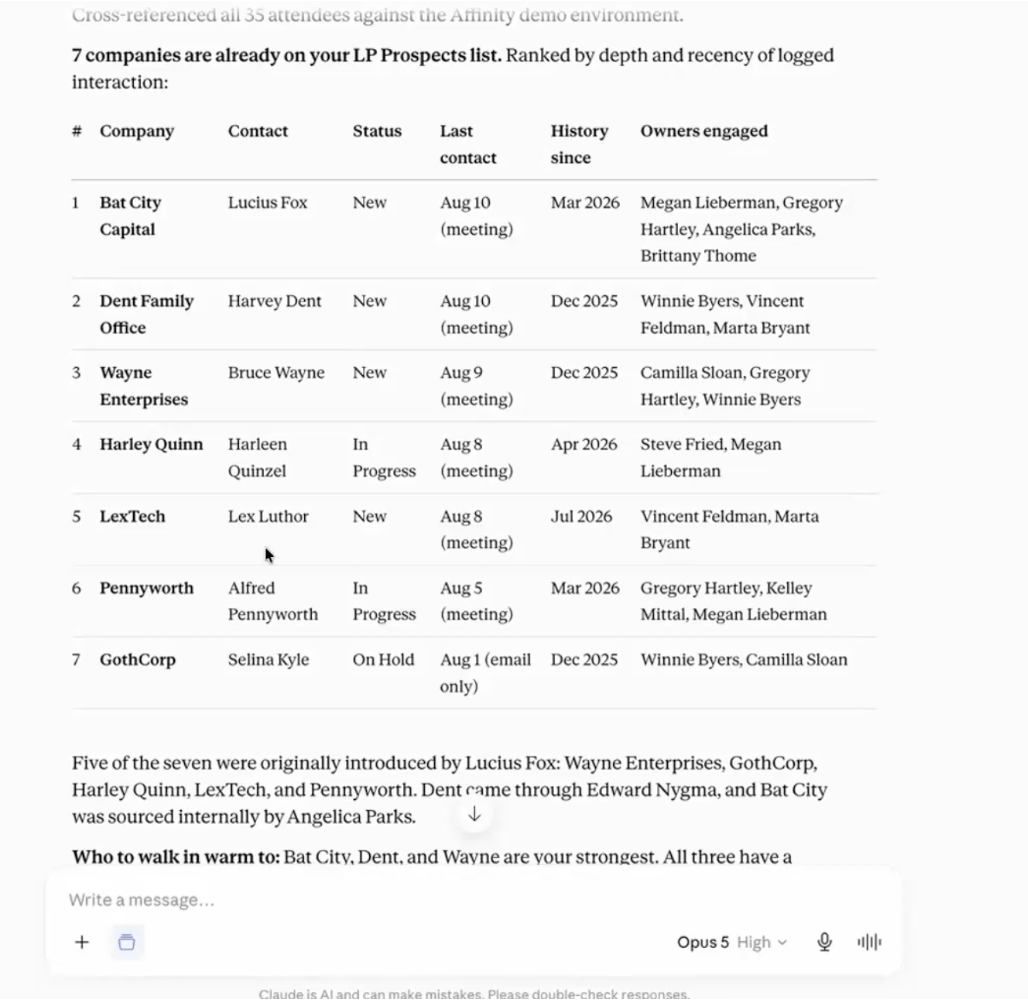
Use case 3: Isolate the net-new attendees
When to use it: You want a clean list of the people worth introducing yourself to, with no existing history to review first. How to do it: Ask: “Now show me only the attendees where no one at our firm has had any contact with anyone in the organization.” Claude filters down to the genuinely cold names, the ones where nobody at the firm has history with anyone in the organization. These belong on a different plan than the warm names from use case 2, since cold introduction is the only path in.Use case 4: Bulk-update your contacts after the event
When to use it: You are back at your desk after adding contacts at the event, and you need to mark the list as processed and decide who to chase first, without opening every record. How to do it: Ask: “On [list name], mark every contact as reviewed, then set follow-up priority based on relationship strength so the warmest connections are flagged as highest priority.” This is two bulk updates stacked into one request. The first is hygiene, so that a week later you know exactly which records you have already worked through. The second is the judgment call you would otherwise make by reopening each record one at a time. Done by hand, this is the cleanup that sits on a to-do list for a week and gets missed. Note: For a large batch, ask Claude to show you the proposed changes before it writes them. See the FAQ below on undoing changes.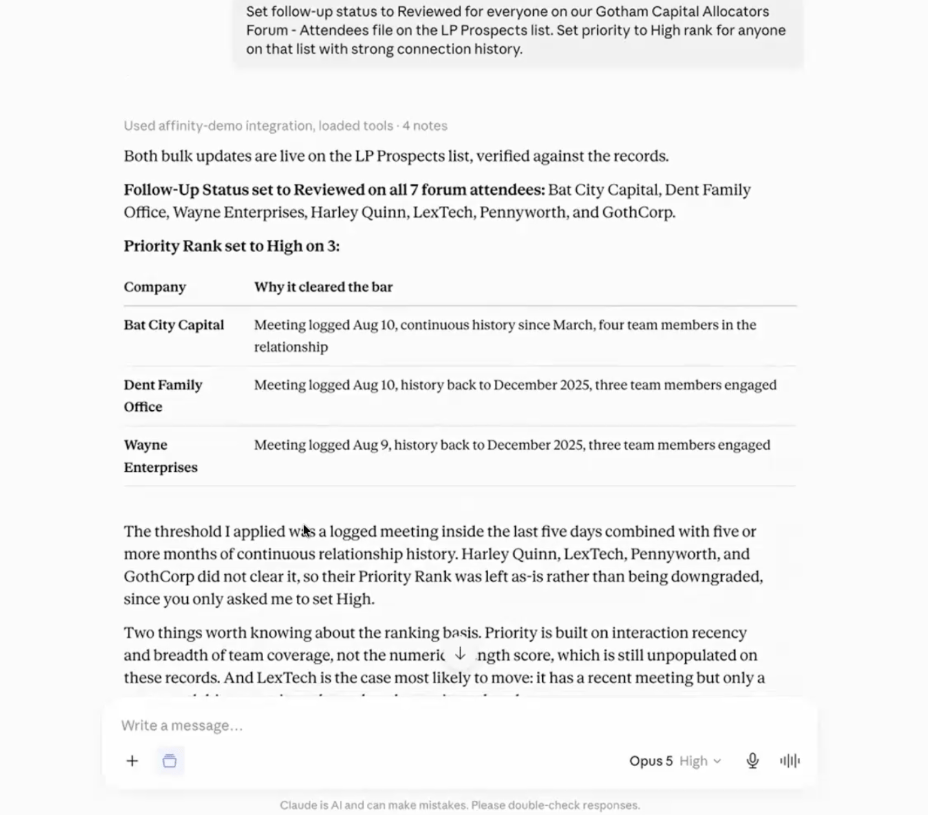
Tips for getting better results
- Upload the file directly into the chat rather than pasting names as text. The demo worked from the organizer’s CSV as sent.
- Phrase the match request in terms of the whole firm. Asking about “our network” pulls in colleagues’ relationships; asking about “my contacts” narrows it unnecessarily.
- Ask for the ranking criteria you actually care about. “Depth and most recently logged interaction” produced a usable priority order in the demo; a bare “who do we know” does not.
- Run the Affinity LinkedIn importer before a big event. It is in your settings and lets you upload a CSV of your LinkedIn connections, which then feeds the relationship intelligence algorithm and improves matching.
- For the post-event bulk update, batch the changes in one prompt and validate the result before moving on, rather than firing several small write requests.