

How configuration works
There are three things you can configure:- Admin (org level). An admin enables or disables Ascend for the whole organization at Settings → Automations & AI → Affinity AI, on the Ascend card. This gates whether agents are available to the org at all. Ascend has been on by default since August 5 unless your firm opted out.
- Firm context (admin, optional). People with the Manage Affinity AI feature access permission can write org-wide instructions on the Meeting Prep Agent card, and anyone who can edit a field can add a field description in New Lists for the Data Update agent to read. See Give Ascend agents your firm’s context.
- Per-user Monitoring. Once agents are enabled for the org, each member turns Monitoring on or off for each background agent on the Ascend → Agents tab. Monitoring is the general term for letting an agent work on its own; what it does depends on the agent — for Meeting Prep it automatically generates your meeting briefs, and for Data Update it generates suggested field updates whenever a new meeting note is created. Only the two background agents — Meeting Prep and Data Update — have a Monitoring toggle. Warm Intro runs on demand from Chat (no toggle), and Document Synthesis is coming soon (a visible card with no toggle yet).
Monitoring controls the automatic overnight run — not whether you can get a brief at all.
With Monitoring off, the Meeting Prep agent won’t prepare briefs for you overnight, but you can
still open any external meeting and click Generate Brief. That’s a good way to try the agent
before you turn it on.
Where agents live
Once enabled, agents appear under Ascend in the left navigation (a separate top-level item from Chat). The Ascend area has Agent Activity, Activity History, and Agents tabs.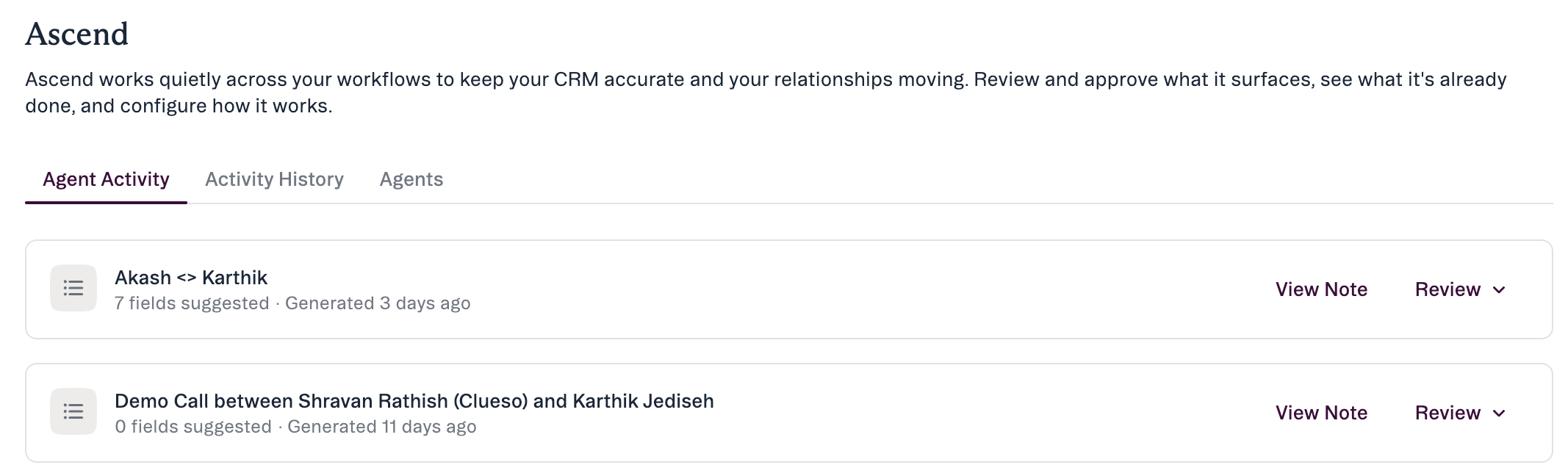
Who can use agents
Agents are available on Scale, Advanced, and Enterprise. How each runs differs:- Meeting Prep — a background agent. Turn on its automatic overnight run with the Monitoring toggle in Ascend → Agents. Briefs can be generated on demand whether or not Monitoring is on.
- Data Update — a background agent. Turn it on with the Monitoring toggle in Ascend → Agents.
- Warm Intro — runs on demand from Chat (no toggle). Also available as the
warm_introMCP skill. - Document Synthesis — coming soon. You’ll see its card, but it isn’t functional yet and has no toggle.
Notetaker is available on Scale and above. It’s the primary source for the Data Update agent’s post-meeting suggestions. Notetaker feeds the agents but isn’t part of Ascend.
Turn agents on (admin, org level)
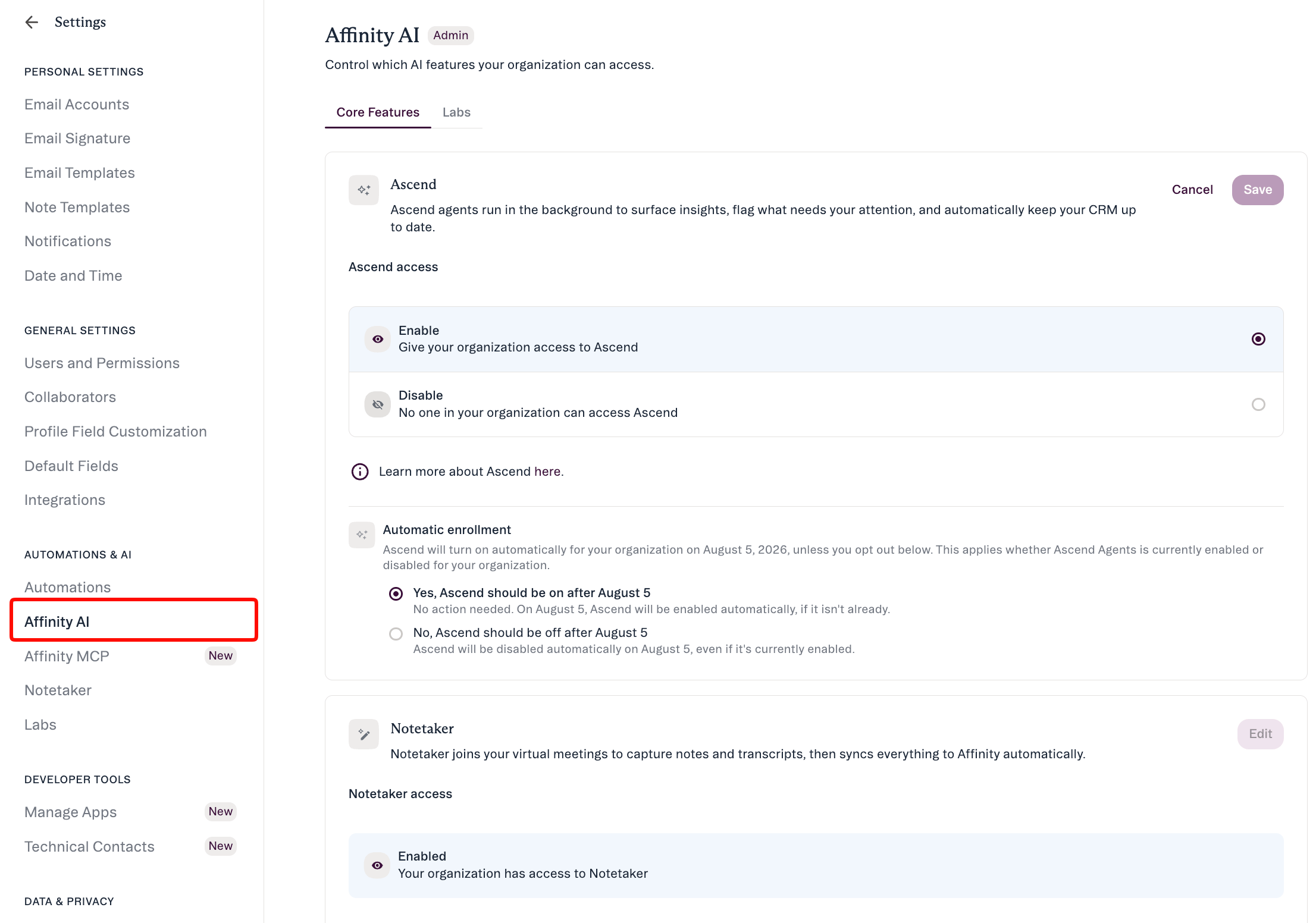
- An admin opens Settings → Automations & AI → Affinity AI. This page is titled Affinity AI, carries an Admin badge, and has Core Features and Labs tabs.
- On the Ascend card, click Edit, choose Enable or Disable, and click Save. (Other cards on this page control Notetaker, AI Chat, and Industry Insights.)
- Enabled agents become available to members. Monitoring is off for each member until they turn it on: each member turns Monitoring on for the background agents they want in Ascend → Agents.
Turn Monitoring on or off for yourself (per-user)
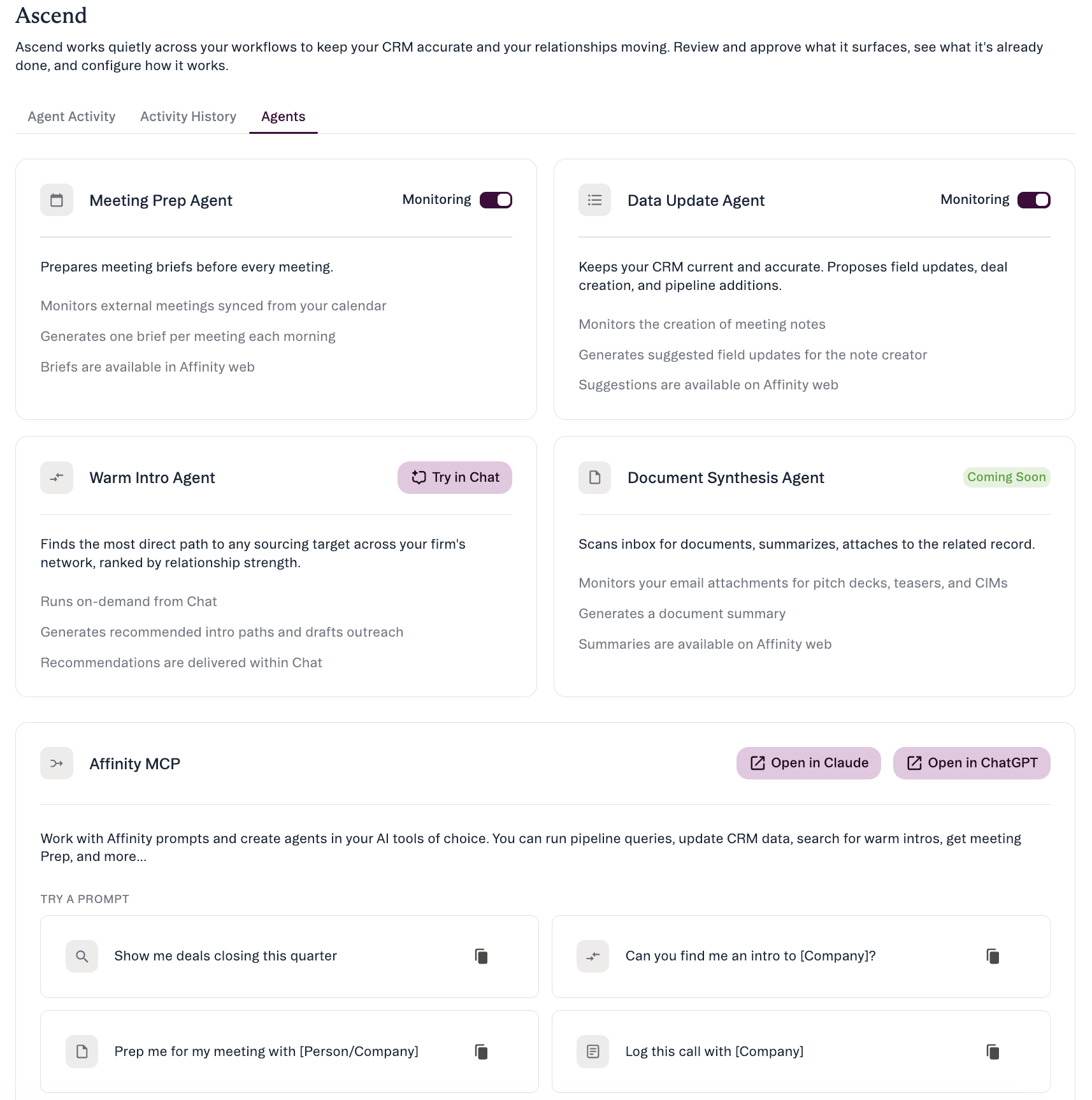
- Open Ascend in the left navigation and go to the Agents tab.
- Use the Monitoring toggle next to each background agent (Meeting Prep and Data Update) to turn it on or off for your own account. Turning Monitoring off stops that agent for you only. Warm Intro has no toggle (it runs on demand from Chat); Document Synthesis is coming soon.
- Turn Monitoring back on at any time from the same tab; queued suggestions stay available for review.
What “Monitoring” means — and why a brief calls it something else. Monitoring is the general
term for letting an agent work on its own. What it actually does depends on the agent:
- Meeting Prep — automatically generates your meeting briefs.
- Data Update — generates suggested field updates whenever a new meeting note is created.
Admin vs. user controls
- Admins set org-wide availability — whether Ascend is enabled for the organization — on the Affinity AI page (Settings → Automations & AI → Affinity AI), and can add Meeting Prep instructions for everyone on the Meeting Prep Agent card.
- Users turn Monitoring on or off for the background agents (Meeting Prep, Data Update) on the Ascend → Agents tab, and review and apply their own suggestions.
Common questions
- Will turning agents on change anything immediately? No. An agent starts preparing suggestions; nothing reaches your CRM until you approve it.
- Can I turn an agent off? Yes — an admin for the whole org at Settings → Automations & AI → Affinity AI, and each member via the Monitoring toggle on Ascend → Agents. Only Meeting Prep and Data Update have a Monitoring toggle.
- Do I need Monitoring on to get a meeting brief? No. Monitoring governs the automatic overnight run. With it off you can still open an external meeting — in the Meetings panel or the Start Your Day module — and click Generate Brief.
- Why does the brief say “Auto Daily Briefs” when the Agents tab says “Monitoring”? They’re the same setting. Monitoring is the general term used across both background agents — for Meeting Prep it means automatically generating briefs, for Data Update it means generating suggested field updates on new meeting notes. Inside a brief, where only Meeting Prep is relevant, it’s named for what it does there. The banner appears only when the setting is off.
- Can we tailor what the agents produce? Yes. Admins can steer Meeting Prep briefs with org-wide instructions, and field descriptions help the Data Update agent suggest values in your format. See Give Ascend agents your firm’s context.
- How do I use Warm Intro? Ask for it in Chat — it runs on demand, so there’s no toggle.
- Do I need a specific plan? Yes — agents require Scale, Advanced, or Enterprise. Notetaker, the source for the Data Update agent’s suggestions, requires Scale and above.
If something’s not working
Affinity AI can make mistakes. Review each suggestion before approving it.