Documentation Index

Fetch the complete documentation index at: https://support.affinity.co/llms.txt

Use this file to discover all available pages before exploring further.

Concept — background and overview.
Last Updated: April 8, 2026 Object Tags: AI chat, Getting Started, Conversational AI, Natural Language

What is AI chat?

AI chat is a conversational interface to your Affinity CRM. Instead of building filters or clicking through profiles, ask questions in natural language and get instant answers grounded in your firm’s data. Think of it as: A knowledgeable colleague who has instant access to every company, person, note, and interaction in your CRM—ready to answer questions conversationally. What makes it different:
  • vs Search: AI chat is conversational—ask follow-up questions, refine queries, explore
  • vs Filters: No UI to learn—just describe what you want in plain language
  • vs Manual clicking: Aggregates data across profiles instantly instead of tab-hopping

What AI chat Does Well

AI chat excels at retrieval and exploration—finding data, summarizing context, and preparing for action: ✅ Meeting preparation: “Help me prepare for my meeting with Acme Corp” ✅ Finding companies by criteria: “Find B2B SaaS companies at Series B in San Francisco” ✅ Entity-specific (company or person) queries on notes and files ✅ Can search external web on recent news about a company ✅ Preserves conversation history for each individual chat session

What AI chat Doesn’t Do (Beta v1)

AI chat focuses on finding and summarizing in Beta, with limited action capabilities: ❌ Cannot create notes, set reminders or update CRM fields (planned for future release) ❌ Not available on mobile (web app only)

How to Access AI chat

  1. Log into Affinity web app
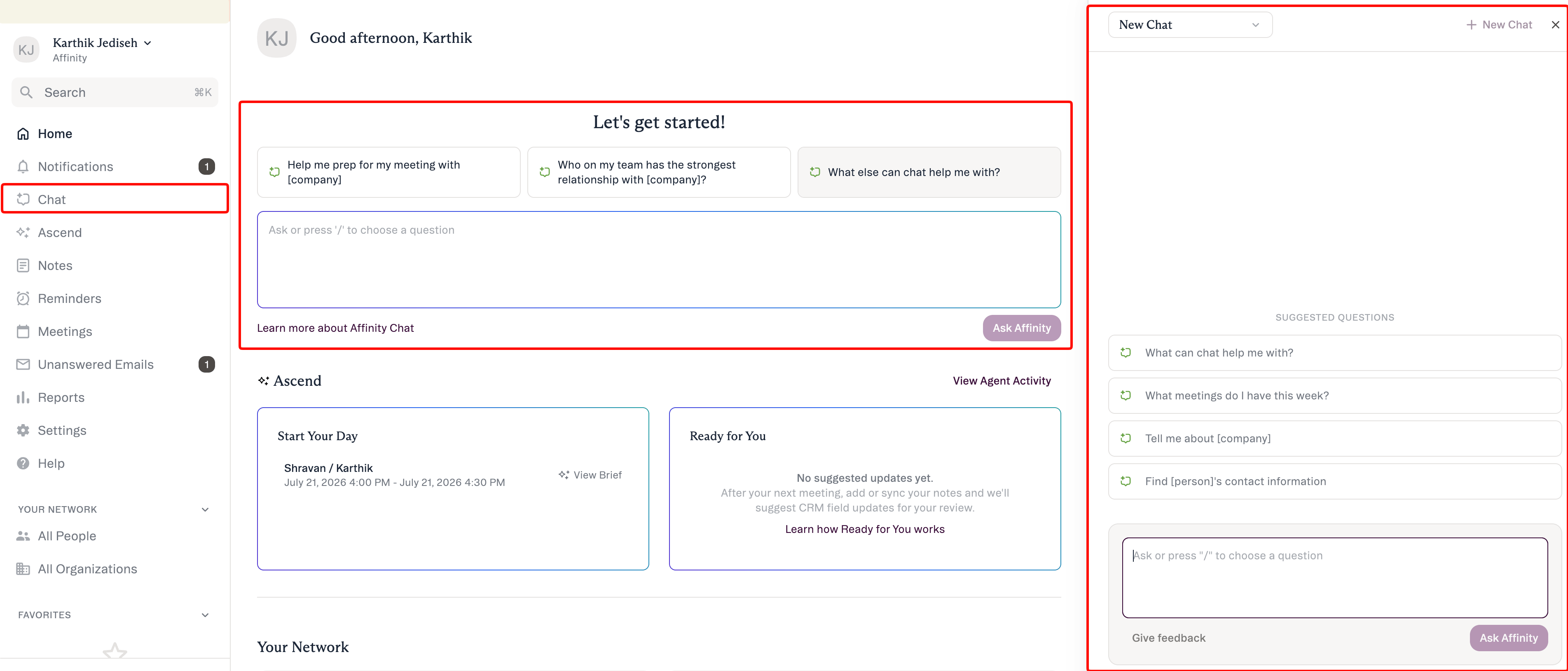
  2. Look for AI chat icon in the interface
  3. Click to open chat panel
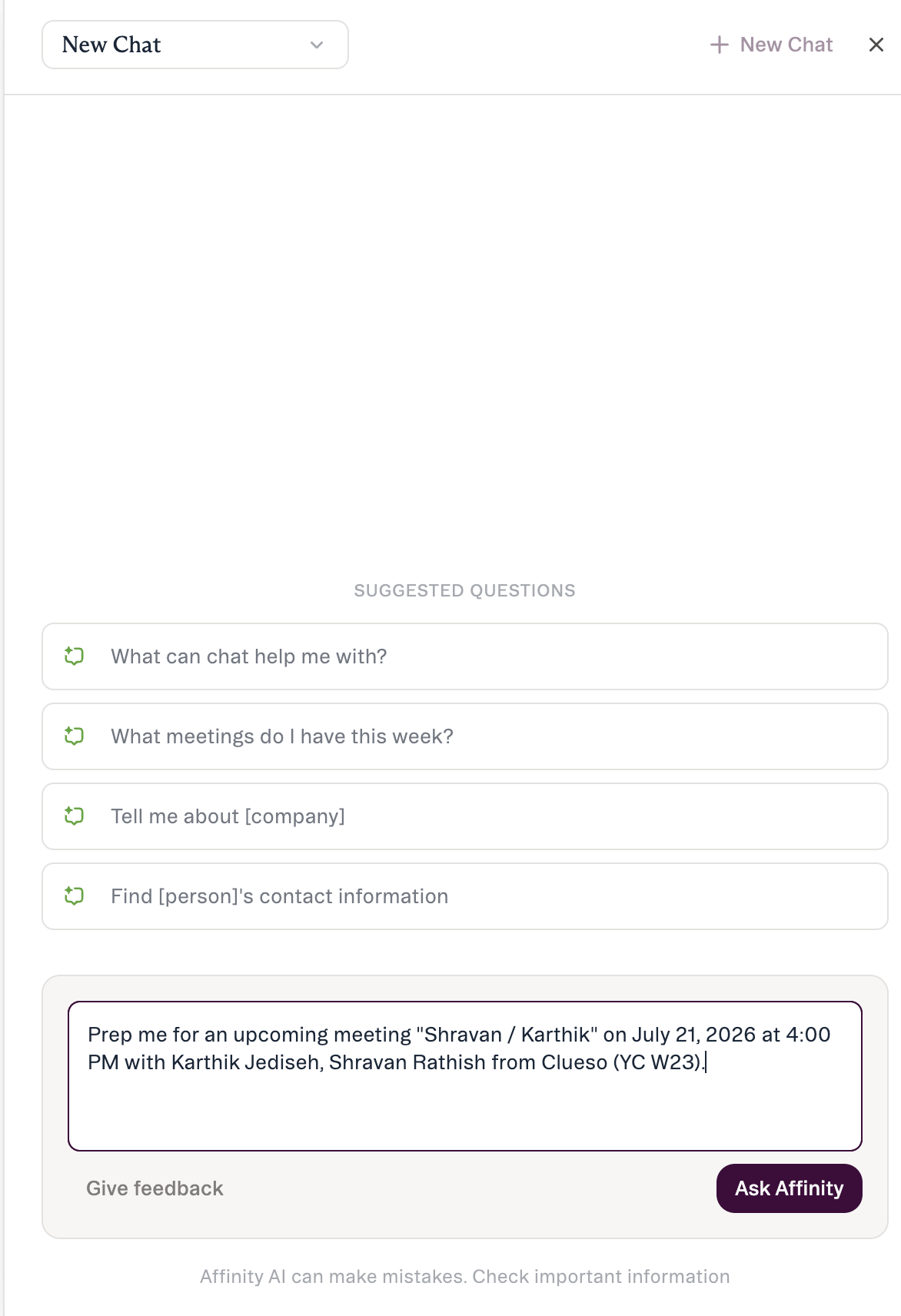
  4. Type your question or select a suggested prompt
  5. AI chat responds with data from your CRM and leverages Recent News on Companies, when relevant to the question Available for: Scale, Advanced, and Enterprise tier customers (auto-enabled week of April 14, 2026)

Your First 5 Queries

Try these prompts to understand what AI chat can do:

1. Meeting Prep (The #1 Use Case)

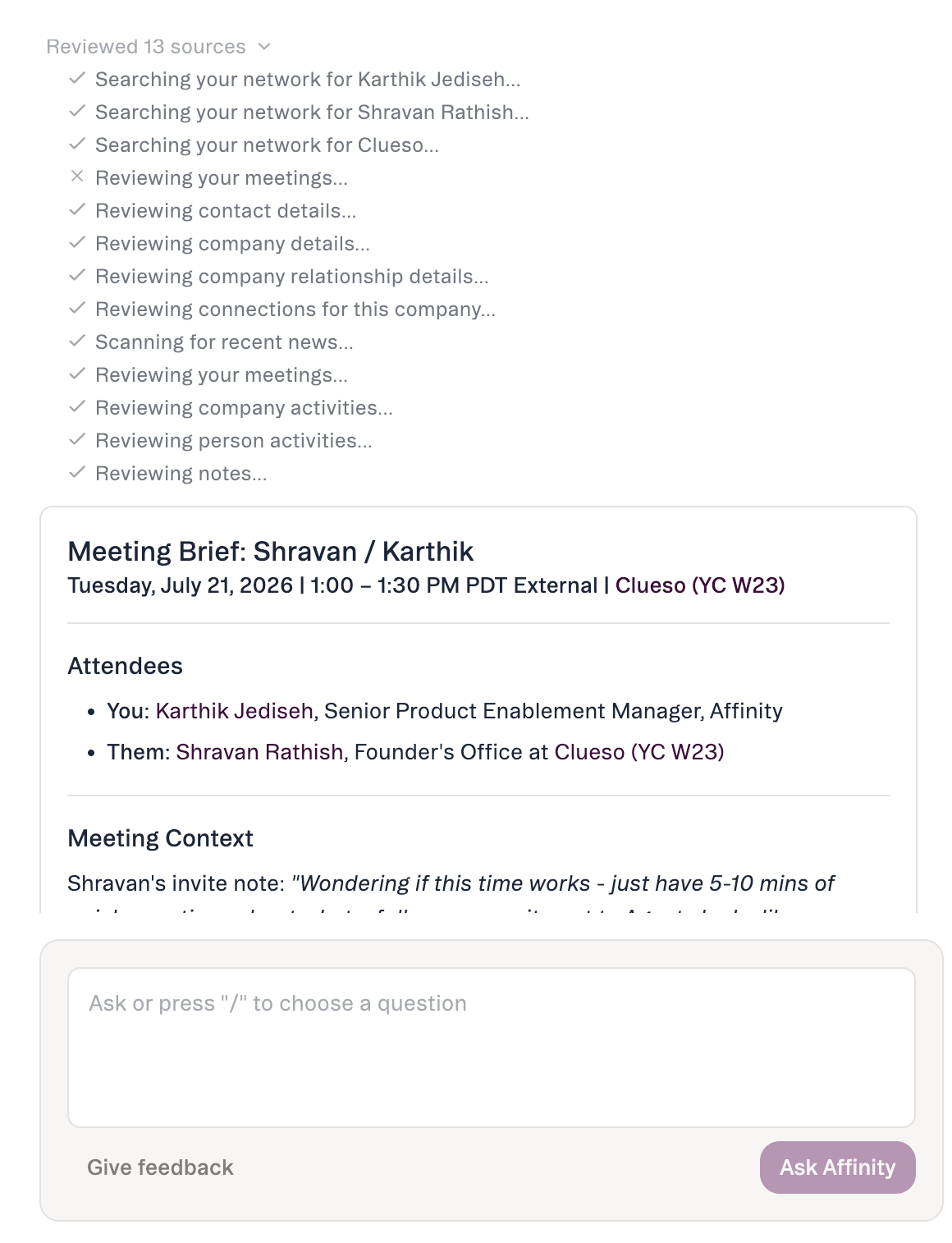
Type: “Help me prepare for my meeting with [Company Name]” Replace [Company Name] with an actual company in your CRM What you’ll get:
  • Last interaction date
  • Recent notes summary
  • Team members who’ve engaged
  • Relationship history
  • Key discussion points Why start here: Meeting prep is what AI chat does best—instant context without clicking through profiles.

2. Company Discovery (Finding Companies)

Type: “Find B2B SaaS companies at Series B in [Your City]” What you’ll get: Companies matching criteria, funding details, location, recent activity Replace: Your target sector, stage, location

3. Company Queries

Type: “What is [Company]‘s annual revenue?” Or try: “Tell me about [Company]” What you’ll get: Company overview, funding, stage, key metrics from CRM Tip: Point the chat to look in a particular Note or File or even a web search.

4. Activity History

Type: “When did we last interact with [Company]?” What you’ll get: Last contact date, interaction type, brief context Or try: “Show me our recent activity with [Person]“

Basic Prompting Principles

1. Be Specific

Bad: “Find companies” ✅ Better: “Find healthcare companies in Boston at Series A” Include: Entity names, timeframes, criteria (industry, stage, location)

2. Iterate and Refine

First: “Find companies we should invest in” Then: “Find B2B SaaS companies at Series B” Best: “Find B2B SaaS at Series B we met in past 6 months but haven’t contacted in 60 days” Tip: Refining is normal—add details until you get what you need. Note that the AI chat will not provide you with investment advice.

3. Verify Critical Data

⚠️ Always verify before making decisions:
  • Click through to profiles to confirm data
  • Verify contact info and dates manually
  • Use AI chat for exploration, not final truth Why: AI chat is helpful but it’s still AI—treat as starting point.
Note: If AI chat asks “Which company?” when multiple match, this is expected behavior—provide more specifics to clarify. Partial results: If AI chat says “first 20 of 50 results”, ask “show more” to load additional results.

How to Give Feedback

Every AI chat response has a thumbs up/down: 👍 Thumbs up: Response was helpful and accurate 👎 Thumbs down: Response was wrong, unhelpful, or confusing When you click thumbs down:
  1. Modal appears asking for context
  2. Add details: What was wrong? What did you expect?
  3. Click Submit
  4. Your conversation and feedback route to Affinity’s product team Your feedback directly shapes:
  • Which queries get prioritized for improvement
  • What capabilities get built post-GA
  • How AI chat interprets private capital workflows Be specific in feedback:
  • ❌ “Didn’t work” (not actionable)
  • ✅ “Expected to see last meeting date but it wasn’t included” (actionable)

When to Use AI chat vs Manual Tools

Use AI chat When:

Exploring: “What do we know about companies in climate tech?” ✅ Preparing: “Help me prep for this meeting” ✅ Finding: “Show me deals that match these criteria” ✅ Researching: “What notes mention due diligence concerns?” ✅ Quick lookups: “What’s Acme Corp’s revenue?” AI chat saves time when:
  • You don’t know exact filters to use
  • Data is scattered across profiles
  • You want to explore before taking action
  • You need context quickly (meeting in 10 minutes)

Use Manual Tools When:

🔧 Bulk updating: Changing status on 20 deals at once 🔧 Precise control: Need exact field values entered specific way 🔧 Creating content: Building IC memos, tear sheets (use manual tools + file analyzer) Key data lives in other tools within your tech stack. We only have context on what is in the CRM + recent news online. If other context is critical to answer the question, try out our MCP beta!

Tips for Success

Start broad, then narrow:
  1. Begin with a general query
  2. Review results
  3. Ask follow-up to refine
  4. Iterate until you get what you need Copy responses for later:
  • Click copy button on any AI chat response
  • Paste into Affinity notes (formatting preserved)
  • Saves context for your team Use suggested questions:
  • When opening AI chat, you’ll see 4 suggested prompts
  • Click any to try
  • Use as templates for your own queries Be specific with entity names:
  • Use full company names, not abbreviations
  • Include context when ambiguous (“Acme Corp the B2B SaaS company”)
  • Add timeframes (“in Q4 2025”, “past 30 days”) Verify before acting:
  • Use AI chat to explore and prepare
  • Click through to profiles to verify critical data
  • Always double-check before making investment decisions

What’s Coming Next

Between beta and GA releases
  • Ability to set reminders GA Release (May 2026):
  • Pipeline Queries: “Which deals haven’t we contacted in 90 days?”
  • Finding People based on criteria: “Who are all of the New York-based, AI Founders in our network”
  • Context-aware suggestions: Prompts change based on profile context Future Releases (Post-GA, Timeline TBD):
  • Notes & Knowledge Retrieval: Search notes by keyword across profiles
  • Enhanced action capabilities: Create notes, update fields from chat
  • Mobile access: AI chat on iOS app
  • Advanced relationship intelligence Your feedback determines priority—use thumbs down to share what you need most.

Need Help?

Questions about AI chat:
  • Contact: Affinity Support at affinitycrm-feedback@affinity.co AI chat not working as expected:
  • Try rephrasing your query with more specificity
  • Verify the data exists in your CRM manually
  • Use thumbs down to report the issue
  • Contact support if problem persists Feature requests:
  • Use thumbs down with context explaining what you need
  • Feedback routes directly to Affinity’s product team