

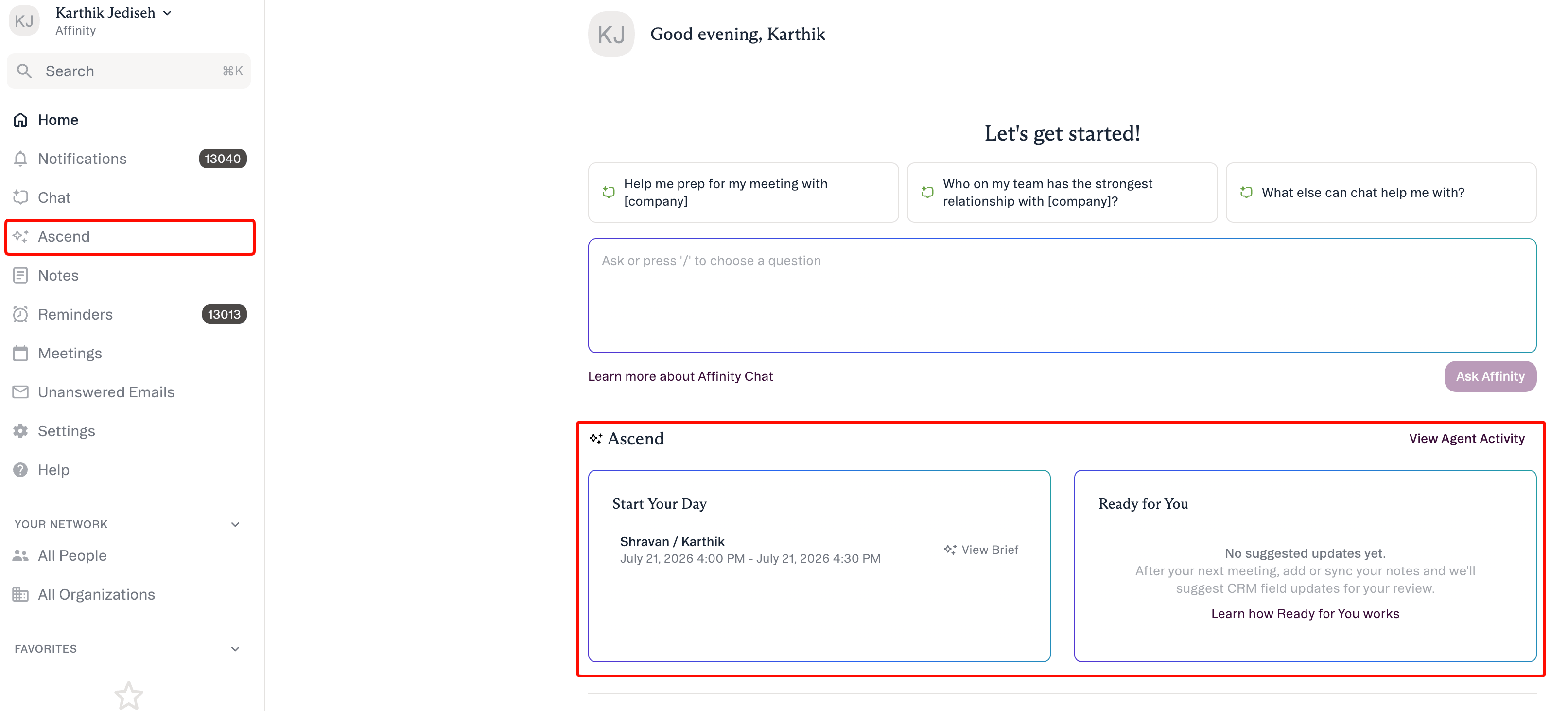
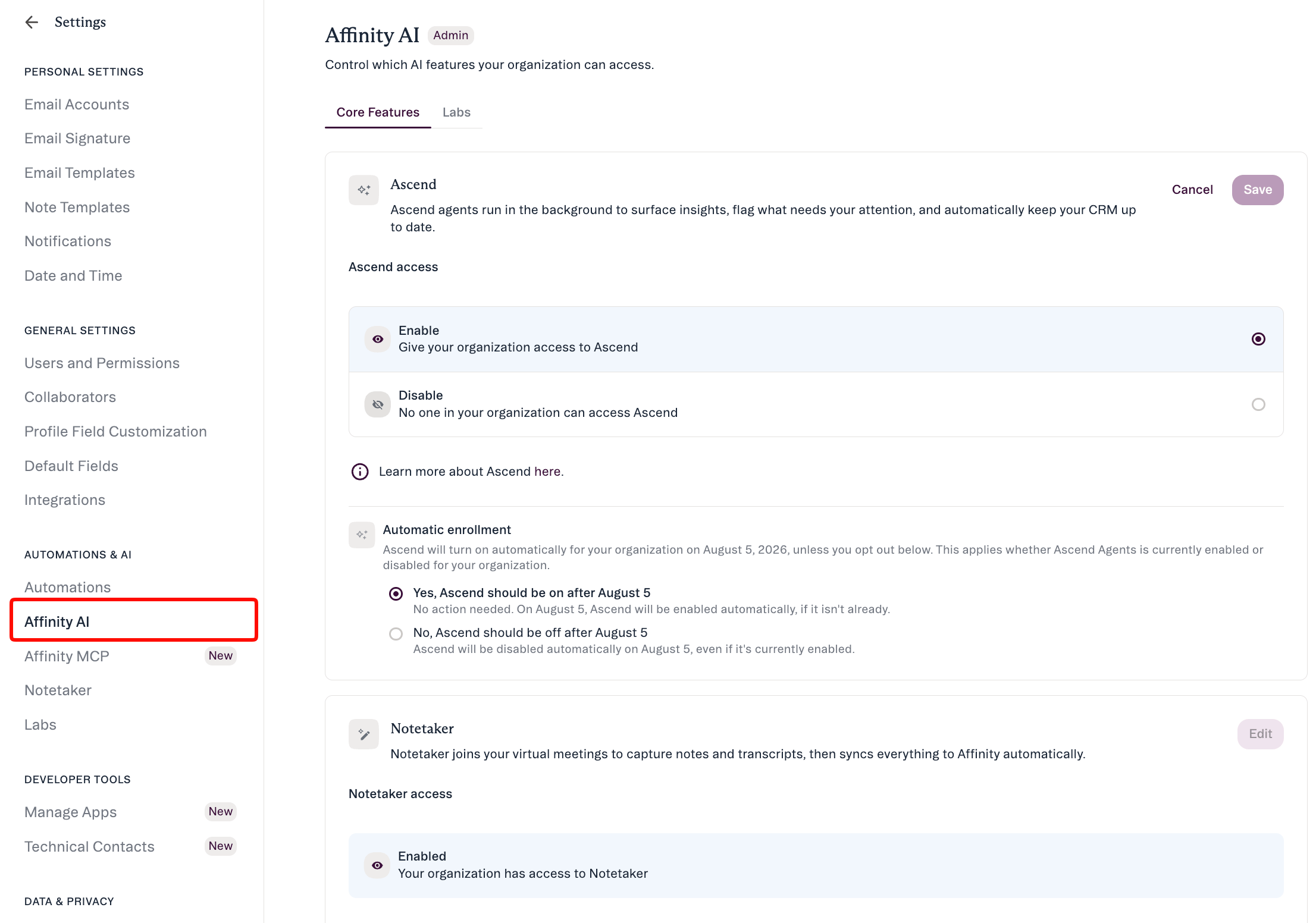
Getting access: Ascend is on by default for your firm unless an admin turned it off. Admins — manage it at Settings → Automations & AI → Affinity AI; see Enabling Affinity Ascend — An Admin’s Guide. Everyone else — turn on Monitoring in Ascend → Agents, or ask your admin if Ascend isn’t showing.
What are Affinity agents
An Affinity agent does a specific job — preparing you for meetings, keeping your CRM current, or finding a warm path into a company — and suggests what to do next. Most agents run in the background; one (Warm Intro) runs on demand when you ask in Chat. An agent never changes your CRM on its own. Every agent follows the same trust model:The agent suggests → you review → you approve.
- Human-in-the-loop. Suggestions wait in a review queue until you act.
- Scoped to your access. An agent only sees and changes what your own account already can.
- No silent outreach. Agents never send email or other outreach without your approval.
The agents
Four agents, all on Scale, Advanced, and Enterprise. Only Meeting Prep and Data Update are background agents you toggle (via Monitoring in Ascend → Agents); Warm Intro runs on demand from Chat; Document Synthesis is coming soon.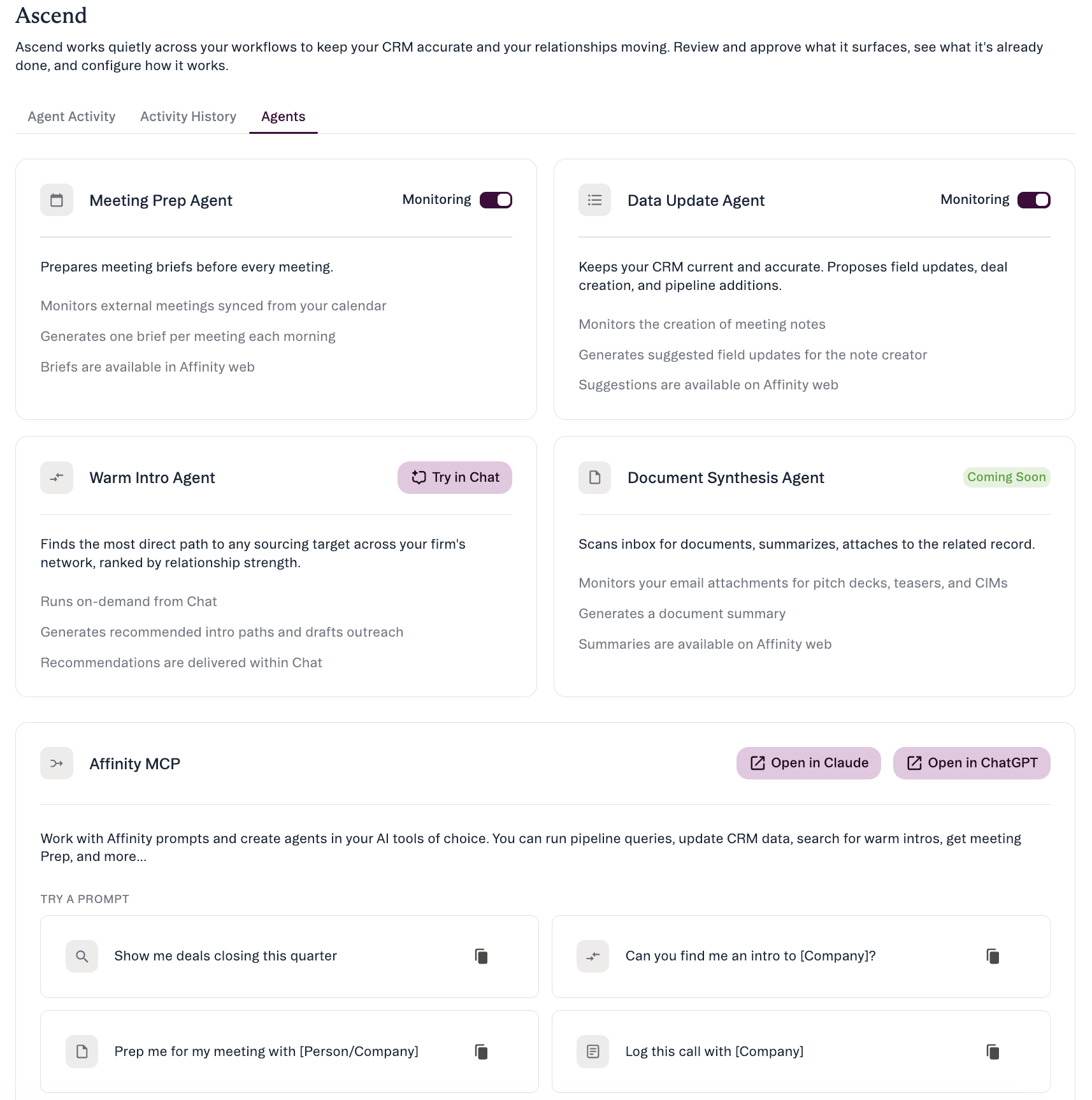
Meeting Prep — Background agent
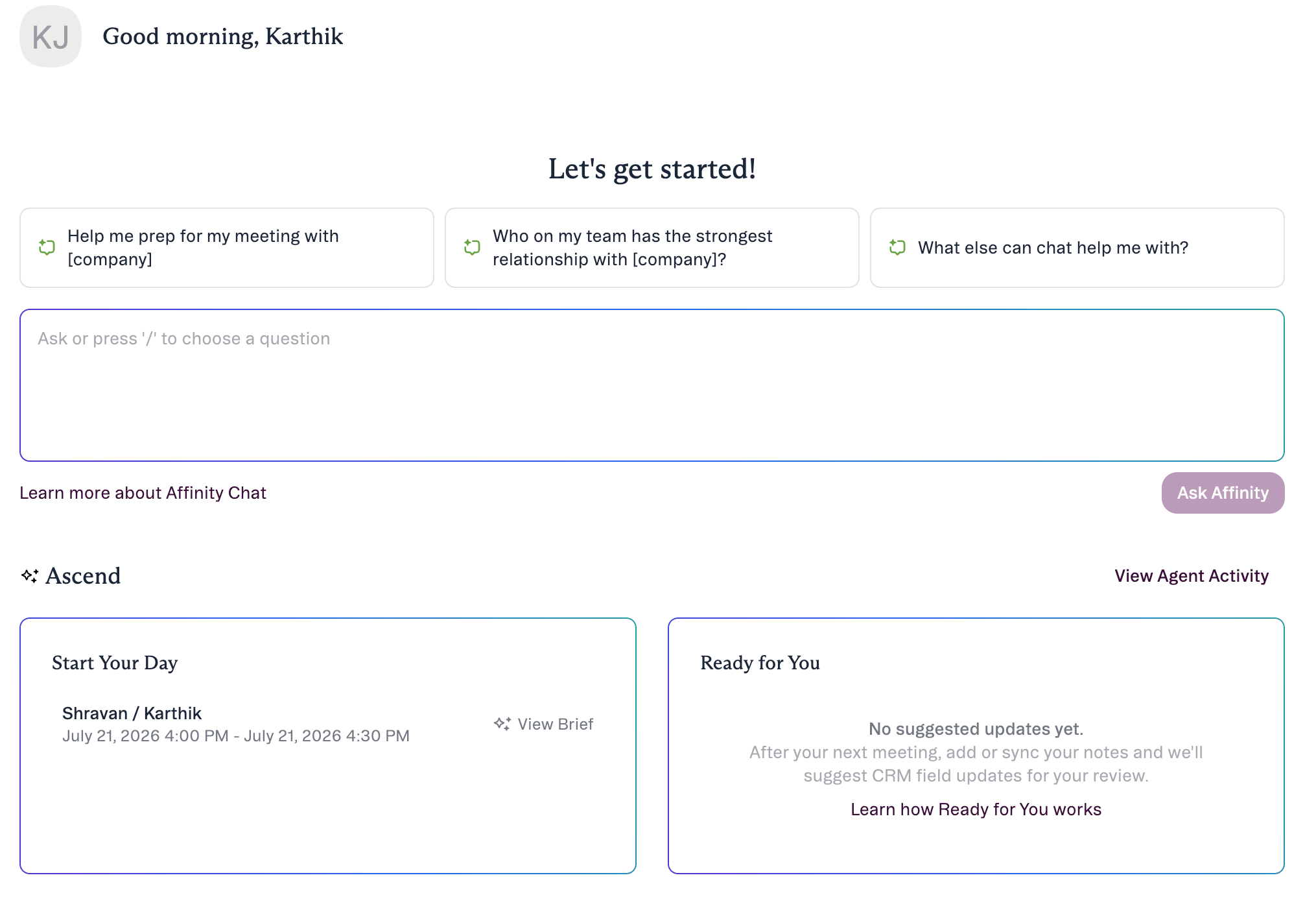

Data Update — Background agent
Reads a meeting note and proposes Suggested Field Updates you review and approve on the Agent Activity tab. It matches what was said against the fields you can already edit and waits for your approval.
Warm Intro — On demand from Chat
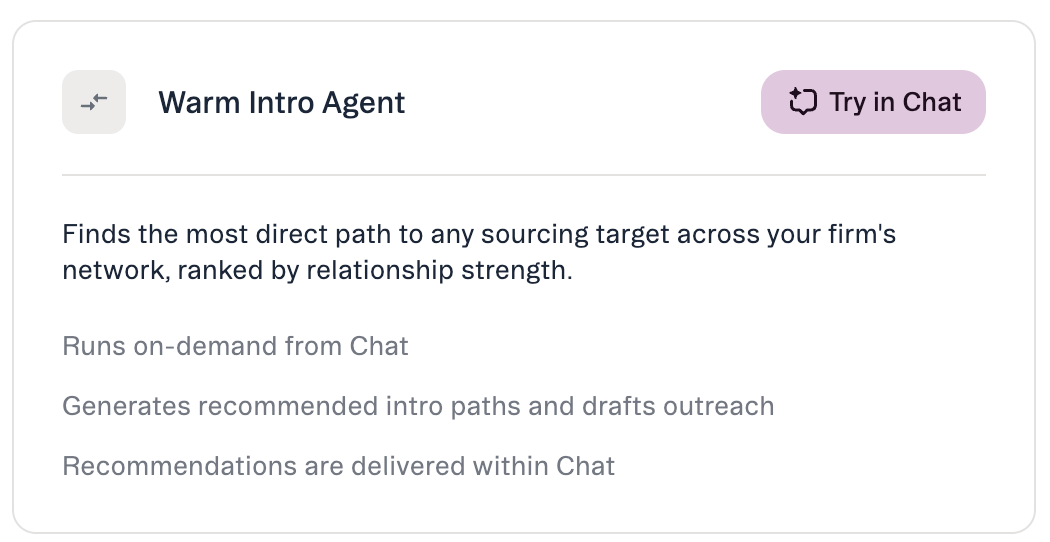
warm_intro MCP skill.
→ Warm Intros in AI Chat and MCP
Document Synthesis — Coming soon
Will watch for inbound PDF pitch decks, teasers, and CIMs, read them, and post a summary to Agent Activity. Coming soon — the card is visible but not functional yet. → Document SynthesisHow every agent keeps you in control
The Ascend area has three places to work:- Agent Activity — the queue of suggestions that need your review.
- Activity History — a read-only log of what the agent has already done.
- Agents — agent details and status.
How AI Chat fits alongside agents
AI Chat is a separate item in the left navigation from Ascend (a docked side panel), not an agent. Ask questions about your CRM in plain language and get answers grounded in your data with cited sources. Beyond answering, Chat can take four confirm-before-execute actions — Update Field, Add to List, Create Note, and Create Reminder. Applying Suggested Field Updates is not a Chat action; that’s the Data Update agent.Where to manage agents
- Ascend in the left nav — all your agents, their status, and anything pending your review. Agent names appear on the Agents tab.
- Settings → Automations & AI → Affinity AI — where admins enable or disable Ascend for the org, on the Ascend card.
- Ascend → Agents — where each member turns Monitoring on or off for each background agent (Meeting Prep, Data Update), and where admins write Agent Instructions for Meeting Prep. See Give Ascend agents your firm’s context.
Common questions
Will an agent change my CRM on its own? No. Every agent only suggests. Nothing is written until you review and approve it. How do I get access to each agent? With Ascend enabled for your org at Settings → Automations & AI → Affinity AI (the default), turn on the background agents (Meeting Prep, Data Update) with the Monitoring toggle in Ascend → Agents. (Monitoring is off until you turn it on.) Warm Intro runs on demand from Chat. Document Synthesis is coming soon. All require Scale, Advanced, or Enterprise. What if a suggestion is wrong? If it’s close, click Edit and correct it before applying. Otherwise leave it unchecked so it’s declined — nothing is applied for that field. You review each suggestion with its source before applying.Affinity AI can make mistakes. Review each suggestion before approving it.