

Where suggestions appear
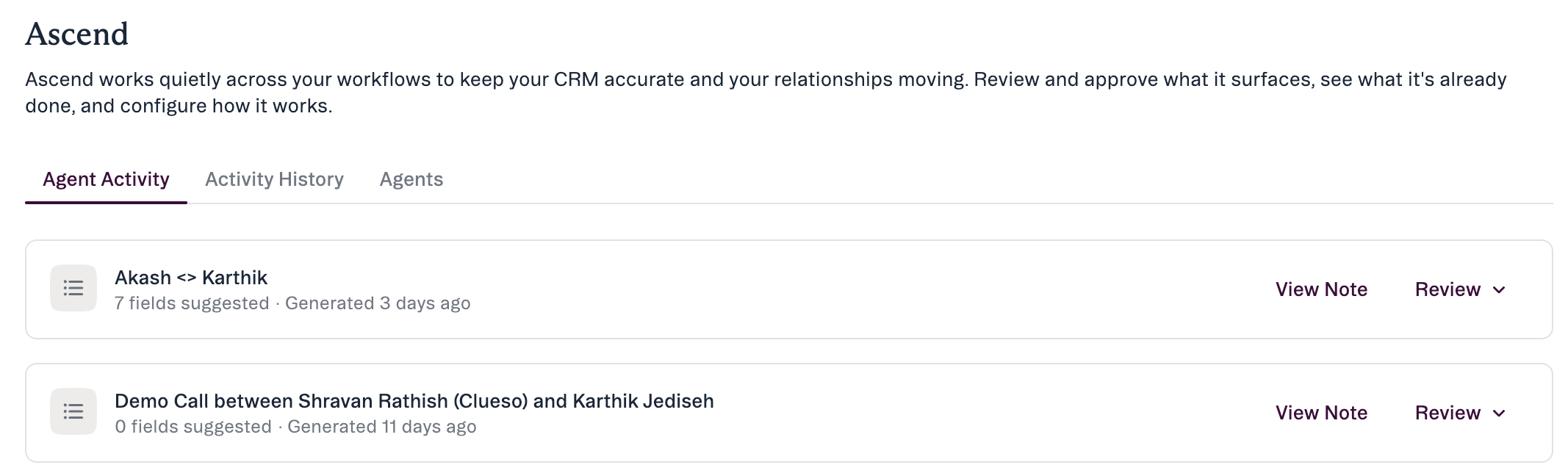
- Agent Activity — the queue of suggestions waiting for your review.
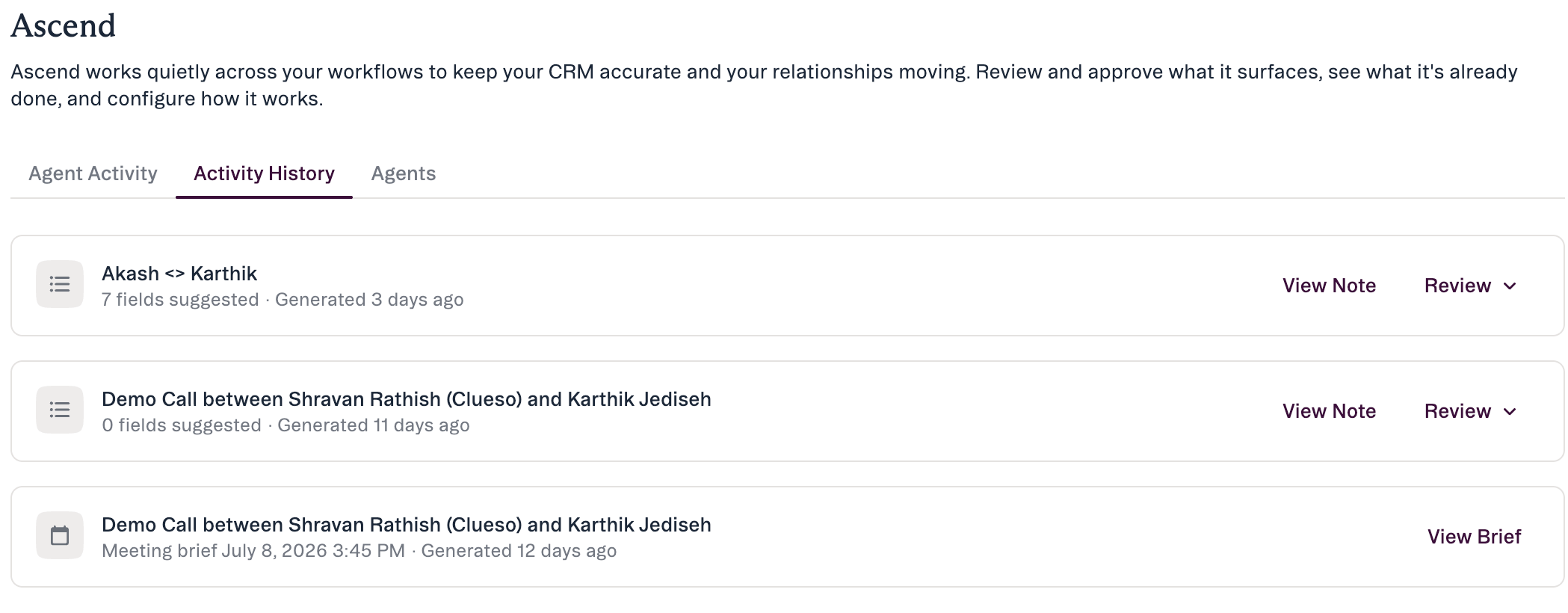
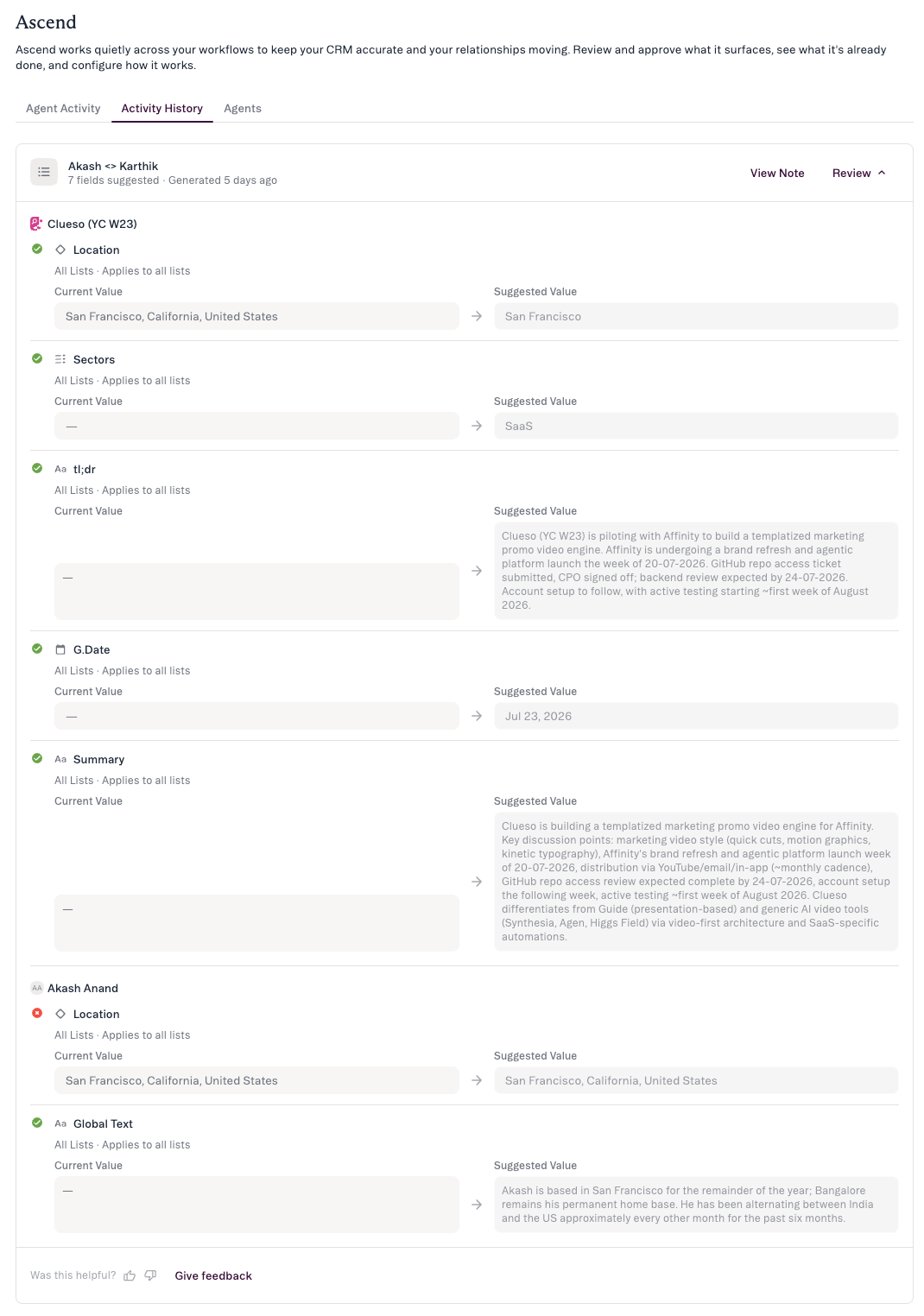
- Activity History — a read-only log of what the agent has already done (applied fields with a green check, declined with a gray minus, each showing Previous → Suggested).
- Agents — agent details and status.
Anatomy of a suggestion
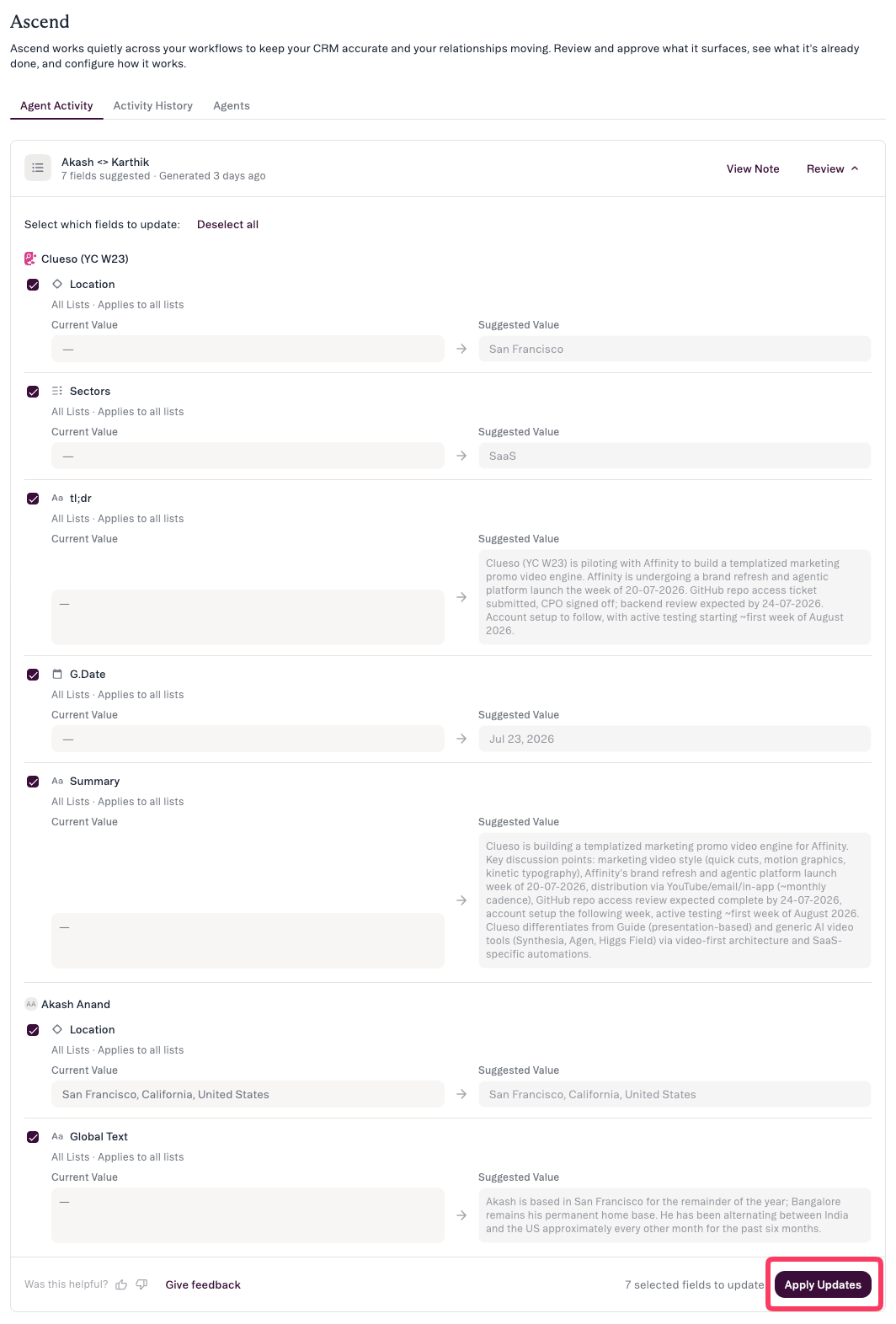
- Field — the field the agent proposes to update, with its scope (a global field or a list-specific field — any field you can edit).
- Current Value — what’s on the record now, with when it was last updated.
- Suggested Value — what the agent suggests changing it to. Click Edit to change this value yourself before applying; once you’ve changed it, Reset puts the agent’s suggestion back.
Apply all, some, or none
For each field you can apply it as suggested, edit the value first, or decline it.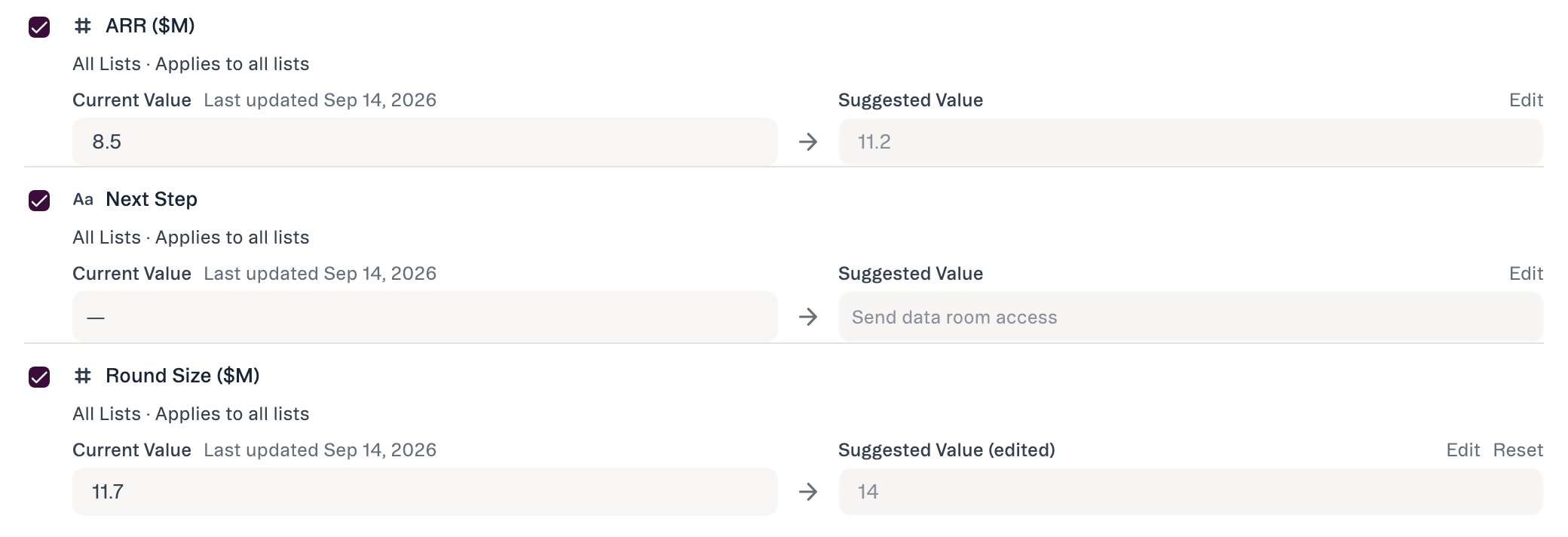
- Apply all — use Select all, then Apply Updates.
- Apply some — check only the fields you want, then Apply Updates.
- Edit before applying — click Edit on the suggested value, change it, then apply. Useful when the agent read the note correctly but landed on the wrong wording, unit, or precision. Click Reset to go back to the agent’s suggestion.
- Apply none — leave everything unchecked and click Apply Updates. Nothing is written, and you’ll see No updates applied.
What happens after you apply
Getting access
- Plan tiers. Ascend agents are available on Scale, Advanced, and Enterprise.
- Org enablement. An admin enables or disables Ascend for the org at Settings → Automations & AI → Affinity AI (it’s on by default). Each user then turns Monitoring on or off for each background agent (Meeting Prep and Data Update) on the Ascend → Agents tab.
How to stay in control
- Nothing is automatic. An agent never writes to your CRM, and never sends email or outreach, without your explicit approval.
- You only ever see what’s yours to act on. An agent can only see and change what your own account already can; suggestions come to you as the person who should review them.
- You can turn an agent off. An admin at Settings → Automations & AI → Affinity AI, or each user via the Monitoring toggle on Ascend → Agents.
Common questions
- Will it change anything on its own? No. Nothing is written to the CRM until you click Apply Updates.
- What if I do nothing? Unreviewed suggestions stay on Agent Activity — they are never auto-applied.
- Can I edit a suggested value before applying? Yes. Click Edit on the suggested value, change it, then apply — the value you apply is what’s written to your CRM. Reset undoes your change before you apply.
- The suggestion is wrong — what do I do? If the value is close but not right, click Edit and correct it. If it shouldn’t be applied at all, leave it unchecked so it’s declined when you Apply Updates.
- Why doesn’t it suggest updates to enriched fields? Because applying one would break the enrichment. When a value is written over an enriched cell, Affinity stops auto-syncing that cell. Rather than have an agent sever that quietly, the Data Update agent skips enriched fields altogether and focuses on the fields only your team maintains. You can still override an enriched value yourself — see Enriched, global and list specific fields for exactly what happens when you do.
- Why don’t I see any suggestions? Ascend may not be enabled for your org, Monitoring may be off, the agent may be unavailable on your plan, or it hasn’t had qualifying work yet.
If something looks off
Affinity AI can make mistakes. Review each suggestion before approving it.