

Affinity Ascend has been on by default since August 5 for every firm that didn’t opt out. As an admin, you can turn it on or off for your organization at any time. This guide covers what the agents do, why they’re safe to enable, and how to turn them on or off.
What Affinity Ascend is
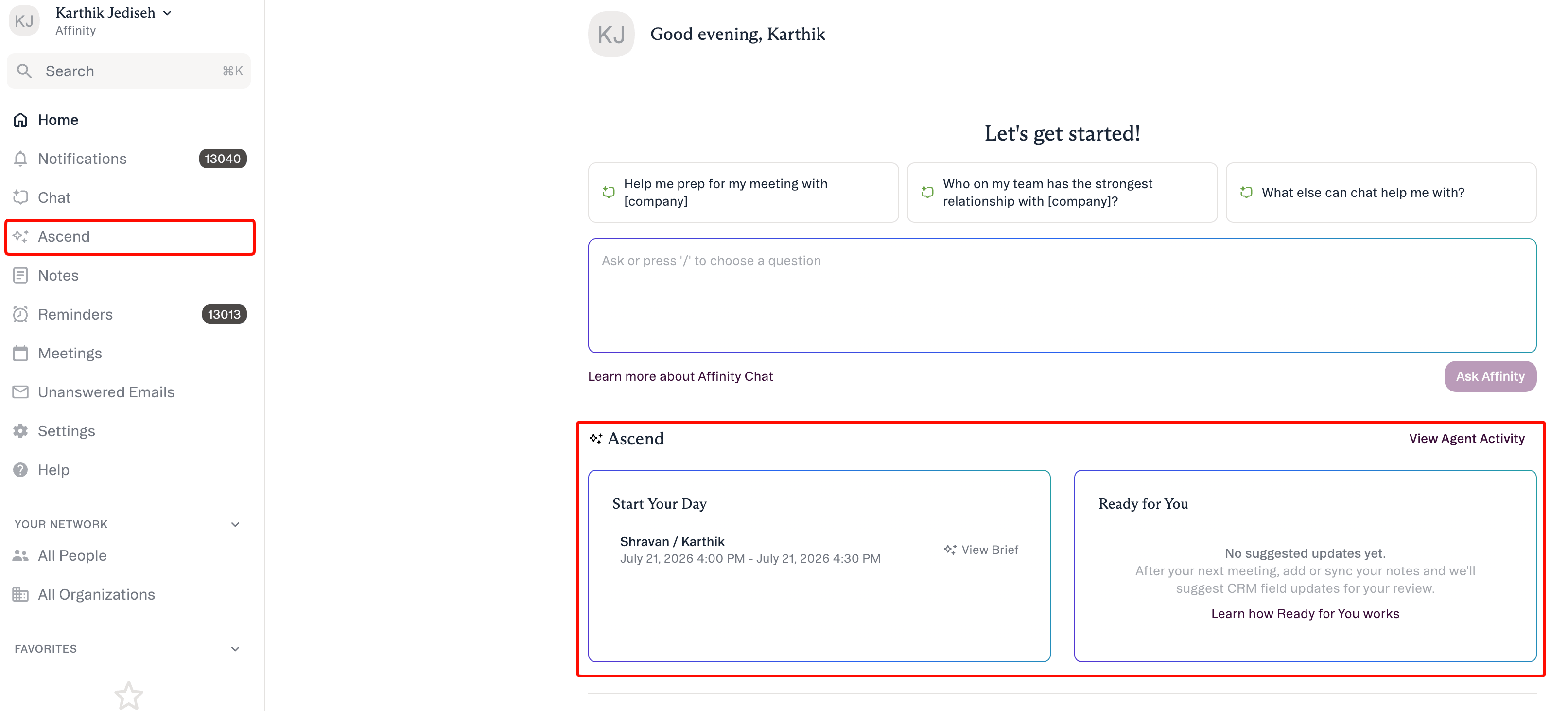
Ascend is Affinity’s AI layer — agents that do routine work in the background and surface suggestions for your team to review and approve. At launch:- Meeting Prep — an automatic brief before each external meeting (relationship history, deal context, recent interactions, and news).
- Data Update — reads meeting notes and suggests the CRM field updates they imply, waiting for your approval.
- Warm Intro — on request in AI Chat, finds the best path to a target across your firm’s network and drafts the ask.
Why turn it on
- Give your team time back. Meeting Prep replaces manual pre-meeting research — briefs for external meetings are ready in the morning for anyone who turns on Monitoring, and anyone can generate one on demand. (Investors commonly spend ~20 minutes preparing per meeting today.)
- Keep your CRM current without manual entry. Data Update turns what happened in a meeting into suggested field updates, so your pipeline reflects reality instead of going stale.
- The value compounds. Better data makes every list, dashboard, and AI surface more useful.
Why it’s safe to enable
- Human-in-the-loop, always. No agent writes to your CRM without explicit approval.
- Scoped to each user’s own access. An agent only ever sees and changes the records and fields that user can already access.
- You stay in control. You turn Ascend on or off for the whole organization; individual users can turn each agent on or off for themselves.
- Your data is not used to train AI models. Affinity’s contracts with its AI providers prohibit using your data to train their models.
- Enterprise-grade data handling. See the Affinity Trust Center and the Affinity Subprocessors list. For a security, IT, or compliance review, your Affinity team can share the Affinity Ascend — Security, Privacy & Trust overview.
How to turn it on
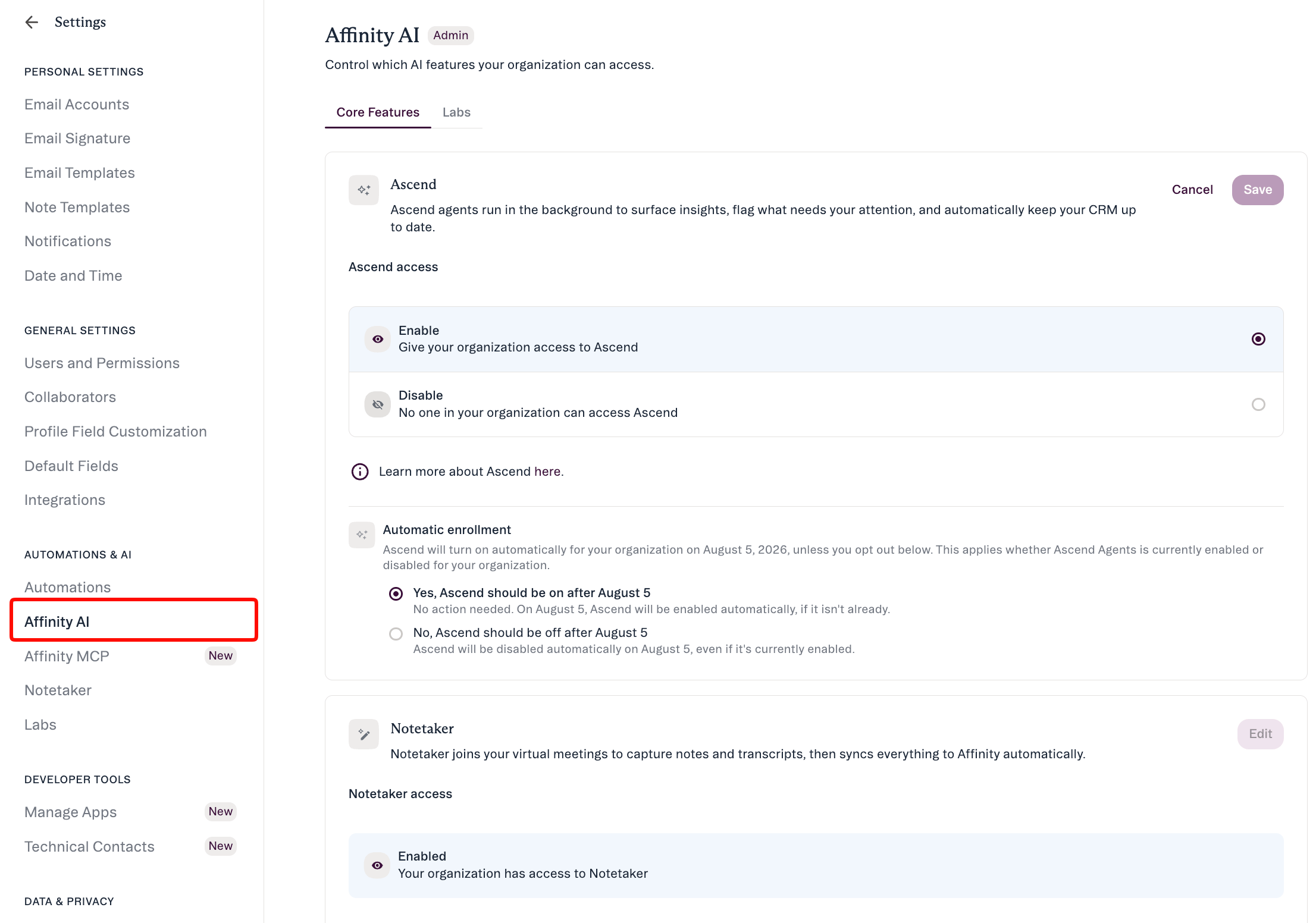
- Go to Settings → Automations & AI → Affinity AI.
- Find the Ascend card.
- Click Edit and Toggle Enable for your organization.
- Don’t forget to click Save.
What happens when you enable it
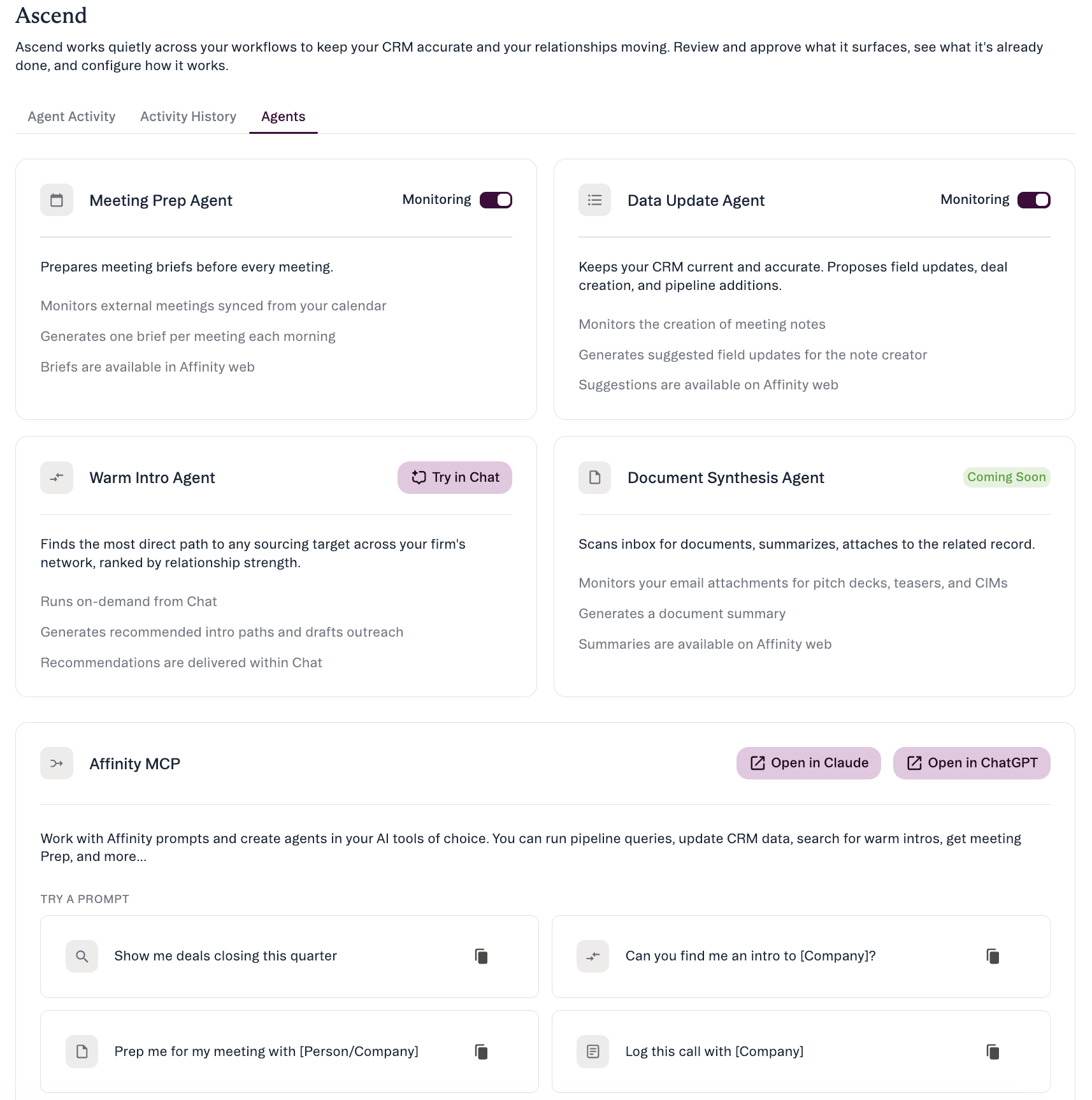
- Ascend turns on for your organization. Meeting Prep and Data Update run for each user once that user turns Monitoring on in Ascend → Agents, which is off by default.
- Agent output appears in-app — on the Affinity home page (Start Your Day / Ready for You) and in the Ascend area. Where Meeting Prep is monitoring a user’s meetings, briefs are ready each morning (around 7 AM local time); there’s no email or notification.
- Users can also generate a brief on demand for any external meeting, from the Meetings panel or Start Your Day — this works whether or not they’ve turned Monitoring on for themselves. Your org-level control is the real gate: if Ascend is disabled for the organization, neither path is available.
- Available on Scale, Advanced, and Enterprise. Free during launch; usage-based pricing later, with advance notice.
Get your team up to speed
Once Ascend is on, point your team to: Working with Affinity agents · Meeting Prep & Data Update · Review & approve an agent’s suggestions · Affinity AI Chat.Common admin questions
- Do I have to enable it? No. It has been on by default since August 5 unless your firm opted out. You can turn it off on the Ascend card at any time.
- Can I turn it off later? Yes — same Ascend card, any time. Individual users can also turn Monitoring off for themselves.
- Who sees the suggestions? They go to the relevant user (for Data Update, the person who created the meeting note) to review. Once applied, a change appears on the record like any other edit.
- Does our data leave Affinity or get used for AI training? Your data is not used to train AI models. Processing follows Affinity’s standard security and data-handling practices — see the Trust Center.
- Not used to train AI models. Affinity’s contracts with its AI providers prohibit using your data to train their models.
- Processed by Affinity’s contracted AI providers. The AI subprocessors behind these features are listed on the Affinity Subprocessors page. Data is sent to generate the brief or suggestion and returned into Affinity for your review.
- Same practices as the rest of Affinity. AI features follow Affinity’s standard data-security, retention, and compliance practices; certifications and policy documentation live in the Affinity Trust Center.
- What does it cost? Available to all customers on Scale and up at no additional cost.
- What if someone on my team doesn’t want it? Monitoring is off for each user until they turn it on, and they can turn it back off at any time in Ascend → Agents.
- Can the agents act without us knowing? No. You control enablement at the org level (see above), and every write is user-approved and recorded — nothing is written to your CRM without a person approving it.
- Can we restrict who uses it? Yes — org-level enablement plus per-user toggles, and agents respect each user’s existing permissions.
- Can we tailor the output to how our firm works? Yes. Admins can write org-wide instructions for Meeting Prep briefs, and field descriptions guide the Data Update agent’s suggestions. Neither can make an agent write without approval. See Give Ascend agents your firm’s context.
- Where is our data processed and stored? Is EU residency available? Regional and residency specifics vary; contact your account team for the current details and supporting documentation.
- We have recording / consent concerns (e.g. SEC, two-party consent). Data Update works from your own meeting notes; your account team and the Trust Center can provide the material to support your compliance review.
Affinity AI can make mistakes. Your team reviews every suggestion before it’s applied.